# Admin Attendance Sheet
URL: https://whitepenguin.sonicar.tech/docs/attendance/admin-attendance-sheet/
> View the admin attendance sheet to track admins with the following data: Name, Time In, Time Out, Hours Worked, Reason/Note, and Status.
## Overview [#overview]
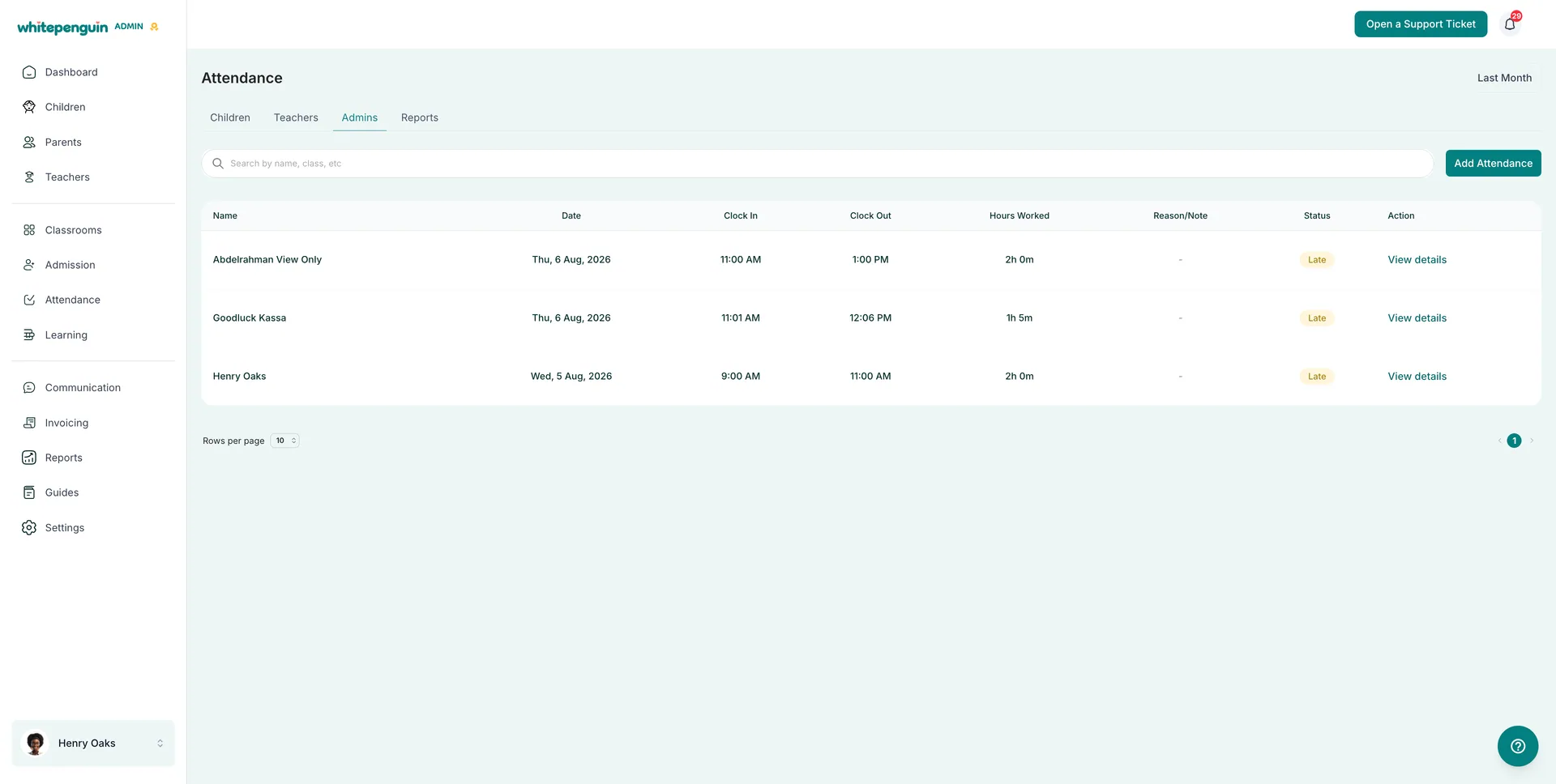
The **Admin Attendance Sheet** is the **Admins** tab of the **Attendance** section. It records every clock-in and clock-out for your admin users, calculates the hours they worked, and marks each record as **Present**, **Late**, **Absent**, or **On Leave**.
The **Attendance** section is organized into four tabs:
| Tab | What It Shows |
| ------------ | -------------------------------------- |
| **Children** | Attendance records for every child. |
| **Teachers** | Attendance records for teaching staff. |
| **Admins** | Attendance records for admin users. |
| **Reports** | Attendance reports and summaries. |
Each row on the **Admins** tab is one attendance record:
| Column | What It Shows |
| ---------------- | ----------------------------------------------------------------------------------------------------------- |
| **Name** | The admin user the record belongs to. |
| **Date** | The day of the record, including the weekday — for example *Thu, 6 Aug, 2026*. |
| **Clock In** | The time the admin started their day. |
| **Clock Out** | The time the admin finished. |
| **Hours Worked** | Total time between clock-in and clock-out — for example *2h 0m*. Shows a dash when it cannot be calculated. |
| **Reason/Note** | An optional note explaining a late arrival, an early finish, or an absence. |
| **Status** | **Present** or **Late**. |
| **Action** | **View details** opens that admin's full attendance profile. |
At the top of the page you can:
* Change the period with the **Date** dropdown.
* Find a specific record with **Search by name, class, etc**.
* Load more or fewer records with **Rows per page**.
**No classroom filter here.** Admin users are not tied to a classroom, so the **Admins** tab shows only the period dropdown — unlike the Children and Teachers tabs, which also have an **All Classrooms** filter.
## How to Access by Admins [#how-to-access-by-admins]
1. Click **Attendance** in the left sidebar.
2. Open the **Admins** tab.
3. Click **Add Attendance** to record a new entry, or click **View details** on any row to open that admin's attendance profile.
## Roles & Access [#roles--access]
**Access is based on custom roles.** Your **school admin** creates **custom roles** for all users and controls exactly which permissions each role has — **View**, **Edit**, **Create**, and **Delete** — for every section of the system, including Attendance.
| User | What they can do with admin attendance |
| ------------ | ------------------------------------------------------------------------------------------------------------------------------------------------- |
| **Admins** | **Create**, **view**, **edit**, and **delete** attendance records for any admin user. |
| **Teachers** | No access by default. With the right custom role, they can **view** and, if permitted, **create**, **edit**, **archive**, and **delete** records. |
| **Parents** | No access — staff attendance is never visible to parents. |
For staff users, each action maps to a permission on their custom role:
* **View** permission for Attendance — open the Admins tab and read records.
* **Create** permission — add a new attendance record.
* **Edit** permission — correct the times or the note on an existing record.
* **Delete** permission — archive or permanently remove a record.
**Where to manage roles:** Go to **Settings → Roles & Permissions**, then click **+ Create Role** to build a new custom role, or select an existing role to toggle its permissions. **Super Admin** permissions are fixed and cannot be edited.
## How to Add a New Attendance Record [#how-to-add-a-new-attendance-record]
From **Attendance → Admins**, click **Add Attendance** and fill in the record:
1. **Admin**
* Select the admin user the record belongs to.
2. **Date**
* Choose the day being recorded.
3. **Clock In**
* Enter the time the admin started.
4. **Clock Out**
* Enter the time the admin finished.
5. **Reason/Note** — optional
* Add a short explanation for a late arrival, an early finish, or an absence. This is what appears in the **Reason/Note** column.
6. **Save the record**
* The record appears in the list, **Hours Worked** is calculated from the two times, and the **Status** badge is set for the day.
## Reading an Admin's Attendance Profile [#reading-an-admins-attendance-profile]
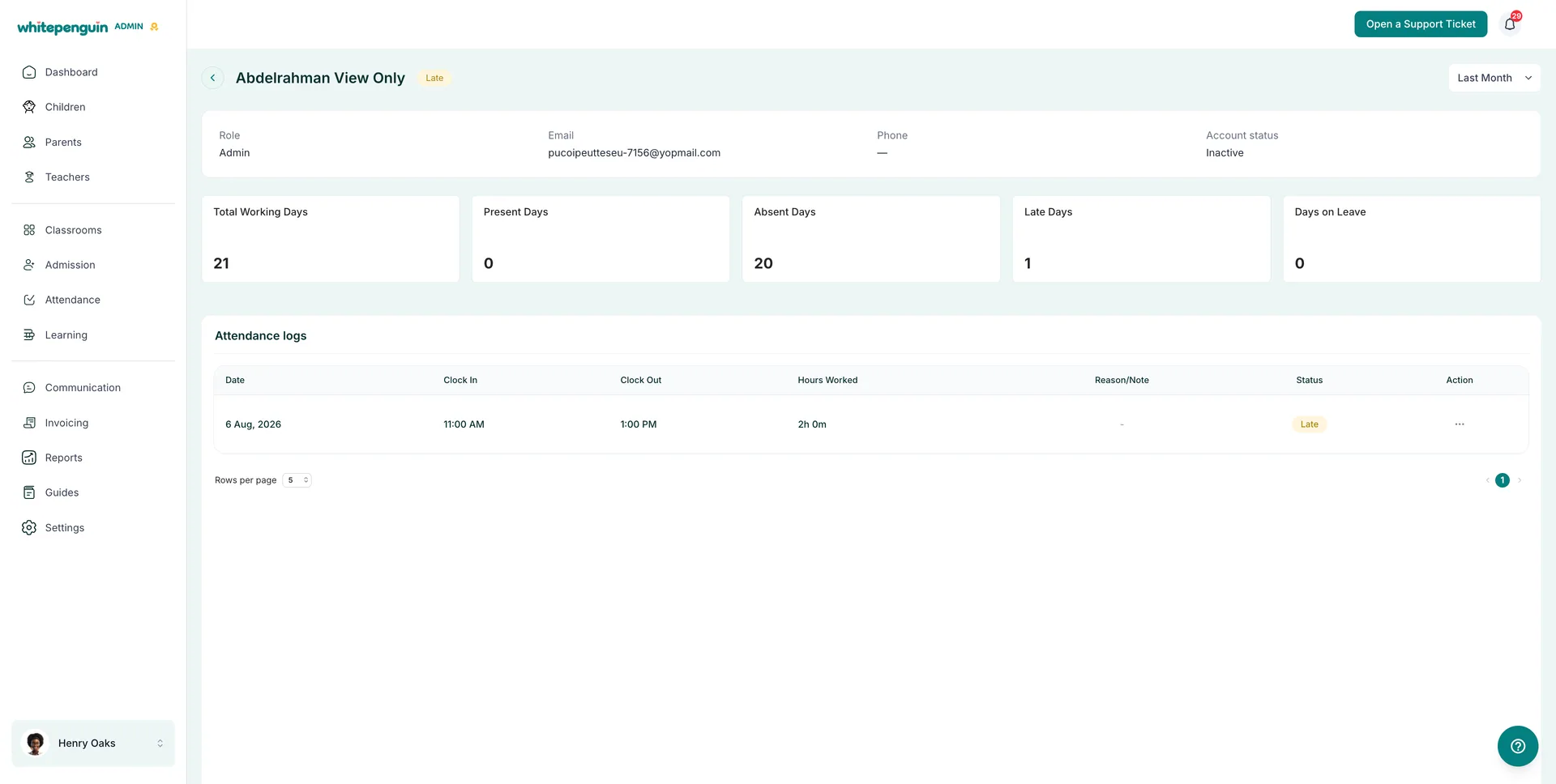
Click **View details** on any row to open that admin's profile. The header shows their name with the current status badge, plus a **Date** dropdown to change the period.
The profile row shows **Role**, **Email**, **Phone**, and **Account status**.
Below it, five summary cards cover the selected period:
| Card | What It Counts |
| ---------------------- | ---------------------------------------------------------- |
| **Total Working Days** | Working days in the selected period. |
| **Present Days** | Days the admin was marked **Present**. |
| **Absent Days** | Working days with no attendance recorded. |
| **Late Days** | Days the admin clocked in after their expected start time. |
| **Days on Leave** | Approved leave days. |
The **Attendance logs** table lists every individual record with its **Date**, **Clock In**, **Clock Out**, **Hours Worked**, **Reason/Note**, and **Status**, plus an **⋯** menu to **view**, **edit**, or **delete** that record.
## Attendance Statuses [#attendance-statuses]
| Status | Meaning |
| ------------ | ----------------------------------------------------- |
| **Present** | The admin clocked in on time and worked the day. |
| **Late** | The admin clocked in after their expected start time. |
| **Absent** | No attendance was recorded for a working day. |
| **On Leave** | Approved leave — counted under **Days on Leave**. |
## Tips [#tips]
* **Set the period first.** The list and every summary card follow the **Date** dropdown, so change it before reading the numbers.
* **Use the search bar** to jump straight to one admin instead of paging through the list — there is no classroom filter on this tab.
* **Always add a Reason/Note** for a late arrival or absence — it is the only context the record keeps, and it carries through to reports.
* **A dash in Hours Worked means the record is incomplete.** Open **View details** and correct the clock-in or clock-out time.
* **Check Account status on the profile.** An **Inactive** account still keeps its past records, which explains high **Absent Days** for someone who has left.
* **Watch Late Days, not just Absent Days.** An admin can be present every day and still be clocking in late.
* **Head to the Reports tab** when you need attendance totals across the whole team rather than one person at a time.
## FAQs [#faqs]
Admins can create, view, archive, and delete any record. Other users can add records if their **custom role** includes **Create** permission for Attendance.
Not by default. A teacher only sees child attendance for their assigned classrooms and children, plus their own record. A **custom role** with **View** permission for Attendance can open this tab, and further permissions can allow creating, editing, archiving, and deleting.
No. Parents have no access to admin attendance — they can only clock their own children in and out.
Because the total cannot be calculated — usually the record is missing a clock-out, or the clock-out time is earlier than the clock-in time. Fix the times and the total appears.
**Absent** means no attendance was recorded for a working day. **On Leave** means the day was approved leave, and it is counted separately under **Days on Leave**.
Attendance records are kept for history. The profile shows **Account status: Inactive**, but every record already logged for that user remains visible.
Admin users are not assigned to classrooms, so the Admins tab only offers the period dropdown and the search bar.
Yes — use the **Reports** tab in the Attendance section for summaries across staff and date ranges.