# Add & Manage Classrooms
URL: https://whitepenguin.sonicar.tech/docs/classrooms-activities/add-manage-classrooms/
> Learn how to create and manage classrooms in WhitePenguin — including adding new rooms, assigning staff, viewing enrolled children, and understanding who has access to do what.
## Overview [#overview]
Classrooms are the **core organizational unit** in WhitePenguin. Every child, teacher, attendance record, activity, and learning item is tied to a classroom. Before you can enroll children or assign teachers, a classroom must first be created in the system.
The **Classrooms** section has two tabs:
| Tab | What It Shows |
| ---------------------- | ------------------------------------------------------------------------------------- |
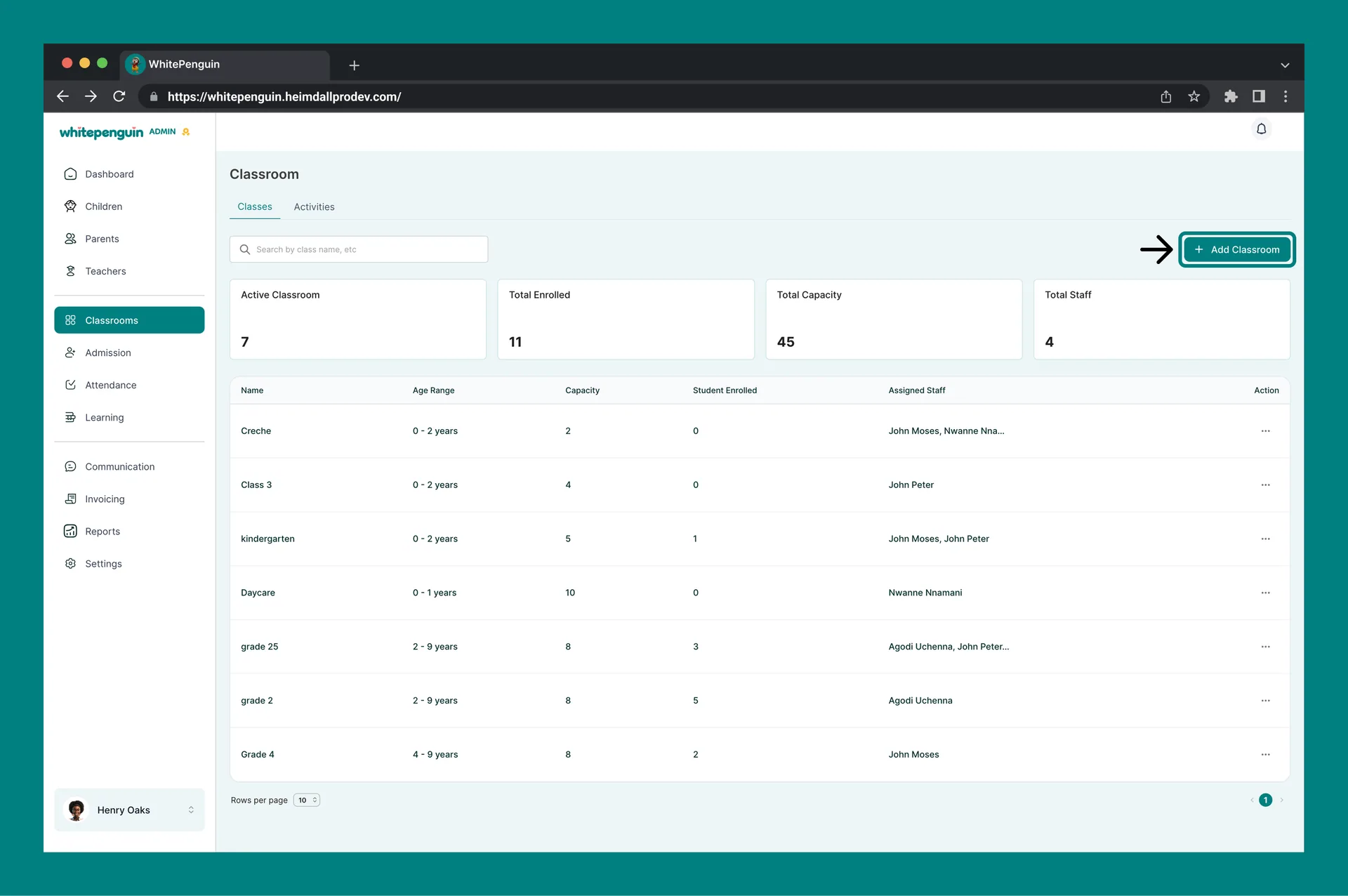
| **Classes** | All classrooms with their age range, capacity, enrolled students, and assigned staff. |
| **Activities (Admin)** | Activities logged across classrooms. |
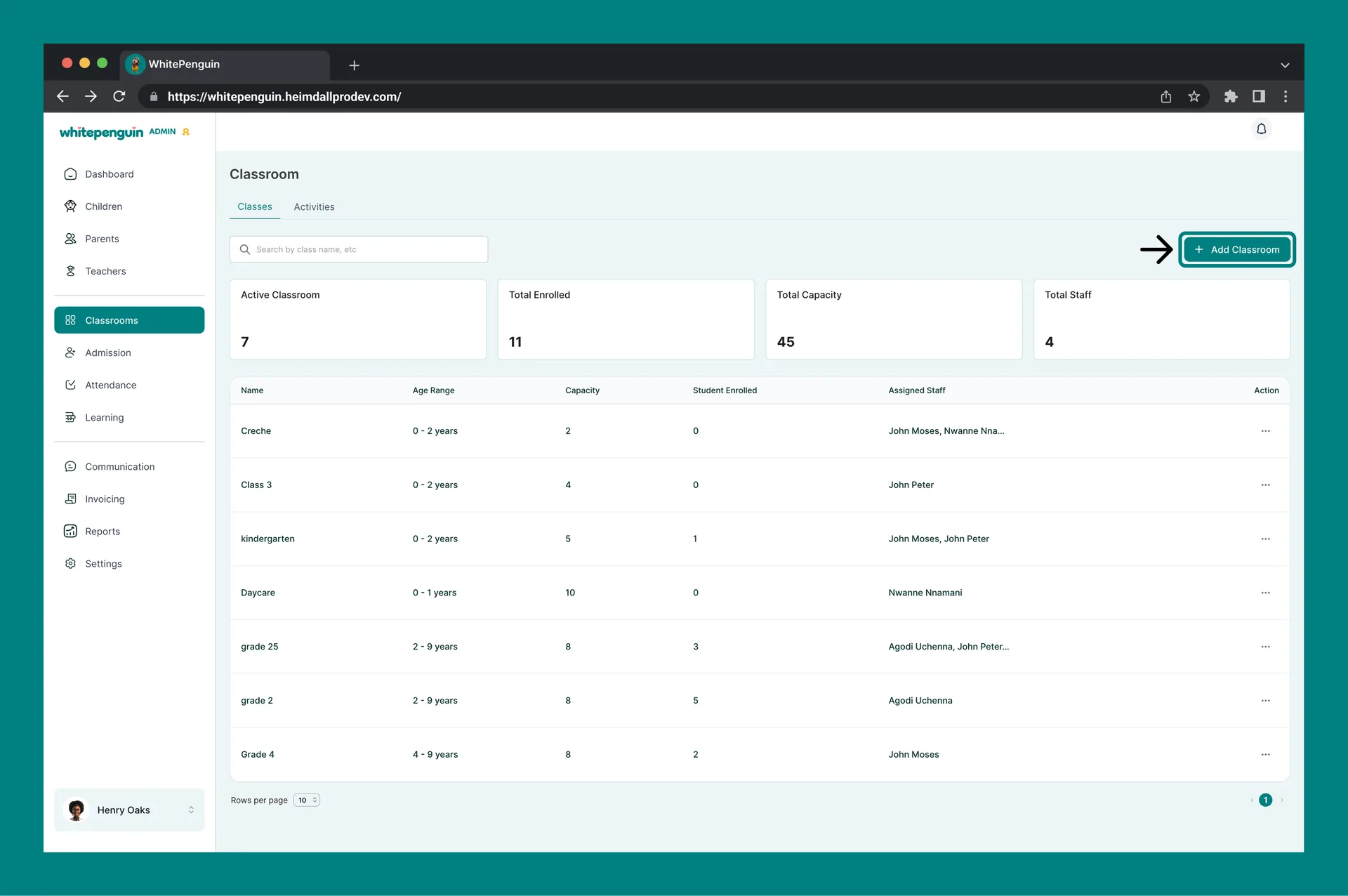
At the top of the Classes tab, four summary cards display a quick snapshot of your school:
| Card | What It Shows |
| --------------------- | ------------------------------------------------------------- |
| **Active Classrooms** | Number of classrooms currently active in the system. |
| **Total Enrolled** | Total number of children enrolled across all classrooms. |
| **Total Capacity** | Combined maximum capacity across all classrooms. |
| **Total Staff** | Total number of staff members assigned across all classrooms. |
## Who Can Manage Classrooms? [#who-can-manage-classrooms]
**Access is based on custom roles.** Your **school admin** creates **custom roles** for all users and controls exactly which permissions each role has — **View**, **Edit**, **Create**, and **Delete** — for every section of the system, including Classrooms.
Access to the Classrooms section depends entirely on the **custom role** assigned to each user:
* Roles with **View** permission for Classrooms can see classrooms.
* Roles with **Create**, **Edit**, or **Delete** permission can add, update, or remove classrooms.
* Roles with no Classroom permissions won't see the Classrooms section at all.
* Classroom visibility can also be limited to a user's assigned classrooms.
**Where to manage roles:** Go to **Settings → Roles & Permissions**, then click **+ Create Role** to build a new custom role, or select an existing role to toggle its permissions. **Super Admin** permissions are fixed and cannot be edited.
## How to Access [#how-to-access]
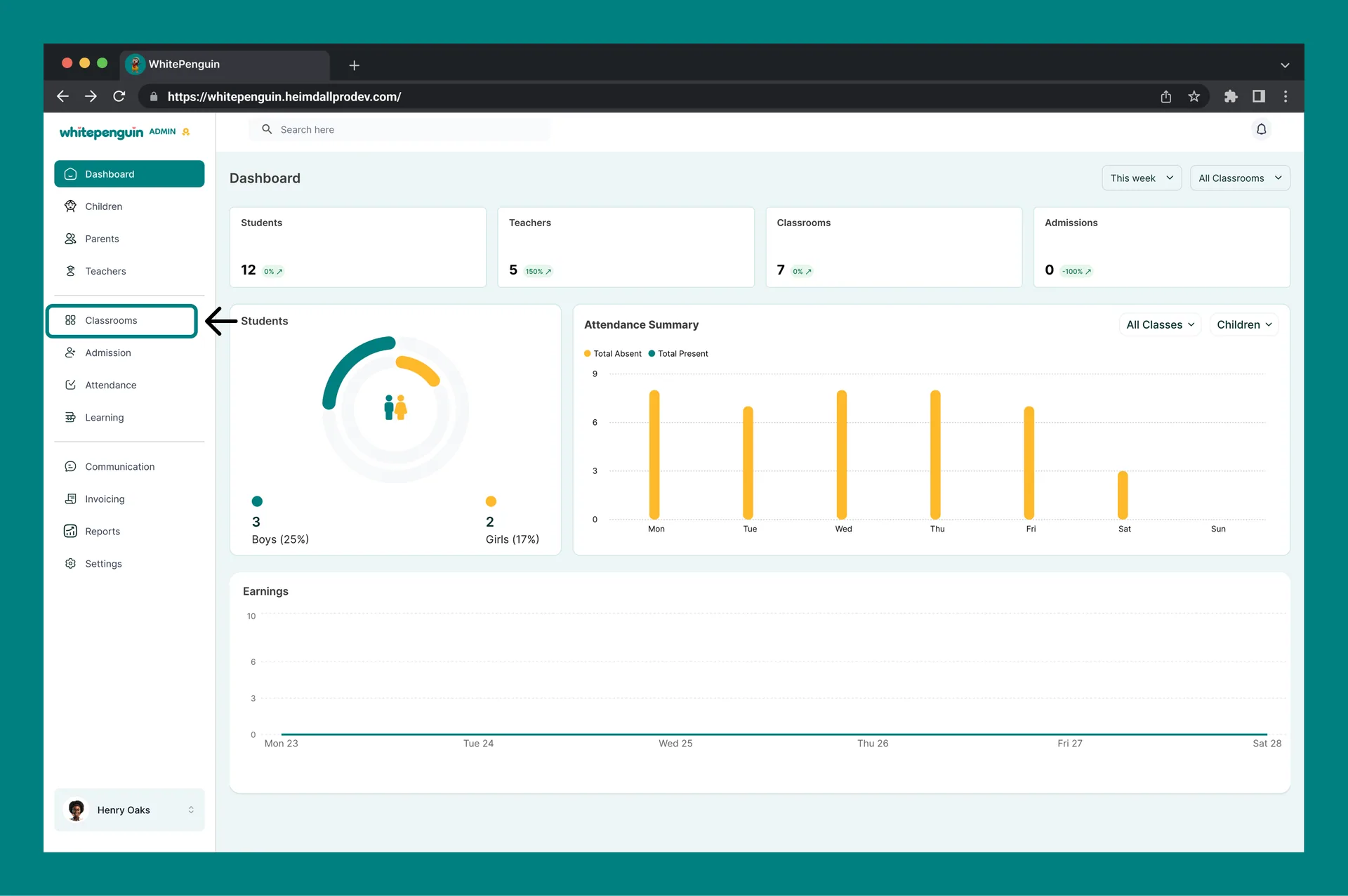
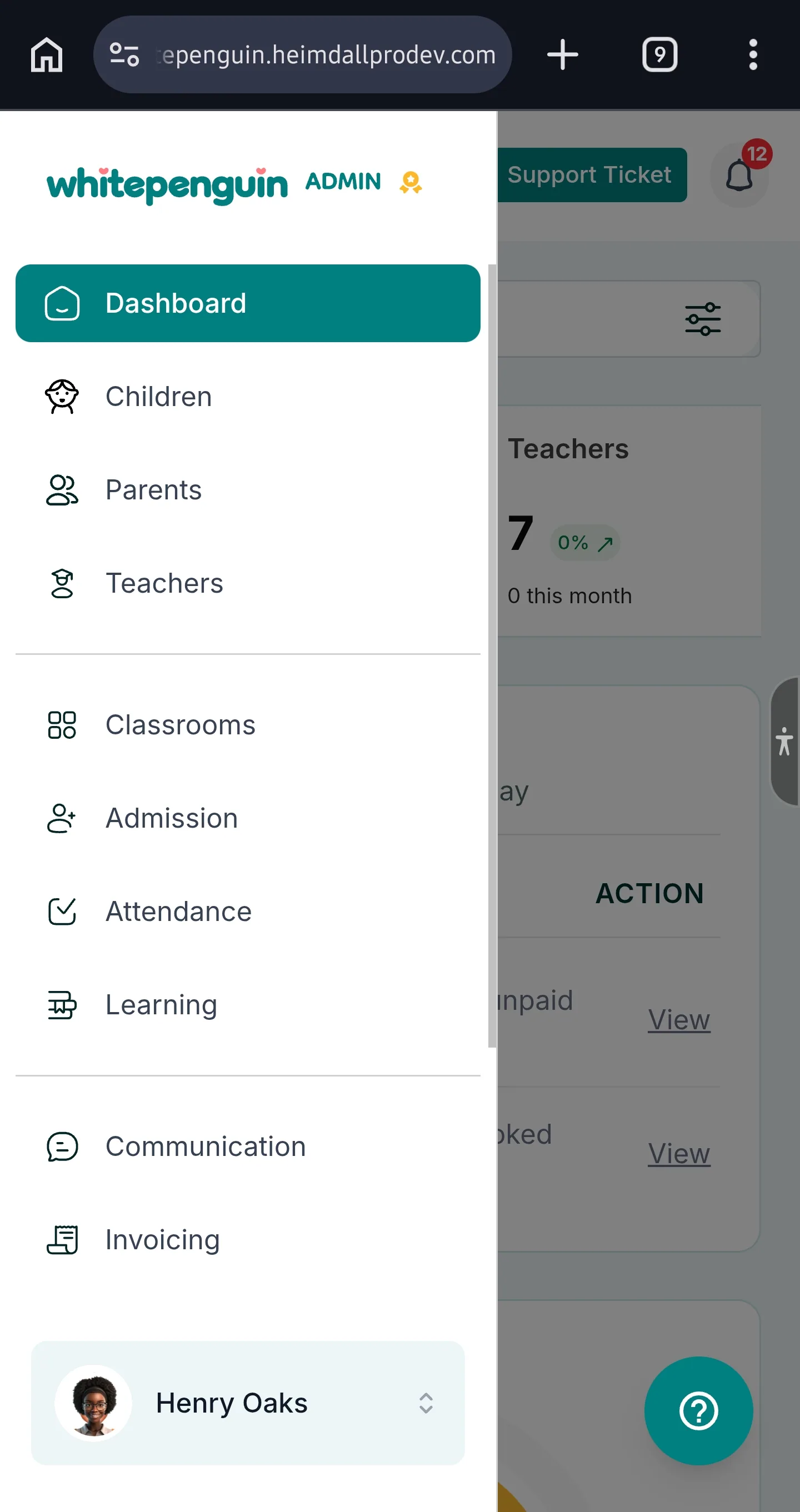
1. Click **Classrooms** in the **left sidebar**.
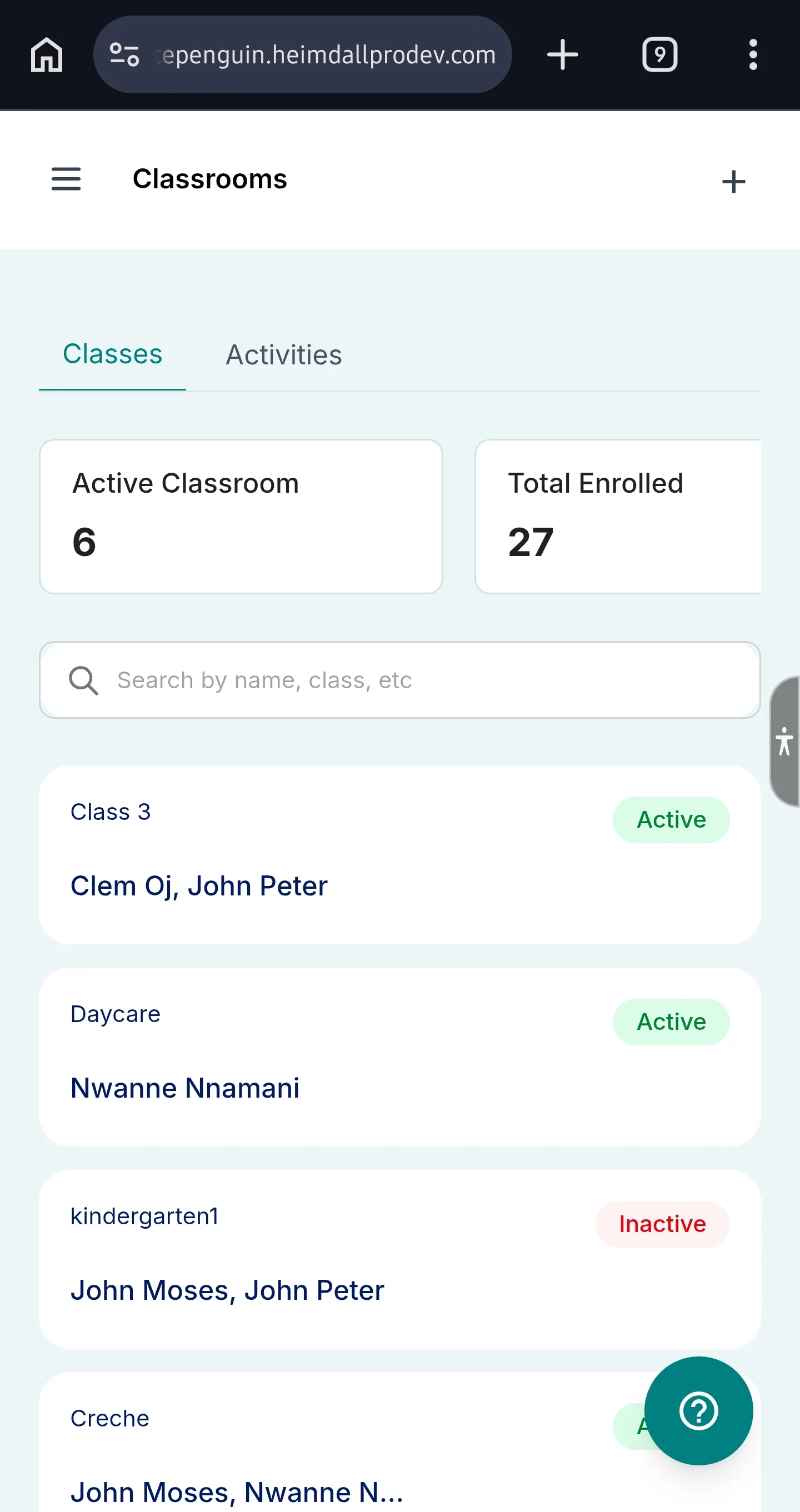
2. The **Classes** tab will load by default, showing all existing classrooms in a table.
3. From here you can add new classrooms or manage existing ones using the **Action (⋯)** menu.
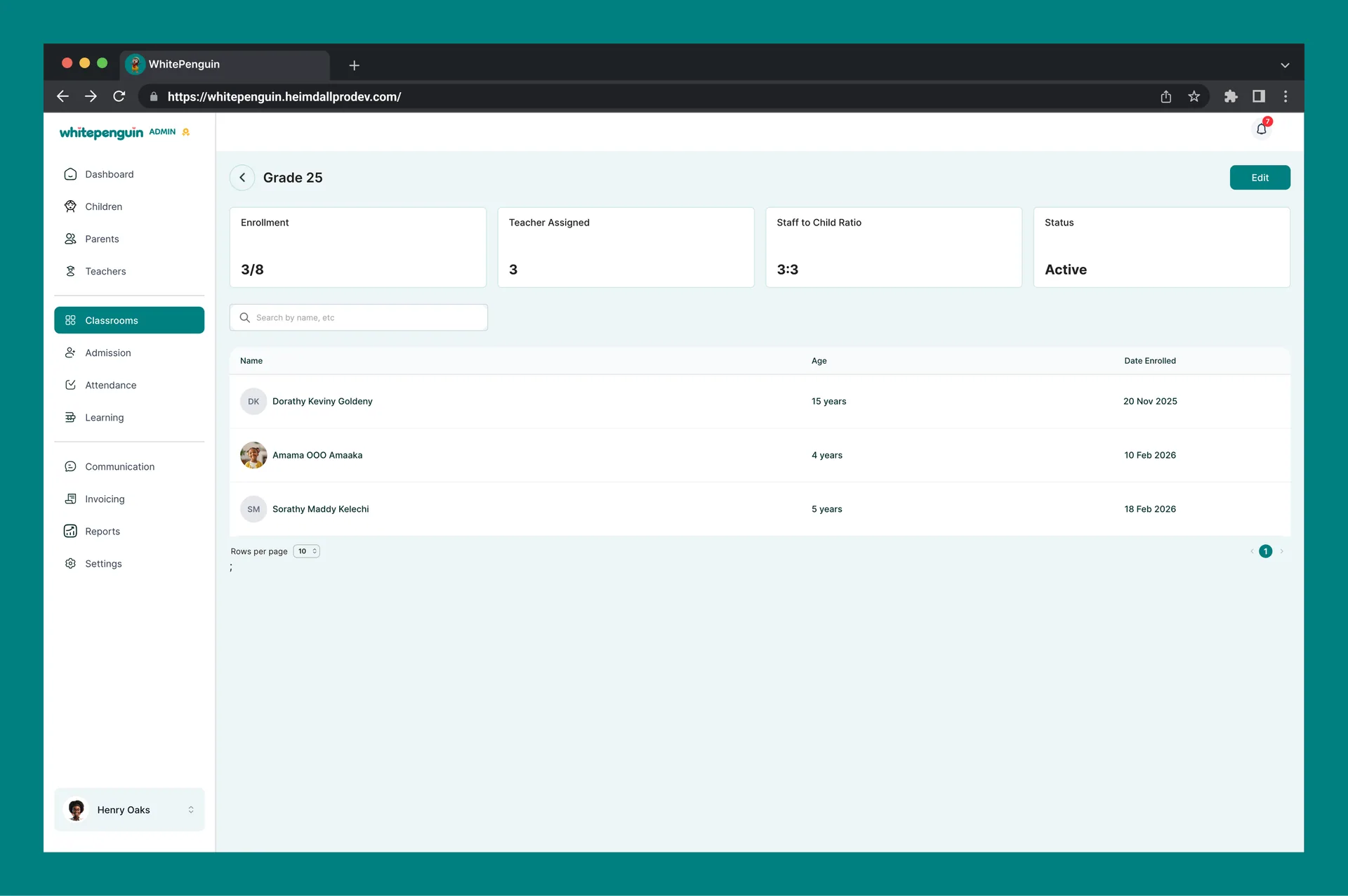
**Staff view:** Users whose custom role limits them to an assigned classroom access it from the **Classroom** section in the sidebar. Their view shows only their assigned classroom with a summary of Total Children, Teachers Assigned, Staff to Child Ratio, and Status — along with a list of enrolled children showing Name, Age, and Date Enrolled.
## Adding a New Classroom [#adding-a-new-classroom]
To add a new classroom:
1. Click the **+ Add Classroom** button at the top right of the Classes page.
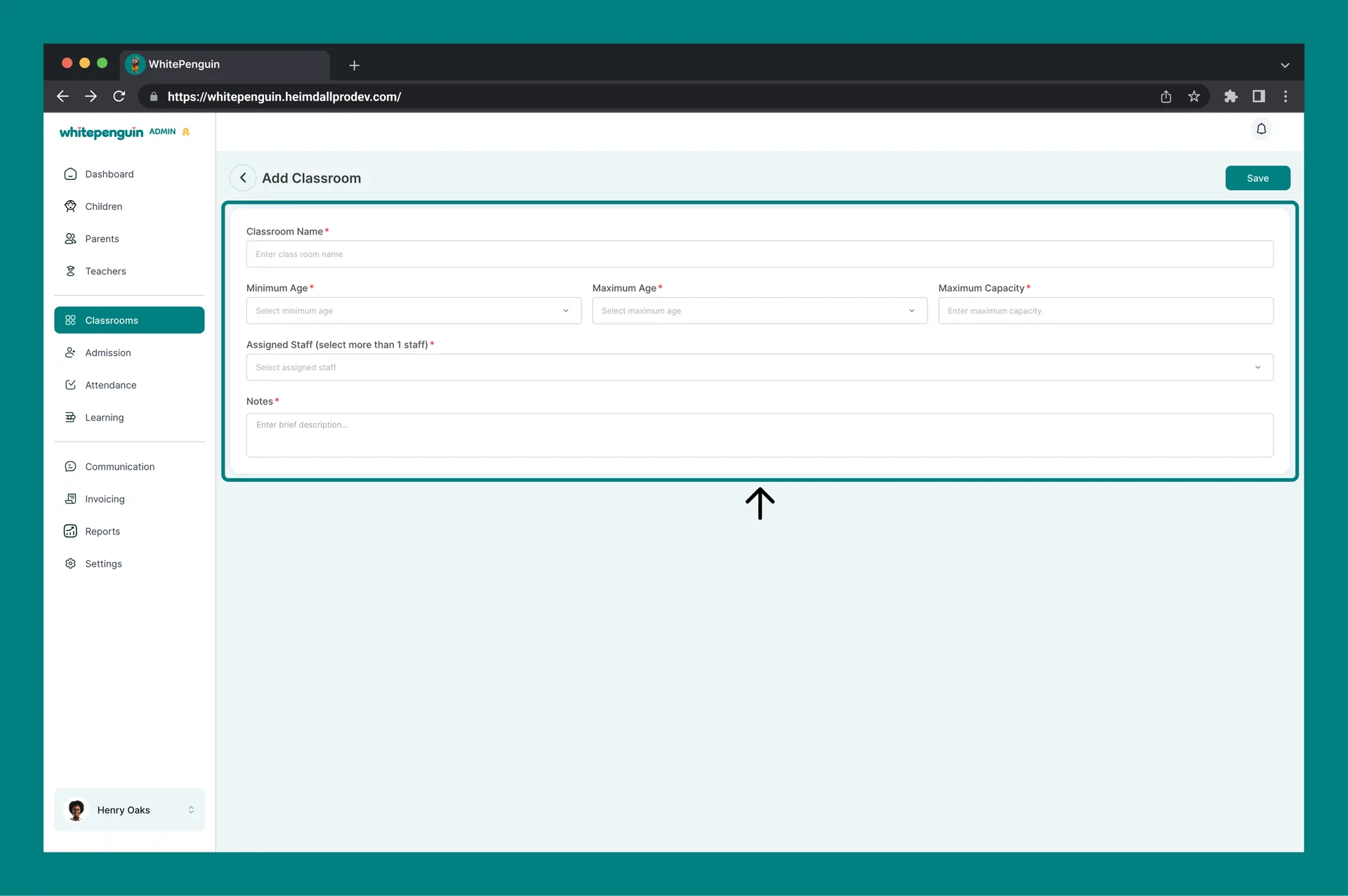
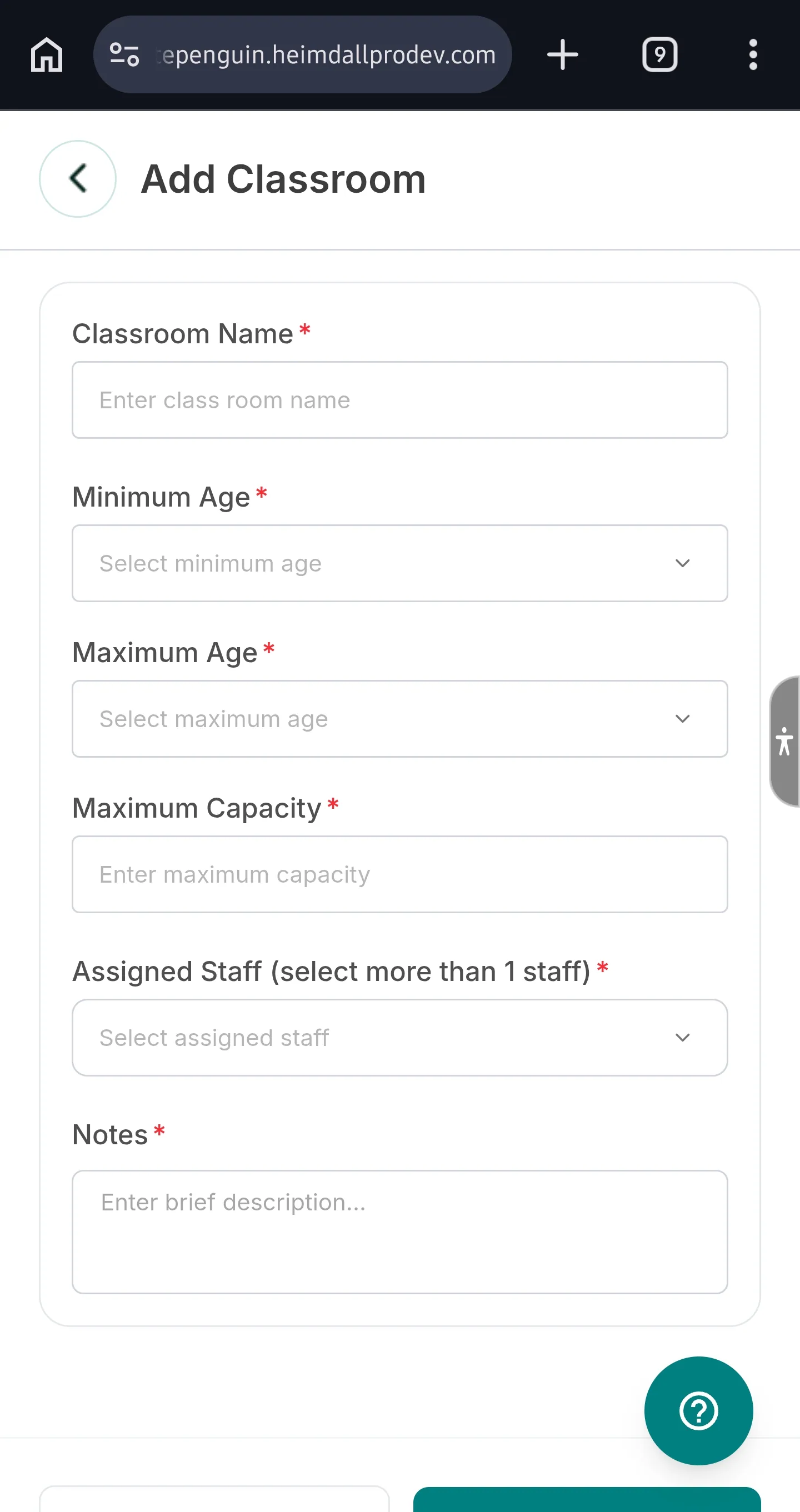
2. The **Add Classroom** form will open as a full page.
3. Fill in the following fields:
| Field | Required | Description |
| -------------------- | ---------- | --------------------------------------------------------------------------------------------------------------------------------------------------------- |
| **Classroom Name** | ✅ Required | A clear, recognizable name for the classroom (e.g., *Butterflies Room*, *Toddlers A*, *Pre-K Blue*). This name appears across the system. |
| **Minimum Age** | ✅ Required | The minimum age of children eligible for this classroom. Supports ages 0–20 years. |
| **Maximum Age** | ✅ Required | The maximum age of children eligible. Must be greater than the Minimum Age. Supports ages 0–20 years. |
| **Maximum Capacity** | ✅ Required | The maximum number of children the classroom can accommodate. |
| **Assigned Staff** | Optional | Select one or more teachers to assign to this classroom. Teachers must be added to the system first. You can assign staff later by editing the classroom. |
| **Notes** | ✅ Required | A brief description or any relevant notes — such as curriculum focus, room location, or special considerations. |
4. Click **Save** to create the classroom, or use the **back arrow** to cancel.
## Managing Existing Classrooms [#managing-existing-classrooms]
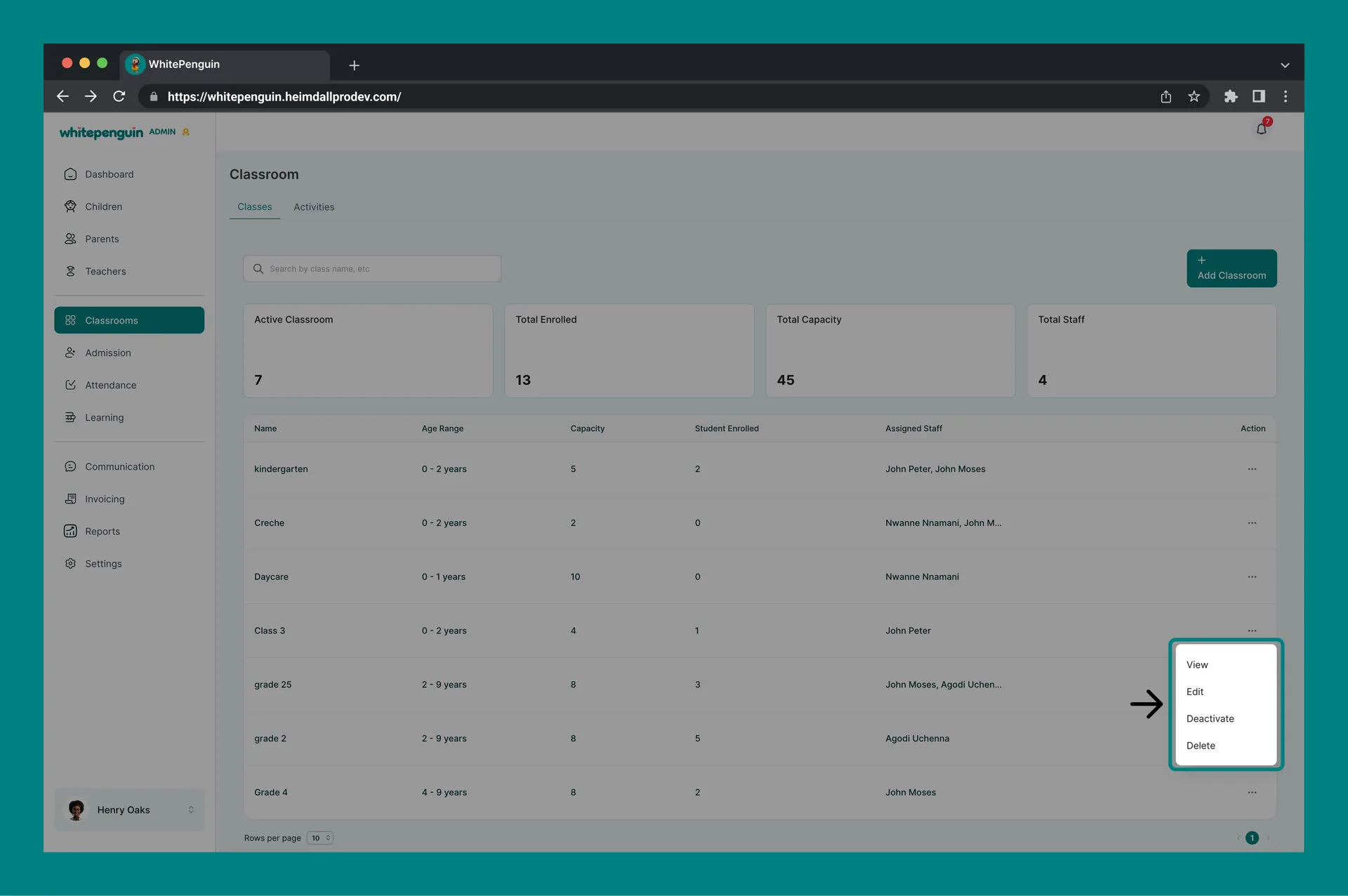
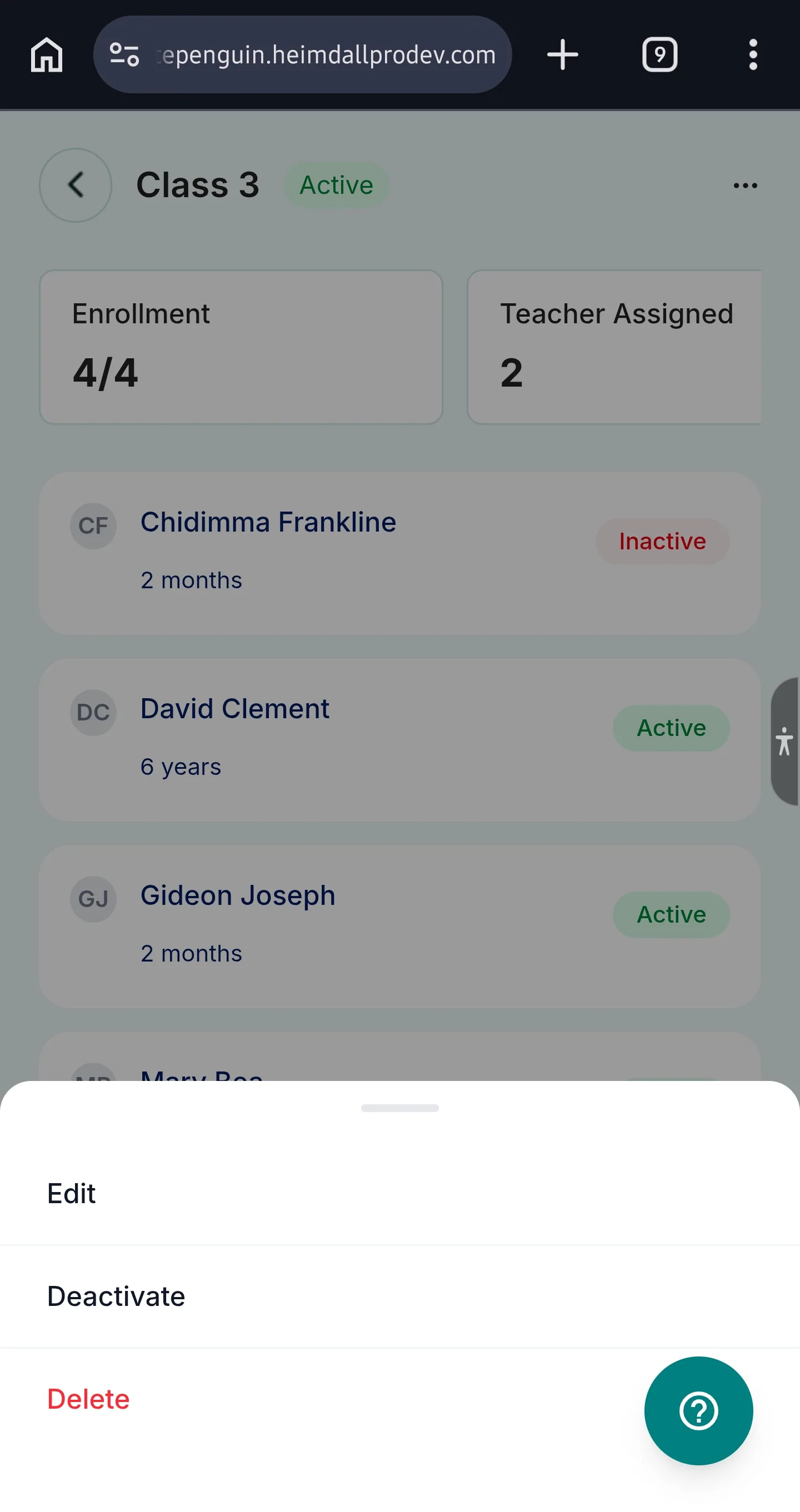
From the **Action (⋯)** menu on any classroom row in the Classes table, the following actions are available:
| Action | Description |
| ------------------------- | ----------------------------------------------------------------------------------------------------------------------------- |
| **View** | Opens the classroom's detail page showing enrolled children, assigned staff, capacity, and classroom stats. |
| **Edit** | Update the classroom's name, age range, capacity, assigned staff, or notes. |
| **Deactivate / Activate** | Toggle the classroom's status. Deactivating a classroom hides it from active use without deleting it. Activating restores it. |
| **Delete** | Permanently removes the classroom from the system. This action cannot be undone. |
**Delete is permanent.** Before deleting a classroom, consider using **Deactivate** instead to suspend the room while keeping all associated data intact.
## Viewing a Classroom [#viewing-a-classroom]
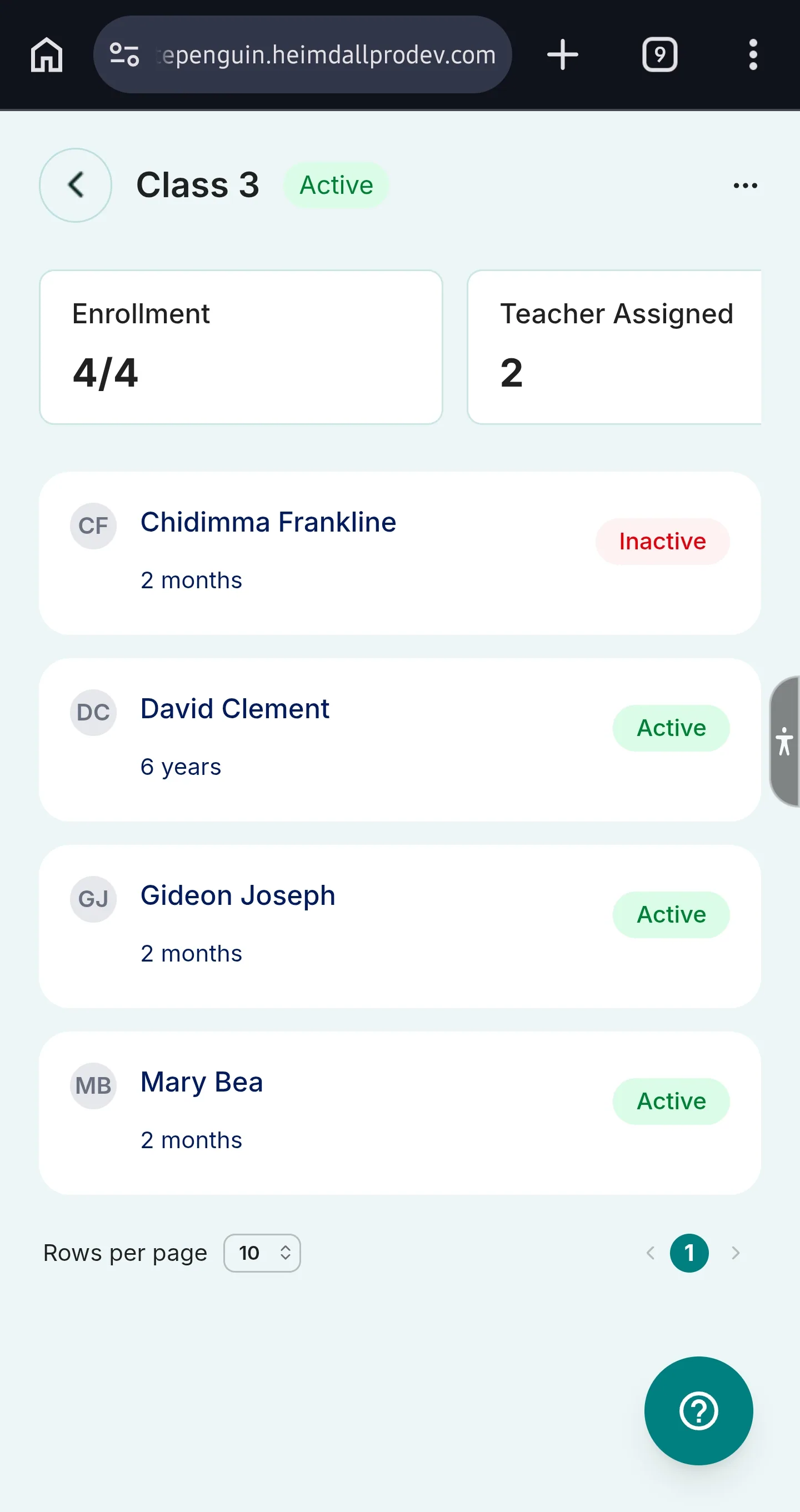
Clicking **View** from the Action menu — or clicking a classroom name — opens the classroom detail page. This page shows:
* **Summary cards** at the top: Total Children, Teacher Assigned, Staff to Child Ratio, and Status
* **Children table** listing all enrolled children with their Name, Age, and Date Enrolled
* A **search bar** to find children by name within the classroom
* A **classroom selector** (top right) to switch between classrooms quickly
## Tips [#tips]
* **Create classrooms before adding children.** Children can only be enrolled into classrooms that already exist in the system. Set up your classrooms first before inviting parents or enrolling children.
* **Assign multiple staff per classroom.** The Assigned Staff field supports selecting more than one teacher. Use this for co-teachers, assistants, or rotating staff.
* **You can save a classroom without assigning staff.** Staff assignment is optional at creation. Once teachers are added in the Teachers section, go back, edit the classroom, and assign them.
* **Use clear classroom names.** Classroom names appear in attendance sheets, reports, parent-facing views, and notifications. Use friendly, recognizable names.
* **Deactivate instead of deleting.** If a classroom is temporarily not in use, deactivate it rather than deleting it. You can reactivate it at any time.
* **Monitor capacity.** Check the Total Capacity card regularly as you enroll more children. If a classroom is nearing its limit, update the Maximum Capacity or create a new classroom.
* **Role permissions control access.** What each user can see and do in Classrooms depends on the custom role your admin assigned them. To grant more access, update their role in **Settings → Roles & Permissions**.
## FAQs [#faqs]
Any user whose **custom role** includes **Create** and **Delete** permissions for Classrooms can add and remove classrooms. Your school admin configures this in **Settings → Roles & Permissions**.
Yes. Children can only be enrolled into classrooms that already exist in the system. Make sure you create at least one classroom before enrolling children or assigning teachers.
Yes. The **Assigned Staff** field supports selecting multiple teachers per classroom. This is useful for co-teachers, classroom assistants, or rooms with rotating staff.
Both the Minimum Age and Maximum Age dropdowns support values from **0 to 20 years**, making the system suitable for nurseries, preschools, and primary school programs. The Maximum Age must always be greater than the Minimum Age.
* **Deactivate** — Suspends the classroom without removing it. All data (enrolled children, attendance records, etc.) is preserved and the classroom can be reactivated.
* **Delete** — Permanently removes the classroom and cannot be undone. Use with caution.
It depends on their **custom role**. Users limited to an assigned classroom see a summary of Total Children, Teachers Assigned, Staff to Child Ratio, and Status — plus a list of enrolled children with their Name, Age, and Date Enrolled.
The system will flag the classroom as full during enrollment. You will need to either increase the **Maximum Capacity** in the classroom settings or create a new classroom to accommodate additional children.
Yes. Go to Classrooms, find the classroom in the table, click the **Action (⋯)** menu, and select **Edit**. You can update the classroom name, age range, capacity, assigned staff, and notes at any time.