# Create Announcements
URL: https://whitepenguin.sonicar.tech/docs/communication/create-announcements/
> Discover how to create an announcement using a powerful text editor and share it with your users.
## Overview [#overview]
**Announcements** are one-way notices that your school publishes to everyone at once — term dates, school notices, class reminders, event details, and more. Unlike messages, an announcement is not a conversation: it is published by the school and read by its audience.
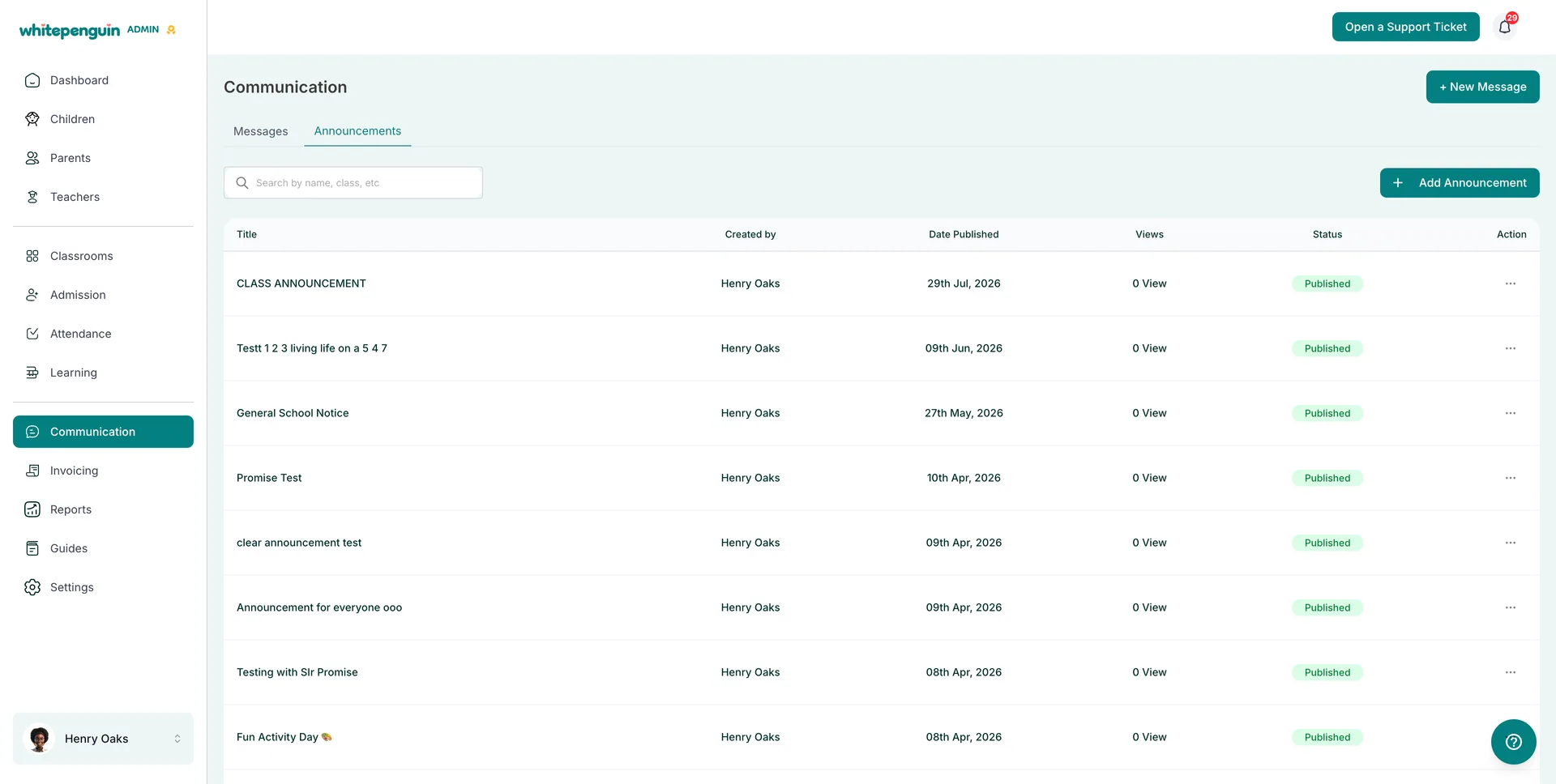
Announcements live on the **Announcements** tab of the **Communication** section:
| Tab | What It Shows |
| ----------------- | ------------------------------------------------------------------------------------------- |
| **Messages** | Private one-to-one conversations with parents and staff. |
| **Announcements** | Every announcement created by the school, with its author, publish date, views, and status. |
The announcements table shows the following columns:
| Column | What It Shows |
| ------------------ | --------------------------------------------------------------- |
| **Title** | The headline of the announcement. |
| **Created by** | The user who wrote it. |
| **Date Published** | The date it went live. |
| **Views** | How many people have opened it. |
| **Status** | **Published**, **Draft**, or **Archived**. |
| **Action** | The **⋯** menu with **View**, **Archive**, and **Delete**. |
## How to Access [#how-to-access]
* **Admins**
1. Click **Communication** in the left sidebar.
2. Open the **Announcements** tab.
3. Click **+ Add Announcement** (top right) to write a new one, or use the **⋯** menu on any row to view, archive, or delete an existing announcement.
* **Teachers**
1. Click **Communication** in the left sidebar.
2. Open the **Announcements** tab to read what the school has published.
3. Teachers can **view** announcements by default. Creating, editing, archiving, or deleting depends on their custom role.
* **Parents**
1. Sign in to the **Parent Dashboard** and click **Communication**.
2. Open the **Announcements** tab.
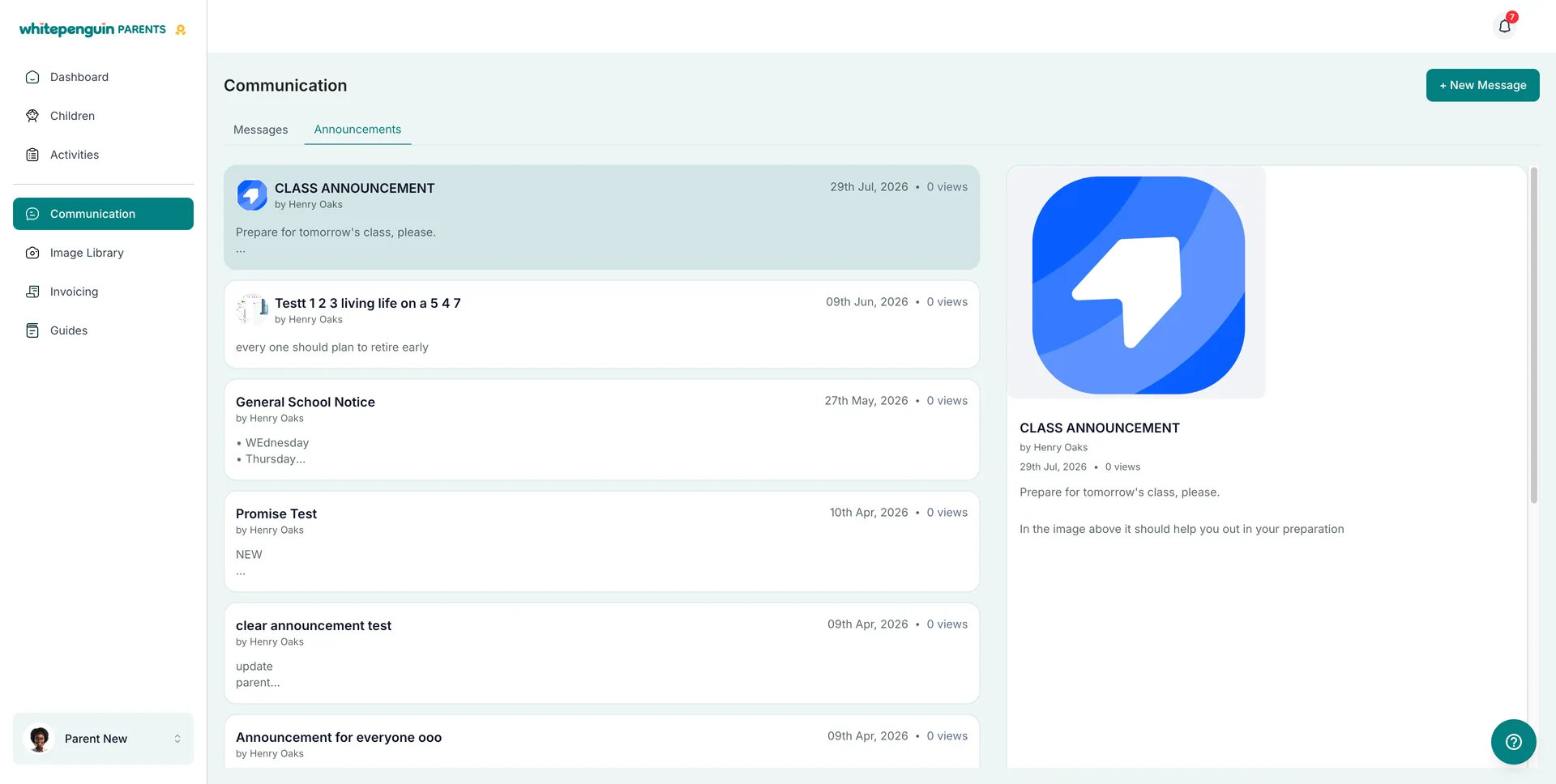
3. Announcements appear as cards showing the title, author, date, and view count — click one to read the full announcement in the panel on the right.
## Roles & Access [#roles--access]
**Access is based on custom roles.** Your **school admin** creates **custom roles** for all users and controls exactly which permissions each role has — **View**, **Edit**, **Create**, and **Delete** — for every section of the system, including Communication.
| User | What they can do with announcements |
| ------------ | ---------------------------------------------------------------------------------------------------------------------- |
| **Admins** | **Create**, **View**, **Archive**, and **Delete** announcements. |
| **Teachers** | **View** only by default. With the right custom role, they can also **Create**, **Edit**, **Archive**, and **Delete**. |
| **Parents** | **View** only — parents read announcements but cannot create or reply to them. |
For staff users, each action maps to a permission on their custom role:
* **View** permission for Communication — read the Announcements tab.
* **Create** permission — write and publish new announcements.
* **Edit** permission — update an announcement after it is created.
* **Delete** permission — archive or permanently remove an announcement.
**Where to manage roles:** Go to **Settings → Roles & Permissions**, then click **+ Create Role** to build a new custom role, or select an existing role to toggle its permissions. **Super Admin** permissions are fixed and cannot be edited.
## How to Create a New Announcement [#how-to-create-a-new-announcement]
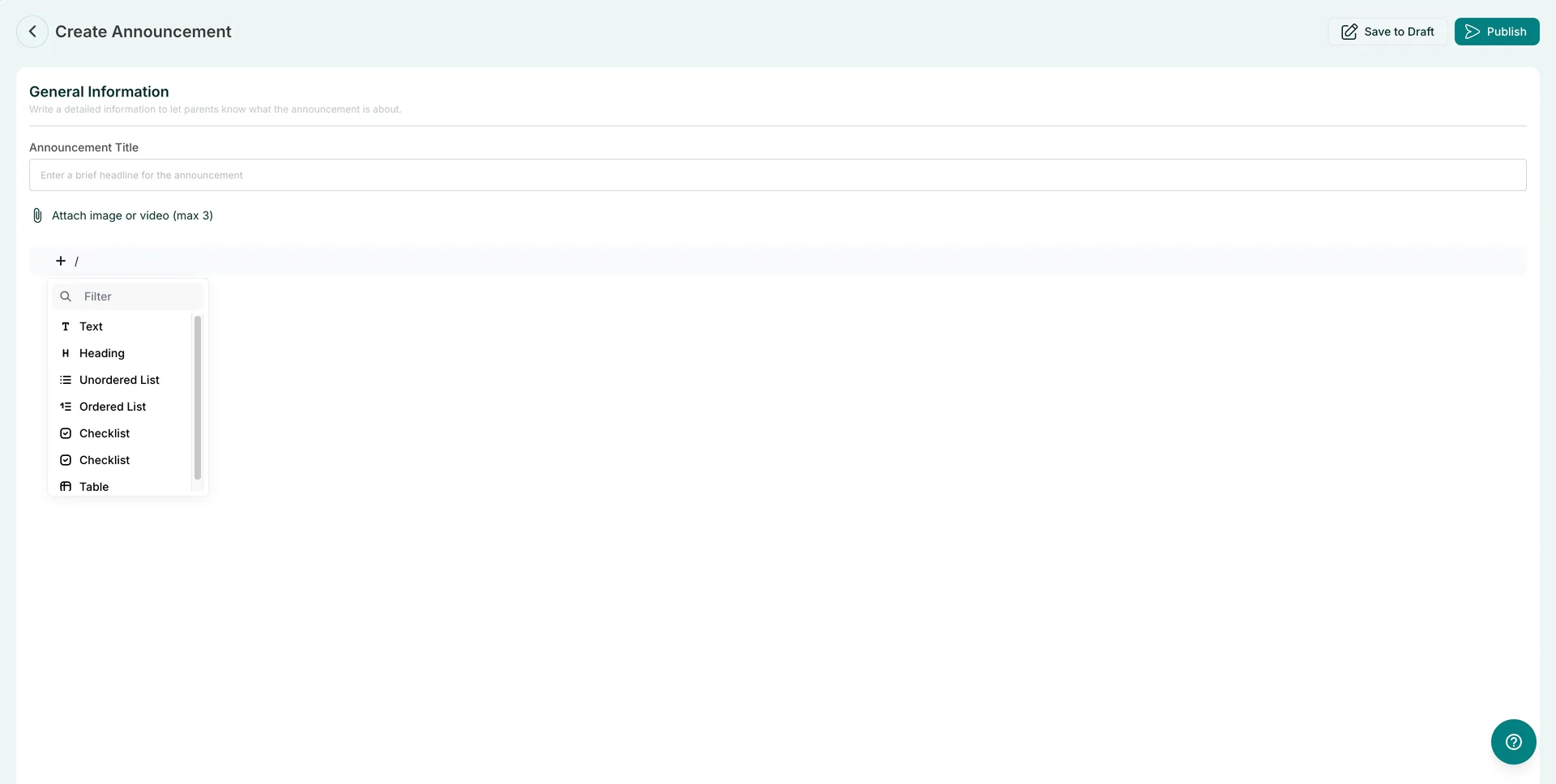
From **Communication → Announcements**, click **+ Add Announcement**. The **Create Announcement** page opens with a **General Information** section:
1. **Announcement Title**
* Enter a brief headline for the announcement.
* This is the text shown in the announcements list and in the parent's feed, so keep it short and specific.
2. **Attach image or video (max 3)** — optional
* Click the attachment link to add up to **3** images or videos.
* Attached media appears at the top of the announcement when it is opened.
3. **Announcement body**
* Click the **+** button or type **/** on the content line to open the block menu.
* Use the **Filter** box to search for a block type, then select it and start typing.
* Add as many blocks as you need to build the full announcement.
4. **Save to Draft** or **Publish**
* Click **Save to Draft** (top right) to keep working on it later — it is not visible to the audience yet.
* Click **Publish** to send it live. It then appears with a **Published** status, along with its publish date and view count.
* Use the **back arrow** (top left) to leave the editor.
## Content Blocks You Can Use [#content-blocks-you-can-use]
The announcement editor is a block editor — press **/** (or click **+**) and choose a block:
| Block | Use it for |
| ------------------ | --------------------------------------------------------- |
| **Text** | Normal paragraphs of information. |
| **Heading** | Section titles that break up a longer notice. |
| **Unordered List** | Bullet points, such as a list of items to bring. |
| **Ordered List** | Numbered steps or a sequence of dates. |
| **Checklist** | Things parents need to tick off or prepare. |
| **Table** | Structured details, such as a timetable or fee breakdown. |
The block list scrolls, so use the **Filter** search box at the top to jump straight to the block you want.
## Managing Existing Announcements [#managing-existing-announcements]
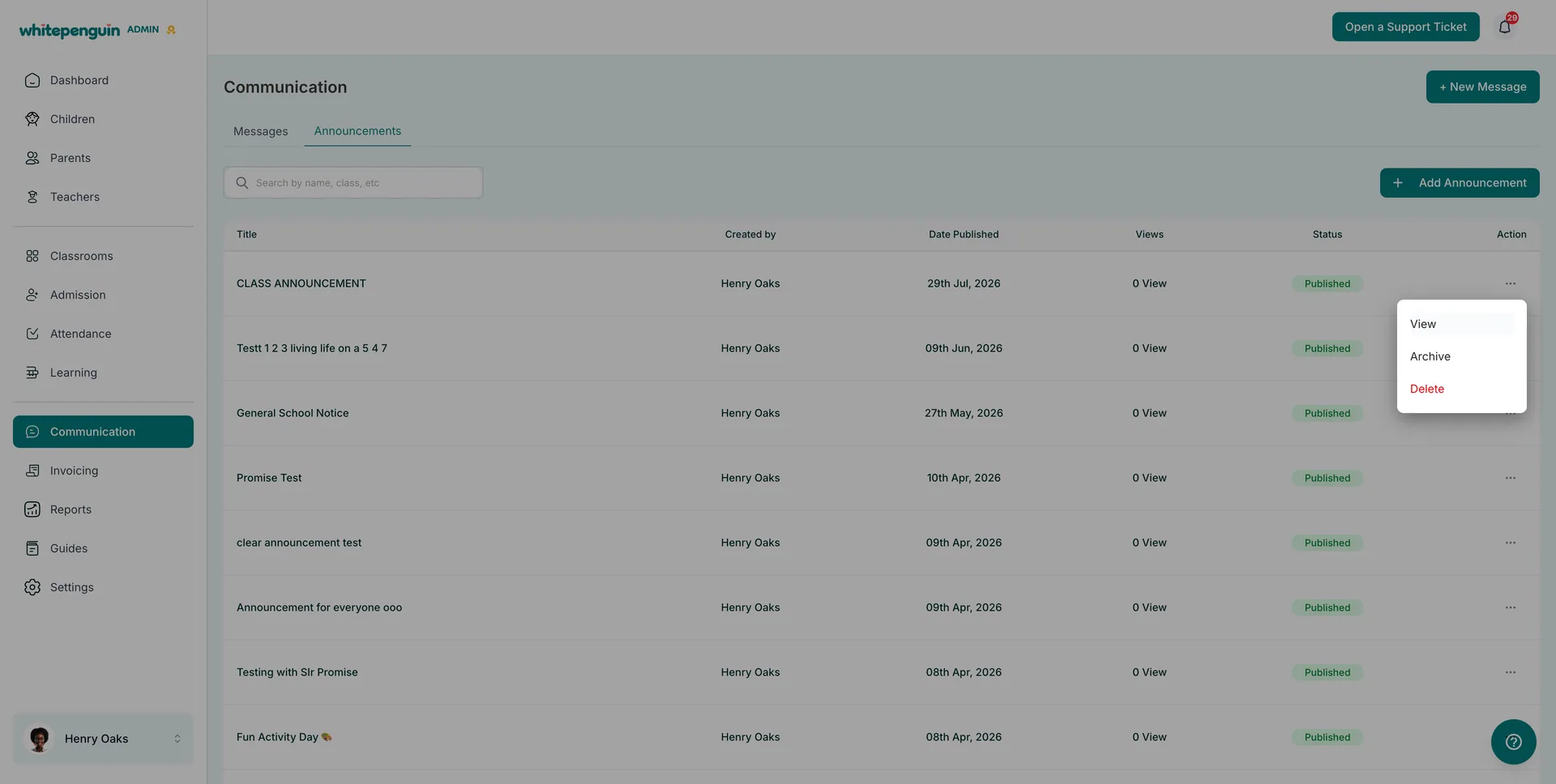
Click the **⋯** icon in the **Action** column of any row:
| Action | Description |
| ----------- | ------------------------------------------------------------------------------ |
| **View** | Opens the announcement exactly as the audience sees it, including attachments. |
| **Archive** | Removes the announcement from the active list while keeping the record. |
| **Delete** | Permanently removes the announcement. This cannot be undone. |
**Delete is permanent.** If an announcement is simply out of date, use **Archive** instead — it clears the list without losing the announcement or its view count.
Use the **search bar** above the table (**Search by name, class, etc**) to find an announcement instead of scrolling.
## What Parents See [#what-parents-see]
On the parent side, **Communication → Announcements** shows a feed of announcement cards:
* Each card shows the **title**, **by \[author]**, the **date**, the **view count**, and a short preview of the body.
* Any attached image appears as a thumbnail on the card.
* Clicking a card opens the full announcement in the panel on the right, with the image at the top followed by the complete text.
* Parents can read announcements but cannot reply to them — replies happen through **Messages**.
## Tips [#tips]
* **Write the headline for a busy parent.** The title is all most people read in the feed — make it specific, like *Mid-Term Break: 12–16 October*.
* **Type / instead of hunting for the + button.** It is the fastest way to add a heading, list, checklist, or table while you write.
* **Lead with an image.** Attached media appears at the top of the announcement, which makes it far more likely to be opened.
* **Use Save to Draft freely.** Nothing is visible to parents until you click **Publish**.
* **Check the Views column** after publishing to see how many people actually opened the announcement.
* **Archive, don't delete.** Archiving keeps your list tidy while preserving the announcement and its history.
* **Use Messages for anything that needs a reply.** Announcements are one-way by design.
## FAQs [#faqs]
Admins can create, view, archive, and delete announcements. Any other user can create them if their **custom role** includes **Create** permission for Communication.
By default, teachers can only **view** announcements. If their custom role includes the matching permissions, they can also **create**, **edit**, **archive**, and **delete** them.
No. Parents can **view** announcements only. If a parent needs to respond, they can start a conversation from the **Messages** tab instead.
The announcement is saved but not published, so no one else can see it yet. You can reopen it later and publish when you are ready.
**Archive** hides the announcement from the active list but keeps the record. **Delete** removes it permanently and cannot be undone.
Up to **3** images or videos per announcement, added from the **Attach image or video (max 3)** link on the Create Announcement page.
Yes. Click **+** or type **/** to insert **Text**, **Heading**, **Unordered List**, **Ordered List**, **Checklist**, or **Table** blocks, and use the **Filter** box to find a block quickly.
The number of people who have opened that announcement. It stays at **0 View** until someone reads it.
An **announcement** is a one-way notice published to your audience on the Announcements tab. A **message** is a private one-to-one conversation on the Messages tab.