# Setup & Reset Kiosk PIN (Admin/ Teacher - Parent)
URL: https://whitepenguin.sonicar.tech/docs/kiosk/setup-reset-kiosk-pin/
> Learn how to view and reset your Kiosk PIN in WhitePenguin — for Admins, Teachers/Staff, and Parents. The Kiosk PIN is the 4-digit code used at the school Kiosk to clock in and out.
## Overview [#overview]
The **Kiosk PIN** is a personal 4-digit code assigned to every WhitePenguin user (Admins, Teachers, and Parents). It is used at the school's Kiosk device to authenticate and record clock-in/clock-out events.
| User Role | Where to View PIN | Where to Reset PIN |
| --------------- | ----------------------------------------------------- | ------------------------------------------------------------------------- |
| Admin | Profile page only | Profile page only |
| Teacher / Staff | Dashboard (Kiosk PIN card) **or** Profile avatar menu | Dashboard (Reset PIN button) **or** Profile avatar menu → Reset Kiosk PIN |
| Parent | Dashboard (Kiosk PIN card) **or** Profile avatar menu | Dashboard (Reset PIN button) **or** Profile avatar menu → Reset Kiosk PIN |
All three roles use the same **Reset Kiosk PIN** dialog — enter a new 4-digit PIN, confirm it, and tap **Reset PIN**.
**Keep your PIN private.** Your Kiosk PIN is personal and should not be shared with others. If you believe your PIN has been compromised, reset it immediately.
## Admin — View & Reset Kiosk PIN [#admin--view--reset-kiosk-pin]
Admins access their Kiosk PIN **only through their Profile page**. There is no Kiosk PIN card on the Admin Dashboard.
### How to View the Kiosk PIN (Admin) [#how-to-view-the-kiosk-pin-admin]
1. Log in to the **WhitePenguin admin portal**.
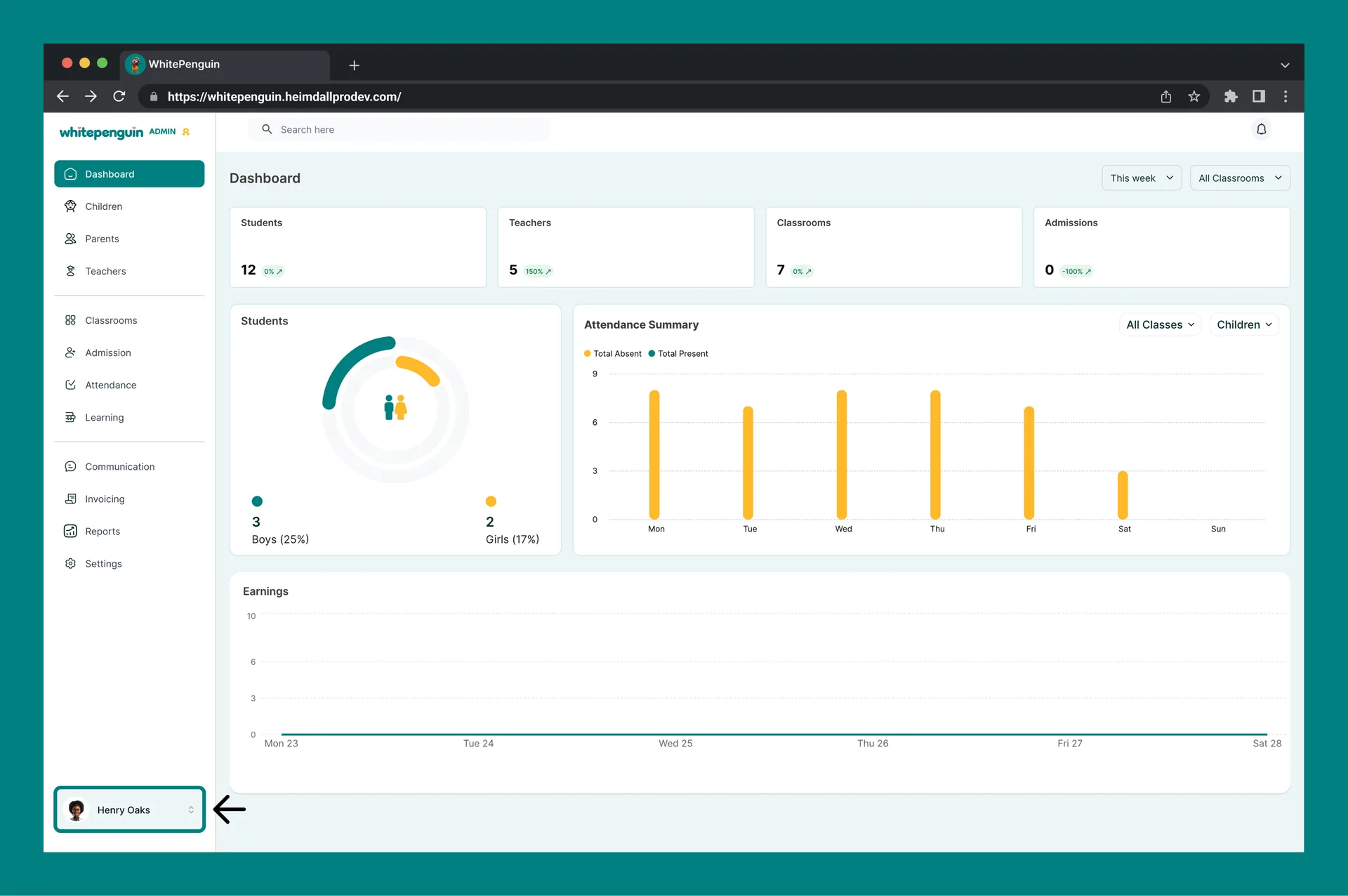
2. Click your **profile avatar** (bottom-left corner of the sidebar).
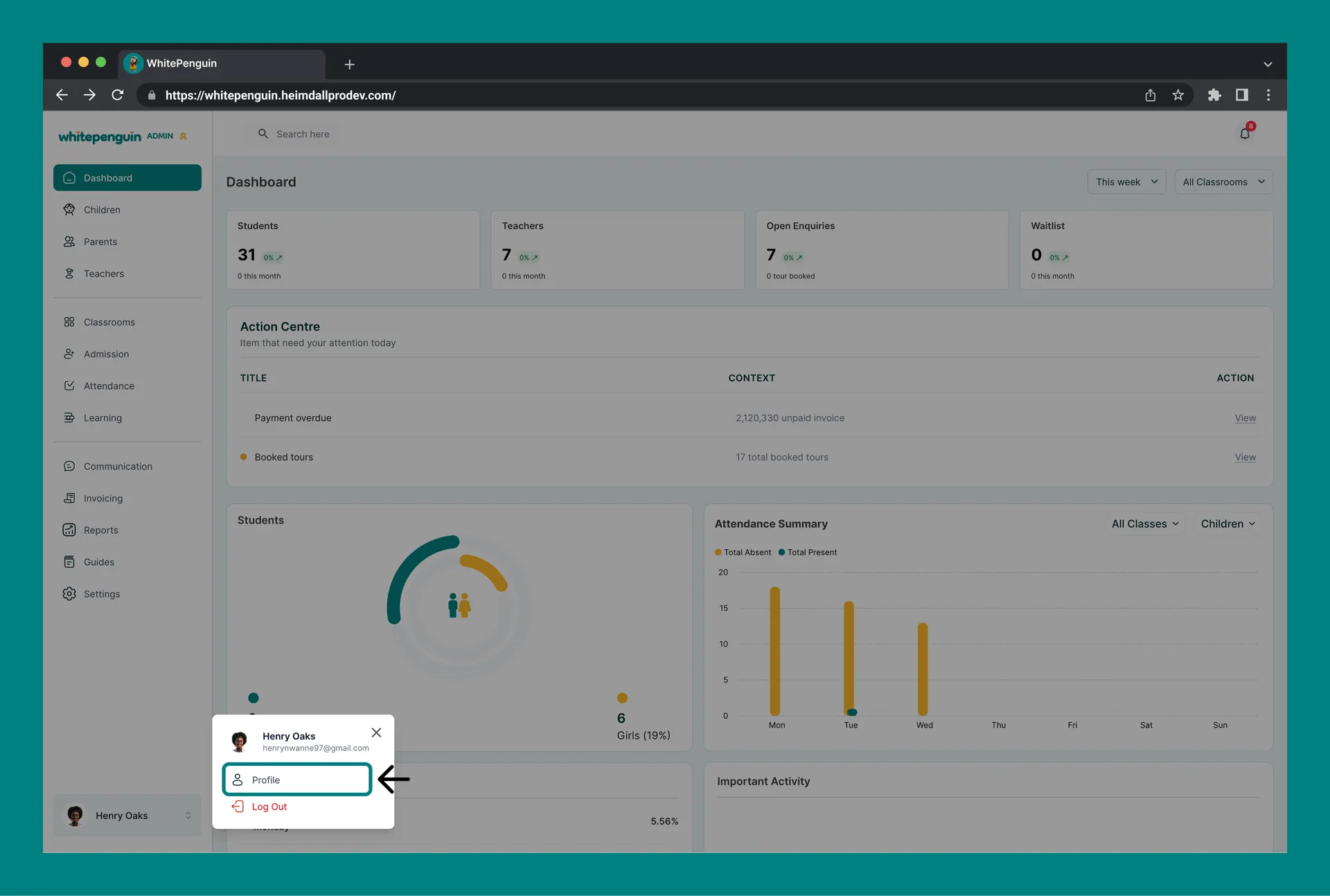
3. A small dropdown menu will appear with options: **Profile** and **Log Out**.
4. Click **Profile**.
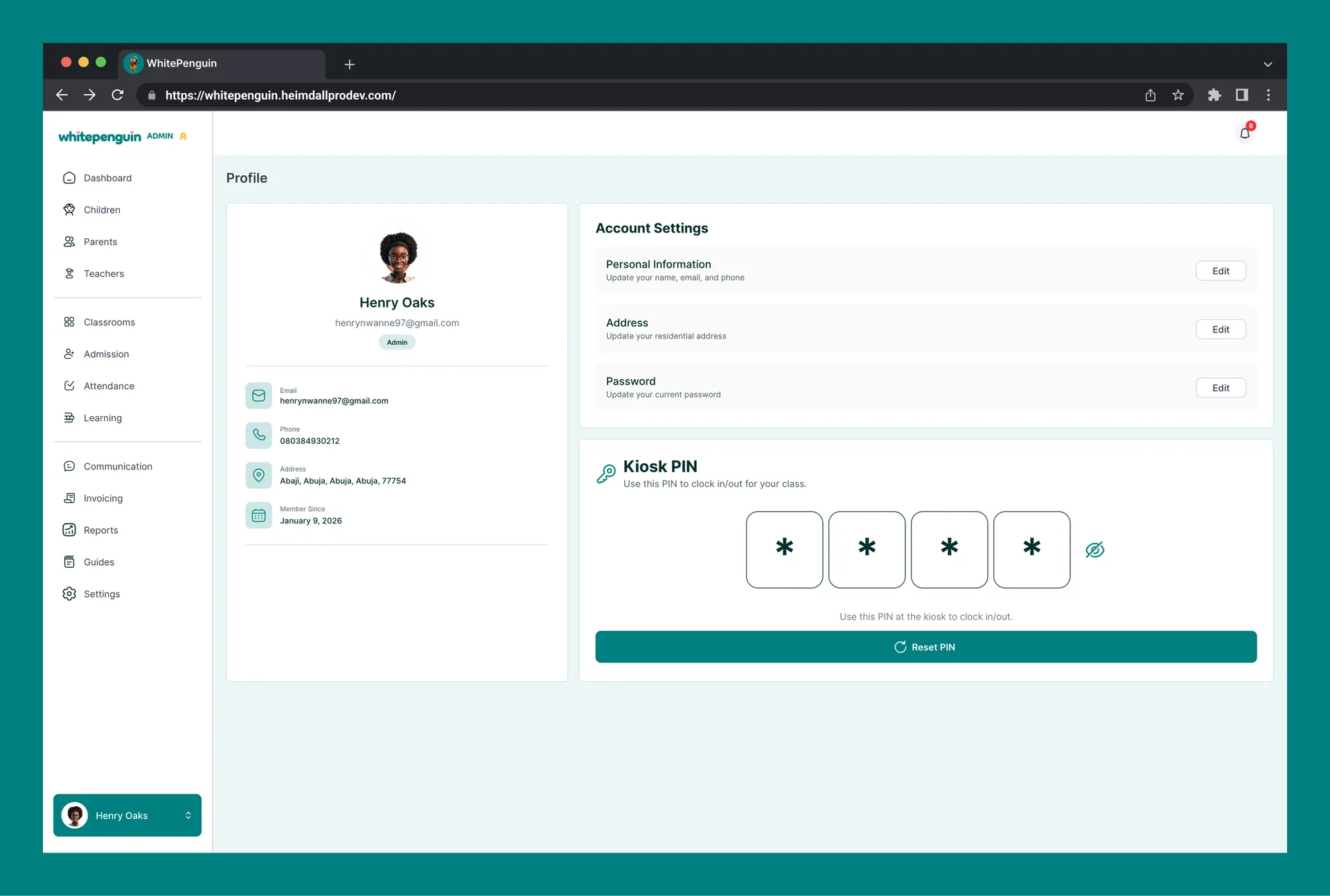
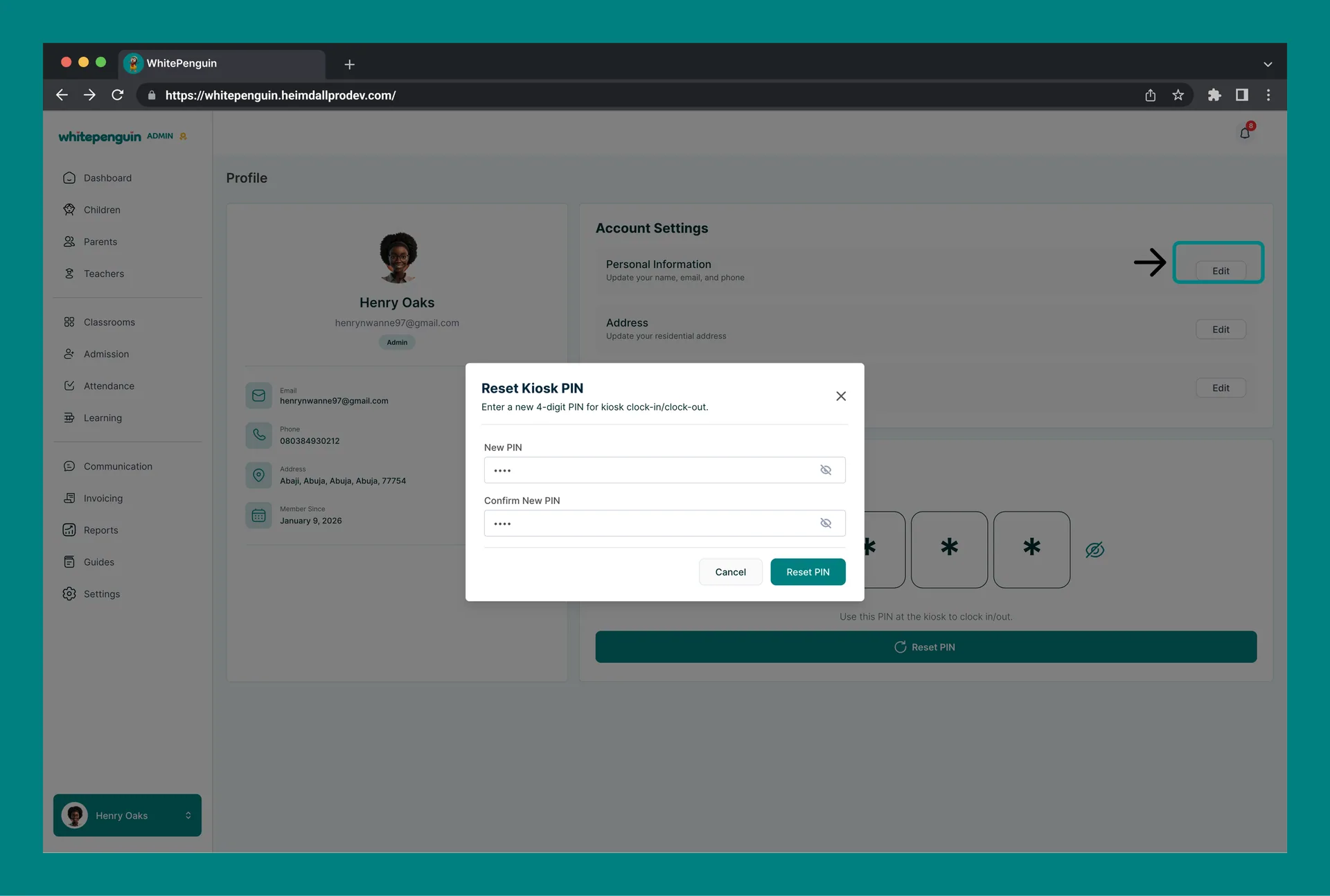
5. The **Profile page** will open, showing two panels:
* **Left panel:** Your profile photo, name, email, role badge (Admin), email, phone, address, and member since date.
* **Right panel (Account Settings):** Personal Information, Address, Password — each with an **Edit** button.
6. Below Account Settings, a **Kiosk PIN** section is shown:
* Subtitle: *"Use this PIN to clock in/out for your class."*
* Your 4-digit PIN is displayed in four large boxes (e.g., **1 2 3 4**).
* A **👁 (eye/show)** icon on the right lets you reveal or hide the digits.
* Below the PIN boxes: *"Use this PIN at the kiosk to clock in/out."*
* A **Reset PIN** button (teal) at the bottom.
### How to Reset the Kiosk PIN (Admin) [#how-to-reset-the-kiosk-pin-admin]
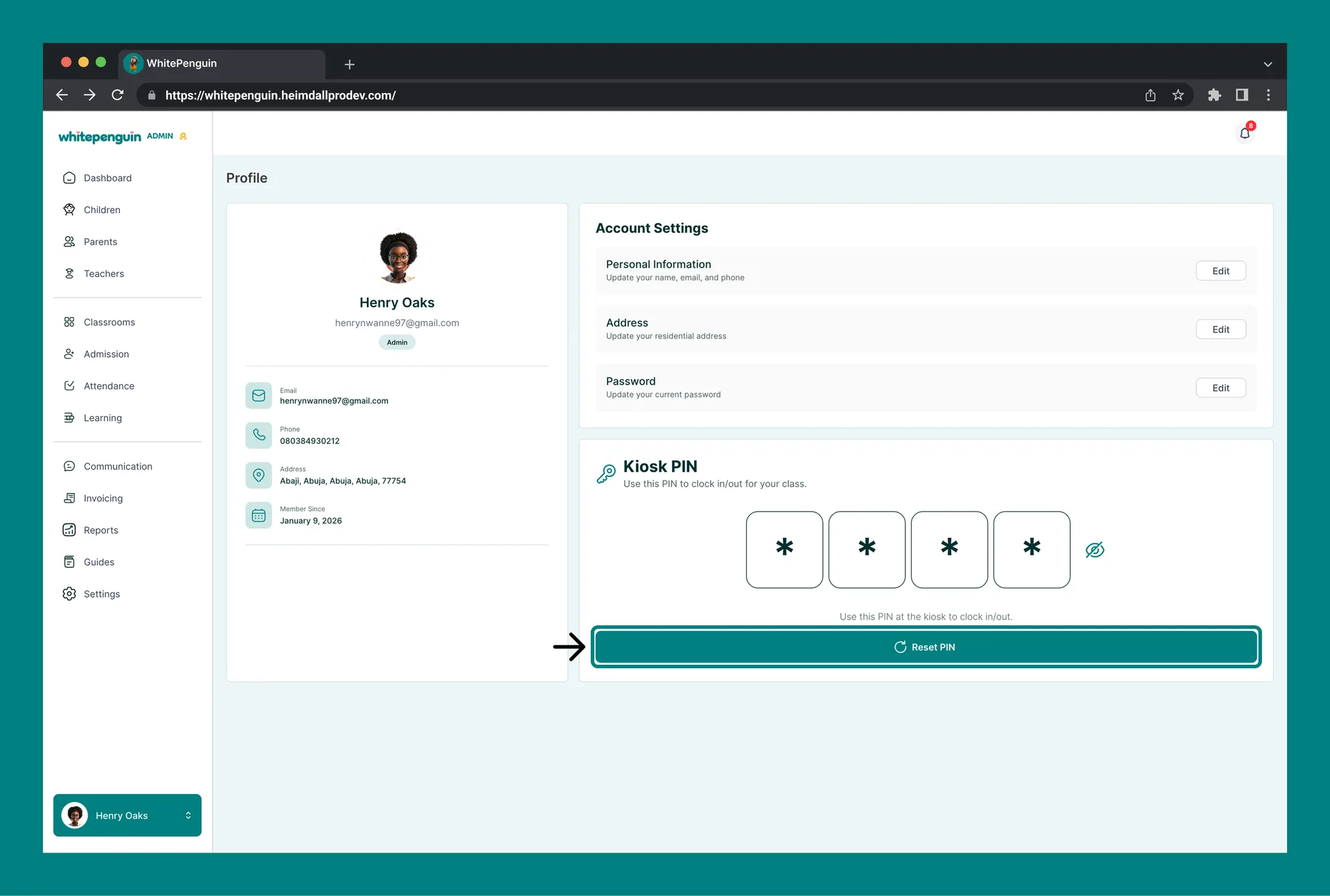
1. On the **Profile page**, scroll to the **Kiosk PIN** section.
2. Click the **Reset PIN** button.
3. A **"Reset Kiosk PIN"** dialog will appear:
* Heading: *"Reset Kiosk PIN"*
* Subtitle: *"Enter a new 4-digit PIN for kiosk clock-in/clock-out."*
* **New PIN** field (with a show/hide eye icon)
* **Confirm New PIN** field (with a show/hide eye icon)
* **Cancel** button and **Reset PIN** (teal) button
4. Enter your new 4-digit PIN in the **New PIN** field.
5. Re-enter the same PIN in the **Confirm New PIN** field.
6. Click **Reset PIN**.
7. Your Kiosk PIN will be updated immediately. The new PIN will be displayed on the Profile page.
**Admin profile menu:** When you click your avatar at the bottom-left, only **Profile** and **Log Out** appear. Admins do not have a "Reset Kiosk PIN" shortcut in the avatar menu — go to Profile first, then use the Reset PIN button in the Kiosk PIN section.
## Teacher / Staff — View & Reset Kiosk PIN [#teacher--staff--view--reset-kiosk-pin]
Teachers and Staff can view and reset their Kiosk PIN from **two locations**: the **Dashboard** or the **Profile avatar menu**.
### Option 1: Via the Dashboard [#option-1-via-the-dashboard]
#### How to View the Kiosk PIN (Teacher — Dashboard) [#how-to-view-the-kiosk-pin-teacher--dashboard]
1. Log in to the **WhitePenguin staff portal**.
2. The **Dashboard** will load, showing attendance summary stats at the top (Total Children, Children Signed In, Children Late, Children Absent).
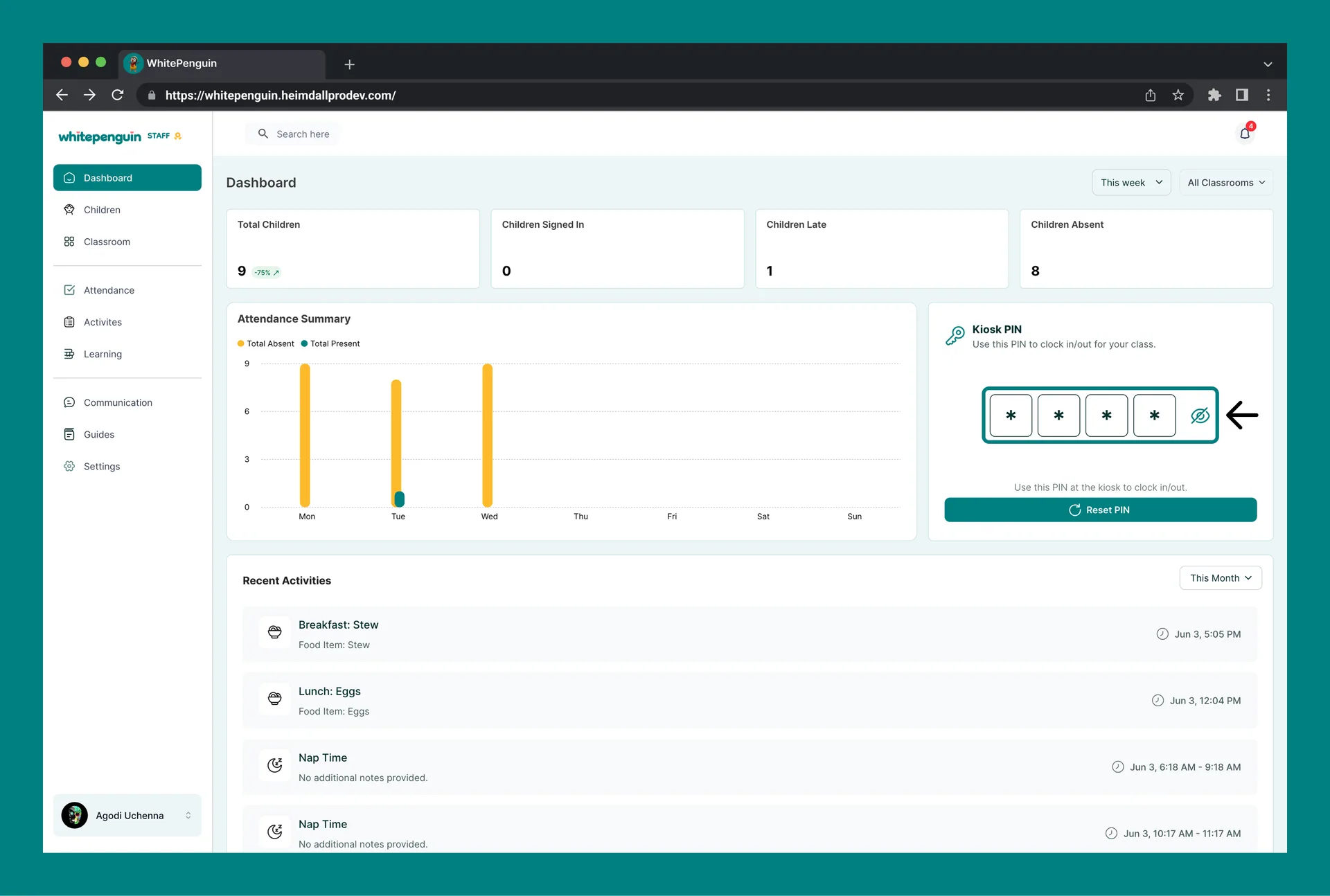
3. On the right side of the Dashboard, a **Kiosk PIN** card is displayed:
* Icon: 🔑 key icon
* Title: **Kiosk PIN**
* Subtitle: *"Use this PIN to clock in/out for your class."*
* Four masked PIN boxes showing **\* \* \*** \* (hidden by default).
* A **👁 (eye/show)** icon on the right to reveal your PIN digits.
* Below the boxes: *"Use this PIN at the kiosk to clock in/out."*
* A **Reset PIN** button (teal) at the bottom of the card.
4. Click the **👁 eye icon** to reveal your 4-digit Kiosk PIN.
#### How to Reset the Kiosk PIN (Teacher — Dashboard) [#how-to-reset-the-kiosk-pin-teacher--dashboard]
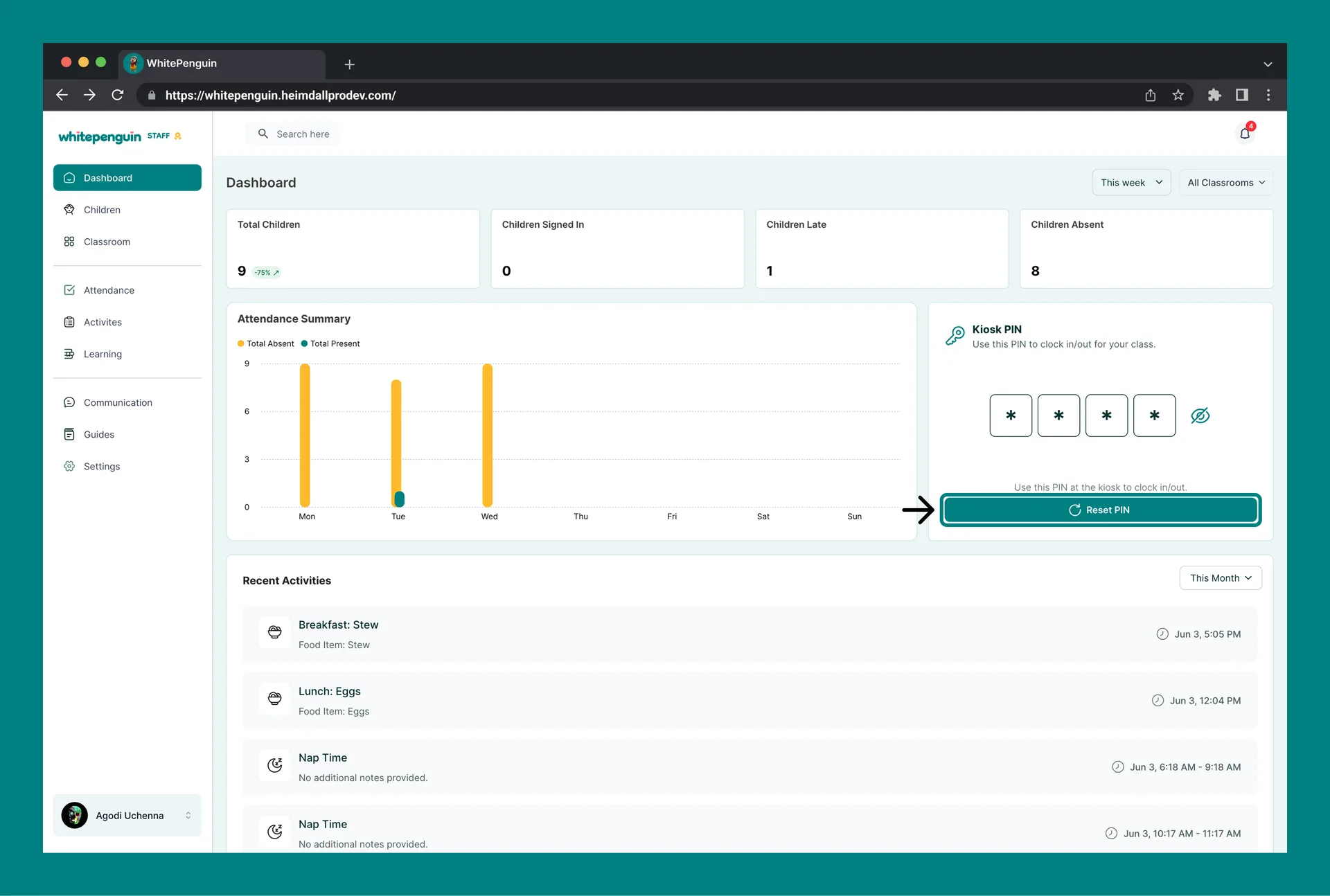
1. On the **Dashboard**, locate the **Kiosk PIN** card on the right.
2. Click the **Reset PIN** button.
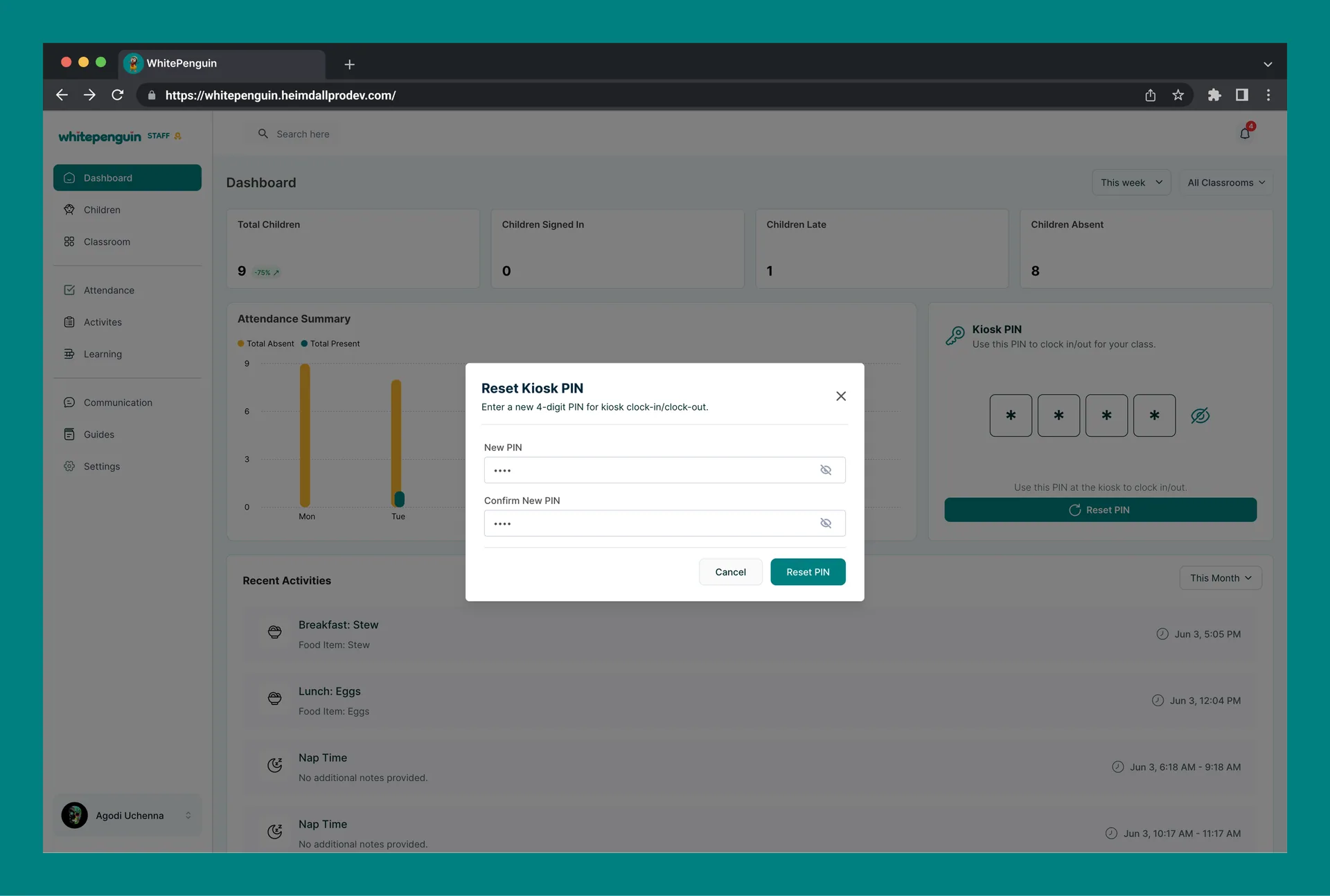
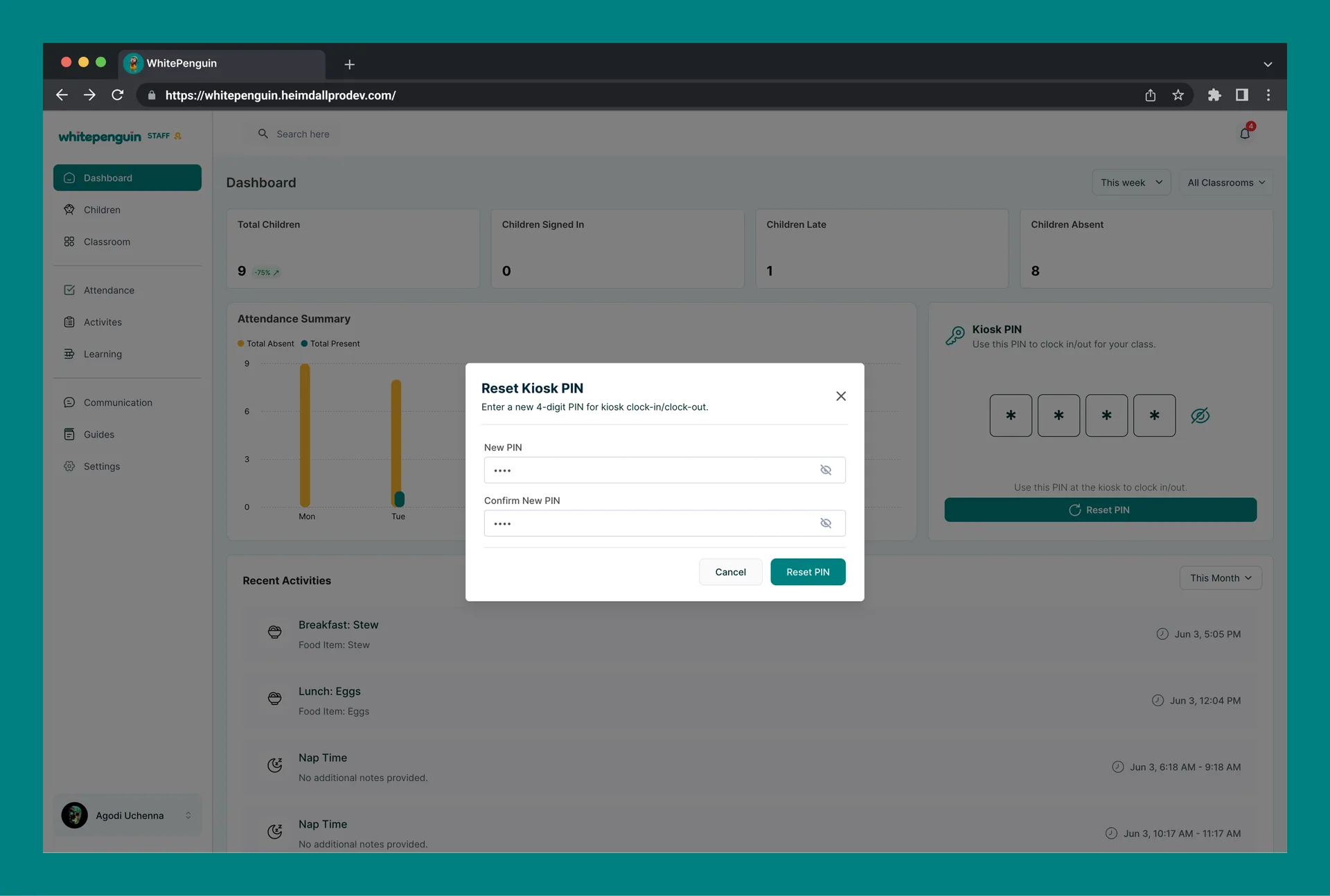
3. The **"Reset Kiosk PIN"** dialog will appear:
* **New PIN** field
* **Confirm New PIN** field
4. Enter your new 4-digit PIN in both fields.
5. Click **Reset PIN**.
6. Your PIN will be updated immediately and reflected on the Dashboard Kiosk PIN card.
### Option 2: Via the Profile Avatar Menu [#option-2-via-the-profile-avatar-menu]
#### How to Reset the Kiosk PIN (Teacher — Profile Avatar Menu) [#how-to-reset-the-kiosk-pin-teacher--profile-avatar-menu]
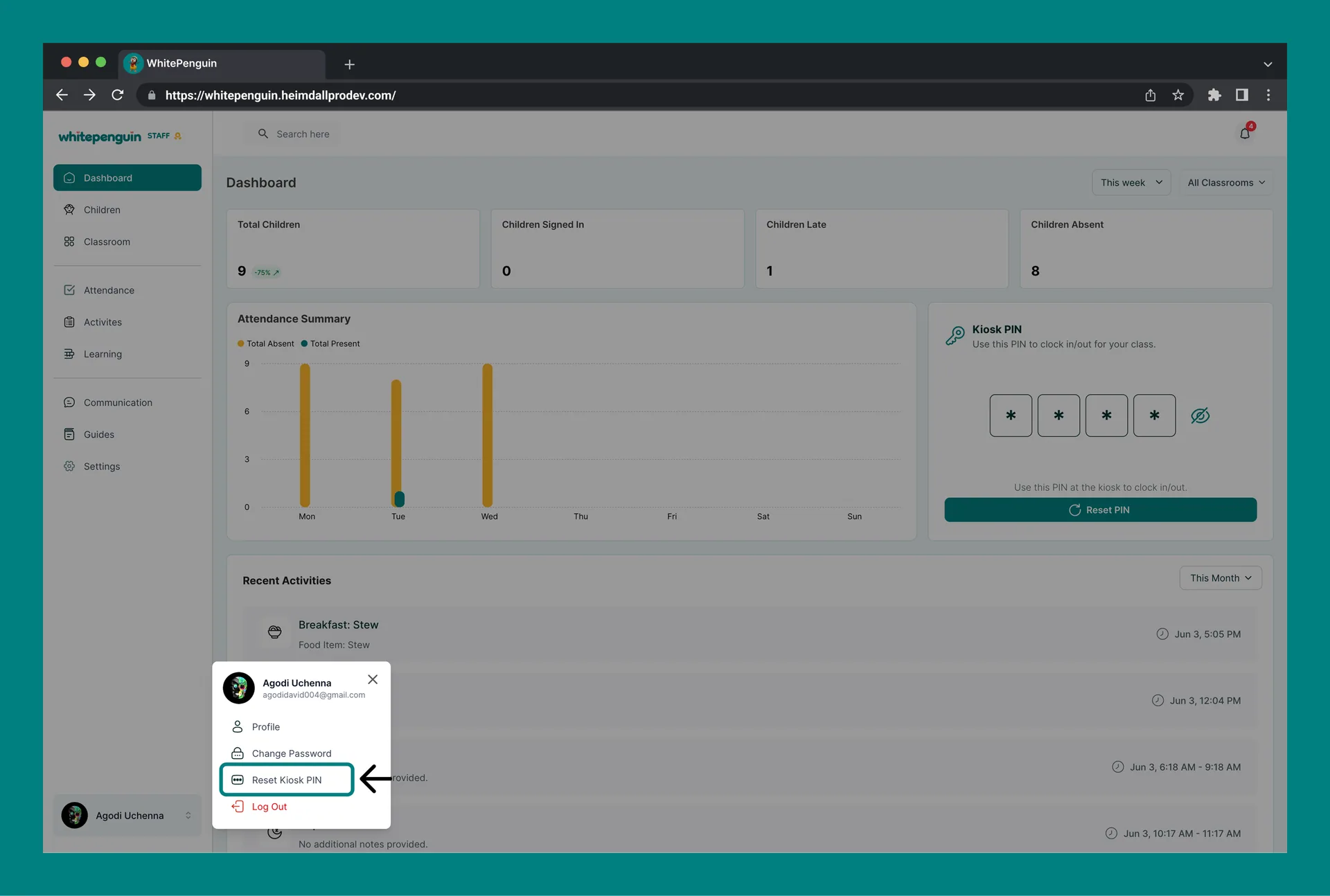
1. Click your **profile avatar** (bottom-left corner).
2. In the dropdown menu, click **Reset Kiosk PIN**.
3. The **"Reset Kiosk PIN"** dialog will appear directly (no need to navigate to Profile):
* **New PIN** field
* **Confirm New PIN** field
4. Enter your new 4-digit PIN in both fields.
5. Click **Reset PIN**.
6. Your PIN is updated immediately.
**Shortcut:** The **Reset Kiosk PIN** option in the profile avatar dropdown is the fastest way for teachers to reset their PIN — no need to navigate to the Profile page or Dashboard card.
***
## Parent — View & Reset Kiosk PIN [#parent--view--reset-kiosk-pin]
Parents can view and reset their Kiosk PIN from **two locations**: the **Dashboard** or the **Profile avatar menu**.
### Option 1: Via the Dashboard [#option-1-via-the-dashboard-1]
#### How to View the Kiosk PIN (Parent — Dashboard) [#how-to-view-the-kiosk-pin-parent--dashboard]
1. Log in to the **WhitePenguin parent portal**.
2. The **Dashboard** will load, showing the Attendance Summary chart and two cards below it:
* **Kiosk PIN** card (left)
* **Scan Kiosk QR Code** card (right)
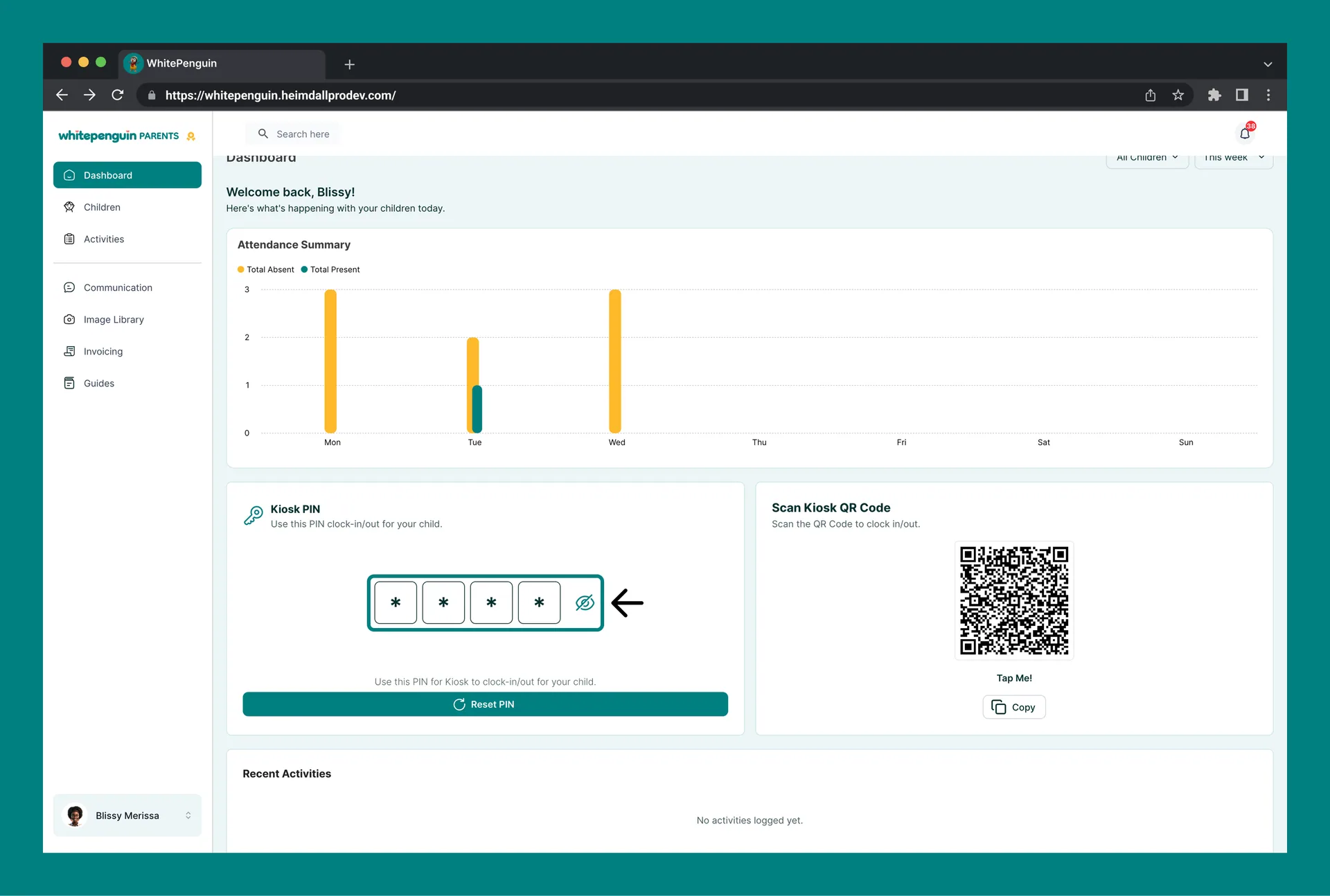
3. The **Kiosk PIN** card shows:
* Icon: 🔑 key icon
* Title: **Kiosk PIN**
* Subtitle: *"Use this PIN clock-in/out for your child."*
* Four masked PIN boxes showing **\* \* \*** \* (hidden by default).
* A **👁 (eye/show)** icon on the right to reveal your digits.
* Below the boxes: *"Use this PIN for Kiosk to clock-in/out for your child."*
* A **Reset PIN** button (teal) at the bottom.
4. Click the **👁 eye icon** to reveal your 4-digit Kiosk PIN.
**Scan Kiosk QR Code:** The Dashboard also shows a **Scan Kiosk QR Code** card on the right side with a personal QR code that can be used at the Kiosk as an alternative to entering the PIN manually. Tap **"Tap Me!"** to view the QR code, or click **Copy** to copy the QR code link.
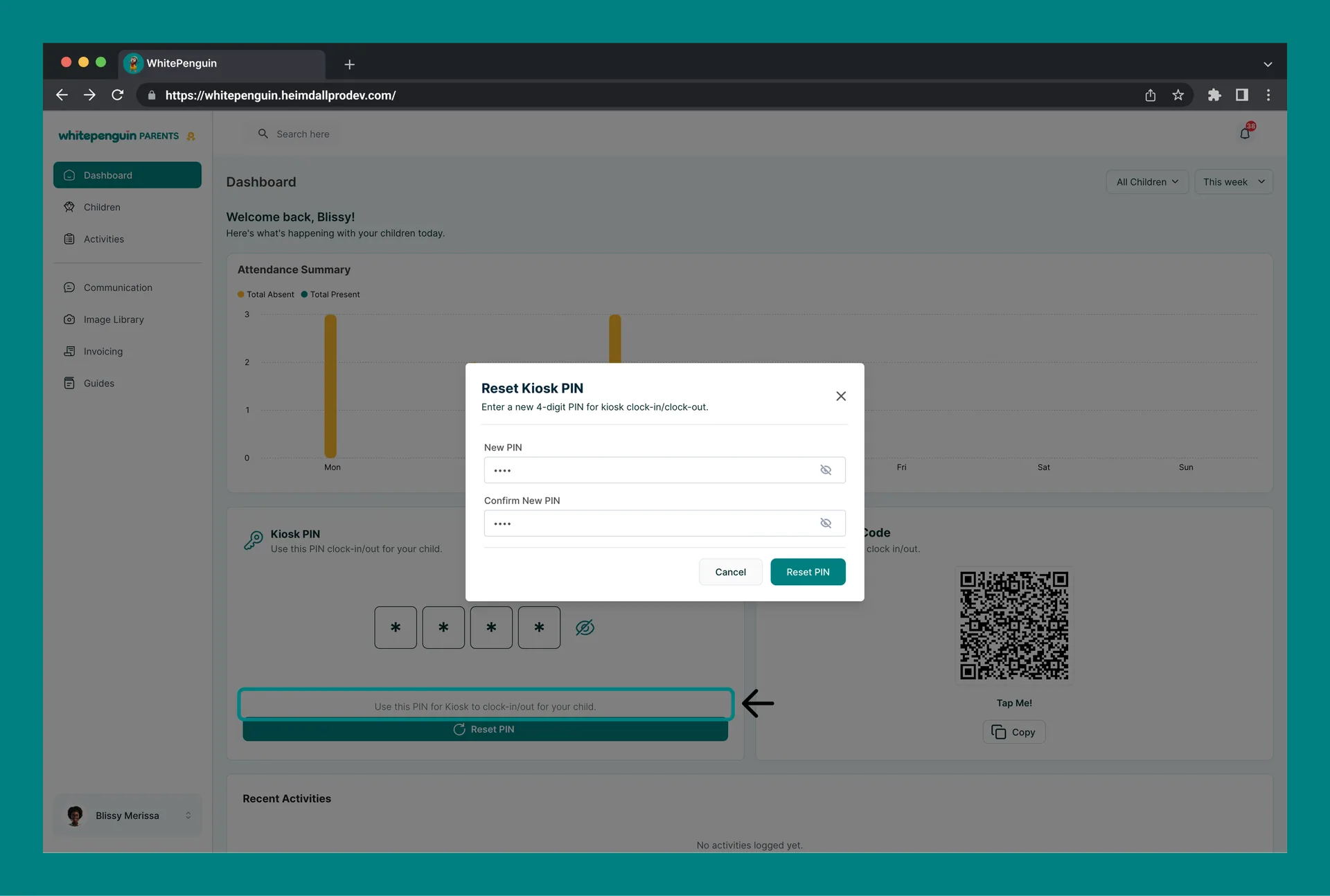
#### How to Reset the Kiosk PIN (Parent — Dashboard) [#how-to-reset-the-kiosk-pin-parent--dashboard]
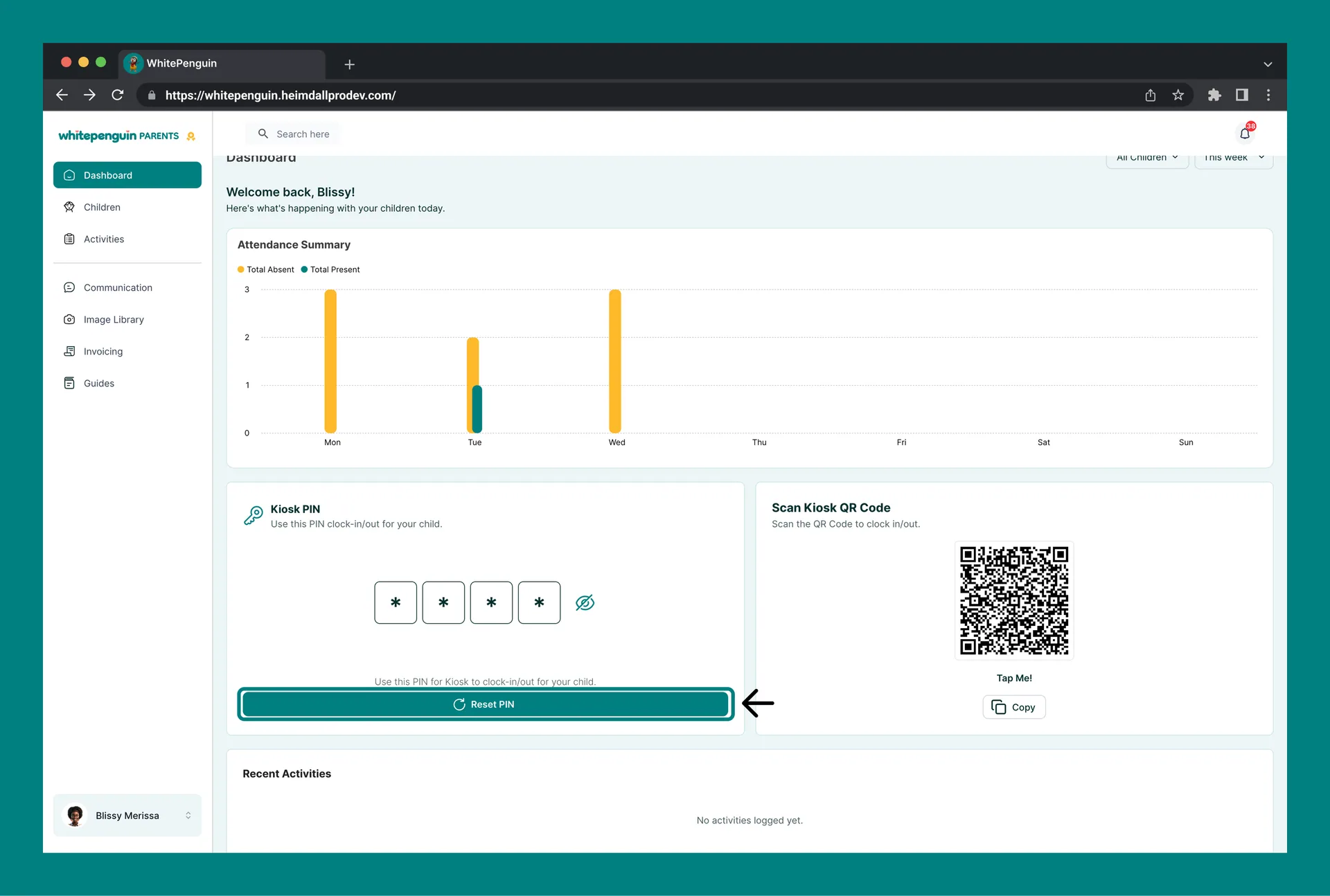
1. On the **Dashboard**, locate the **Kiosk PIN** card.
2. Click the **Reset PIN** button.
3. The **"Reset Kiosk PIN"** dialog will appear:
* **New PIN** field
* **Confirm New PIN** field
4. Enter your new 4-digit PIN in both fields.
5. Click **Reset PIN**.
6. Your PIN is updated immediately and reflected on the Dashboard.
### Option 2: Via the Profile Avatar Menu [#option-2-via-the-profile-avatar-menu-1]
#### How to Access (Parent — Profile Avatar) [#how-to-access-parent--profile-avatar]
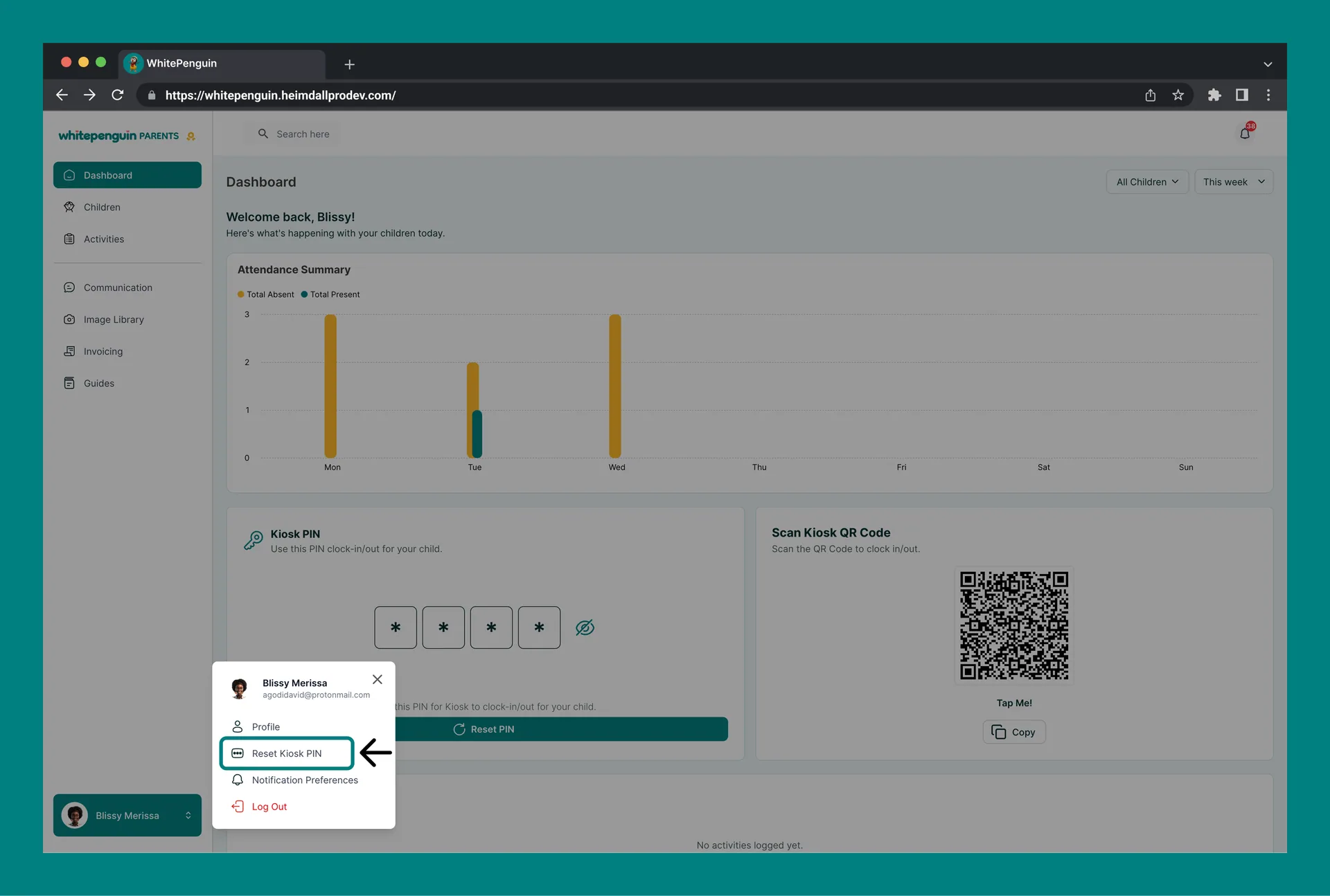
1. Click your **profile avatar** (bottom-left corner of the parent portal sidebar).
2. A dropdown menu will appear with: **Profile**, **Reset Kiosk PIN**, **Notification Preferences**, and **Log Out**.
#### How to Reset the Kiosk PIN (Parent — Profile Avatar Menu) [#how-to-reset-the-kiosk-pin-parent--profile-avatar-menu]
1. Click your **profile avatar** (bottom-left corner).
2. Click **Reset Kiosk PIN** in the dropdown.
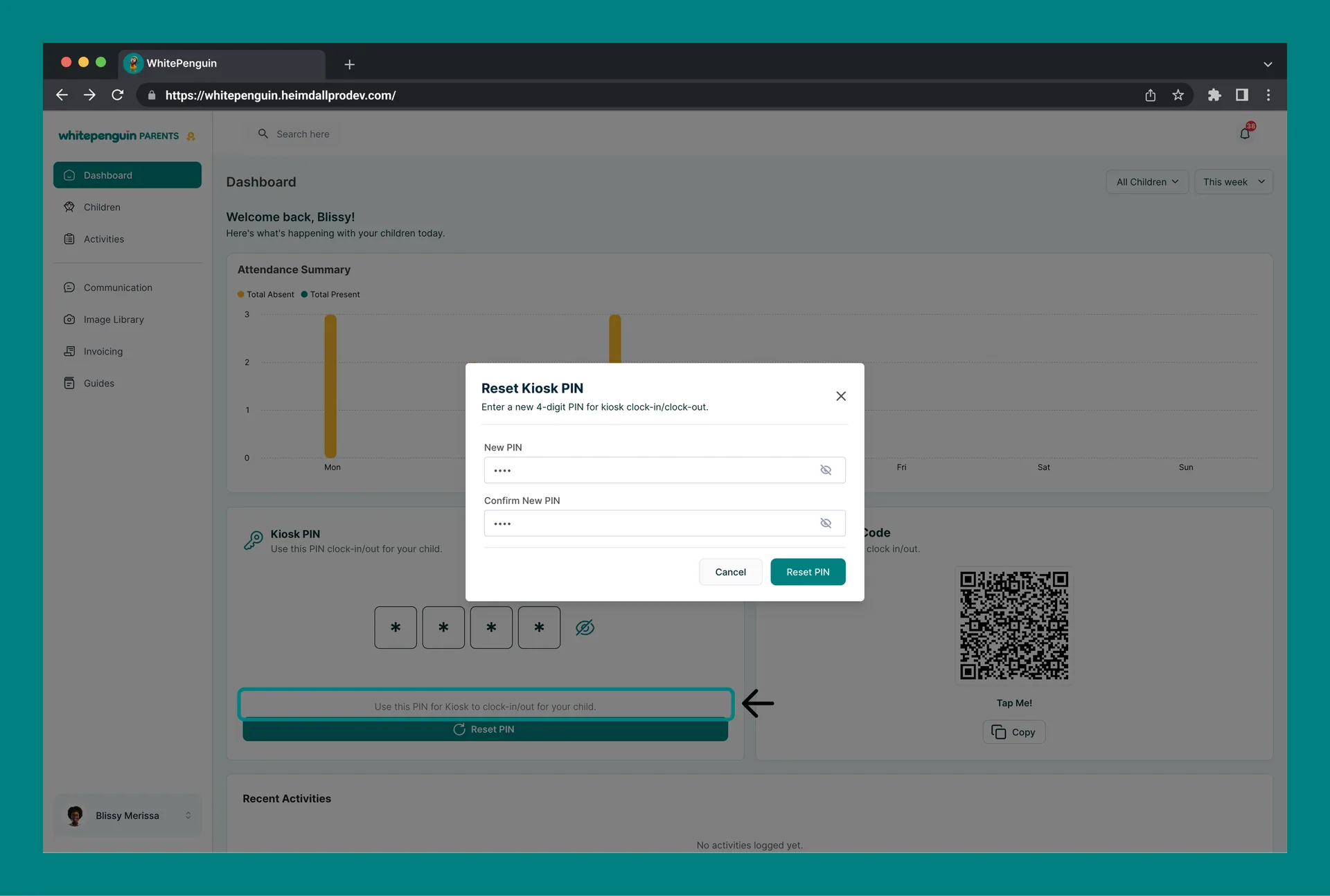
3. The **"Reset Kiosk PIN"** dialog will appear directly:
* **New PIN** field
* **Confirm New PIN** field
4. Enter your new 4-digit PIN in both fields.
5. Click **Reset PIN**.
6. Your PIN is updated immediately.
**Shortcut:** The **Reset Kiosk PIN** option in the parent avatar dropdown is the fastest way to reset your PIN without navigating to the Dashboard or Profile page.
## Tips [#tips]
* **Memorize your PIN.** Your Kiosk PIN is used every day at school drop-off and pick-up. Keep it memorized so the Kiosk line moves quickly.
* **Keep your PIN private.** Never share your Kiosk PIN with other parents, teachers, or children. It is linked to your personal attendance record.
* **Use the eye icon to check your PIN.** Before heading to the Kiosk, you can reveal your PIN on the Dashboard or Profile page using the 👁 eye icon.
* **Reset your PIN anytime.** If you think someone else knows your PIN, or if you simply want to change it, use the Reset PIN button — it only takes a few seconds.
* **Parents: Remember the QR Code alternative.** Your Dashboard also shows a **Scan Kiosk QR Code** that can be scanned at the Kiosk instead of typing your PIN. This is faster and doesn't require remembering any numbers.
* **New PIN takes effect immediately.** Once you reset your PIN, the old PIN stops working right away. Use your new PIN at the next Kiosk visit.
* **PIN must be exactly 4 digits.** The Kiosk PIN field accepts only numeric digits (0–9). Make sure your chosen PIN is exactly 4 digits long.
* **Teacher shortcut:** Click your avatar → **Reset Kiosk PIN** to reset without going to the Dashboard or Profile page.
* **Parent shortcut:** Click your avatar → **Reset Kiosk PIN** to reset quickly from anywhere in the portal.
## FAQs [#faqs]
The Kiosk PIN is a personal 4-digit code used to authenticate yourself at the school's shared Kiosk device when clocking in or out. It ensures that only the correct person (or parent for their child) can record a clock-in/out event.
* **Admins:** Go to **Profile** (click avatar → Profile). The Kiosk PIN is shown in the right panel. Click the 👁 eye icon to reveal the digits.
* **Teachers/Staff:** Check the **Kiosk PIN card** on your Dashboard (click the 👁 eye icon), or go to **Profile** via the avatar menu.
* **Parents:** Check the **Kiosk PIN card** on your Dashboard (click the 👁 eye icon), or go to **Profile** via the avatar menu.
All roles use the same **Reset Kiosk PIN** dialog. You can access it from:
* **Admins:** Profile page → Kiosk PIN section → **Reset PIN** button.
* **Teachers:** Dashboard → Kiosk PIN card → **Reset PIN** button, **OR** click avatar → **Reset Kiosk PIN**.
* **Parents:** Dashboard → Kiosk PIN card → **Reset PIN** button, **OR** click avatar → **Reset Kiosk PIN**.
In all cases, enter a new 4-digit PIN, confirm it, and click **Reset PIN**.
Immediately. As soon as you click **Reset PIN** and the dialog closes, your new PIN is active. The old PIN will no longer work at the Kiosk.
Yes. You can choose any combination of 4 numeric digits (0–9) as your Kiosk PIN. For security, avoid obvious combinations like 0000, 1234, or your birth year.
The **Scan Kiosk QR Code** is a personal QR code available on the parent Dashboard that can be scanned at the Kiosk as an alternative to typing your 4-digit PIN. It links directly to your parent account for clock-in/clock-out. Tap **"Tap Me!"** to display the QR code, or click **Copy** to copy the link. This is especially useful if you forget your PIN.
No. Your Kiosk PIN is personal and linked to your attendance record. Never share it with other parents, teachers, or children. If you believe your PIN has been used by someone else, reset it immediately.
Admins have a different Dashboard layout focused on school-wide management (children, attendance, reports). Their Kiosk PIN is accessible from the **Profile page** instead. Navigate to Profile via the avatar menu at the bottom-left of the admin portal.
Make sure you enter the **exact same 4-digit PIN** in both the **New PIN** and **Confirm New PIN** fields. Both fields must match exactly. Use the 👁 eye icon next to each field to reveal what you've typed and verify they are identical before clicking **Reset PIN**.