# Add App Link to Your Home Screen (Mobile)
URL: https://whitepenguin.sonicar.tech/docs/parents/add-app-link-to-your-home-screen/
> Learn how to add the WhitePenguin parent portal to your mobile home screen for quick, one-tap access — no app download required. Works on Android and iOS.
## Overview [#overview]
WhitePenguin is a web-based parent portal, which means there is no app to download from the App Store or Google Play. However, you can add a **shortcut icon** directly to your phone's home screen so it feels and behaves just like a native app.
Once added, tapping the icon on your home screen opens the WhitePenguin parent portal instantly — no need to open a browser, type a URL, or search for the site every time.
This guide covers how to add the home screen shortcut on:
* **Android** (using Google Chrome)
* **iPhone / iOS** (using Safari)
## How to Add on Android (Google Chrome) [#how-to-add-on-android-google-chrome]
1. Open **Google Chrome** on your Android device.
2. Navigate to the **WhitePenguin parent portal** — log in if prompted.
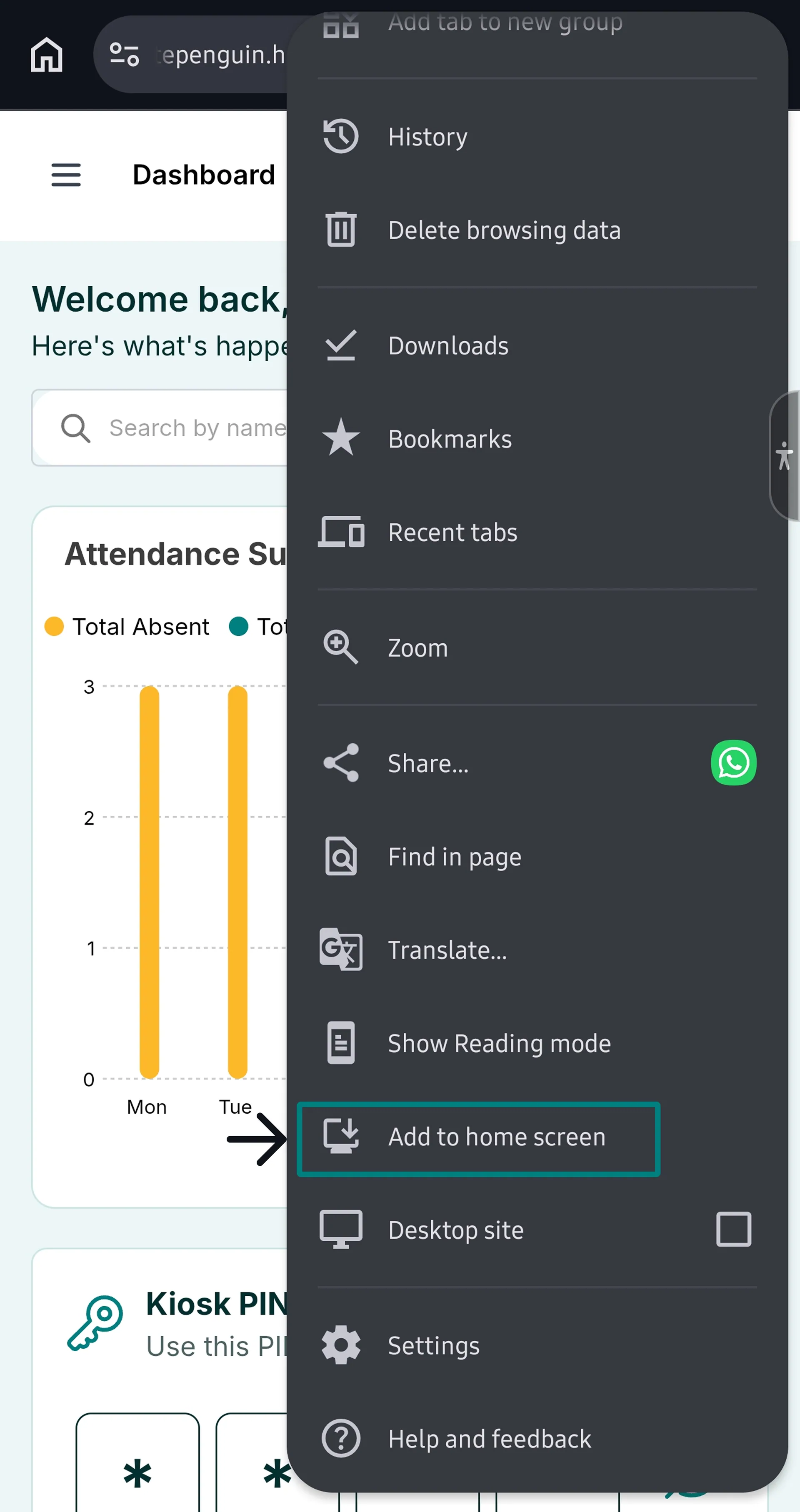
3. Tap the **⋮** (three-dot menu) icon at the top-right corner of Chrome.
4. In the menu that appears, scroll down and tap **Add to Home screen**.
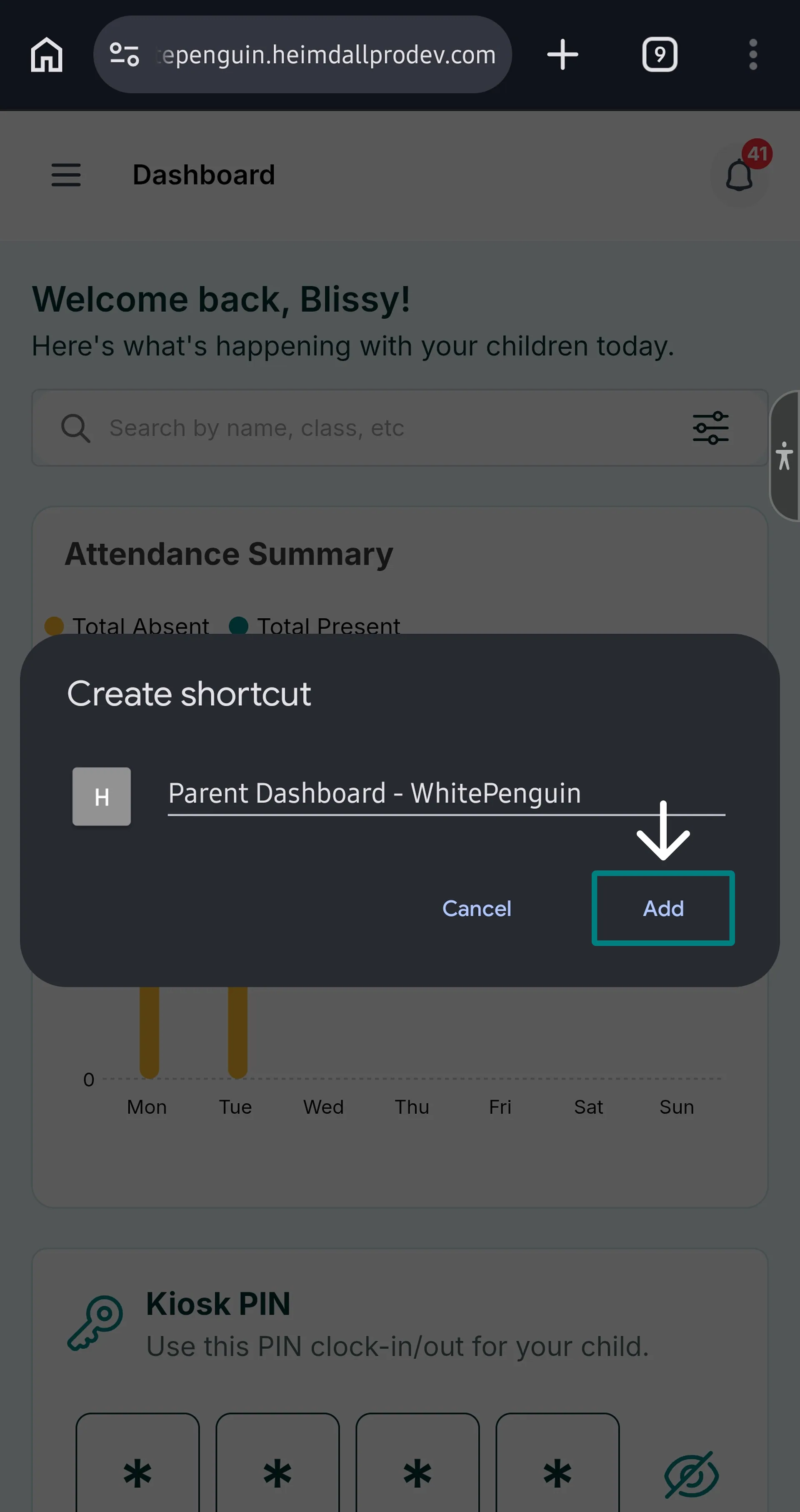
5. A **"Create shortcut"** dialog will appear, showing:
* A preview icon labeled **"Parent Dashboard – WhitePenguin"**
* A text field where you can edit the shortcut name (optional)
6. Tap **Add** to confirm.
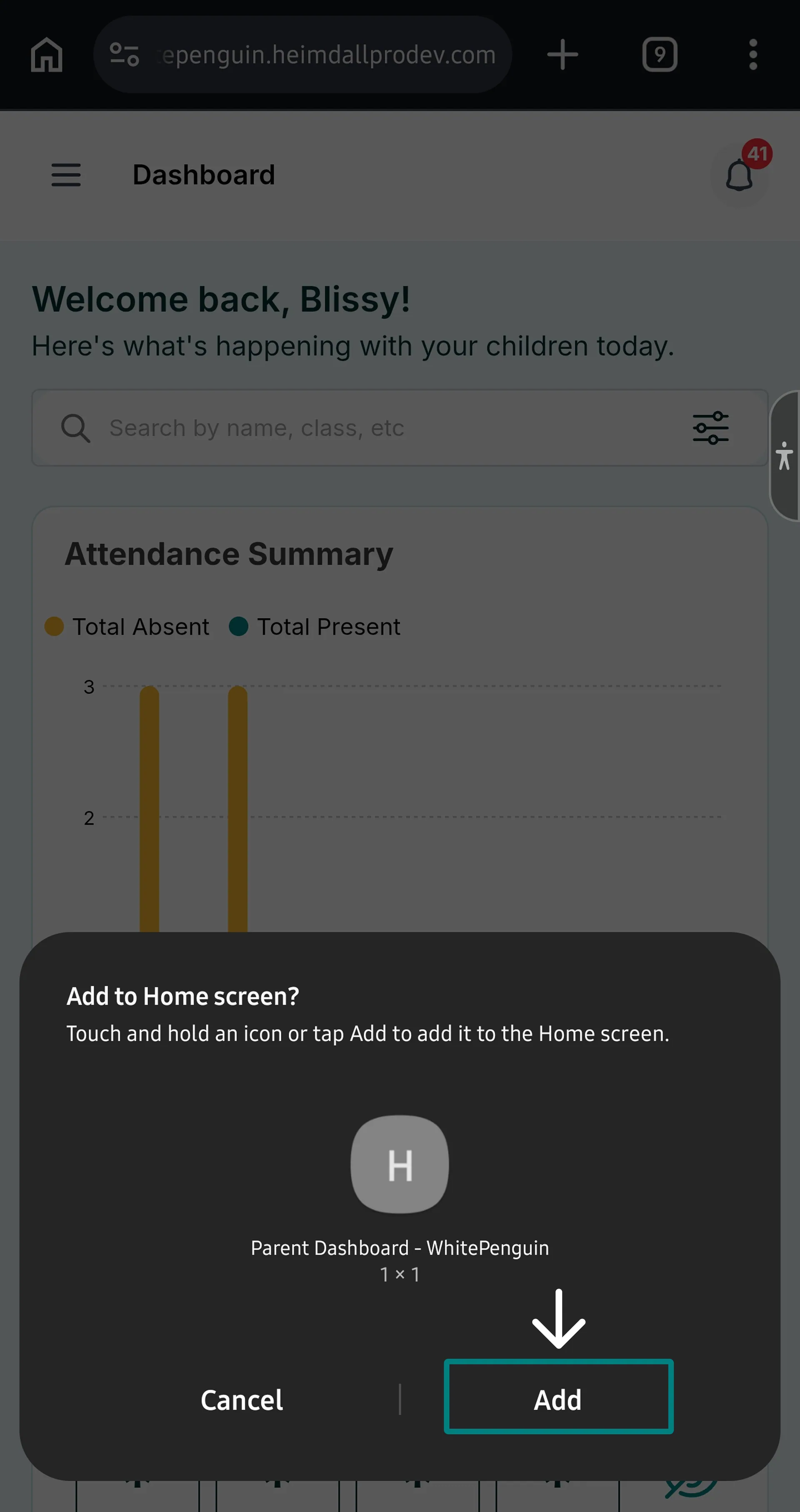
7. A second **"Add to Home screen"** dialog may appear showing a 1×1 widget preview. Tap **Add** again.
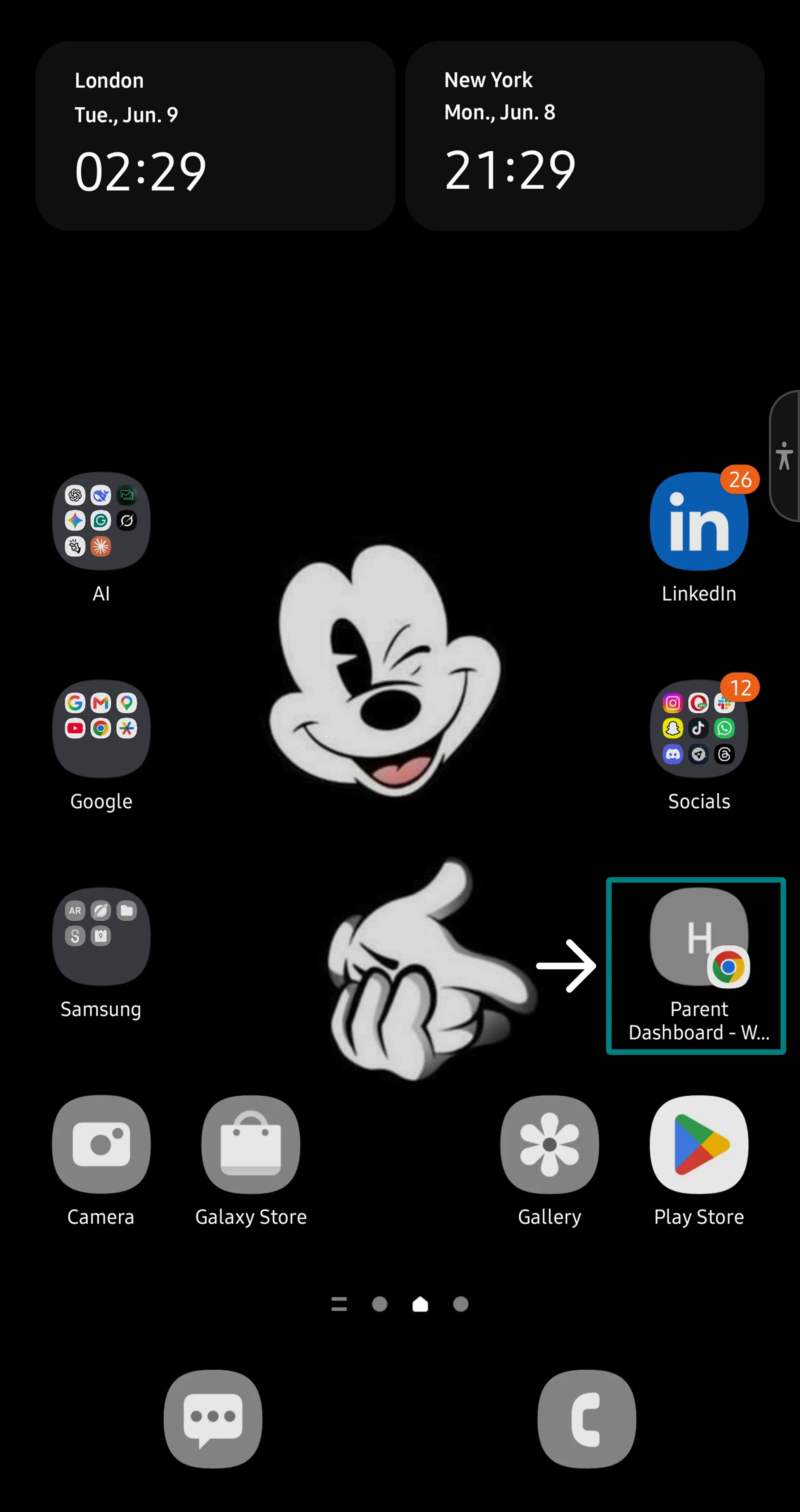
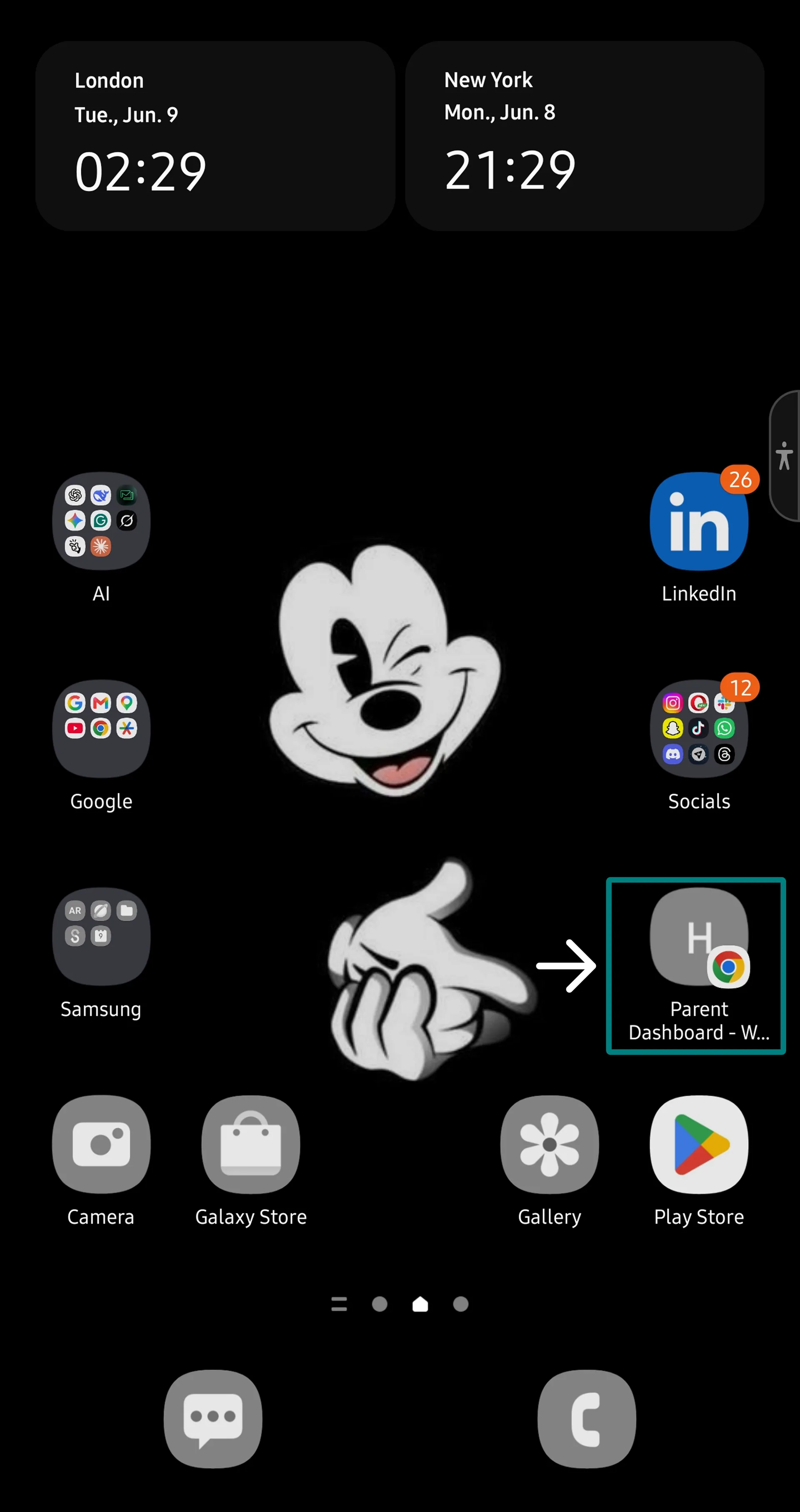
8. The WhitePenguin shortcut icon will now appear on your **home screen**.
The shortcut is labeled **"Parent Dashboard – WhitePenguin"** by default. You can rename it in the text field before tapping **Add** if you prefer a shorter name like "WhitePenguin".
## How to Add on iPhone / iOS (Safari) [#how-to-add-on-iphone--ios-safari]
1. Open **Safari** on your iPhone or iPad.
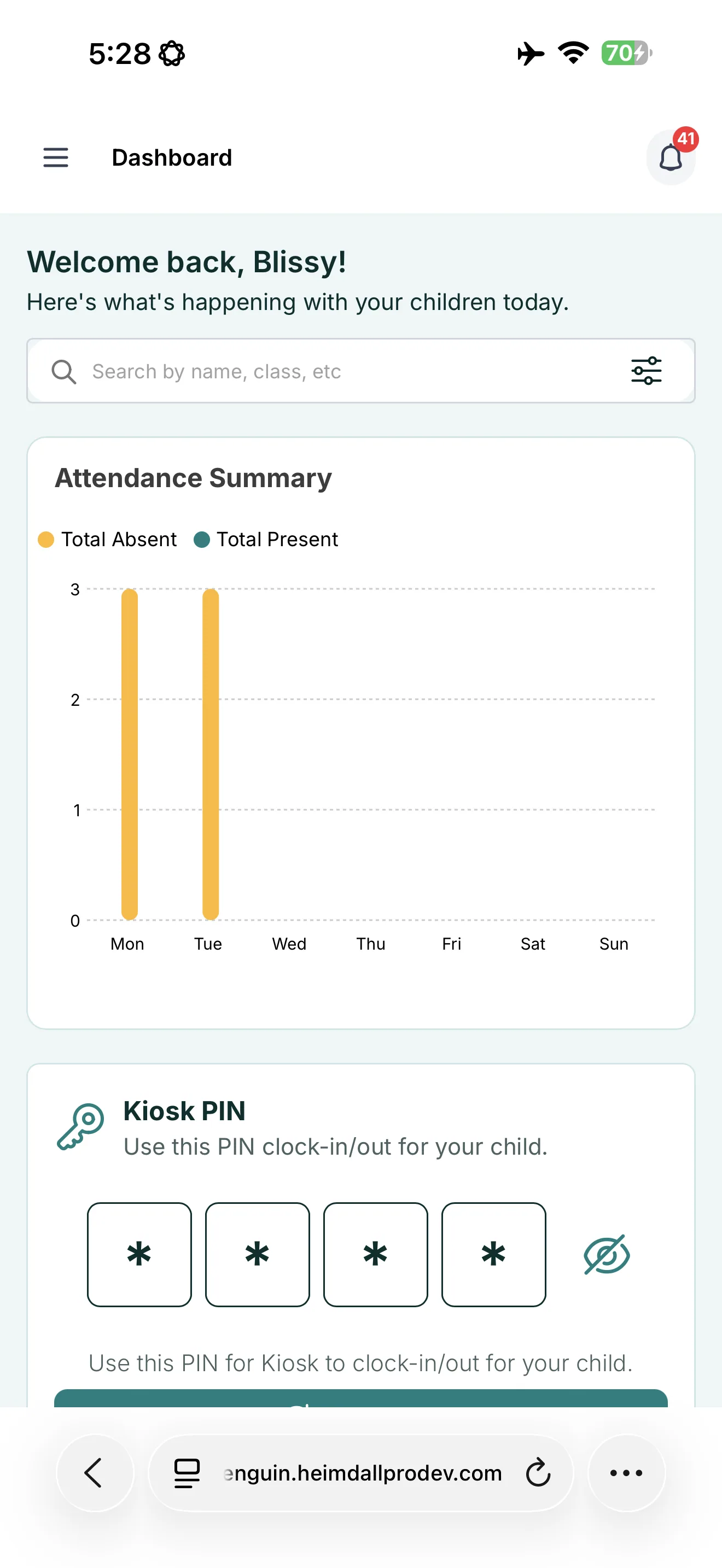
2. Navigate to the **WhitePenguin parent portal** — log in if prompted.
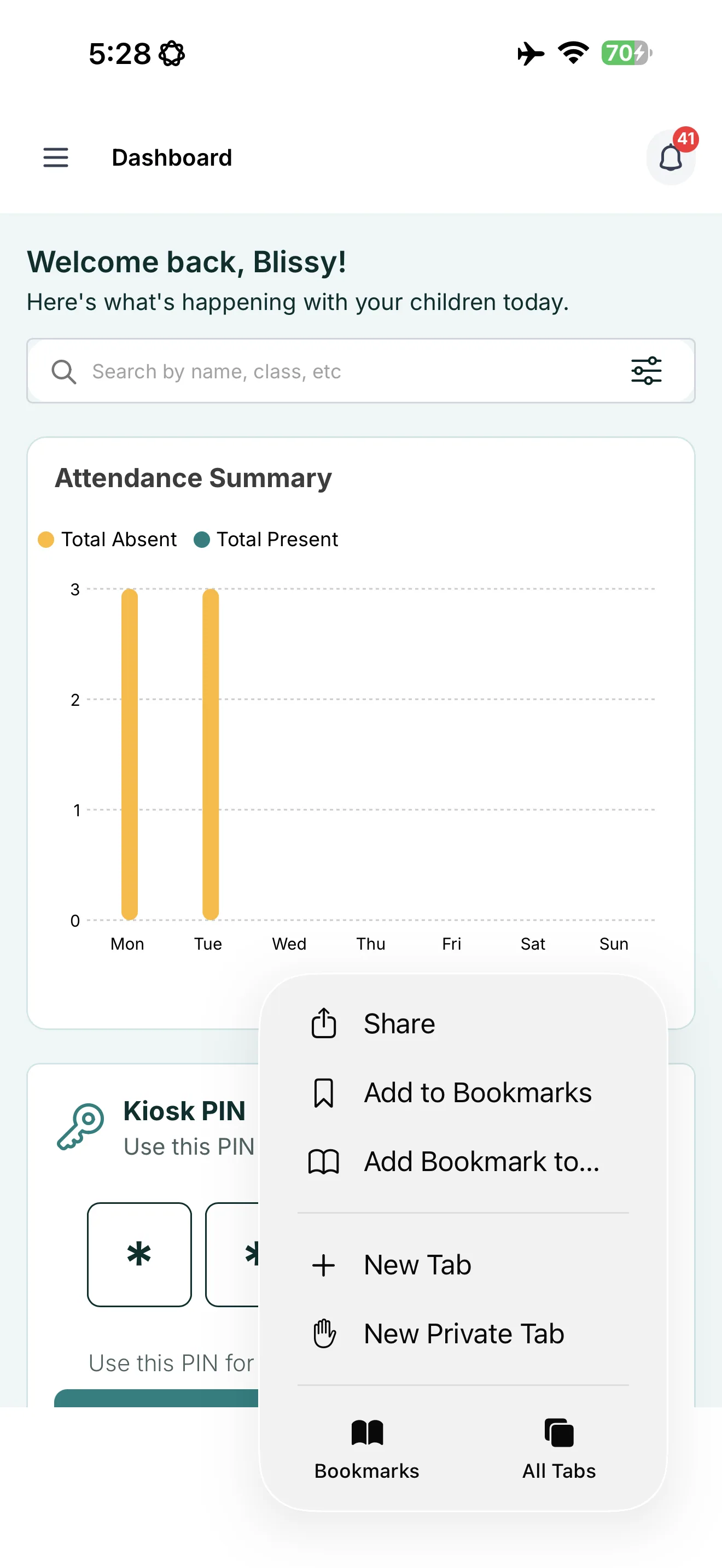
3. Tap the **Share** icon (📤) at the bottom center of Safari (the box with an arrow pointing up).
4. In the Share sheet that slides up, scroll down and tap **Add to Home Screen**.
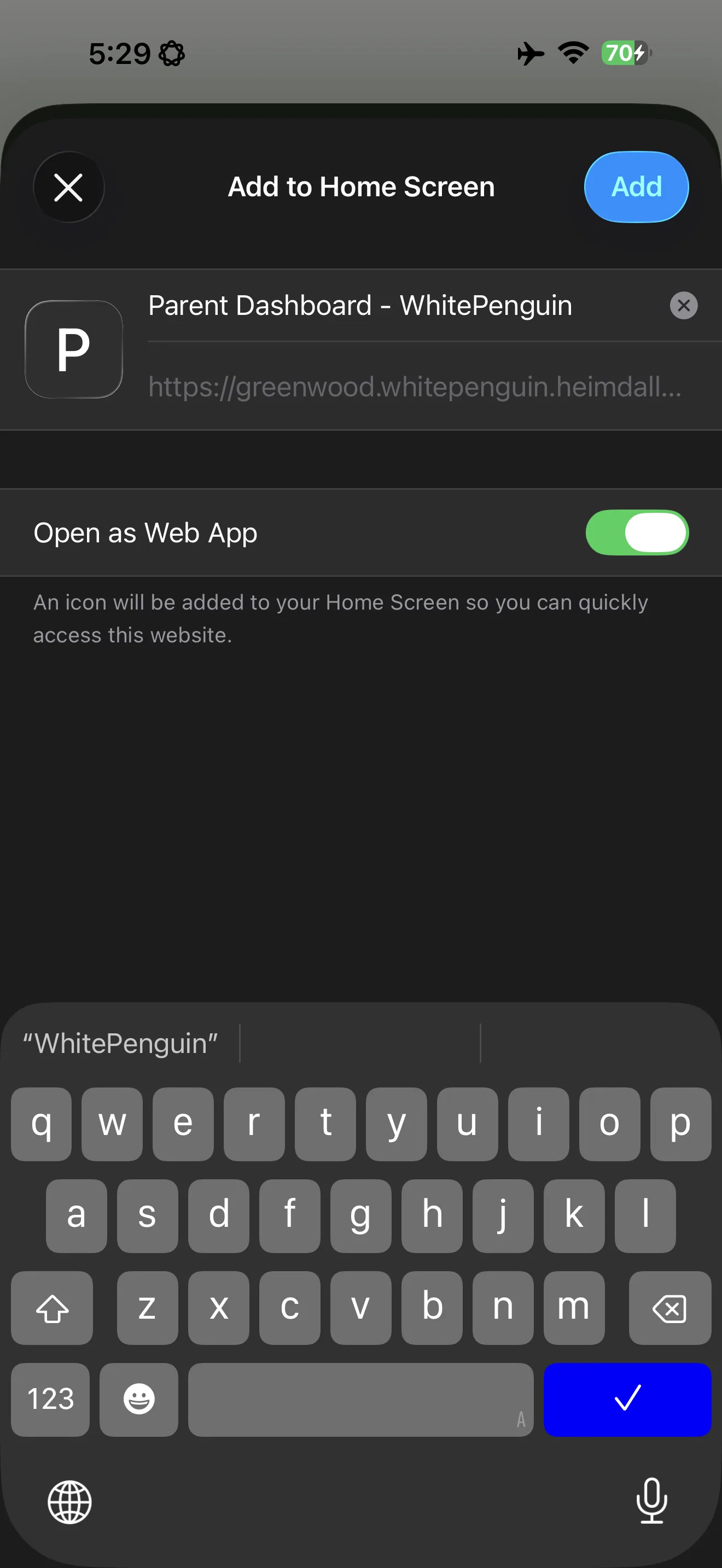
5. A screen will appear showing the shortcut name and URL. Edit the name if desired.
6. Tap **Add** in the top-right corner.
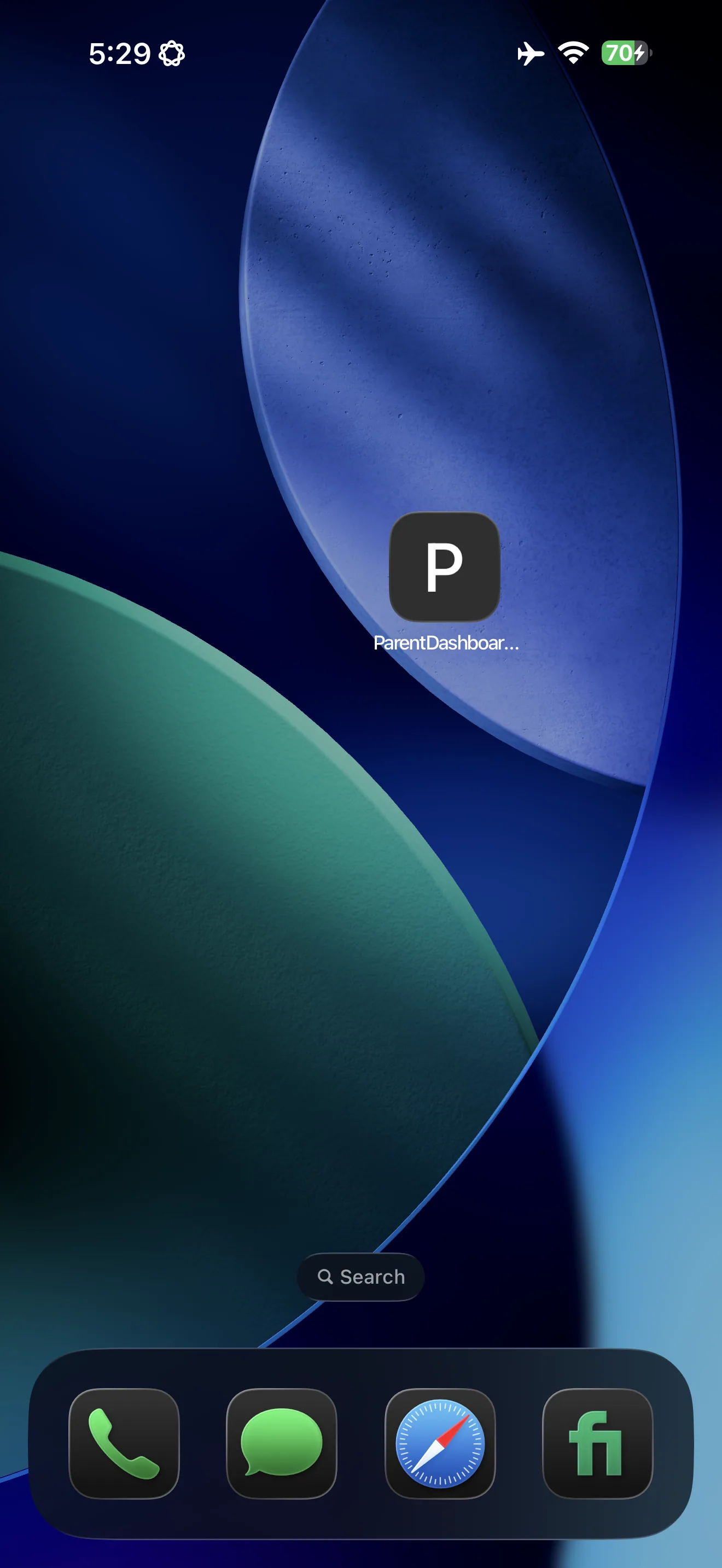
7. The WhitePenguin shortcut icon will now appear on your **home screen**.
**Note for iPhone users:** This feature works only in **Safari**. If you use Chrome or another browser on iOS, you may not see the "Add to Home Screen" option in the same location. Switch to Safari for the best experience.
## Access on Mobile [#access-on-mobile]
Once the shortcut is added to your home screen:
* **Tap the icon** to open the WhitePenguin parent portal directly in your browser.
* The portal will open in a **full-screen** or near-full-screen view, similar to a native app experience (the browser toolbar is minimized).
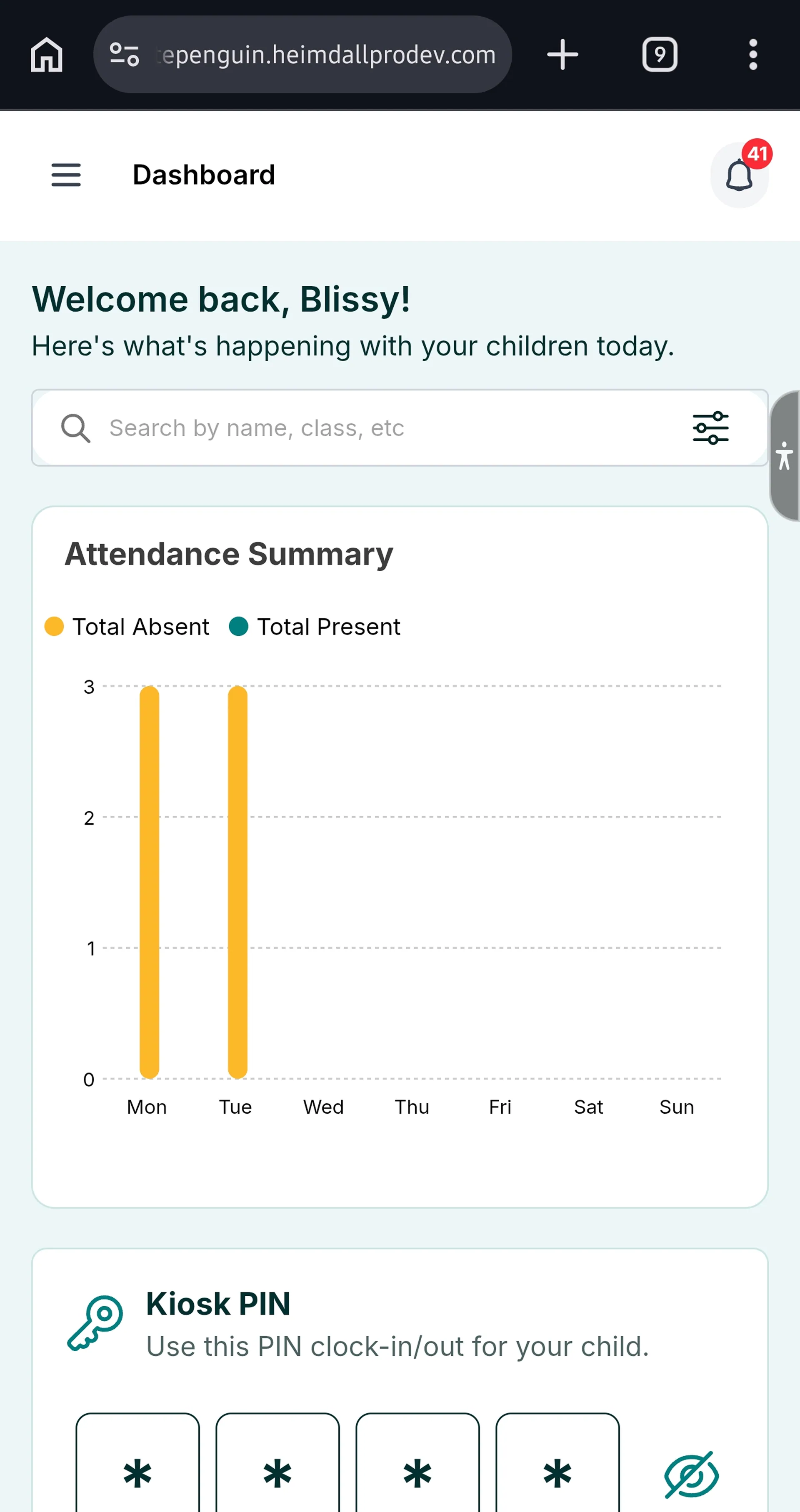
* You will be taken to the **Dashboard** page, where you can see your attendance summary, Kiosk PIN, QR code, and all other portal sections.
* If your session is still active, you will be logged in automatically. If not, you will be prompted to log in.
### Mobile Navigation [#mobile-navigation]
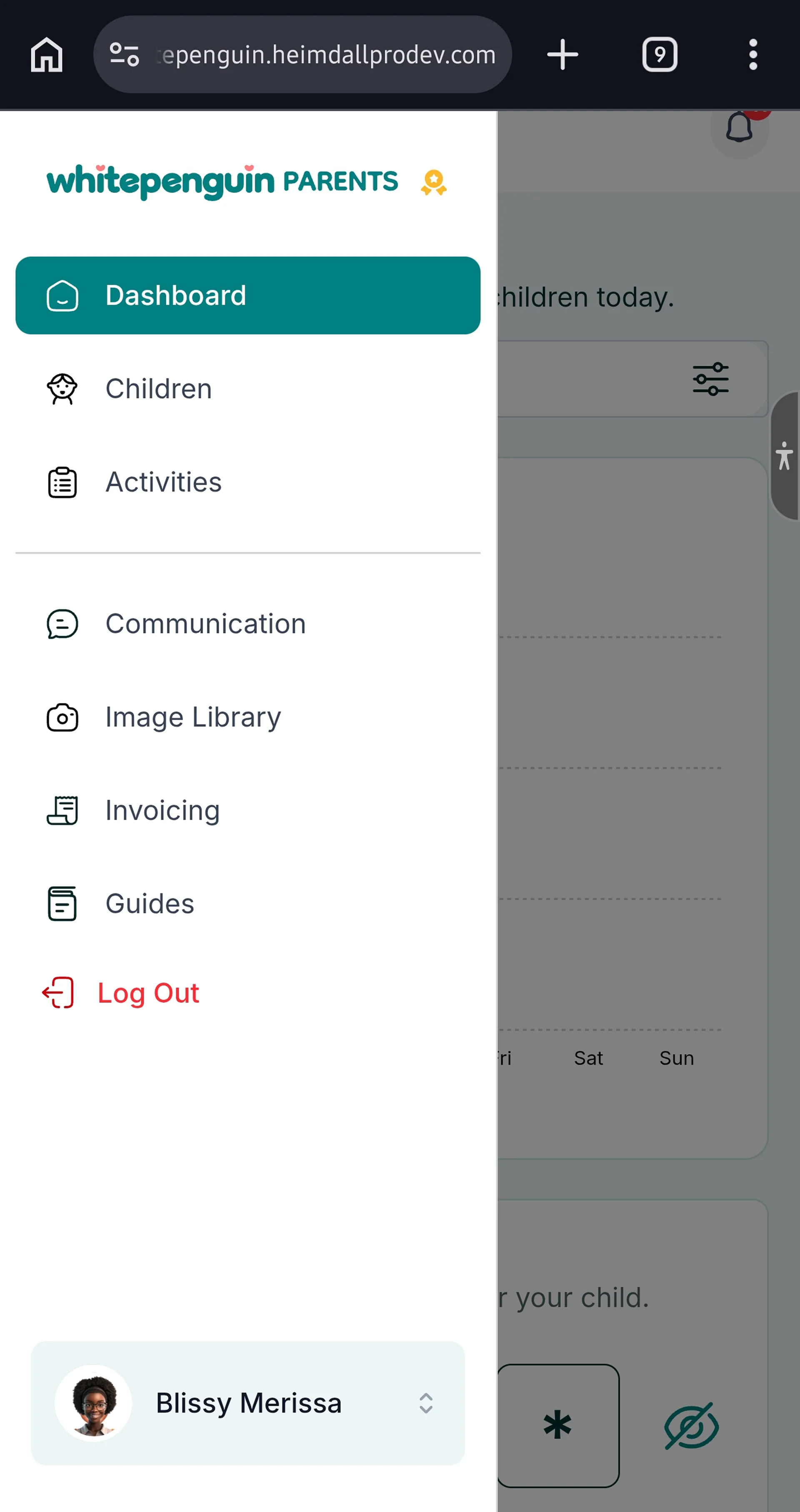
On mobile, the sidebar is collapsed by default. Tap the **☰ (hamburger) menu icon** at the top-left to open the navigation sidebar and access:
* Dashboard
* Children
* Activities
* Communication
* Image Library
* Invoicing
* Guides
The **🔔 Notification bell** at the top-right shows unread notifications with a badge count.
## Tips [#tips]
* **No app download needed.** WhitePenguin is a web app. The home screen shortcut gives you app-like access without needing to visit an app store.
* **Works on any modern smartphone.** The home screen shortcut method works on Android devices with Chrome and iPhones/iPads with Safari.
* **Rename the shortcut for convenience.** When the "Create shortcut" or "Add to Home Screen" dialog appears, you can shorten the name to just "WhitePenguin" or "School Portal" for a cleaner home screen.
* **The shortcut opens your last session.** If you were already logged in, tapping the icon will take you straight to the Dashboard without needing to log in again.
* **Add it to your most-used home screen page.** Place the WhitePenguin shortcut on your primary home screen page so you can access it as easily as any other frequently used app.
* **The shortcut is just a browser link.** If you clear your browser data or log out, you will need to log in again the next time you tap the icon.
## FAQs [#faqs]
No. WhitePenguin is a web-based portal and does not currently have a standalone native app on the App Store or Google Play. However, you can add a home screen shortcut using your mobile browser (Chrome on Android or Safari on iPhone) to get an app-like experience.
Make sure you are using the correct browser:
* **Android:** Use **Google Chrome**. The option is in the three-dot (⋮) menu.
* **iPhone:** Use **Safari**. The option is in the Share (📤) sheet.
If you are using a different browser (e.g., Firefox, Samsung Internet), the option may appear under a different name like "Install" or "Add to Home screen" but may work differently.
Yes. When the "Create shortcut" (Android) or "Add to Home Screen" (iPhone) dialog appears, you can tap the name field and edit it before tapping **Add**. You can also rename it later by long-pressing the icon on your home screen and selecting **Rename** or **Edit**.
Not always. If your browser session is still active, tapping the shortcut will open the portal and take you directly to the Dashboard. If your session has expired or you previously logged out, you will be prompted to log in again.
* **Android:** Long-press the icon on your home screen and select **Remove** or drag it to the **Remove** area at the top of the screen.
* **iPhone:** Long-press the icon until it wiggles, tap the **−** (minus) button or select **Remove Bookmark**.
Removing the shortcut does not delete your WhitePenguin account or log you out.
Yes, very similarly. When you tap the shortcut, WhitePenguin opens in a full-screen browser view with the toolbar minimized, giving it an app-like feel. All features of the portal — Dashboard, Children, Activities, Communication, Invoicing, and more — are fully accessible from the mobile browser.
Clearing browser data (cookies and site data) logs you out of WhitePenguin and may affect how the shortcut opens. The shortcut itself still exists on your home screen — tap it, and you will be taken to the WhitePenguin login page. Log in as usual to regain access.