# Manage My Invoices
URL: https://whitepenguin.sonicar.tech/docs/parents/manage-my-invoices/
> Learn how to view, download, and manage your school invoices in WhitePenguin — track outstanding balances, understand invoice types, and pay securely online using Paystack or Bank Transfer.
## Overview [#overview]
The **Invoicing** section in WhitePenguin gives you a complete view of all billing from your child's school. You can see every invoice raised for each of your children, track what has been paid and what remains outstanding, and pay directly from the portal.
Key things you can do in this section:
* View a summary of your total invoices, pending amount, overdue balance, and total paid
* Browse a detailed list of all invoices with filters by status and child
* Open any invoice to see its full breakdown
* Download invoices as PDF files
* Pay outstanding invoices online via **Paystack** or **Bank Transfer**
## How to Access [#how-to-access]
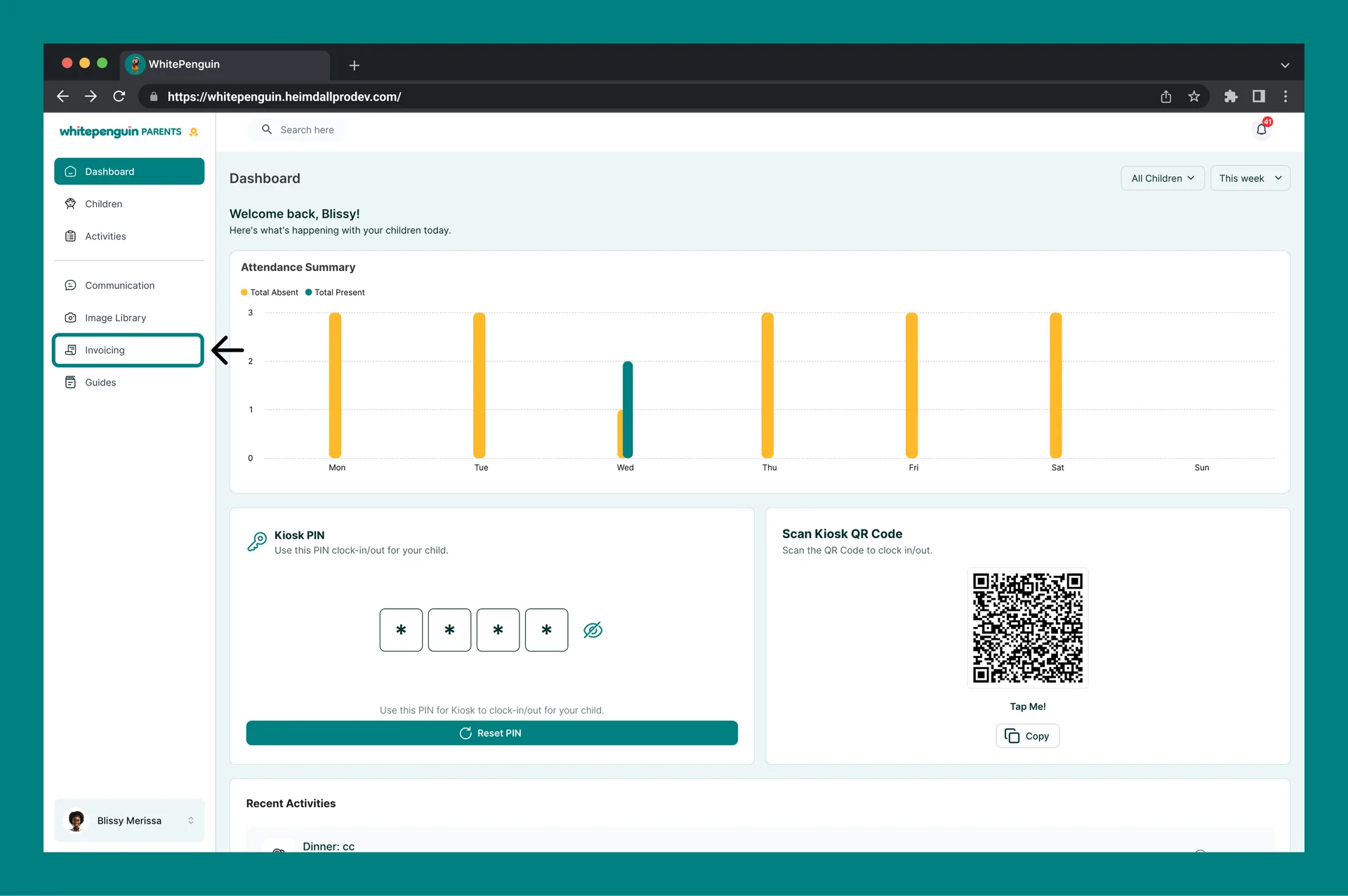
1. Log in to the **WhitePenguin parent portal**.
2. Click **Invoicing** in the **left sidebar**.
3. The Invoicing page will load, showing your summary cards and the full invoice list below.
## Invoicing Dashboard [#invoicing-dashboard]
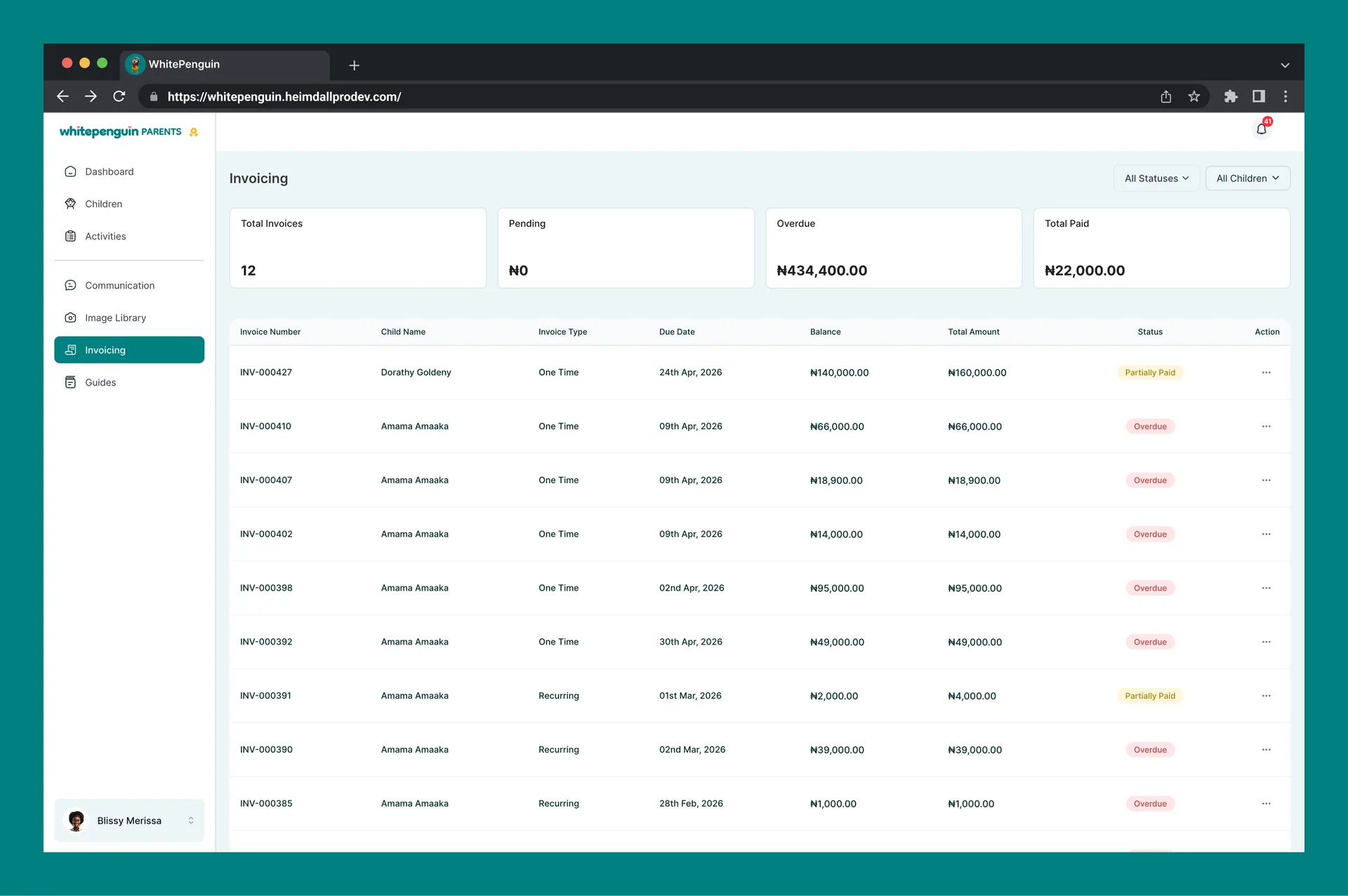
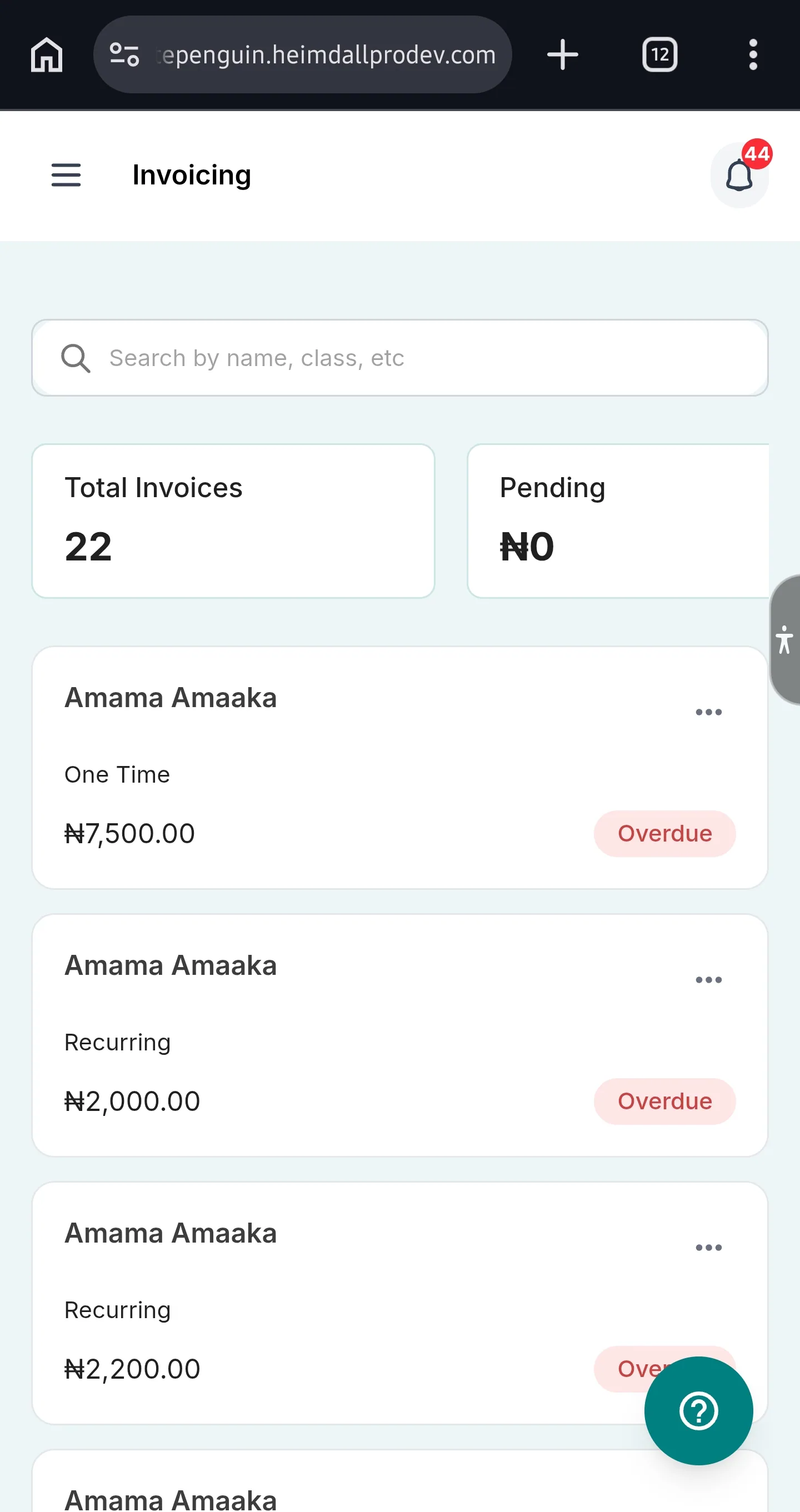
At the top of the Invoicing page, four summary cards give you an at-a-glance overview of your billing status:
| Card | What It Shows |
| ------------------ | ----------------------------------------------------------------------------------------------- |
| **Total Invoices** | The total number of invoices issued to you across all children (e.g., 12). |
| **Pending** | The total outstanding amount for invoices that are pending but not yet overdue (e.g., ₦0). |
| **Overdue** | The total outstanding balance for invoices that have passed their due date (e.g., ₦434,400.00). |
| **Total Paid** | The cumulative total of all payments made to date across all invoices (e.g., ₦22,000.00). |
## Invoice List [#invoice-list]
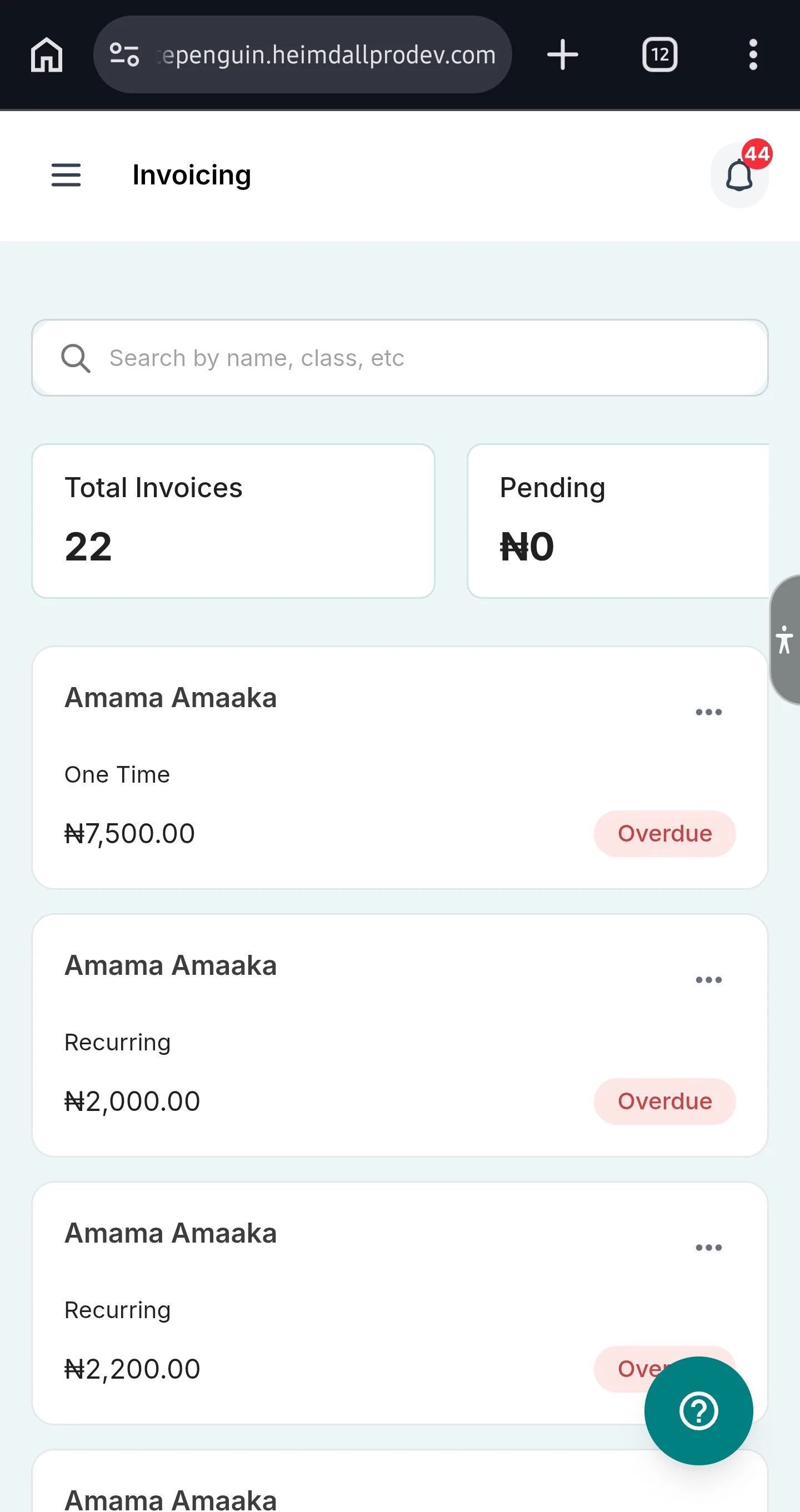
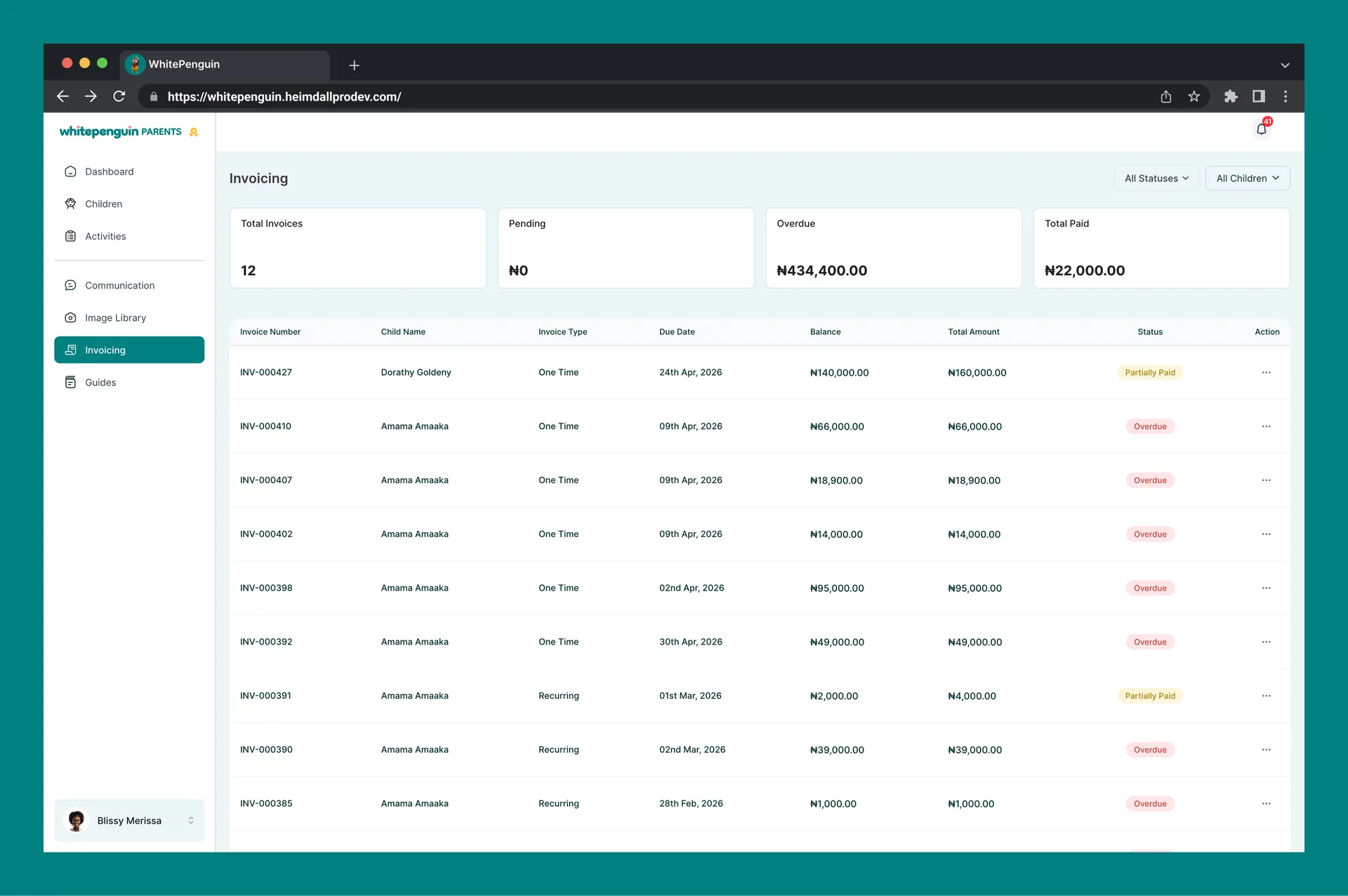
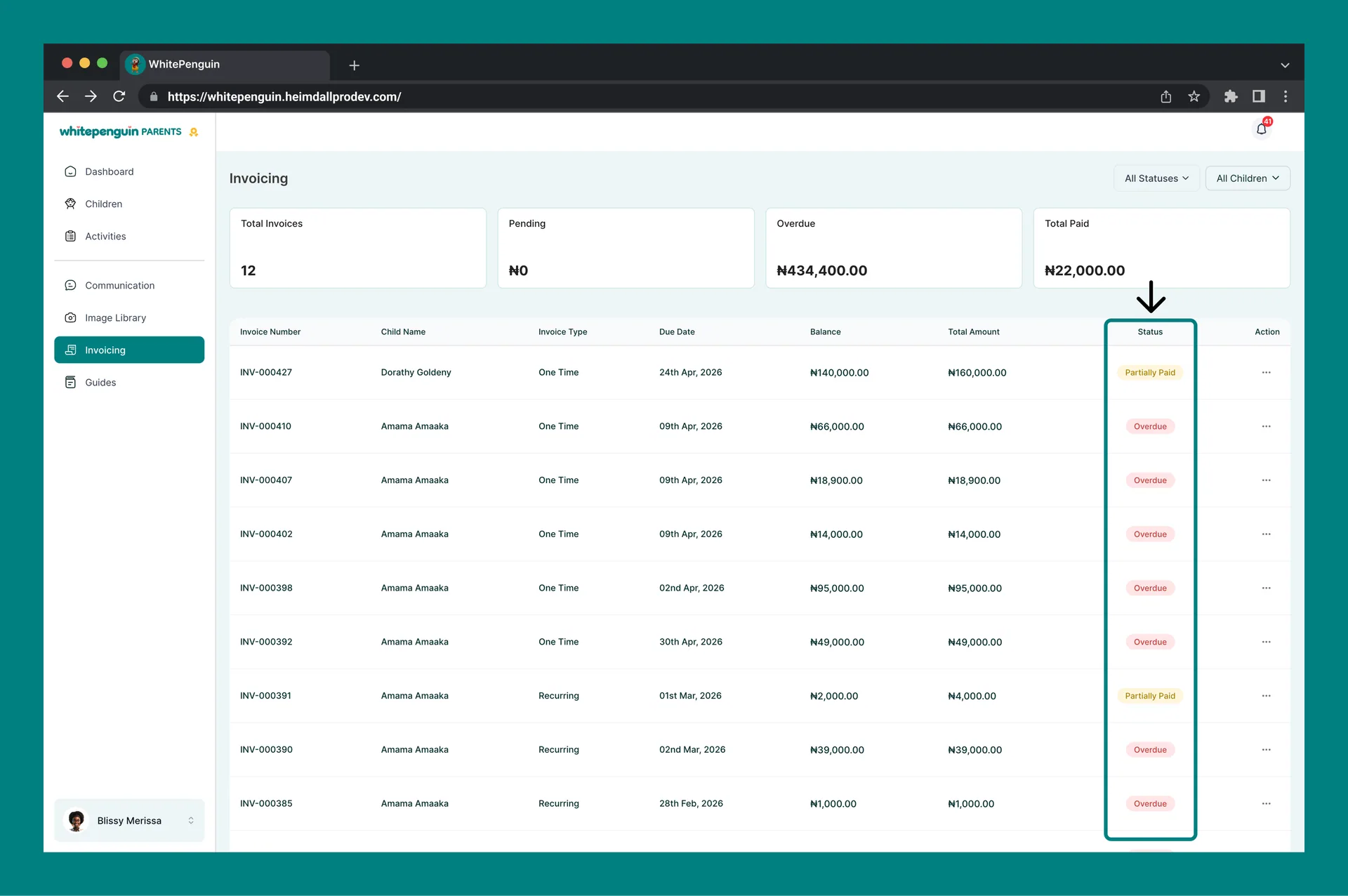
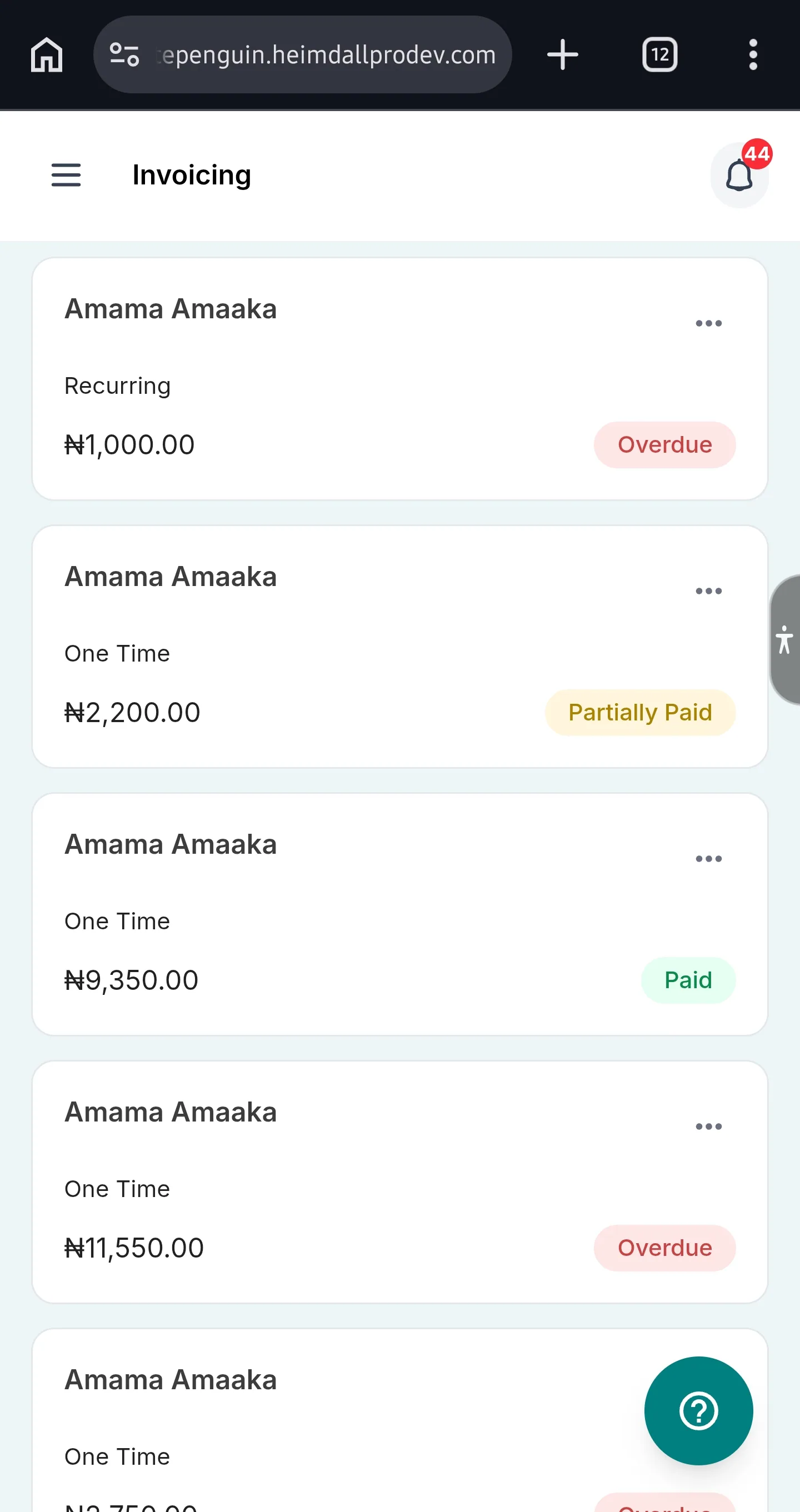
Below the summary cards is the full **invoice list table**, showing all invoices raised for your children.
### Invoice List Columns [#invoice-list-columns]
| Column | Description |
| ------------------ | ------------------------------------------------------------------------------------------------ |
| **Invoice Number** | A unique reference number for each invoice (e.g., INV-000407). |
| **Child Name** | The child the invoice was raised for (e.g., Amama Amaaka, Dorathy Goldeny). |
| **Invoice Type** | Whether the invoice is **One Time** or **Recurring** (see Invoice Types below). |
| **Due Date** | The date by which payment is expected (e.g., 09th Apr, 2026). |
| **Balance** | The remaining unpaid amount on this invoice. |
| **Total Amount** | The full invoice amount including tax. |
| **Status** | The current payment status of the invoice (see Invoice Statuses below). |
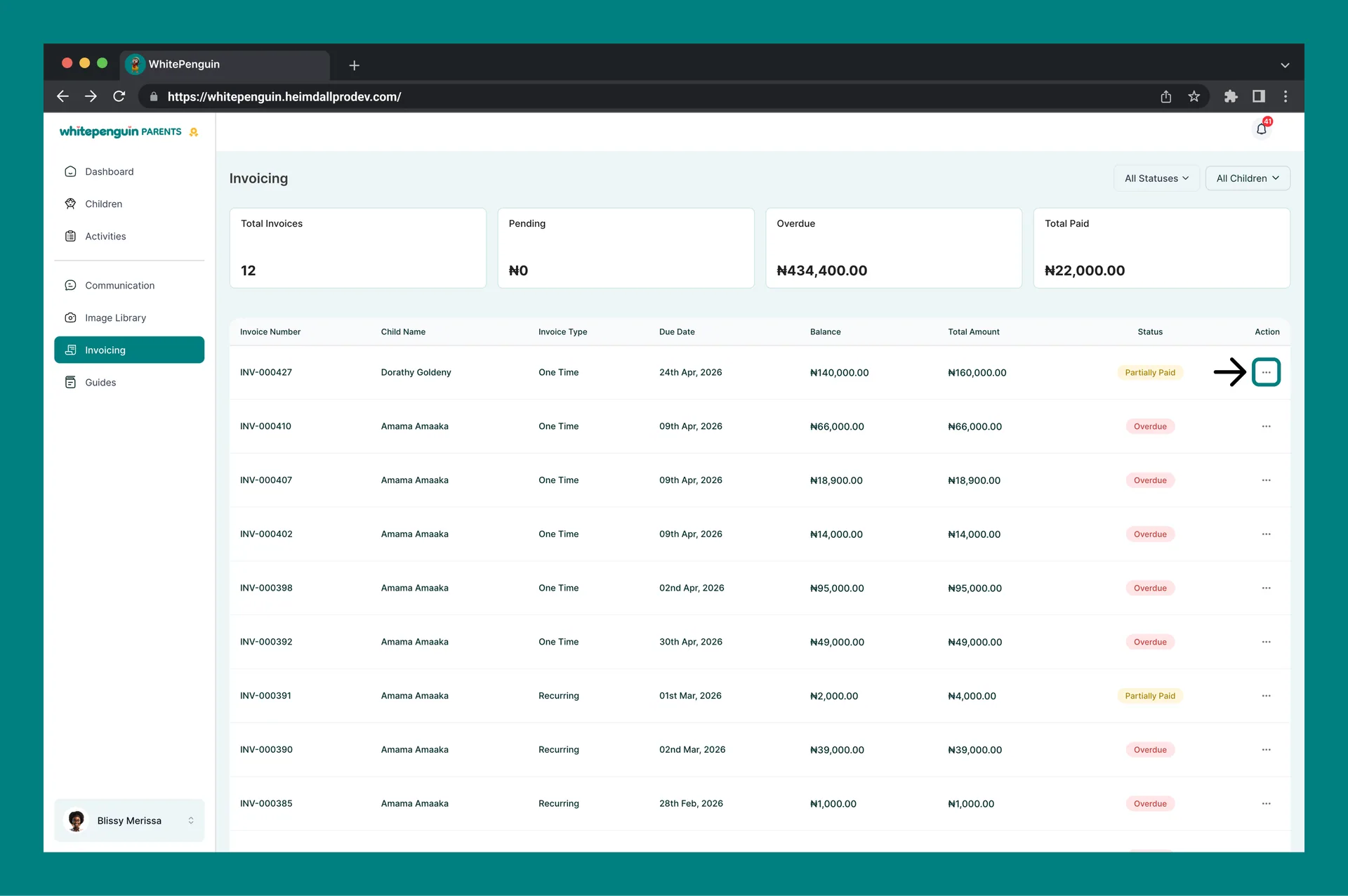
| **Action** | A **⋯** (three-dot) menu button that opens options to **View** or **Download** the invoice. |
### Invoice Statuses [#invoice-statuses]
| Status | Meaning |
| ------------------ | -------------------------------------------------------------------------------------------------------- |
| **Paid** | The invoice has been fully paid. No balance remains. |
| **Partially Paid** | A payment has been made but the full amount has not yet been settled. A remaining balance is still owed. |
| **Pending** | The invoice has been issued and payment is expected but not yet due or received. |
| **Overdue** | The due date has passed and the invoice has not been fully paid. Immediate attention is required. |
### Filters [#filters]
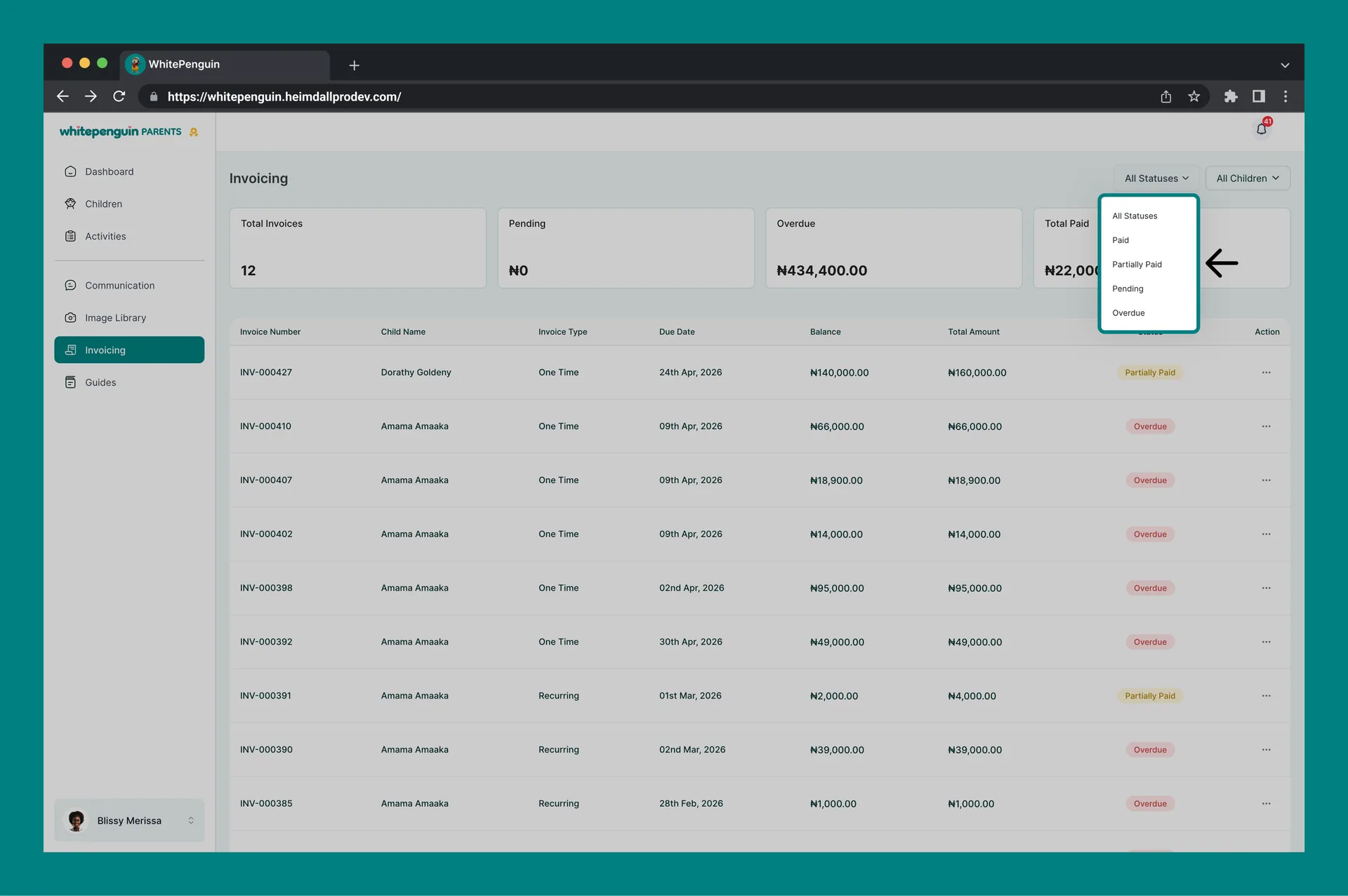
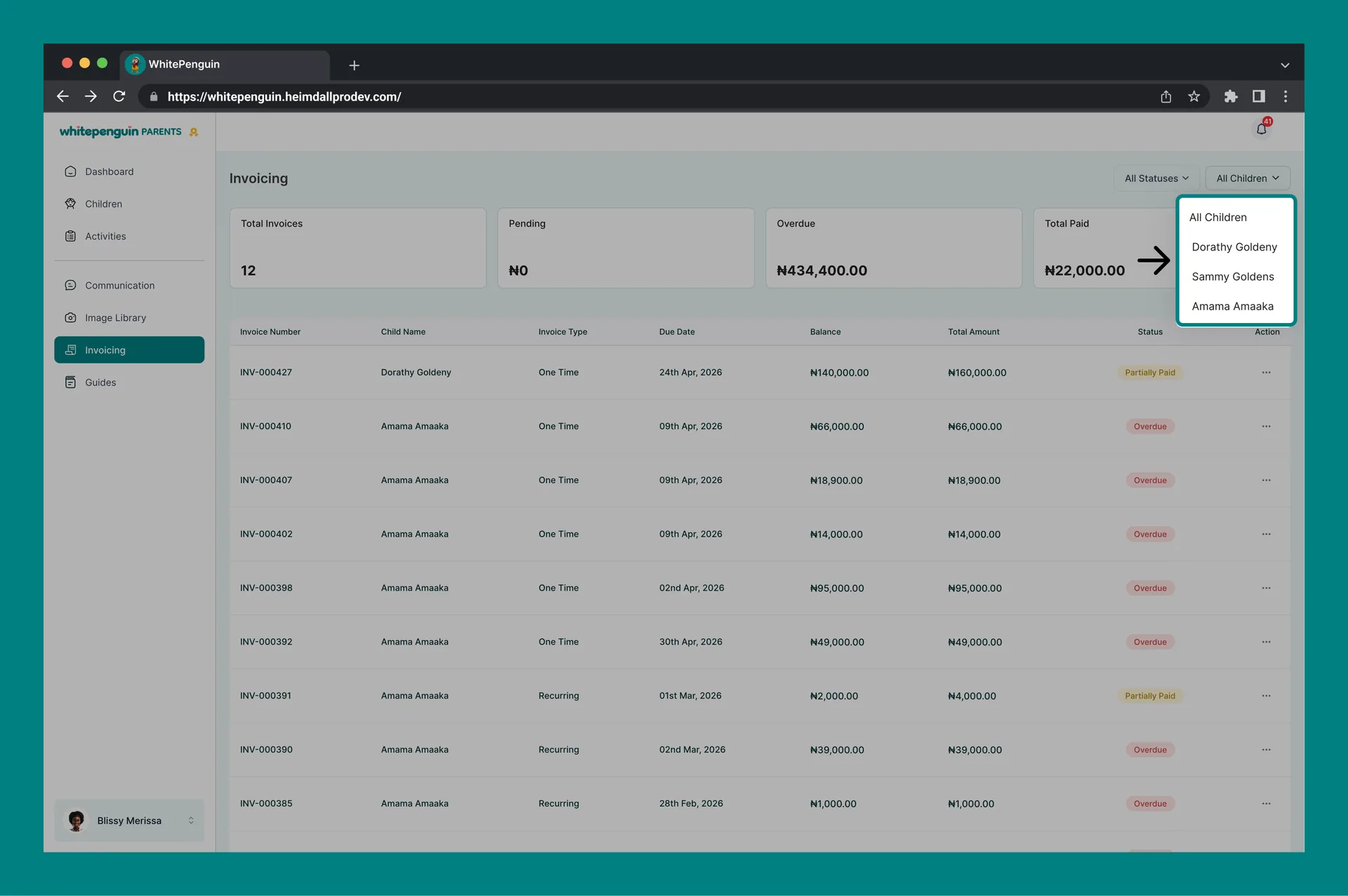
Two filters at the top right of the invoice list help you narrow down the view:
| Filter | Options | What It Does |
| ---------------- | ---------------------------------------------------------- | ------------------------------------------------------------------------------------ |
| **All Statuses** | All Statuses, Paid, Partially Paid, Pending, Overdue | Filters the invoice list to show only invoices matching the selected payment status. |
| **All Children** | All Children, Dorathy Goldeny, Sammy Goldens, Amama Amaaka | Filters the invoice list to show invoices for all children or a specific child. |
## Invoice Types [#invoice-types]
Every invoice in WhitePenguin is categorized as one of two types:
| Invoice Type | Description | Examples |
| ------------- | --------------------------------------------------------------------------------------------------------------------------------------------- | ------------------------------------------------------------ |
| **One Time** | A single, non-repeating charge issued for a specific item or service. | Soft food charge, school supplies, event fees, uniforms. |
| **Recurring** | A charge that repeats on a regular schedule (e.g., monthly fees). The invoice is automatically generated by the school at each billing cycle. | Monthly tuition, weekly meal plans, recurring activity fees. |
## View an Invoice [#view-an-invoice]
To view the full details of an invoice:
1. Find the invoice in the list.
2. Click the **⋯** (three-dot) menu button in the **Action** column.
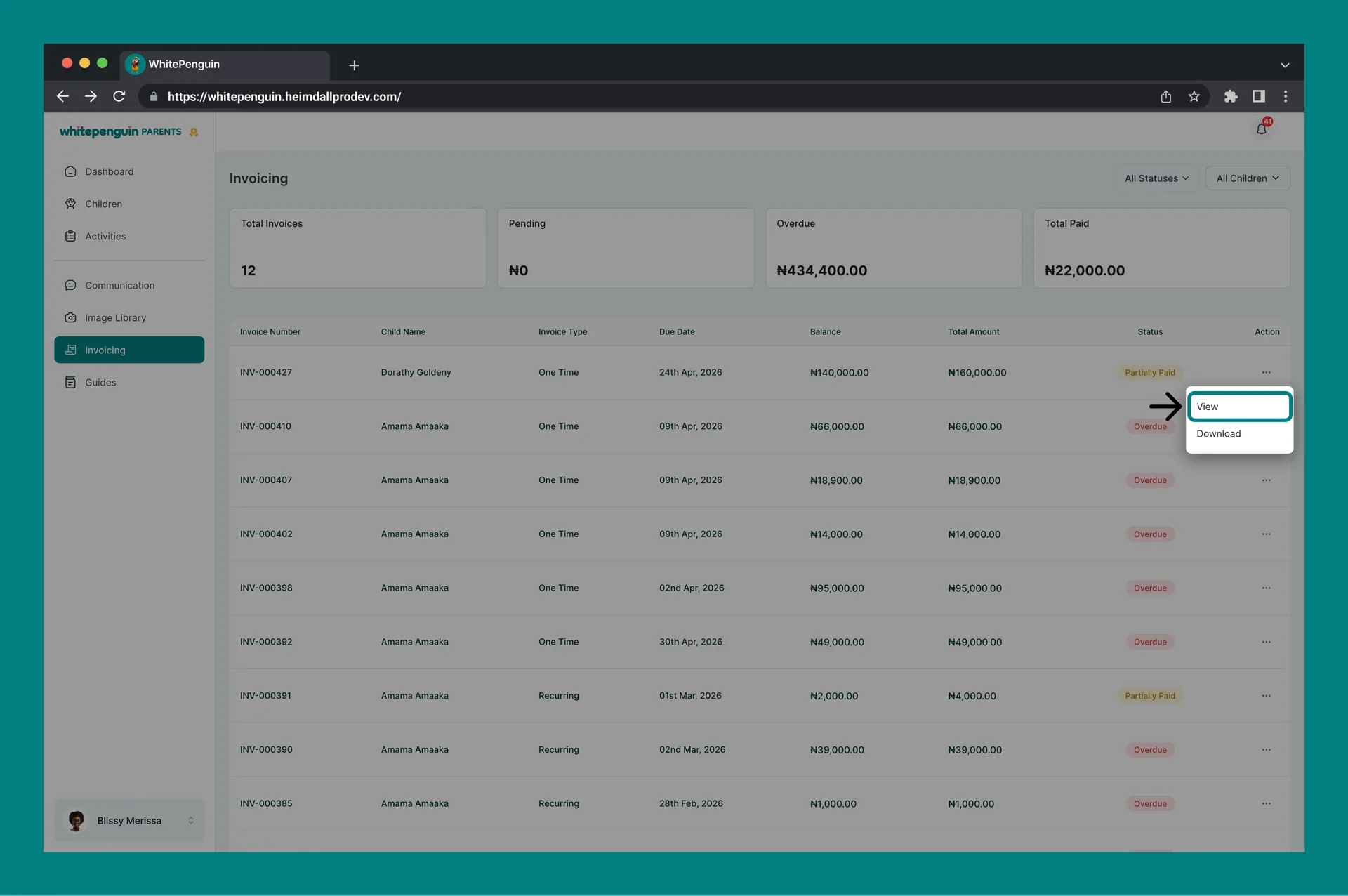
3. Select **View** from the dropdown menu.
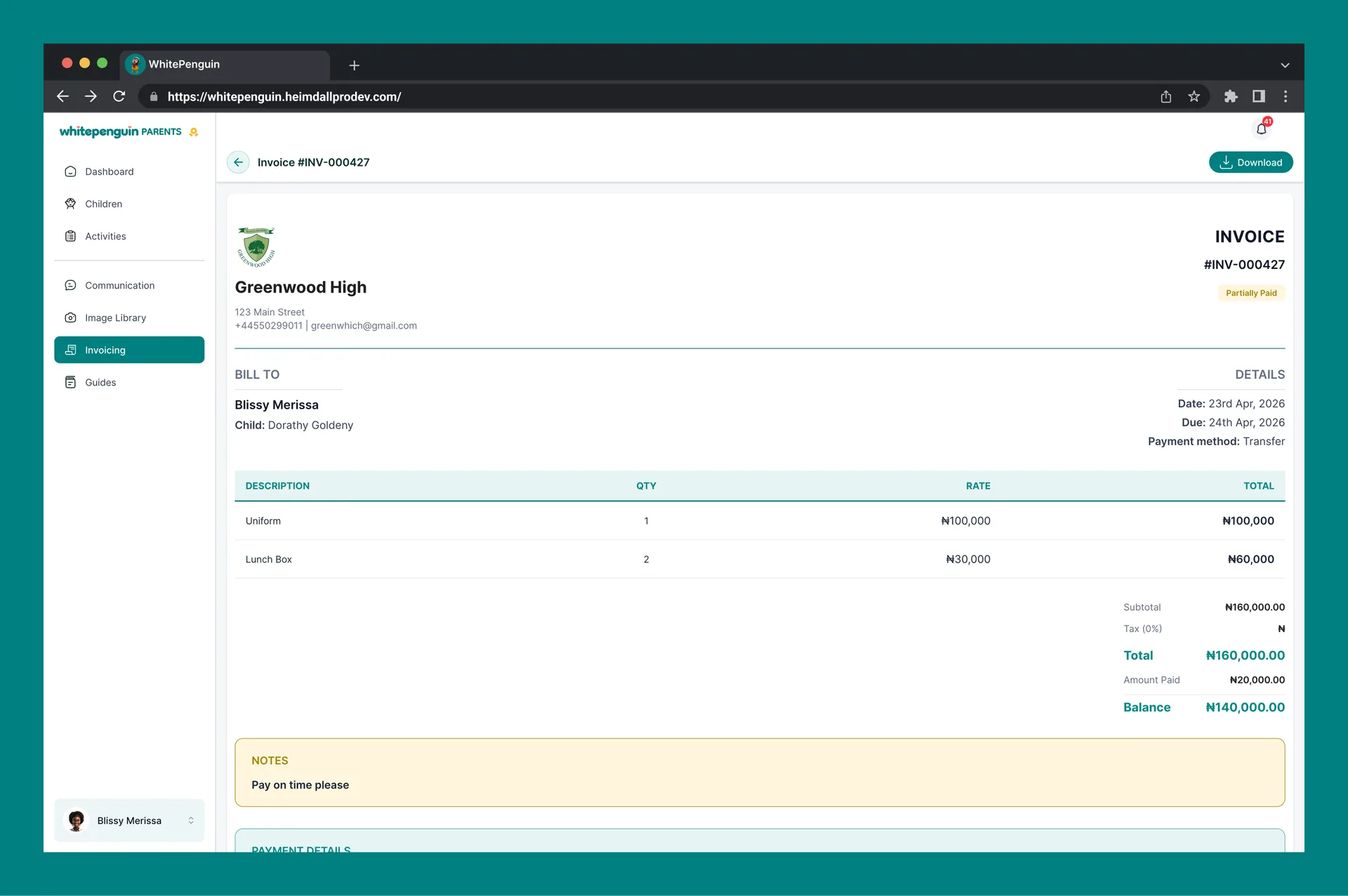
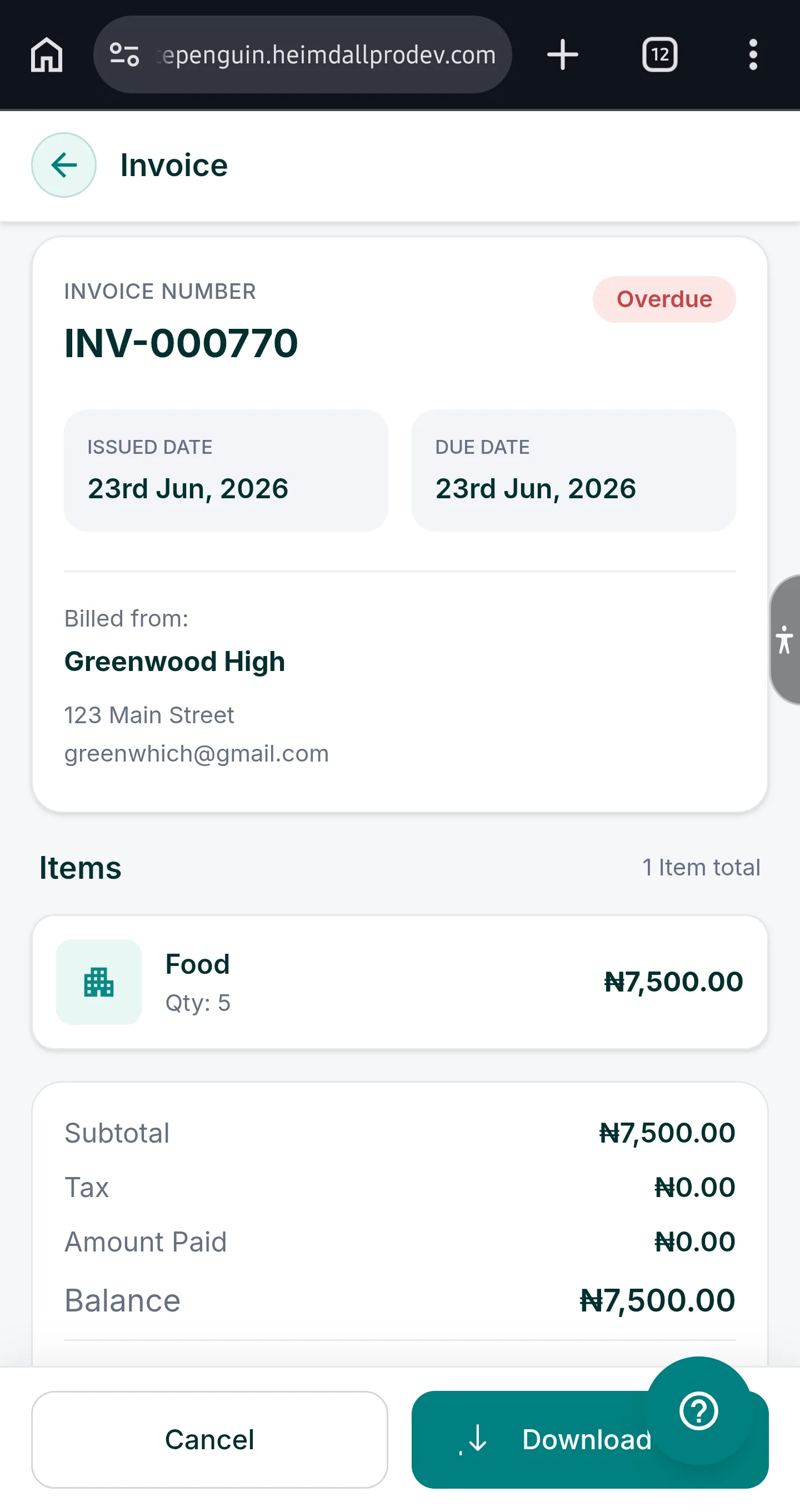
4. The full invoice page will open, showing:
| Section | Details Shown |
| ------------------- | ----------------------------------------------------------------------------------------------------------------- |
| **Header** | Invoice number (e.g., #INV-000407), invoice status badge (e.g., Overdue), school name, address, phone, and email. |
| **Bill To** | Your name and the child's name the invoice is linked to. |
| **Details** | Invoice date, due date, and payment method. |
| **Line Items** | A table of all items charged, with Description, Quantity, Rate, and Total per line. |
| **Summary** | Subtotal, Tax (5%), Total amount, and remaining Balance. |
| **Notes** | Any notes added by the school (e.g., "No notes" if none were added). |
| **Payment Details** | Payment method (e.g., Transfer), Bank name, Account number, and Account name for bank transfer payments. |
## Download an Invoice as PDF [#download-an-invoice-as-pdf]
You can download any invoice as a PDF file for your records:
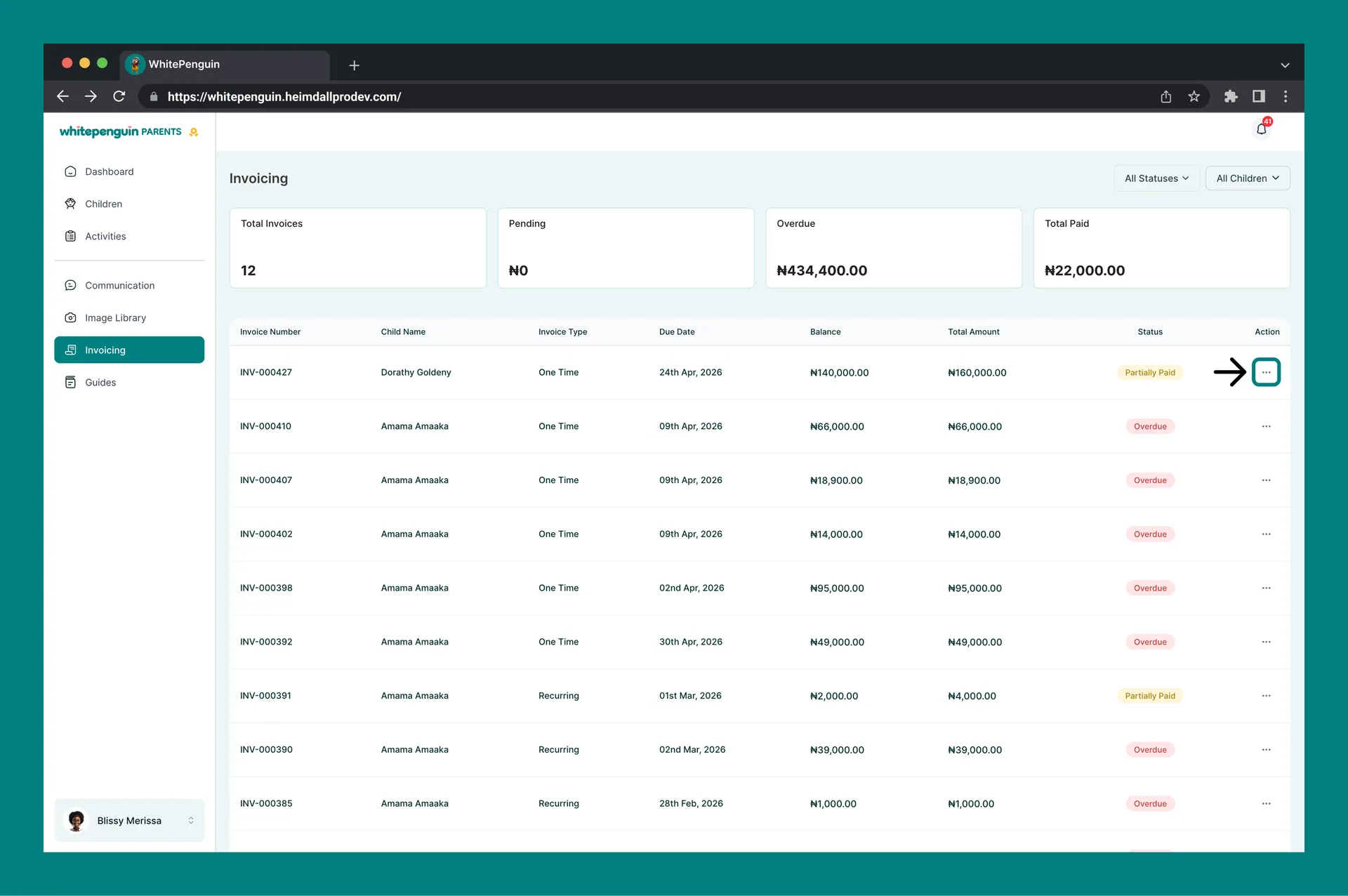
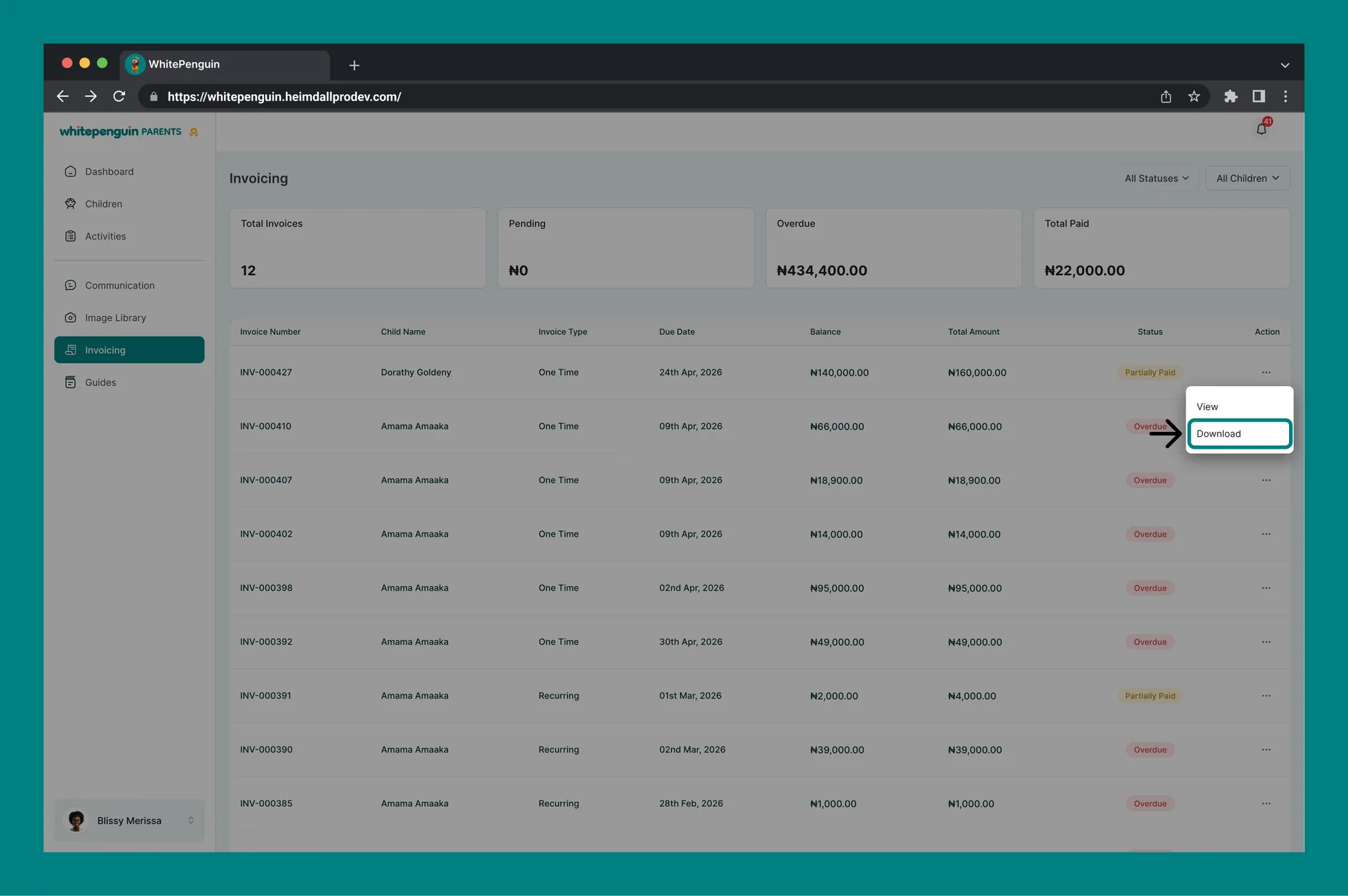
**Method 1: From the invoice list**
1. Find the invoice in the list.
2. Click the **⋯** (three-dot) menu button in the **Action** column.
3. Select **Download** from the dropdown.
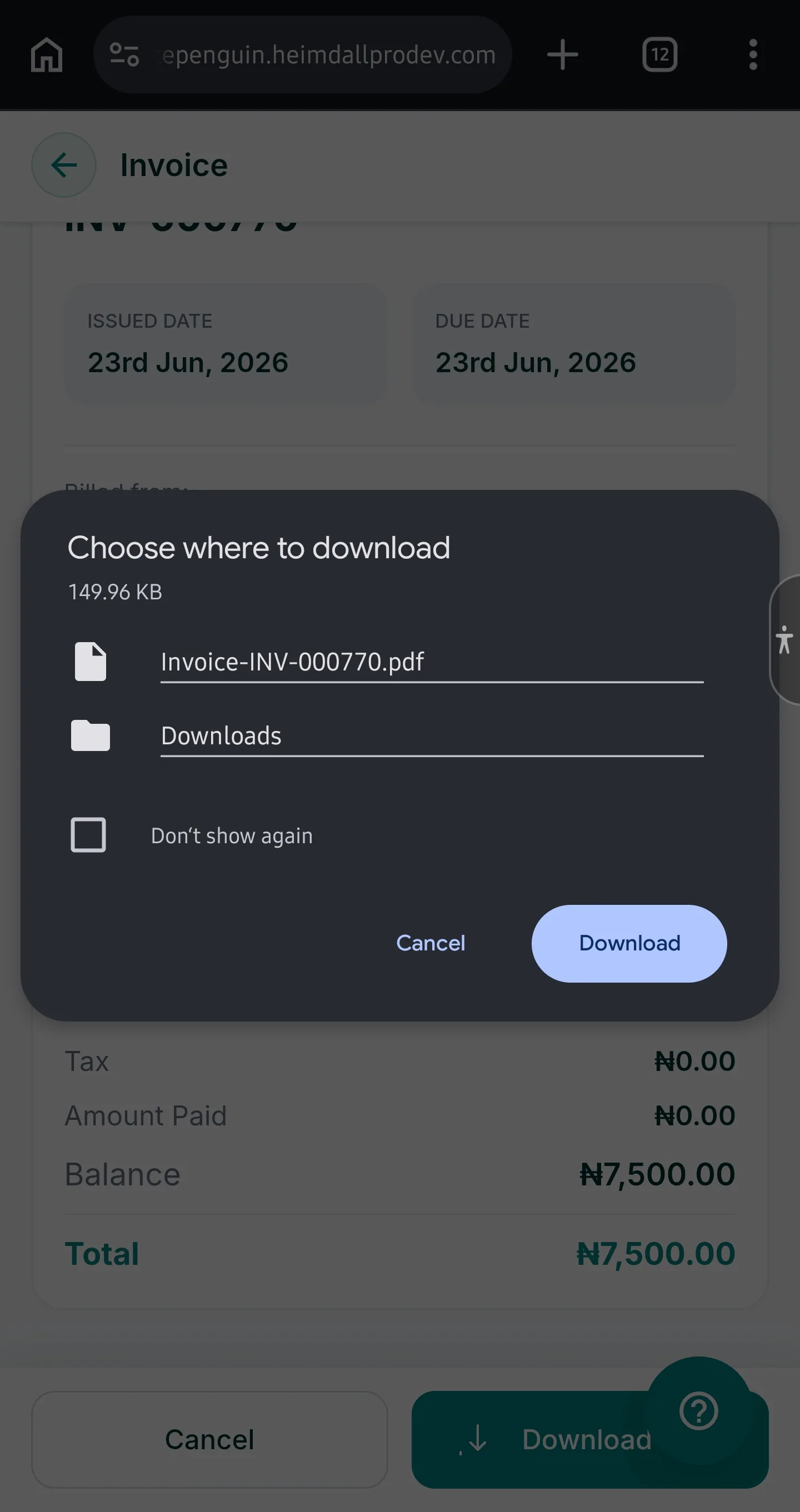
4. The PDF will be downloaded to your device automatically.
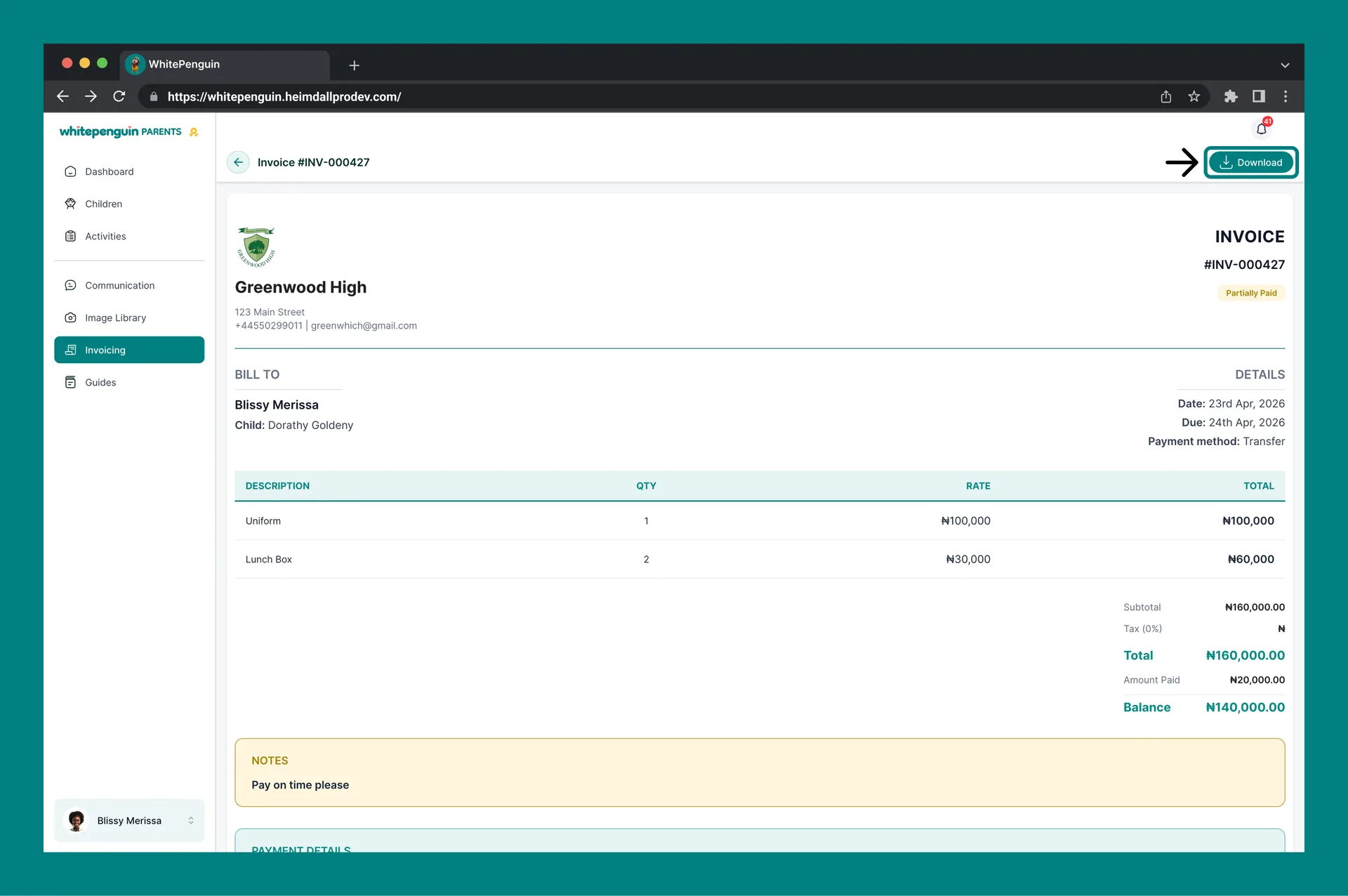
**Method 2: From the invoice detail page**
1. Open the invoice using the **View** option above.
2. Click the **⬇ Download** button at the top right of the invoice detail page.
3. The PDF will be downloaded to your device.
The downloaded PDF includes all invoice details: school info, bill-to details, line items, totals, tax, notes, and payment method. Keep it for your personal records or for accounting purposes.
## Pay an Invoice Online [#pay-an-invoice-online]
WhitePenguin supports online invoice payments directly through the parent portal. Two payment methods are available:
### Paystack [#paystack]
Paystack is an online payment gateway that allows you to pay using a **debit card, credit card, or bank account** directly through a secure checkout.
To pay using Paystack:
1. Open the invoice using the **View** option.
2. Look for the **Pay Now** or payment button on the invoice detail page.
3. Select **Paystack** as your payment method.
4. Complete the payment on the secure Paystack checkout page.
5. Once payment is confirmed, the invoice status will update automatically.
### Bank Transfer [#bank-transfer]
If the invoice is set to **Transfer** as the payment method, the invoice detail page will display the school's bank account details:
| Field | Example |
| ------------------ | -------------------------- |
| **Payment method** | Transfer |
| **Bank name** | First Bank of Nigeria |
| **Account number** | 3030069801 |
| **Account name** | OMOH BEATRICE IKPEMNOGHENA |
To pay via Bank Transfer:
1. Open the invoice to view the **Payment Details** section.
2. Use your bank app or internet banking to transfer the exact invoice amount to the account shown.
3. Use the **Invoice Number** (e.g., INV-000407) as the transfer reference/narration so the school can identify your payment.
4. Contact the school to confirm receipt if the invoice status does not update after a few business days.
**Important:** Always use the invoice number as your payment reference when making a bank transfer. This helps the school match your payment to the correct invoice and update the status promptly.
## Tips [#tips]
* **Check Overdue invoices first.** The **Overdue** summary card at the top shows your total outstanding overdue balance. Click into the invoice list and filter by **Overdue** to see exactly which invoices need attention.
* **Filter by child to see individual billing.** If you have multiple children enrolled, use the **All Children** filter to view invoices per child and understand each child's billing separately.
* **Download invoices for your records.** It's a good practice to download a PDF copy of each invoice after payment for personal, tax, or reimbursement records.
* **Use the invoice number as your bank transfer reference.** When paying via bank transfer, always include the invoice number (e.g., INV-000407) in the narration/reference field so the school can reconcile your payment quickly.
* **Partially Paid invoices still have a balance.** If an invoice shows **Partially Paid**, check the **Balance** column to see exactly how much remains and arrange to settle it.
* **Recurring invoices are generated automatically.** You don't need to request recurring invoices — the school's system generates them at each billing cycle (e.g., monthly). They will appear automatically in your invoice list.
## FAQs [#faqs]
Open the invoice from the list using the **⋯** menu → **View**. On the invoice detail page, use the payment button to pay via **Paystack** (card or bank payment online) or follow the **Payment Details** section to make a **Bank Transfer** directly to the school's account.
Click the **⋯** (three-dot) menu in the **Action** column of any invoice row and select **Download**. Alternatively, open the invoice via **View** and click the **⬇ Download** button at the top right of the invoice detail page.
A **One Time** invoice is a single charge for a specific item or service (e.g., a meal, an event, or supplies). A **Recurring** invoice is automatically generated at regular intervals (e.g., monthly tuition or weekly fees) and will continue to appear in your invoice list at each billing cycle.
Pay the overdue invoice as soon as possible. Open the invoice using the **View** option to see the full amount and payment details, then pay via **Paystack** or **Bank Transfer**. If you've already paid, contact the school to have them update the invoice status.
Open the invoice using the **View** option. Scroll to the **Payment Details** section at the bottom of the invoice page. You will find the bank name, account number, and account name to use for your transfer.
Bank transfer payments require manual confirmation by the school. After making your transfer, contact the school's admin (via the **Communication** section or directly) and share your payment receipt along with the invoice number. The school will update the invoice status once payment is confirmed.
Use the **All Children** filter at the top right of the Invoicing page. Click the dropdown and select the child's name. The invoice list will update to show only invoices raised for that child.
**Partially Paid** means a payment has been recorded against the invoice, but the full amount has not yet been settled. Check the **Balance** column for the remaining amount owed, and arrange to pay the difference.
Recurring invoices are automatically generated by the school at each billing cycle (e.g., monthly tuition or ongoing meal plans). This is expected behavior — each new cycle produces a new invoice that you need to pay separately.