# Manage My Profile
URL: https://whitepenguin.sonicar.tech/docs/parents/manage-my-profile/
> Learn how to manage your parent profile in WhitePenguin — update your personal information, address, and password, upload a profile photo, and control your notification preferences.
## Overview [#overview]
The **Profile** section in WhitePenguin is your personal account hub. It is split into two tabs:
* **Profile Details** — view your profile summary and manage your account settings (Personal Information, Address, and Password).
* **Notification Preferences** — choose which types of notifications you want to receive from the school.
You can also access your profile and key account actions directly from the **bottom-left profile menu** in the sidebar.
## How to Access [#how-to-access]
**Method 1: Via the sidebar**
1. Log in to the **WhitePenguin parent portal**.
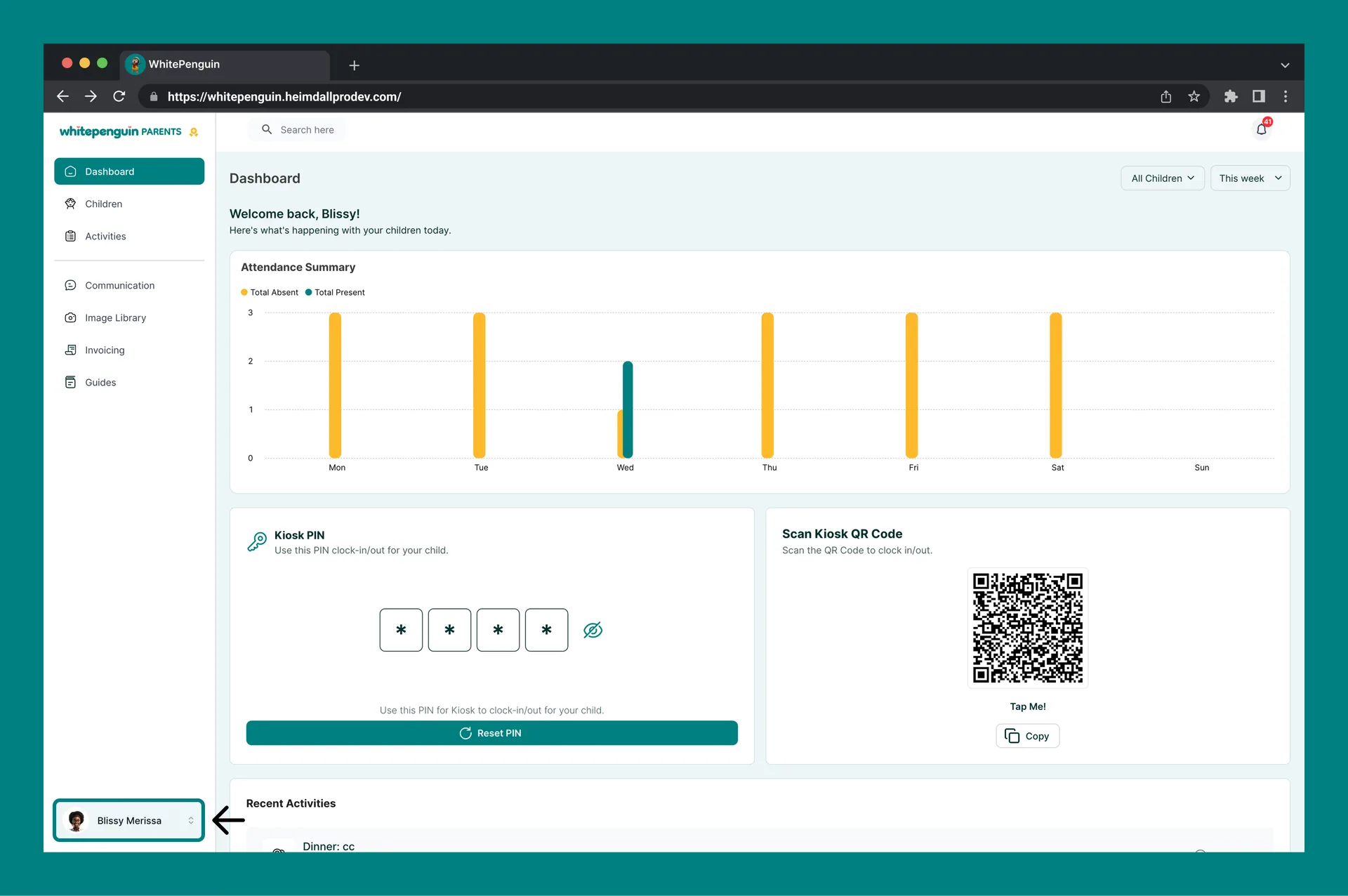
2. Click your **name and avatar** at the bottom-left of the sidebar (e.g., Blissy Merissa).
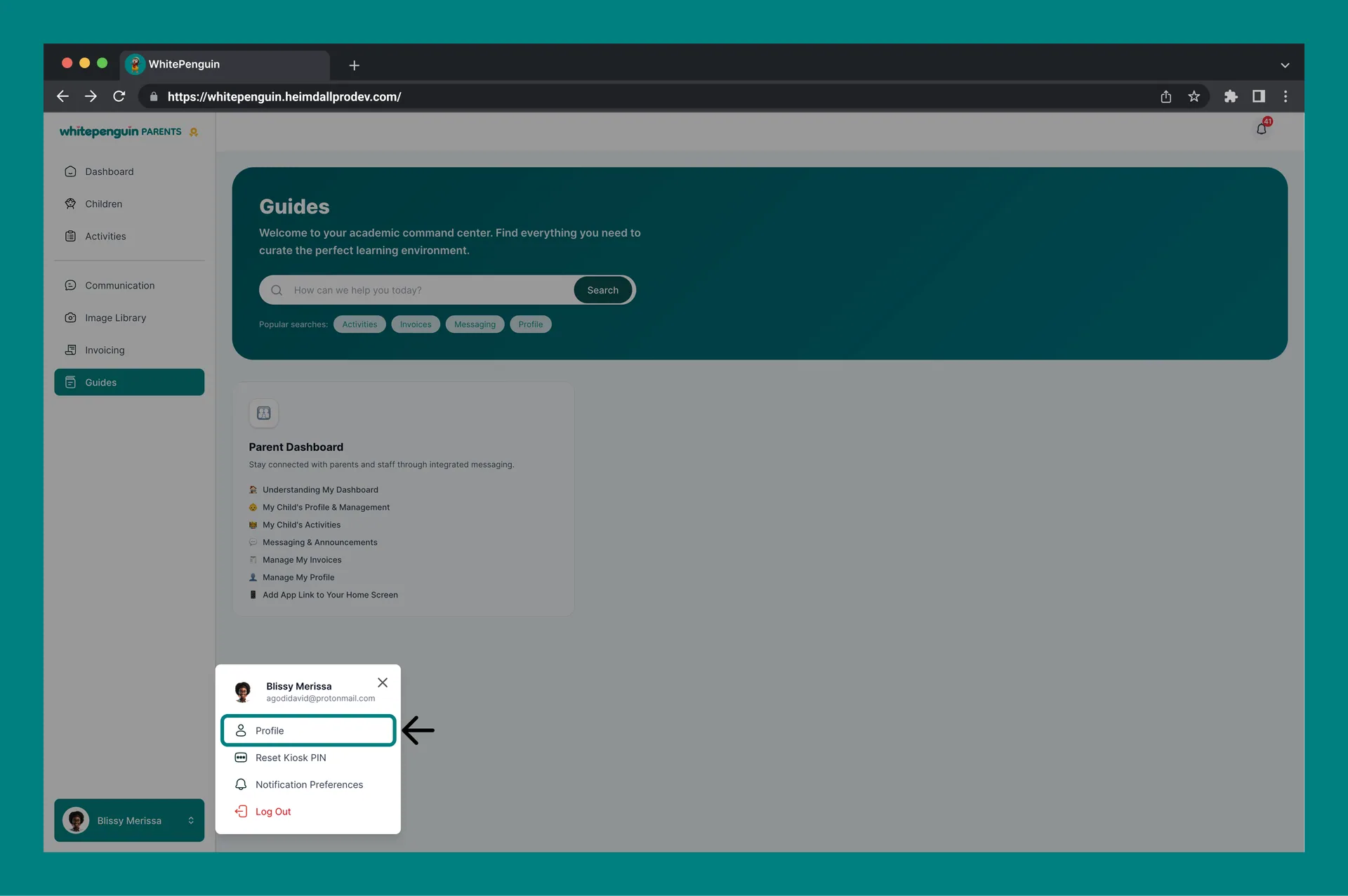
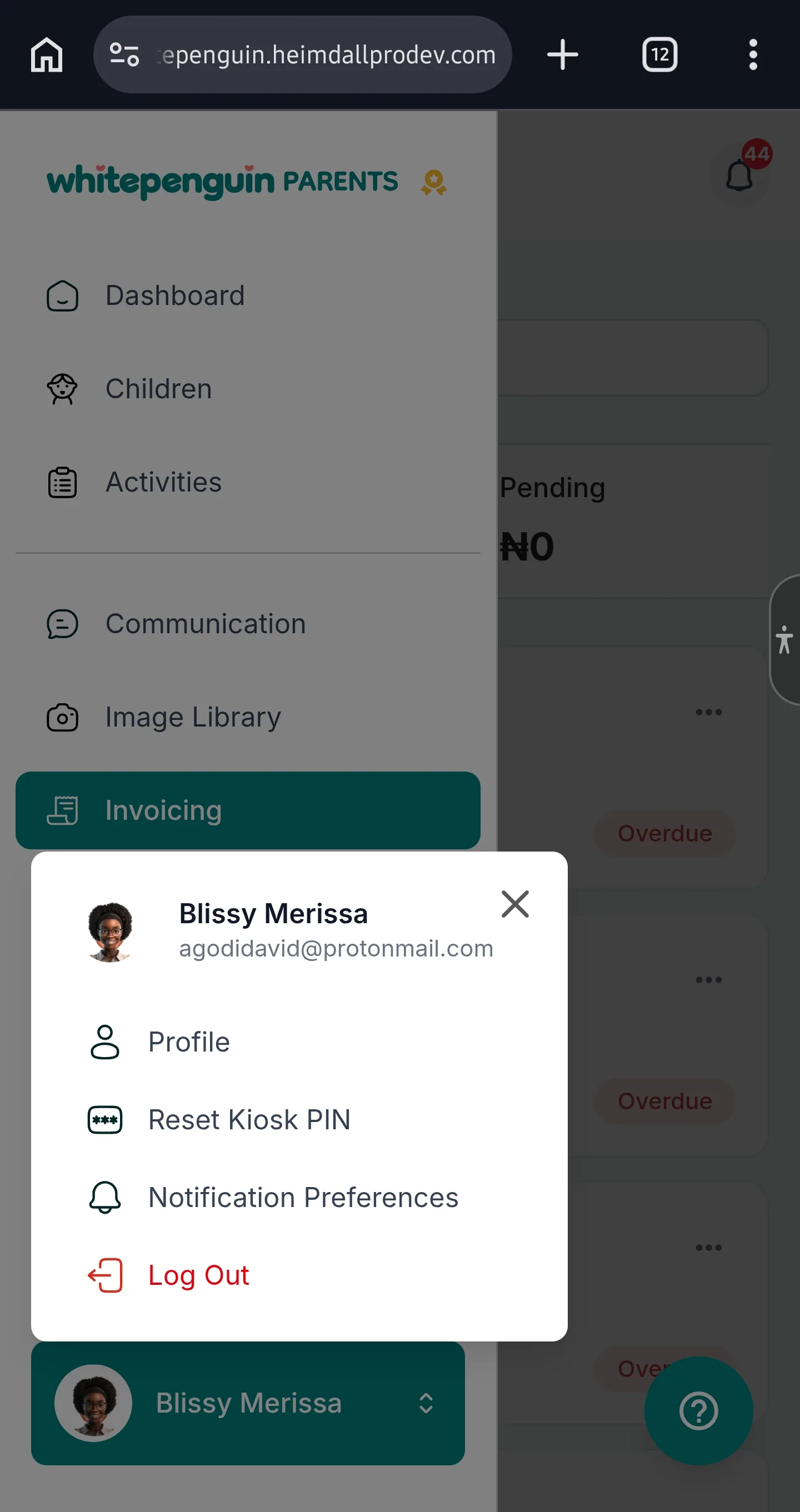
3. A pop-up menu will appear with options:
* **Profile** — go to your full profile page
* **Reset Kiosk PIN** — reset your child's check-in/out PIN
* **Notification Preferences** — go directly to notification settings
* **Log Out** — sign out of the portal
4. Click **Profile** to open the Profile page.
## View Profile [#view-profile]
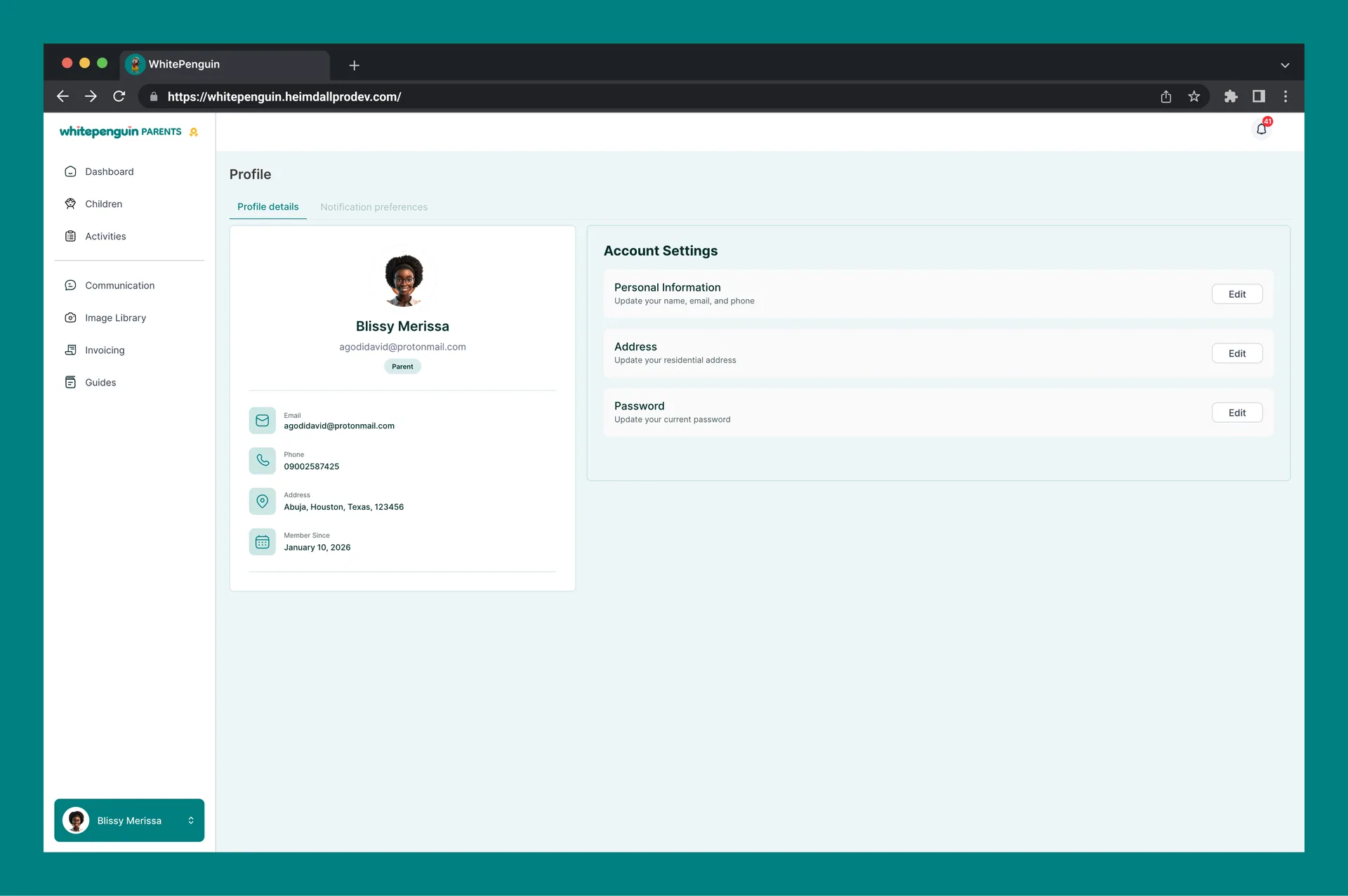
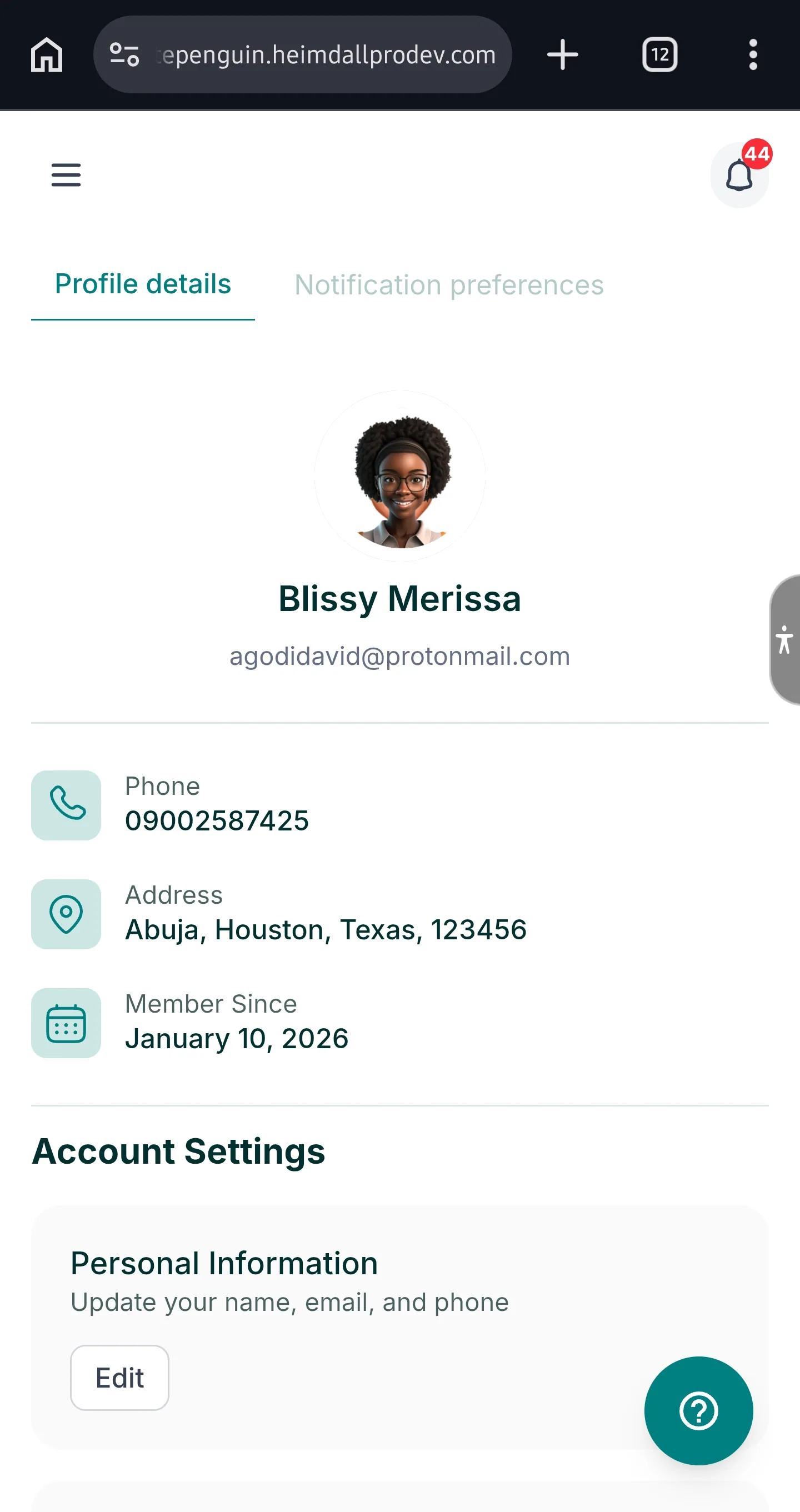
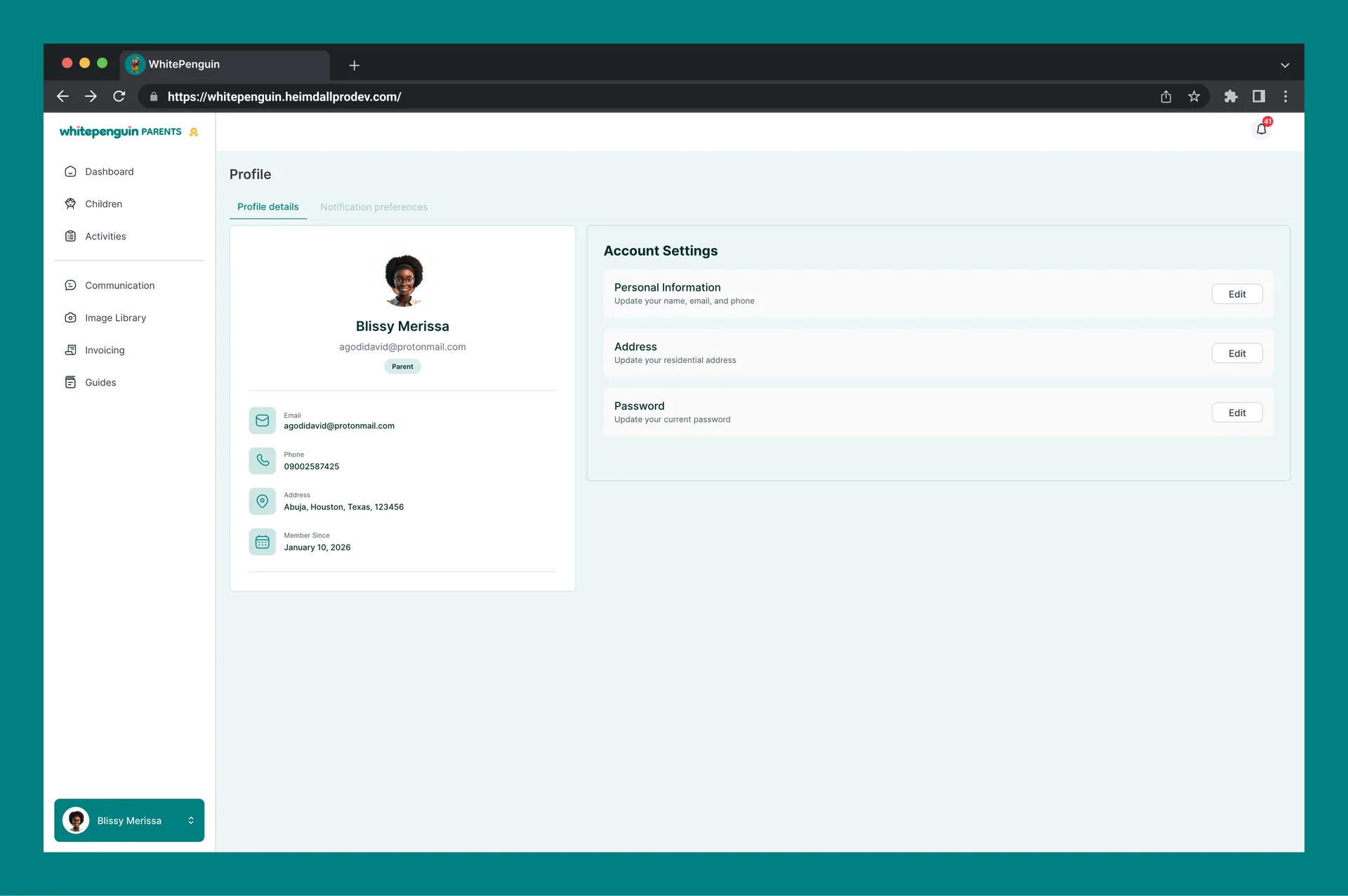
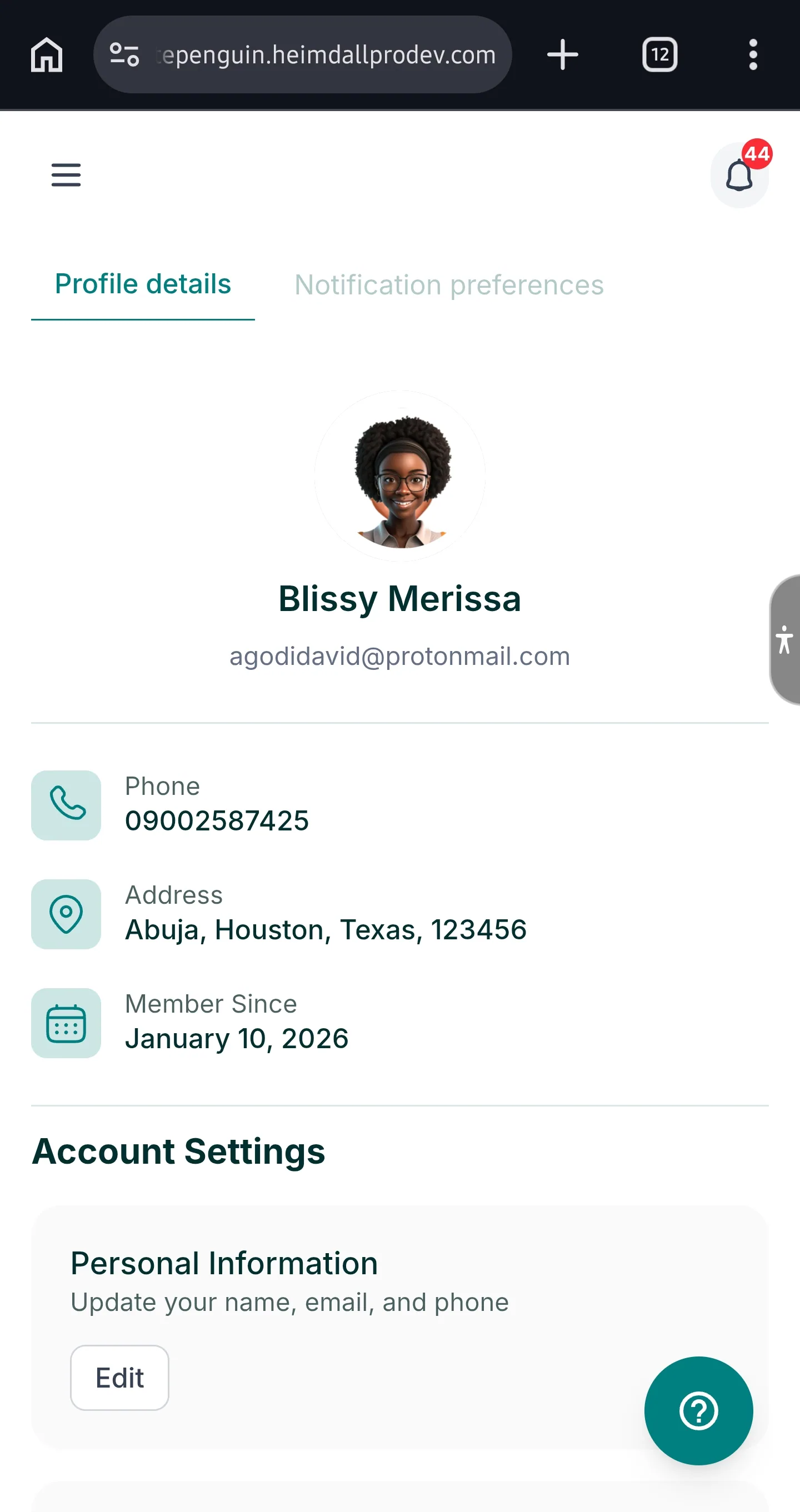
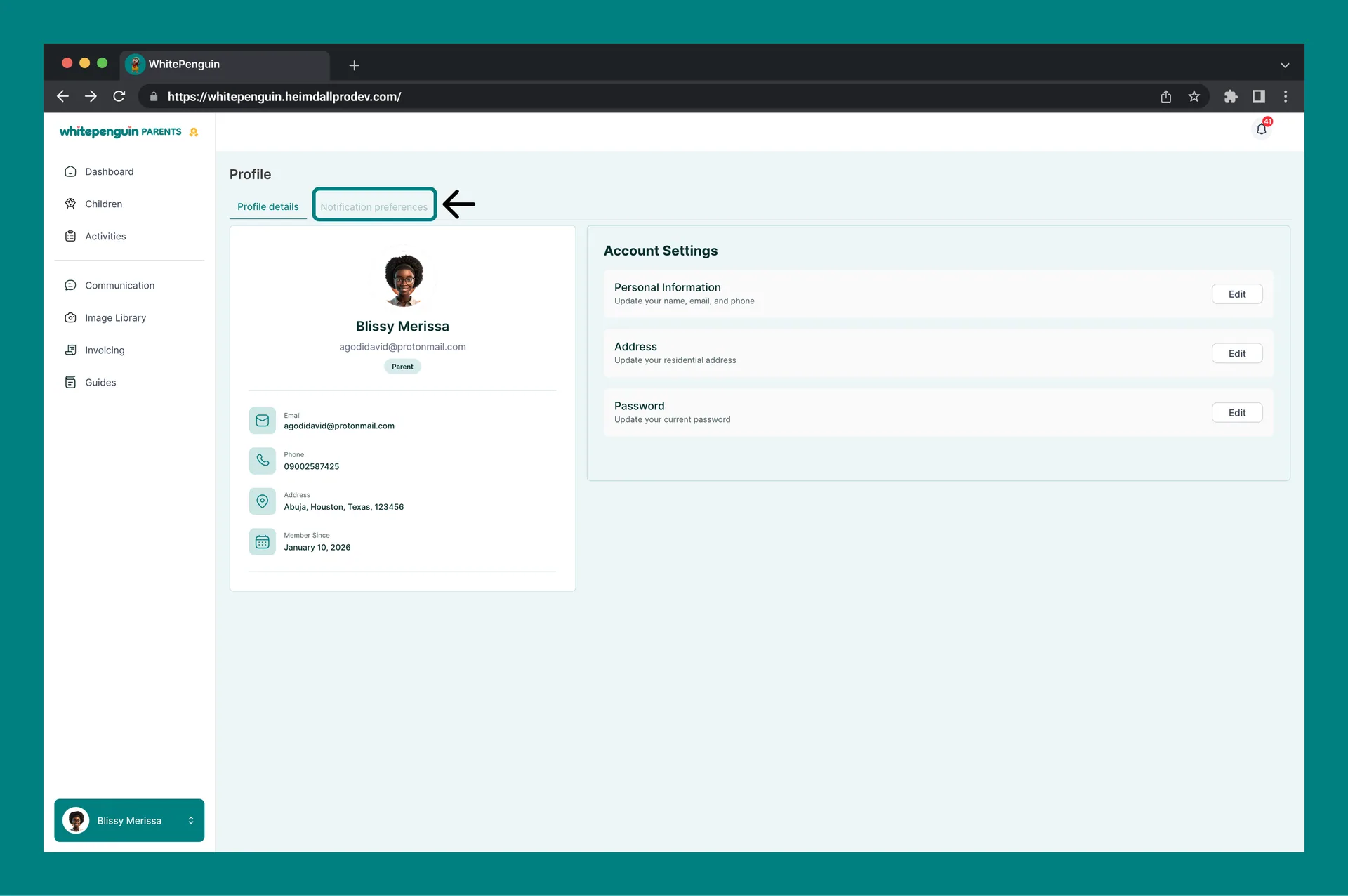
The **Profile Details** tab shows a summary card on the left side with your key account information:
| Field | Description |
| ----------------- | -------------------------------------------------------------------------------------- |
| **Profile Photo** | Your uploaded profile picture (or a placeholder avatar if none has been uploaded). |
| **Full Name** | Your display name (e.g., Blissy Merissa). |
| **Email** | Your registered email address (e.g., [parent@example.com](mailto:parent@example.com)). |
| **Role Badge** | Your role in the portal, shown as a **Parent** badge. |
| **Email** | Shown again with an envelope icon in the details list below the card. |
| **Phone** | Your registered phone number (e.g., 09002587425). |
| **Address** | Your residential address (e.g., Abuja, Houston, Texas, 123456). |
| **Member Since** | The date your account was created (e.g., January 10, 2026). |
## Account Settings [#account-settings]
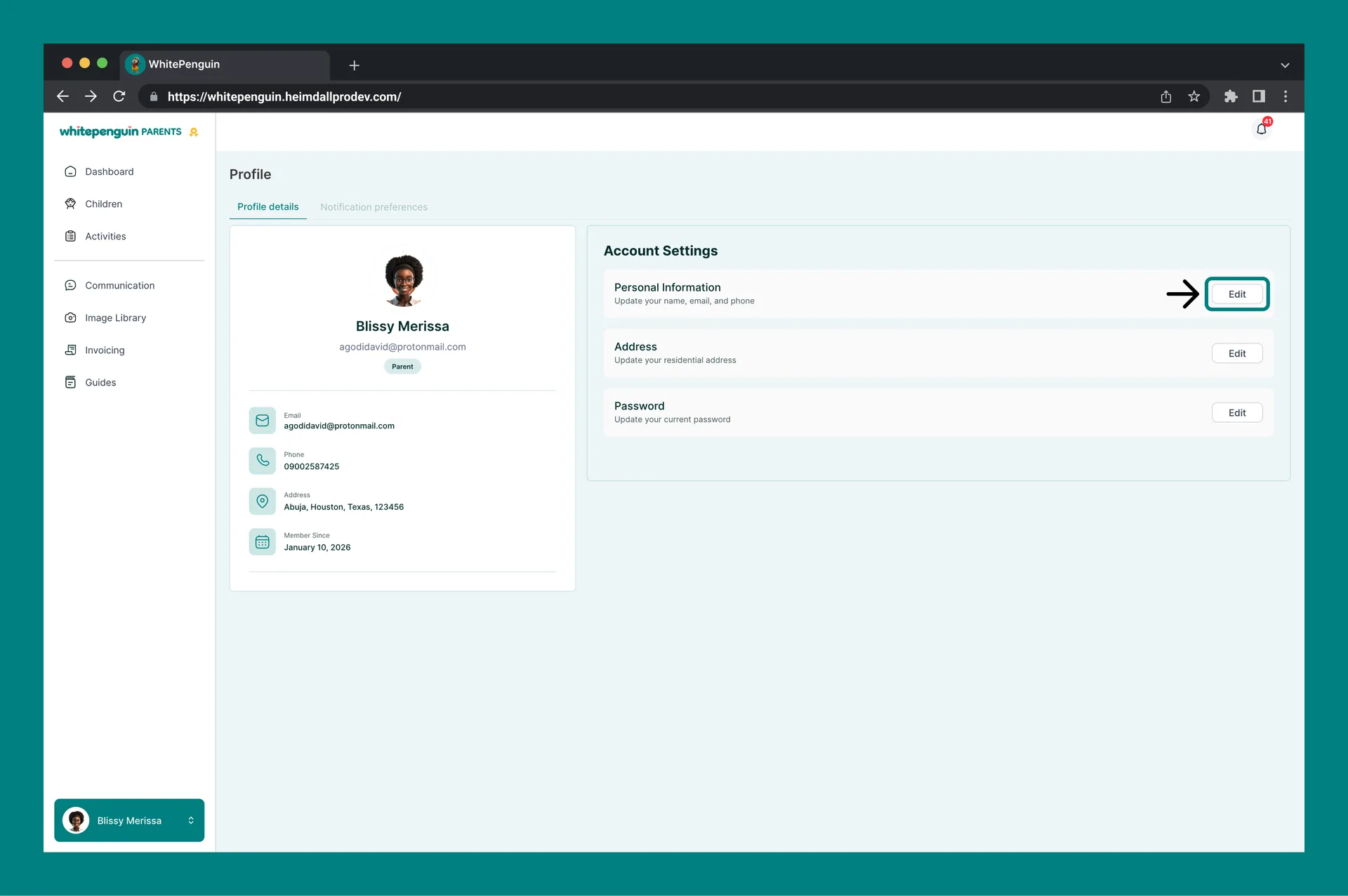
On the right side of the **Profile Details** tab, the **Account Settings** panel contains three editable sections, each with an **Edit** button.
### Personal Information [#personal-information]
Update your name, email address, and phone number.
To edit Personal Information:
1. Click the **Edit** button next to **Personal Information**.
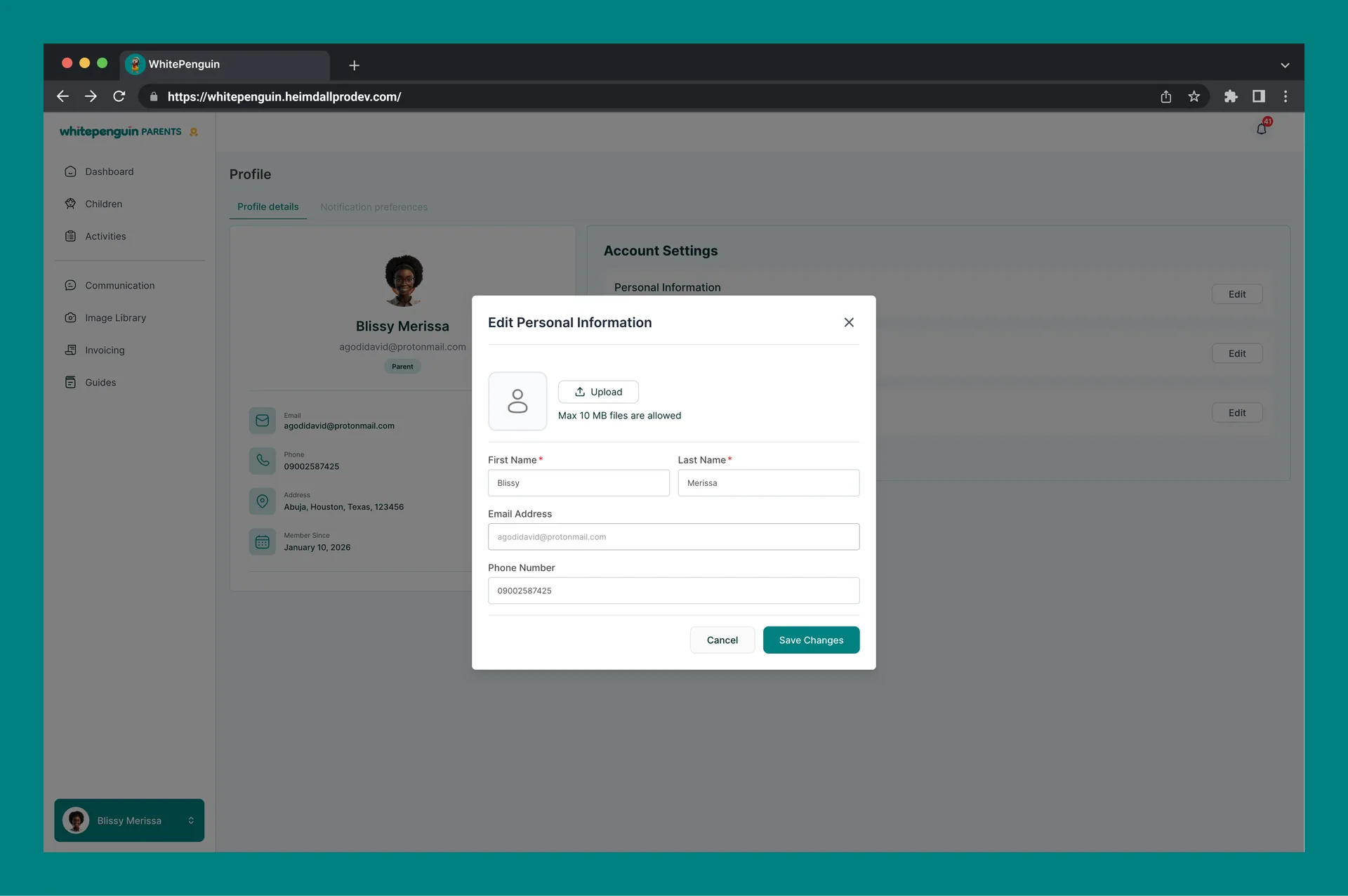
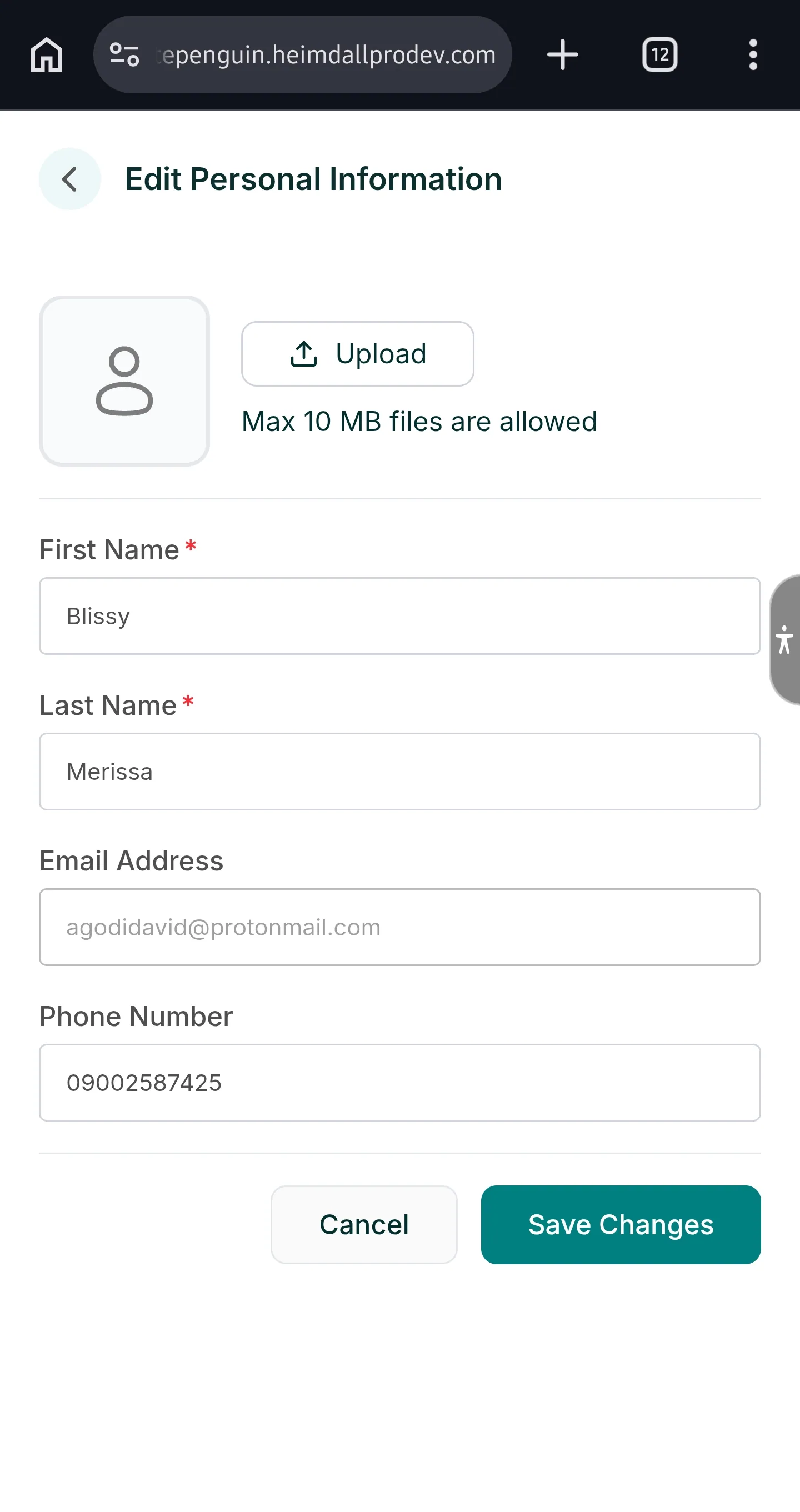
2. The **Edit Personal Information** dialog will open with the following fields:
| Field | Description |
| ----------------- | ------------------------------------------------------------------------------- |
| **Profile Photo** | Click **Upload** to upload a new profile photo. Maximum file size is **10 MB**. |
| **First Name** | Your first name (required). |
| **Last Name** | Your last name (required). |
| **Email Address** | Your registered email address. |
| **Phone Number** | Your contact phone number. |
3. Make your changes.
4. Click **Save Changes** to apply, or **Cancel** to discard.
**Profile Photo:** When uploading a photo, files up to **10 MB** are supported. Use a clear, recent photo so the school's staff can recognize you during pick-up and drop-off.
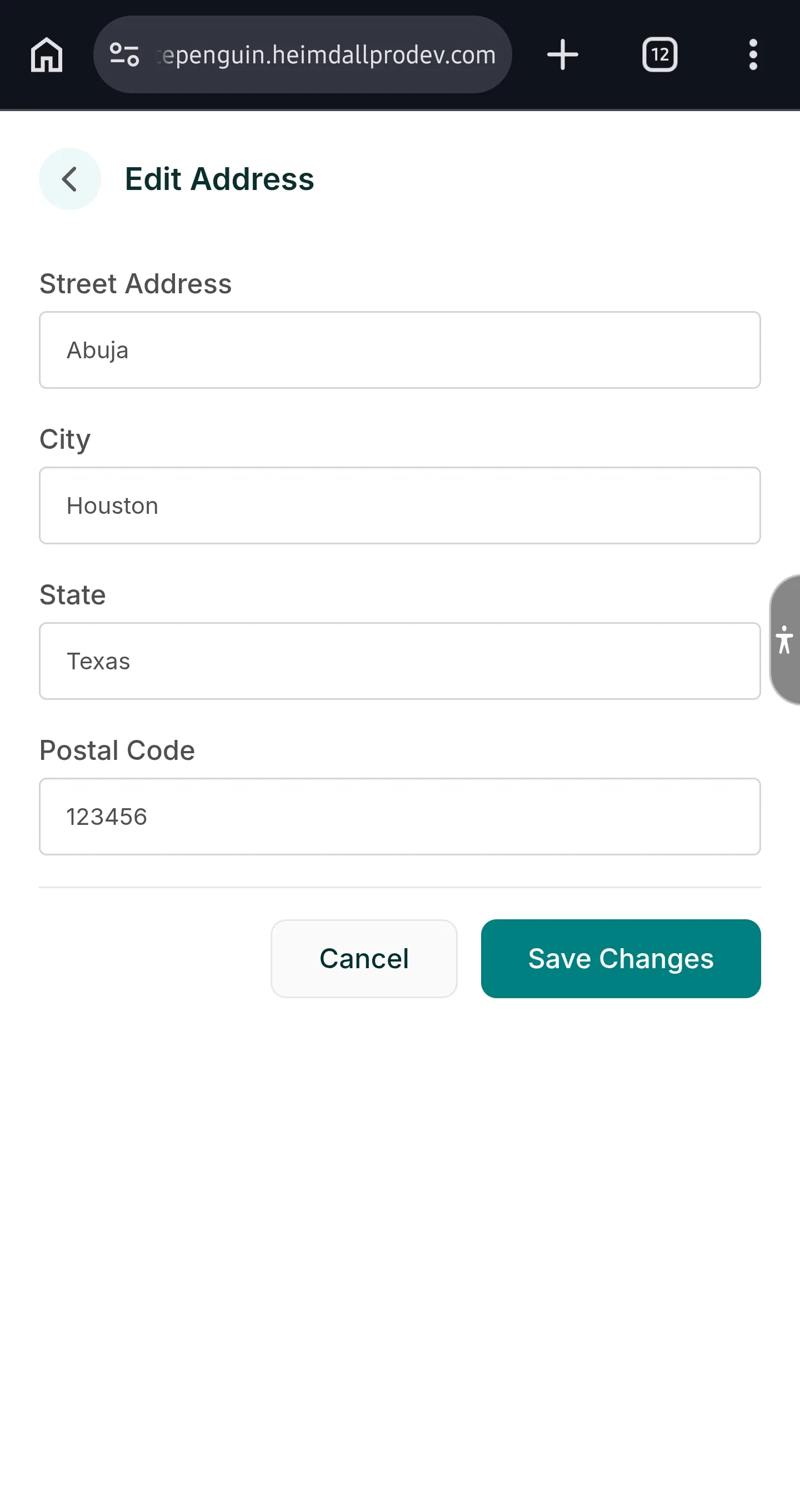
### Address [#address]
Update your residential address.
To edit your Address:
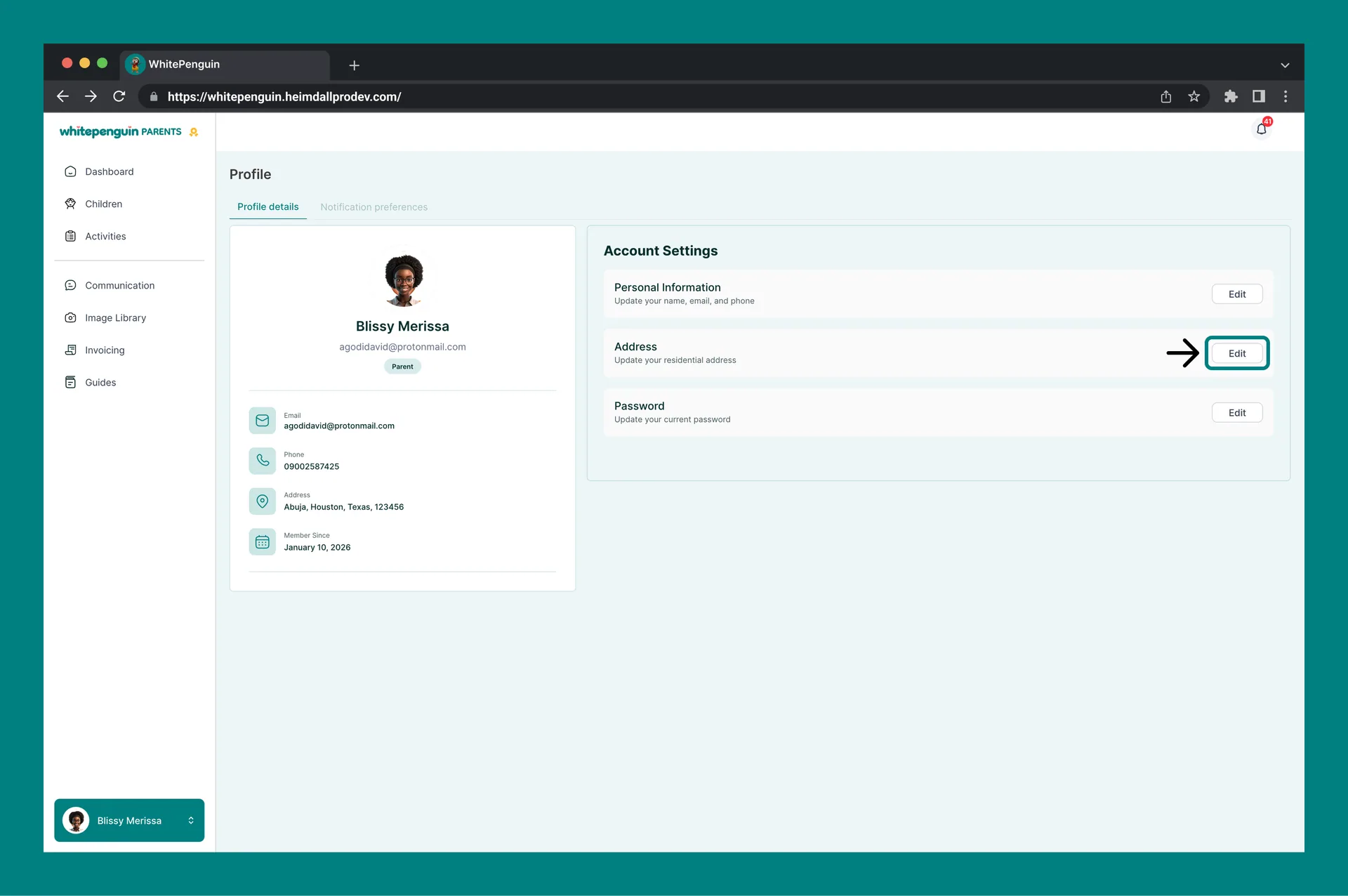
1. Click the **Edit** button next to **Address**.
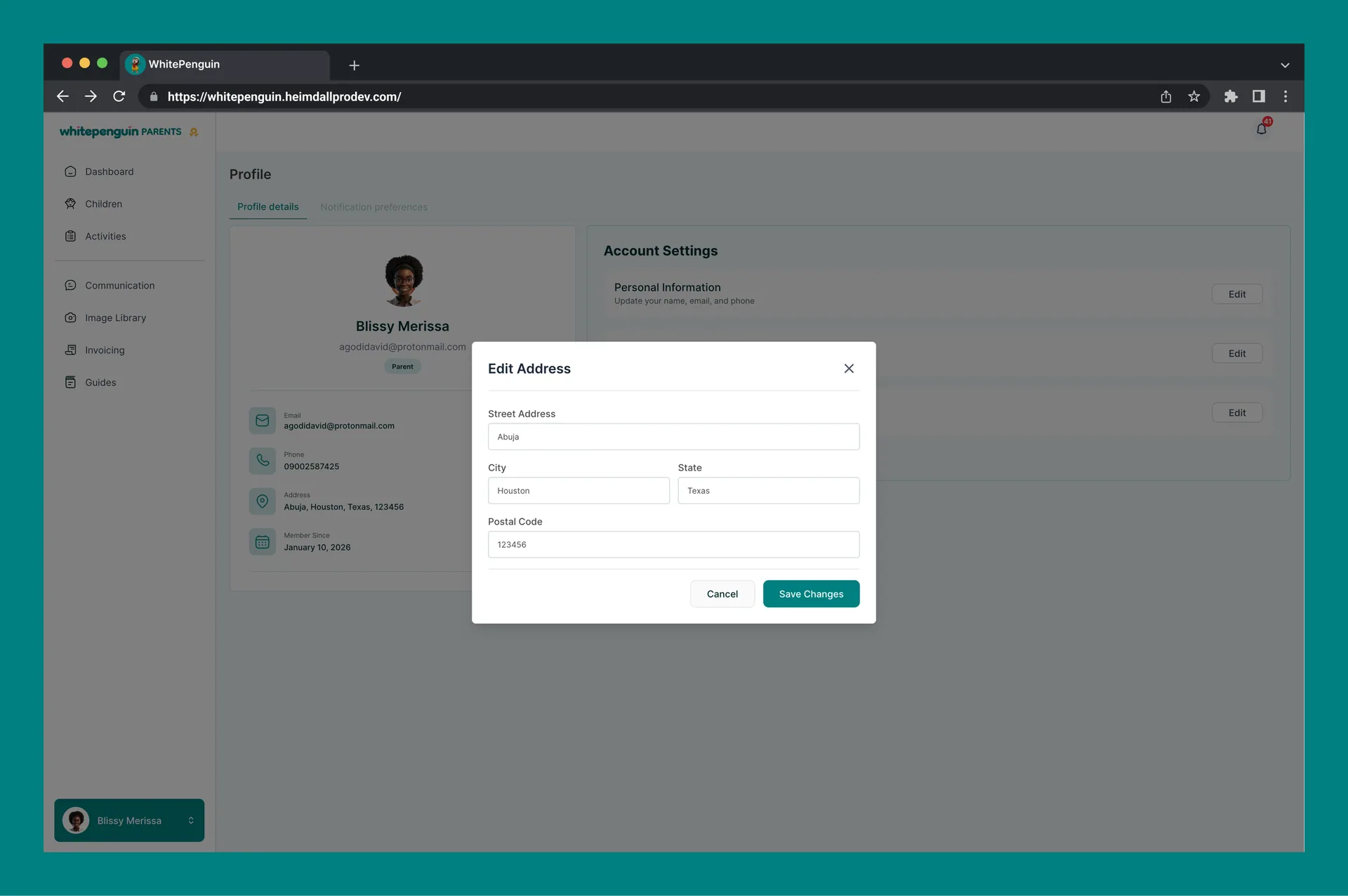
2. The **Edit Address** dialog will open with the following fields:
| Field | Description |
| ------------------ | --------------------------------------- |
| **Street Address** | Your street address (e.g., Abuja). |
| **City** | Your city (e.g., Houston). |
| **State** | Your state or region (e.g., Texas). |
| **Postal Code** | Your postal or ZIP code (e.g., 123456). |
3. Make your changes.
4. Click **Save Changes** to apply, or **Cancel** to discard.
### Password [#password]
Update your account password to keep your account secure.
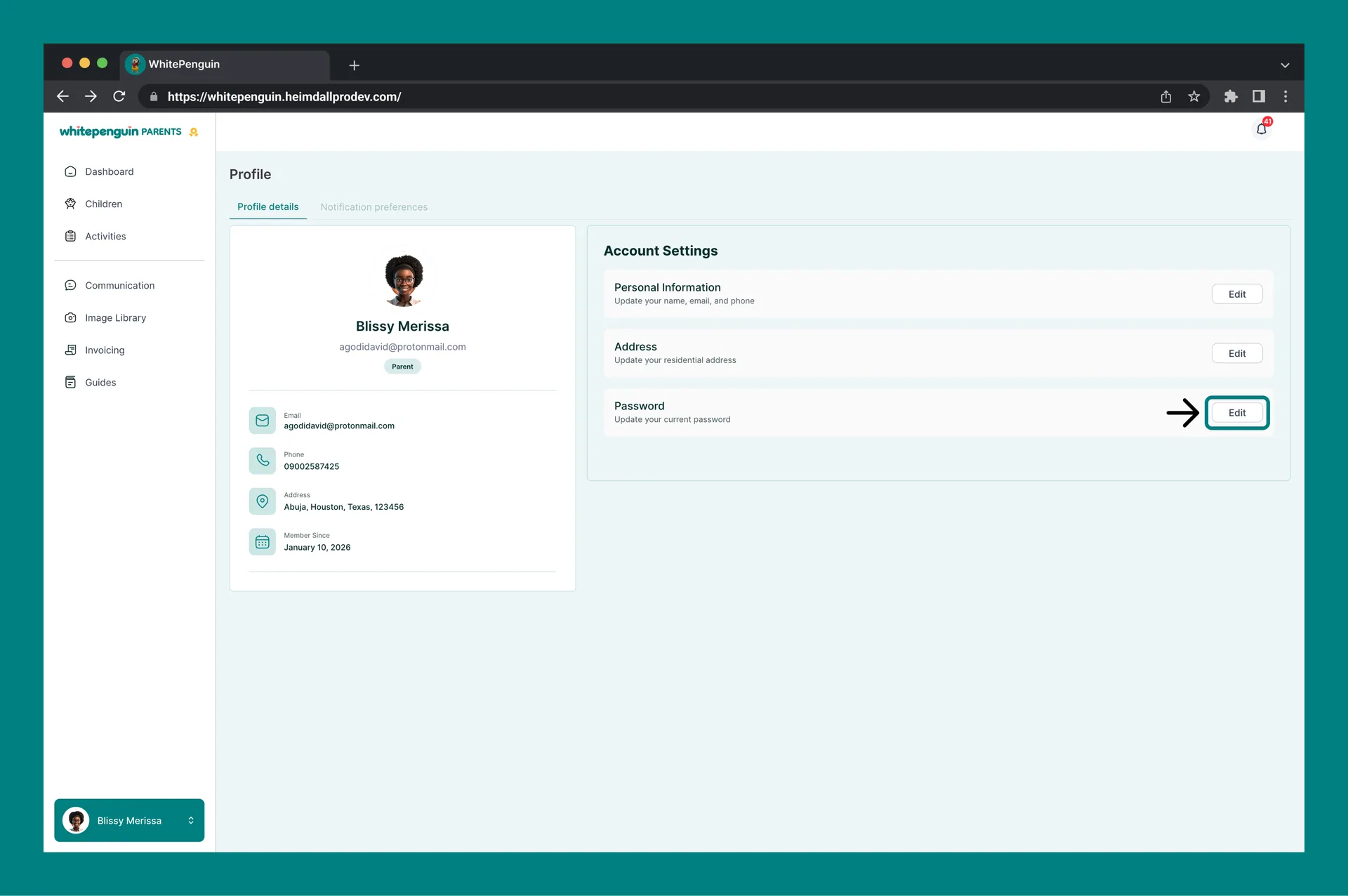
To change your Password:
1. Click the **Edit** button next to **Password**.
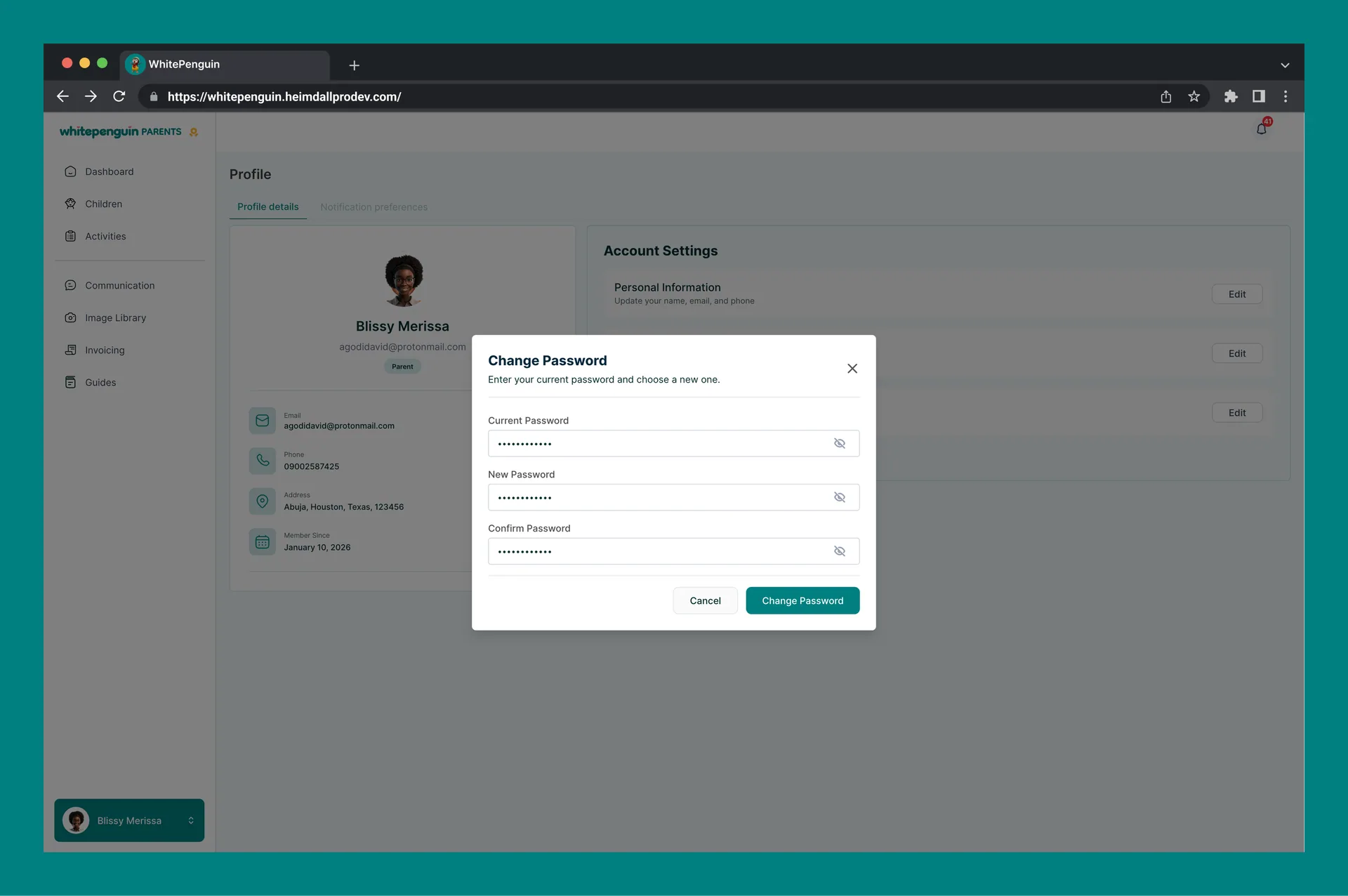
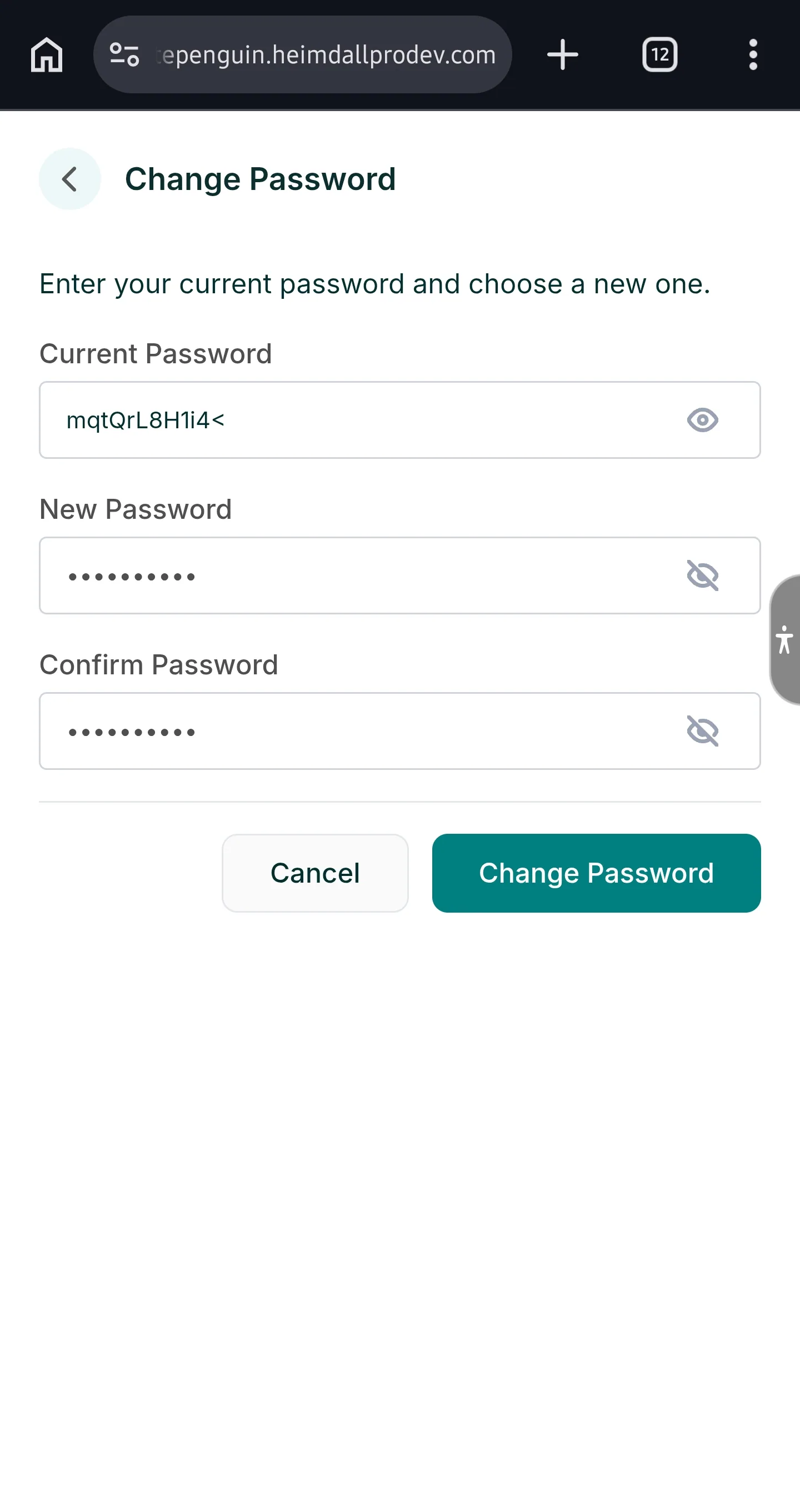
2. The **Change Password** dialog will open with three fields:
| Field | Description |
| -------------------- | ----------------------------------------------------- |
| **Current Password** | Enter your existing password to verify your identity. |
| **New Password** | Enter the new password you want to use. |
| **Confirm Password** | Re-enter your new password to confirm it matches. |
3. Use the **eye icon** (👁️) on each field to toggle password visibility.
4. Click **Change Password** to save, or **Cancel** to discard.
**Security tip:** Choose a strong password that is at least 8 characters long and includes a mix of letters, numbers, and special characters. Do not share your password with anyone.
## Notification Preferences [#notification-preferences]
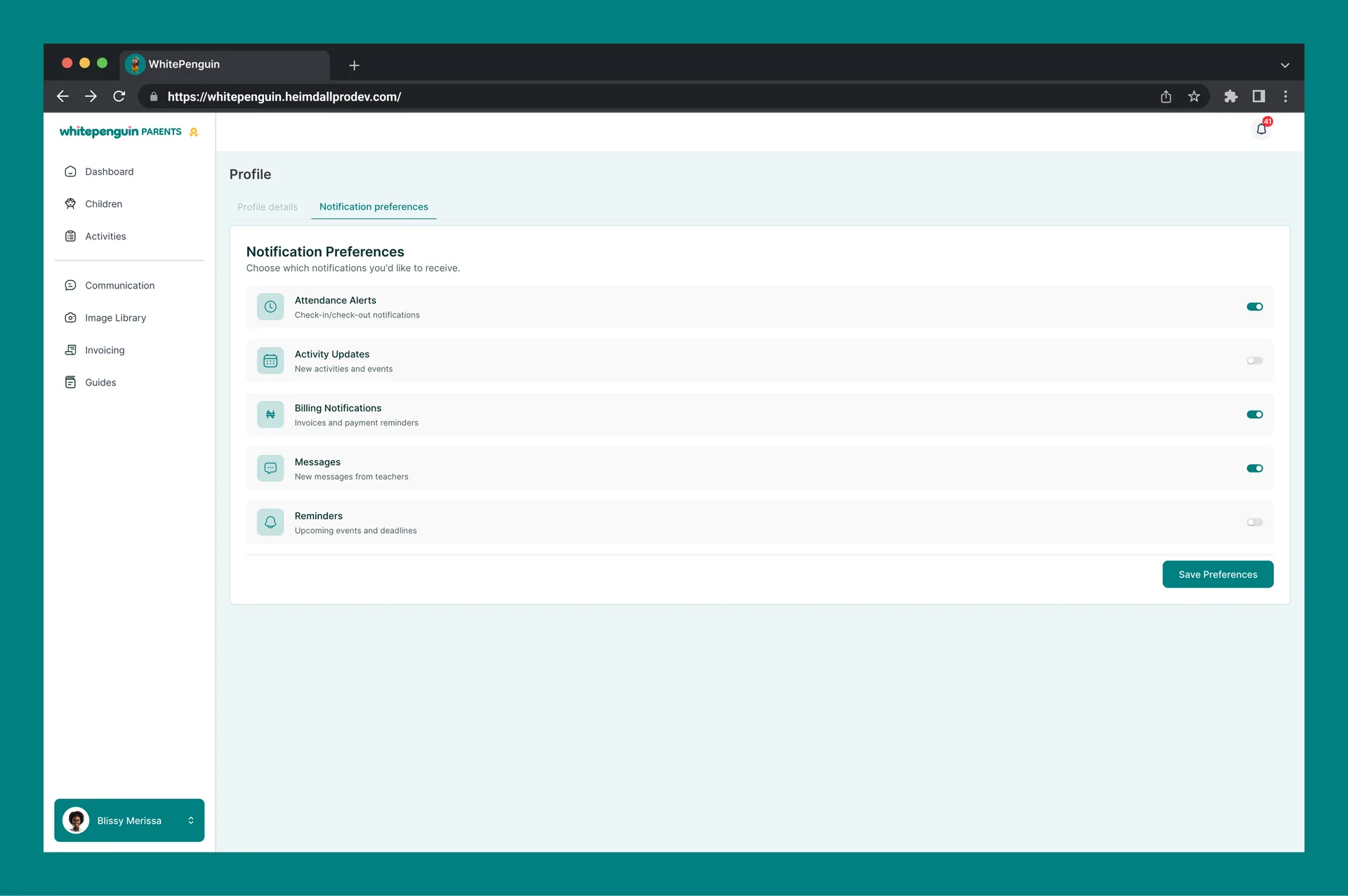
The **Notification Preferences** tab lets you choose which types of notifications WhitePenguin sends you.
To access Notification Preferences:
1. Click the **Notification preferences** tab at the top of the Profile page.
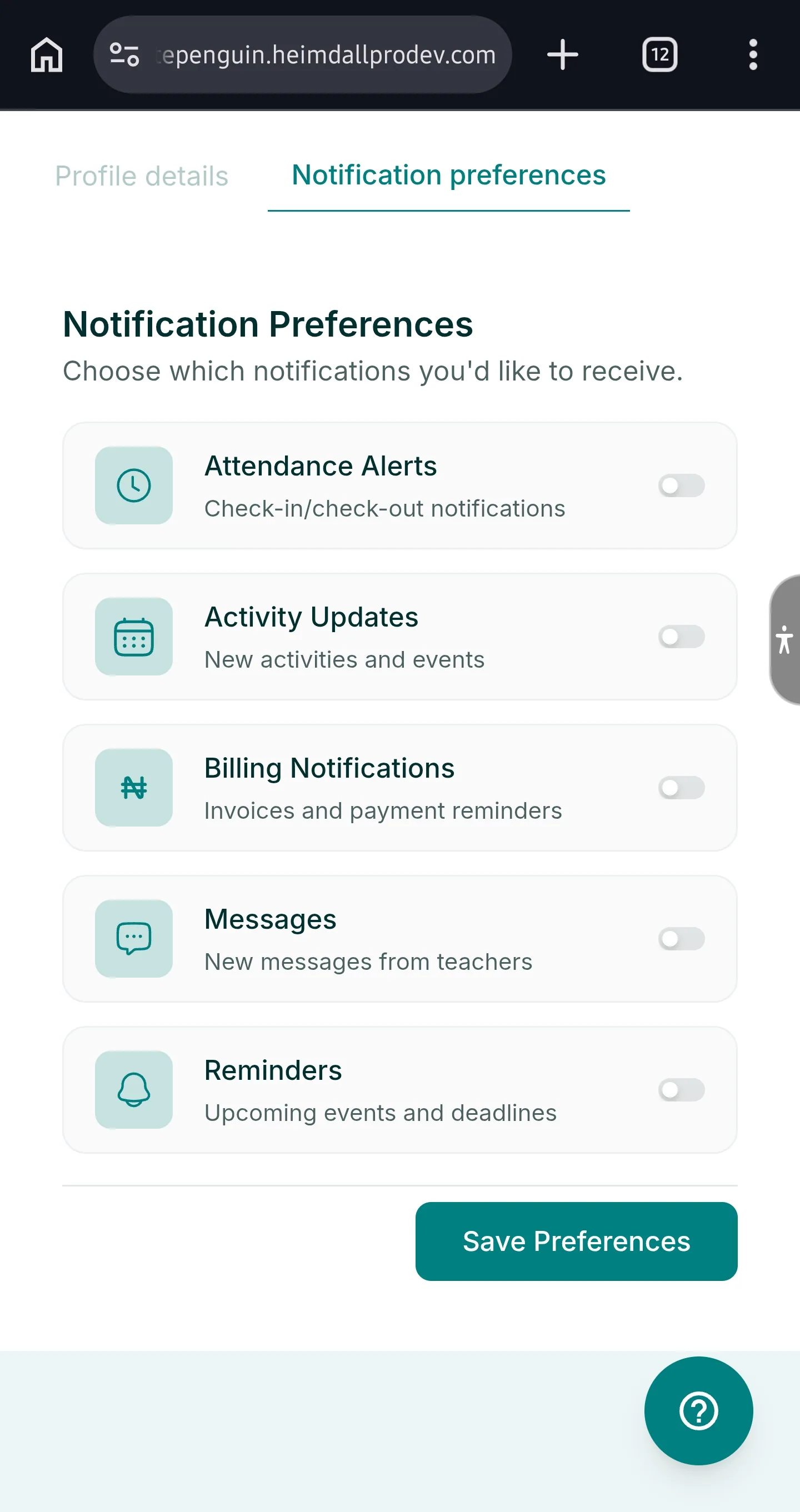
2. The **Notification Preferences** section will load, showing all available notification types with toggle switches.
### Available Notification Types [#available-notification-types]
| Notification | Description | Default |
| ------------------------- | -------------------------------------------------------------------------------------------------- | ------- |
| **Attendance Alerts** | Check-in/check-out notifications — notifies you when your child is checked in or out at school. | Off ❌ |
| **Activity Updates** | New activities and events — notifies you when new activities or events are added for your child. | Off ❌ |
| **Billing Notifications** | Invoices and payment reminders — notifies you when a new invoice is issued or a payment is due. | Off ❌ |
| **Messages** | New messages from teachers — notifies you when a teacher or admin sends you a message. | Off ❌ |
| **Reminders** | Upcoming events and deadlines — notifies you about upcoming events, deadlines, or important dates. | Off ❌ |
To update your preferences:
1. Toggle each notification type **on** or **off** using the toggle switch on the right.
2. Click **Save Preferences** at the bottom right to apply your changes.
**Tip:** We recommend keeping **Attendance Alerts**, **Billing Notifications**, and **Messages** turned on so you never miss a check-in alert, payment reminder, or message from a teacher.
## Tips [#tips]
* **Keep your contact information up to date.** Your phone number and email address are used by the school to reach you for important updates. Make sure they are current at all times.
* **Upload a clear profile photo.** A recognizable profile photo helps the school's staff identify you quickly during pick-up, drop-off, and in-person visits.
* **Change your password regularly.** For security, update your password every few months. Use a unique password that you don't use on other websites.
* **Enable Attendance Alerts.** These notify you the moment your child checks in or out of school — an important safety feature.
* **Turn on Billing Notifications.** This ensures you receive invoice alerts and payment reminders, helping you avoid overdue balances.
* **Save preferences after making changes.** Always click **Save Preferences** or **Save Changes** after editing any section — changes are not applied automatically.
* **Access profile options quickly via the sidebar menu.** Click your name at the bottom-left to access Profile, Reset Kiosk PIN, Notification Preferences, and Log Out without navigating away from your current page.
## FAQs [#faqs]
Go to **Profile** → **Profile Details** tab → click **Edit** next to **Personal Information**. Update your First Name, Last Name, Email Address, or Phone Number in the dialog and click **Save Changes**.
Click **Edit** next to **Personal Information** on the Profile Details tab. In the dialog, click **Upload** at the top to select a new photo from your device. Maximum file size is **10 MB**. Click **Save Changes** to apply.
Go to **Profile** → **Profile Details** tab → click **Edit** next to **Address**. Fill in your Street Address, City, State, and Postal Code and click **Save Changes**.
Go to **Profile** → **Profile Details** tab → click **Edit** next to **Password**. Enter your current password, then enter and confirm your new password. Click **Change Password** to save.
The **Change Password** dialog requires your current password to proceed. If you've forgotten it, use the **Forgot Password** option on the login page to reset your password via your registered email address.
Go to **Profile** → **Notification preferences** tab. Find **Billing Notifications** and toggle the switch to **off**. Click **Save Preferences** to apply. Note that turning this off means you will not receive invoice or payment reminder alerts.
Go to **Profile** → **Notification preferences** tab. Find **Reminders** and toggle the switch to **on**. Click **Save Preferences**. You will then receive notifications about upcoming school events, deadlines, and important dates.
Your **Member Since** date is displayed in your profile summary card on the left side of the **Profile Details** tab (e.g., January 10, 2026).
Click your **name and avatar** at the bottom-left of the sidebar to open the account menu. Select **Log Out** (shown in red) to sign out of the WhitePenguin parent portal securely.