# Messaging & Announcements
URL: https://whitepenguin.sonicar.tech/docs/parents/messaging-announcements/
> Learn how to use the Communication section in WhitePenguin — send direct messages to teachers or admins, view your message history, and read school-wide announcements all in one place.
## Overview [#overview]
The **Communication** section in WhitePenguin is your direct line to your child's school. It is split into two tabs:
* **Messages** — a private two-way messaging system where you can send messages directly to school staff (teachers or admins) and receive replies.
* **Announcements** — a read-only feed of school-wide notices and updates published by the school's admin or teachers.
This section keeps all school communication in one place so you never miss an important update.
## How to Access [#how-to-access]
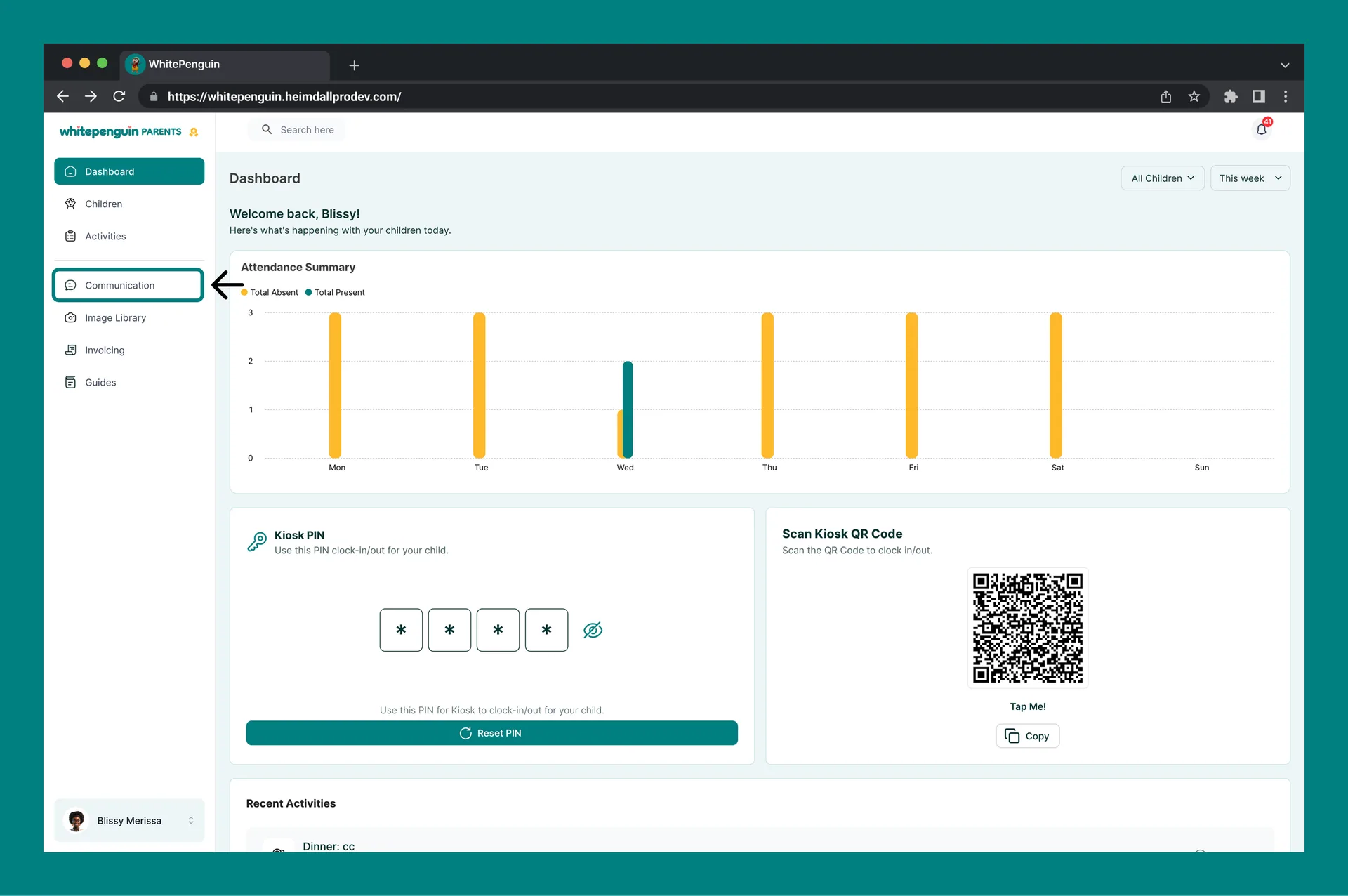
1. Log in to the **WhitePenguin parent portal**.
2. Click **Communication** in the **left sidebar**.
3. The Communication page will open on the **Messages** tab by default.
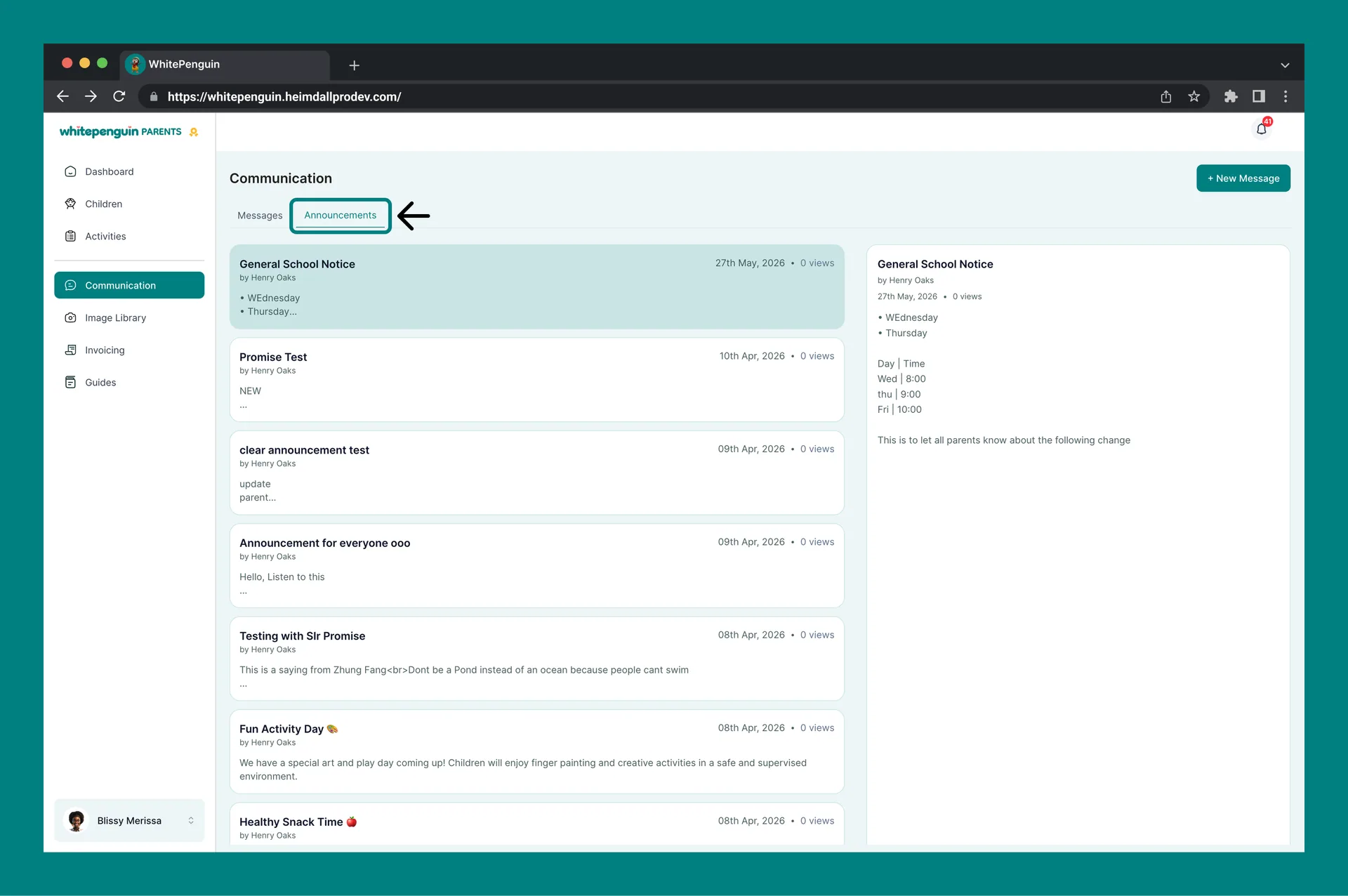
4. Click the **Announcements** tab to switch to the announcements feed.
## Messages Tab [#messages-tab]
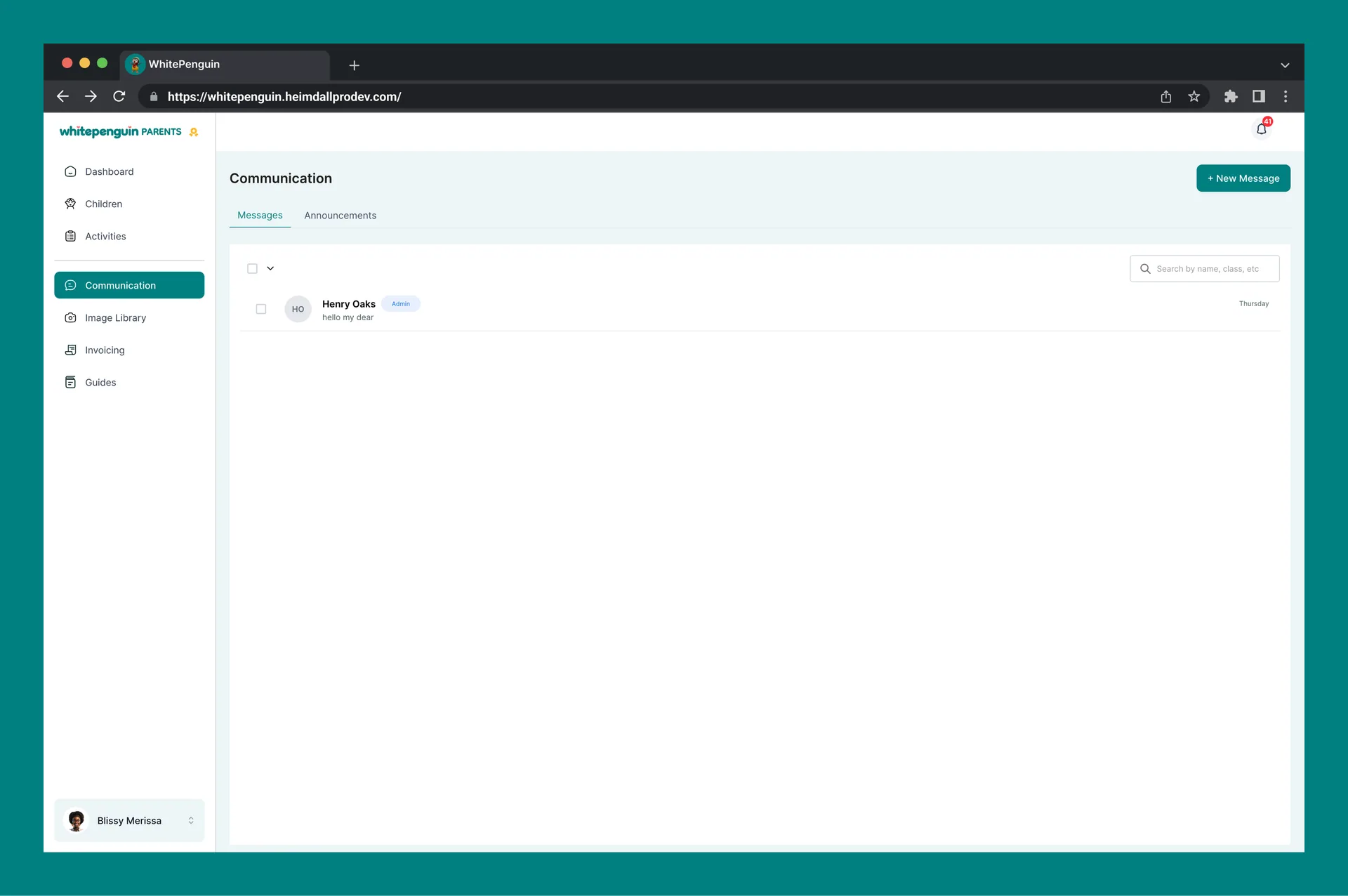
The **Messages** tab is your private inbox for direct conversations with school staff.
### Messages List [#messages-list]
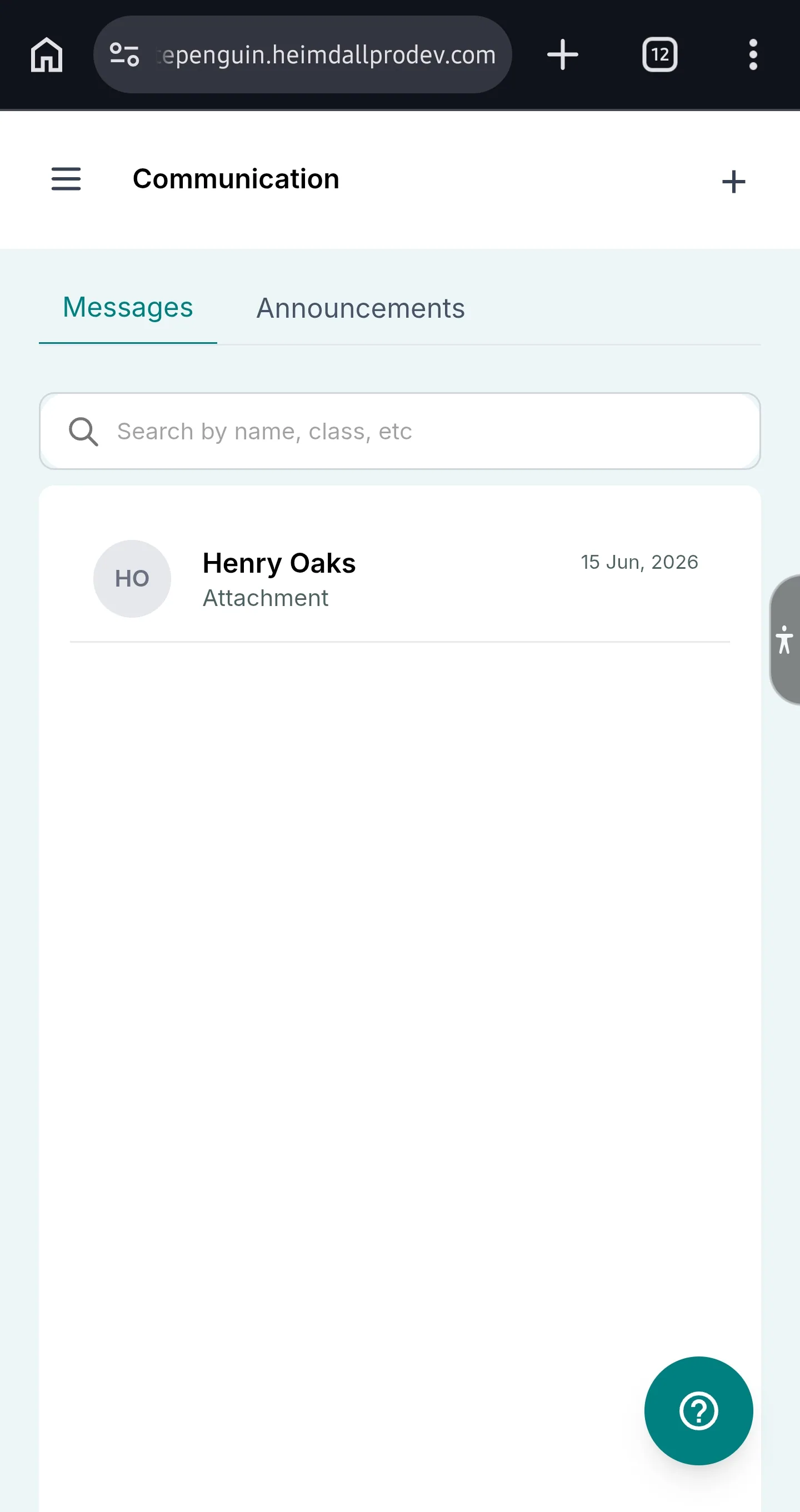
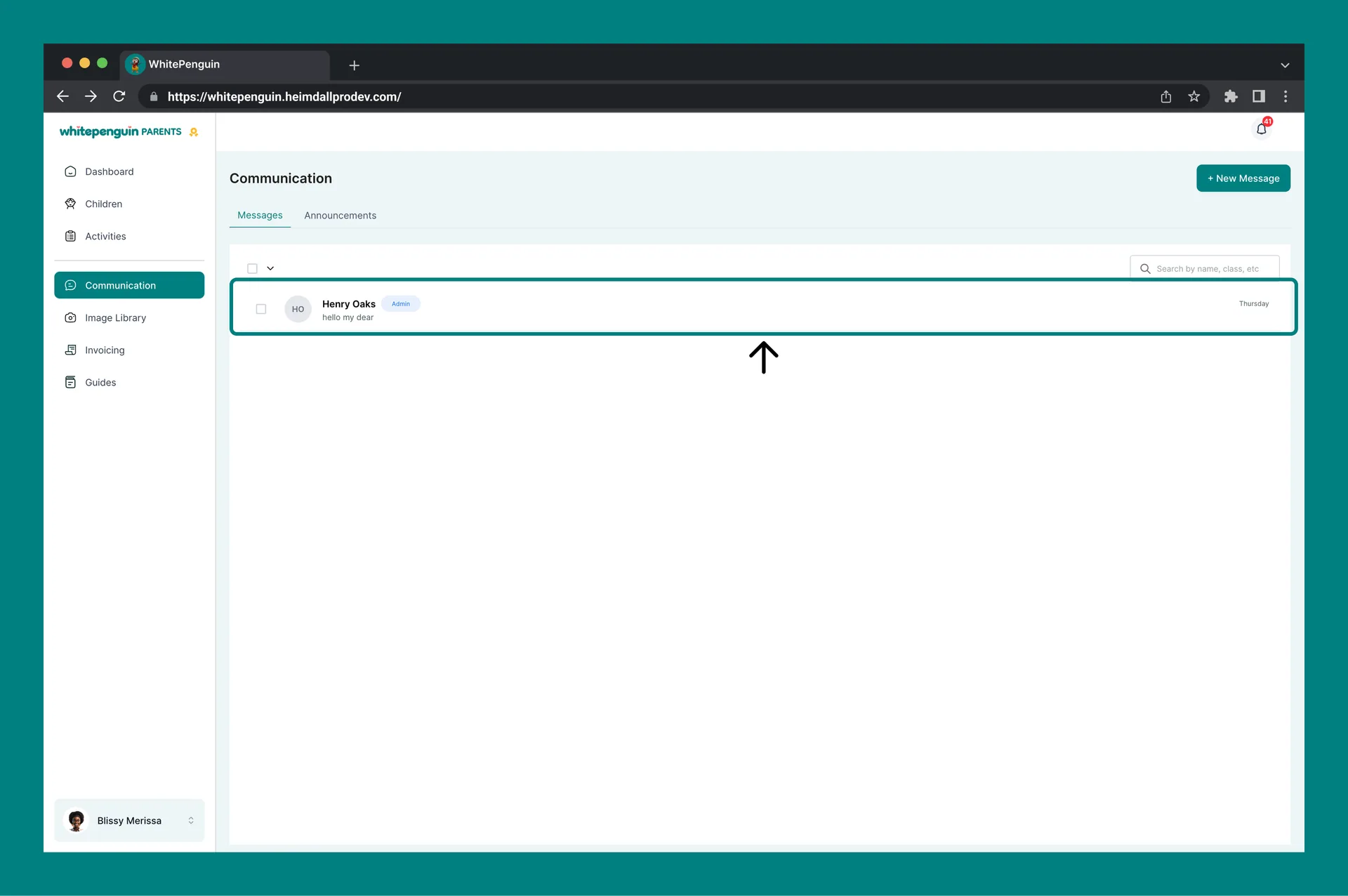
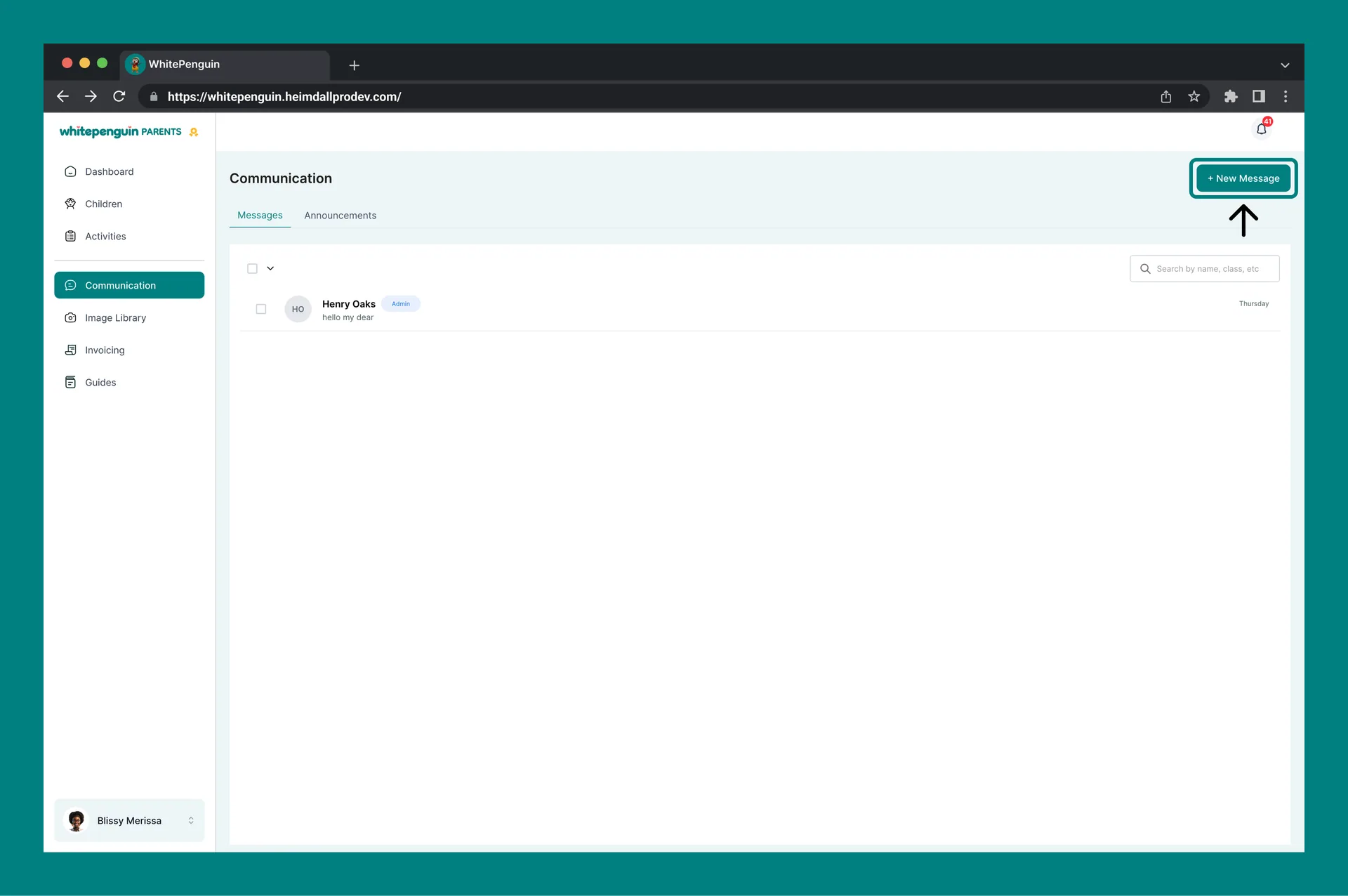
The left side of the Messages tab displays all your existing conversations. Each conversation entry shows:
| Element | Description |
| ------------------- | ---------------------------------------------------------------------- |
| **Avatar** | The initials or profile picture of the staff member you are messaging. |
| **Name** | The full name of the staff member (e.g., Henry Oaks). |
| **Role Badge** | A badge showing the staff member's role — **Admin** or **Staff**. |
| **Message Preview** | A short preview of the last message in the conversation. |
| **Date** | The date of the most recent message (e.g., 25 Apr, 2026). |
Click on any conversation to open the full message thread on the right side of the screen.
### Search [#search]
A **Search** bar at the top right of the Messages list lets you search conversations by name, class, or other details.
### Viewing a Conversation [#viewing-a-conversation]
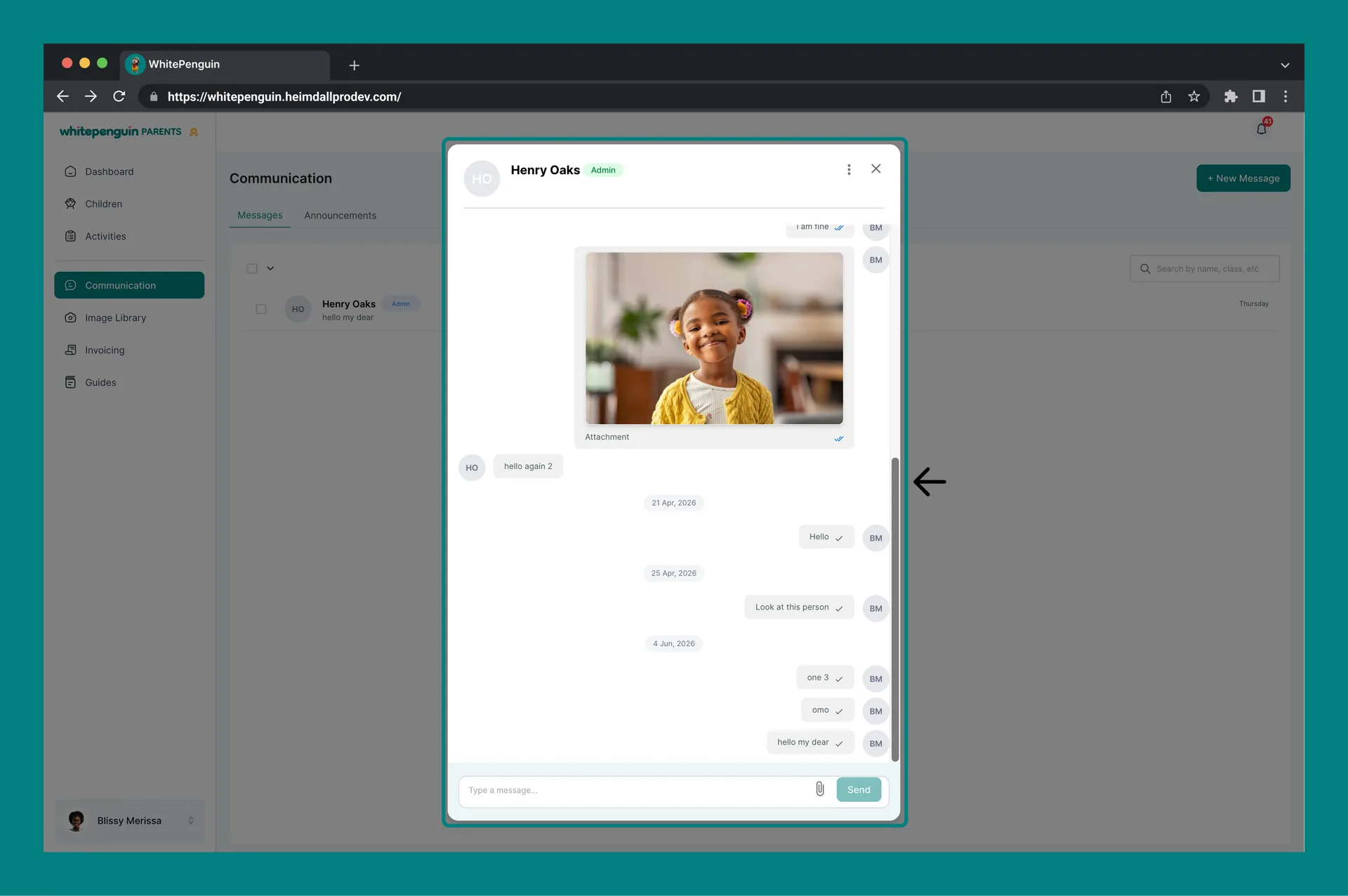
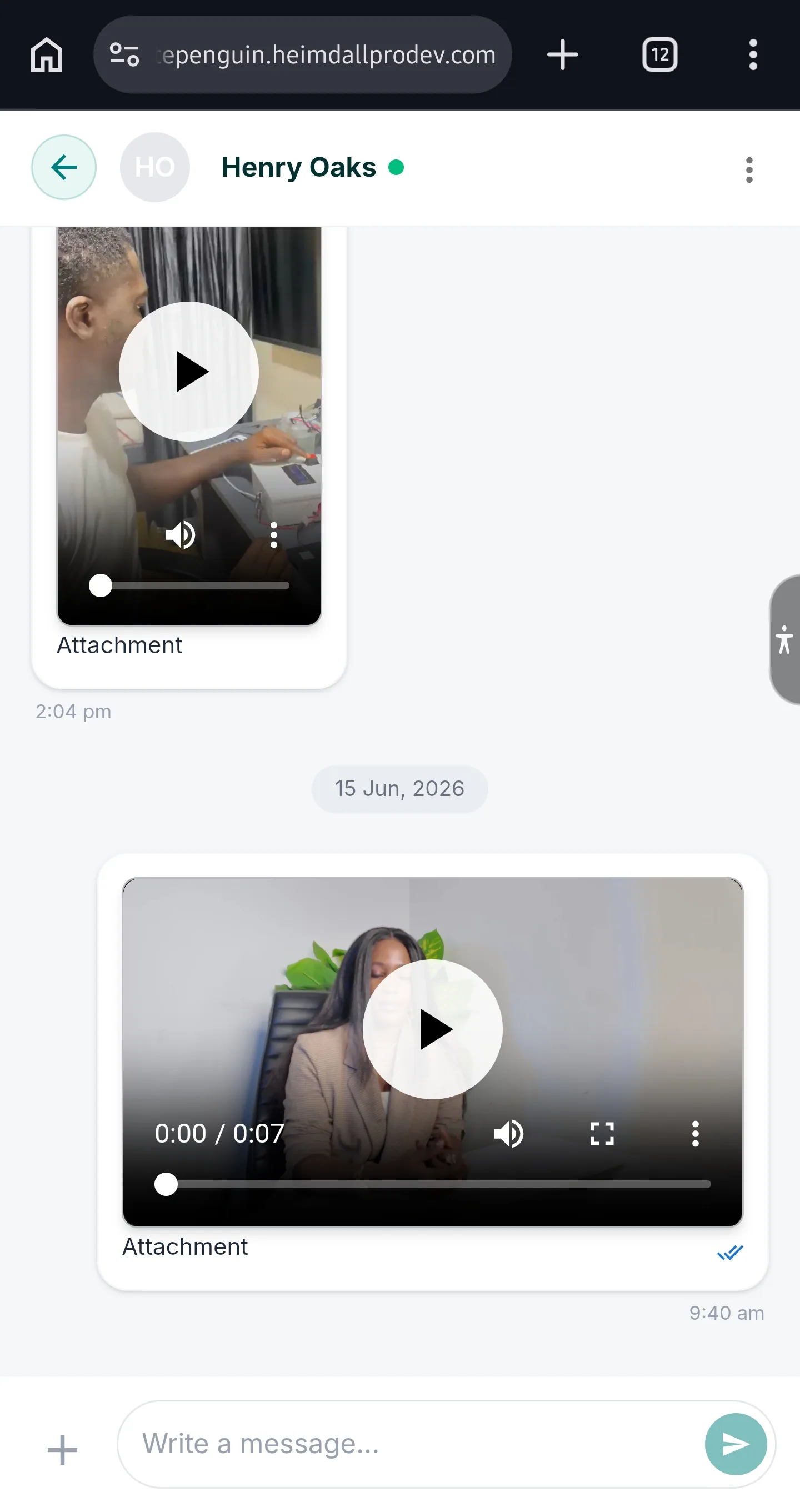
Clicking a conversation opens the **message thread panel**. The thread shows the full history of messages exchanged, displayed in a chat-style format:
* **Messages from staff** appear on the left side, with their avatar and name.
* **Your messages** appear on the right side.
* Messages can include **text** and **attached images or media**.
* Each message group shows the **date** it was sent.
* You can **reply** by typing in the message input field at the bottom of the thread and clicking **Send**.
* An **attachment icon** (📎) in the input bar lets you attach an image or video to your reply.
### Sending a New Message [#sending-a-new-message]
To start a new conversation with a teacher or admin:
1. Click the **+ New Message** button at the top right of the Communication page.
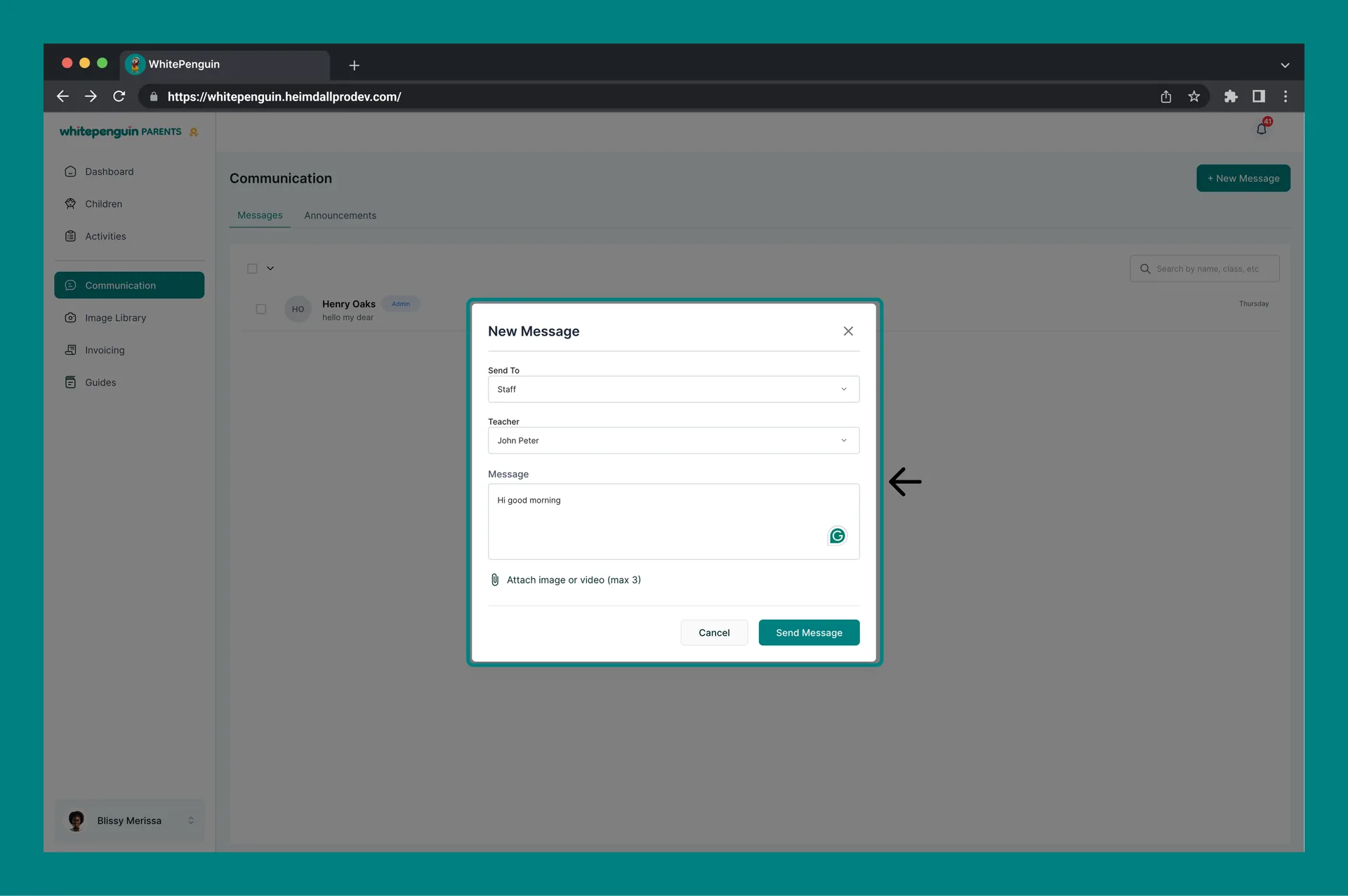
2. The **New Message** dialog will open.
3. In the **Send To** field, select the recipient type from the dropdown:
* **Staff** — to message a teacher or staff member
* **Admin** — to message a school administrator
4. A second field will appear (e.g., **Teacher**) — click **Choose a recipient** to open the recipient search dropdown.
5. Use the **Search** box inside the dropdown to find a specific person by name (e.g., Agodi Uchenna, Clem Oj, John Moses, John Peter, Michael Jack, Nwanne Nnamani).
6. Select the recipient from the list.
7. Type your message in the **message body** field.
8. Optionally, click the **attachment icon** to attach up to **3 images or videos**.
9. Click **Send Message** to send, or **Cancel** to discard.
**Tip:** You can send messages to either **Staff** (teachers) or **Admin** (school administrators). Select the appropriate type in the **Send To** dropdown first — the recipient list will update to show only people matching that role.
**Attachments:** You can attach up to **3 images or videos** per message. Click the paperclip icon in the New Message dialog or in the reply bar of an open conversation.
## Announcements Tab [#announcements-tab]
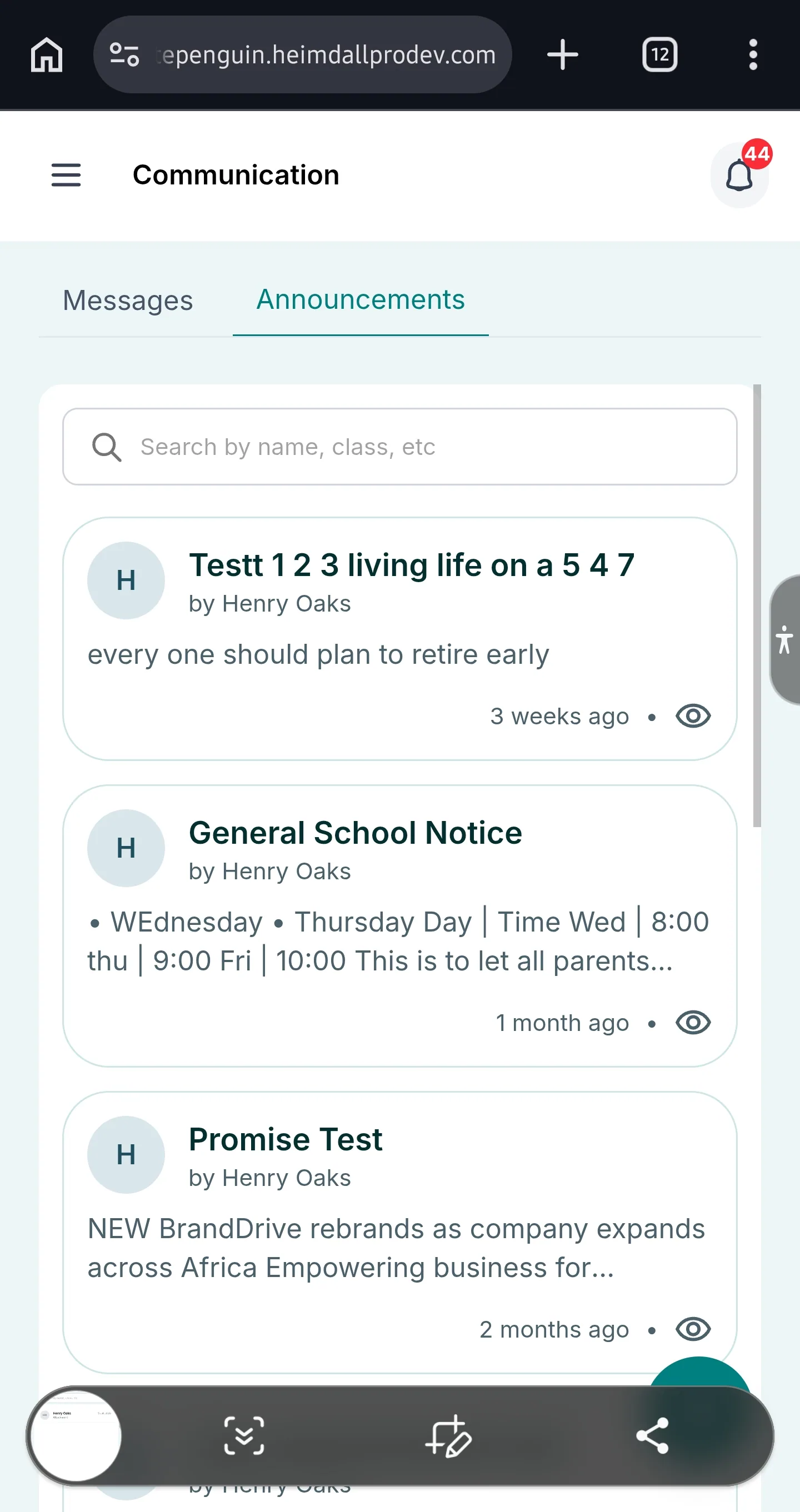
The **Announcements** tab displays school-wide notices and updates published by the school's admin or teaching staff.
### Announcements List [#announcements-list]
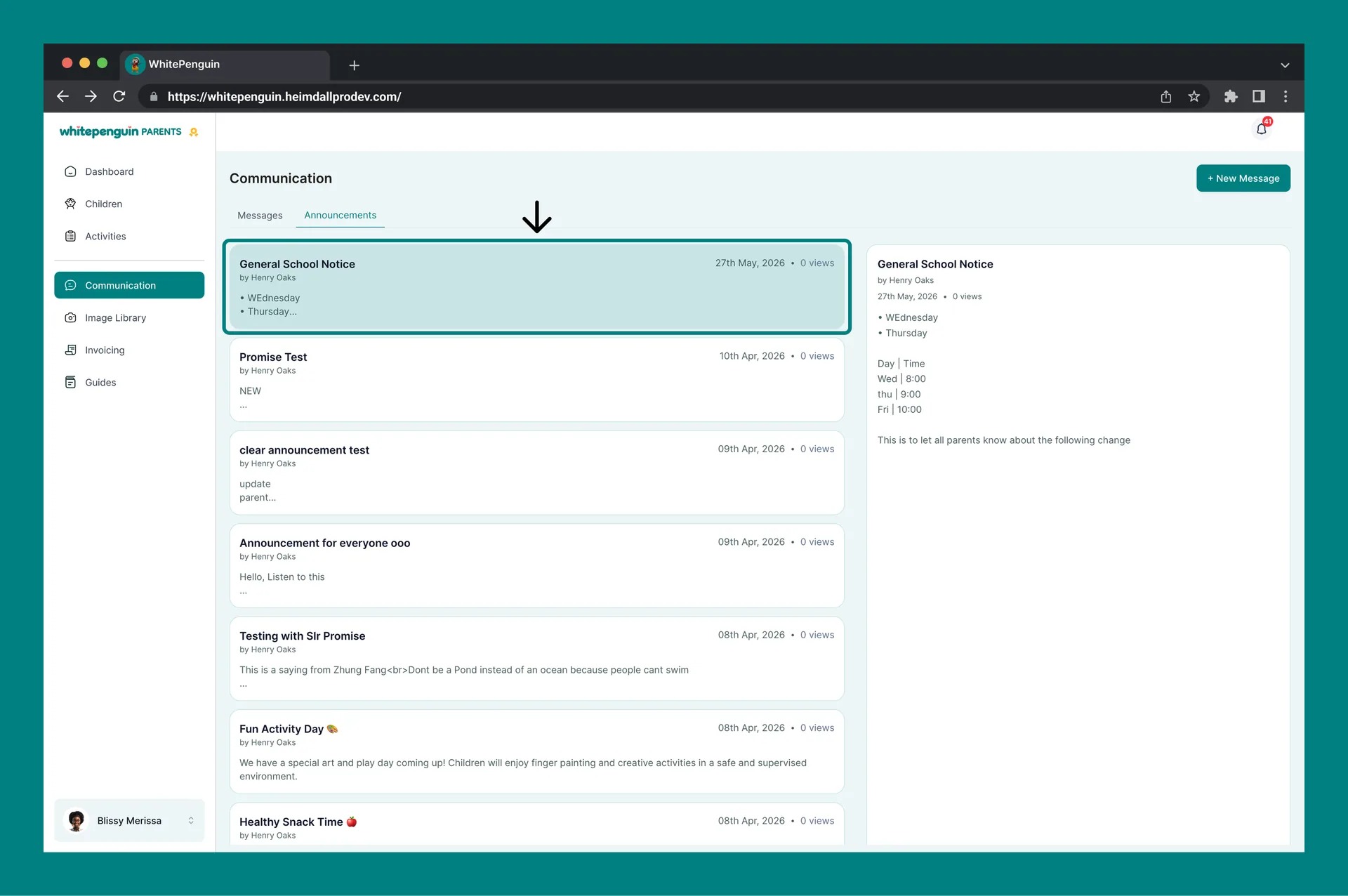
The left panel shows all announcements in reverse-chronological order (newest first). Each announcement card shows:
| Element | Description |
| ---------------- | ------------------------------------------------------------------------------------ |
| **Title** | The announcement title (e.g., "General School Notice", "Fun Activity Day 🍪"). |
| **Author** | The name of the staff member who published the announcement (e.g., "by Henry Oaks"). |
| **Date** | The date the announcement was published (e.g., 27th May, 2026). |
| **View Count** | The number of times the announcement has been viewed (e.g., "0 views"). |
| **Preview Text** | A short excerpt from the announcement body. |
### Reading an Announcement [#reading-an-announcement]
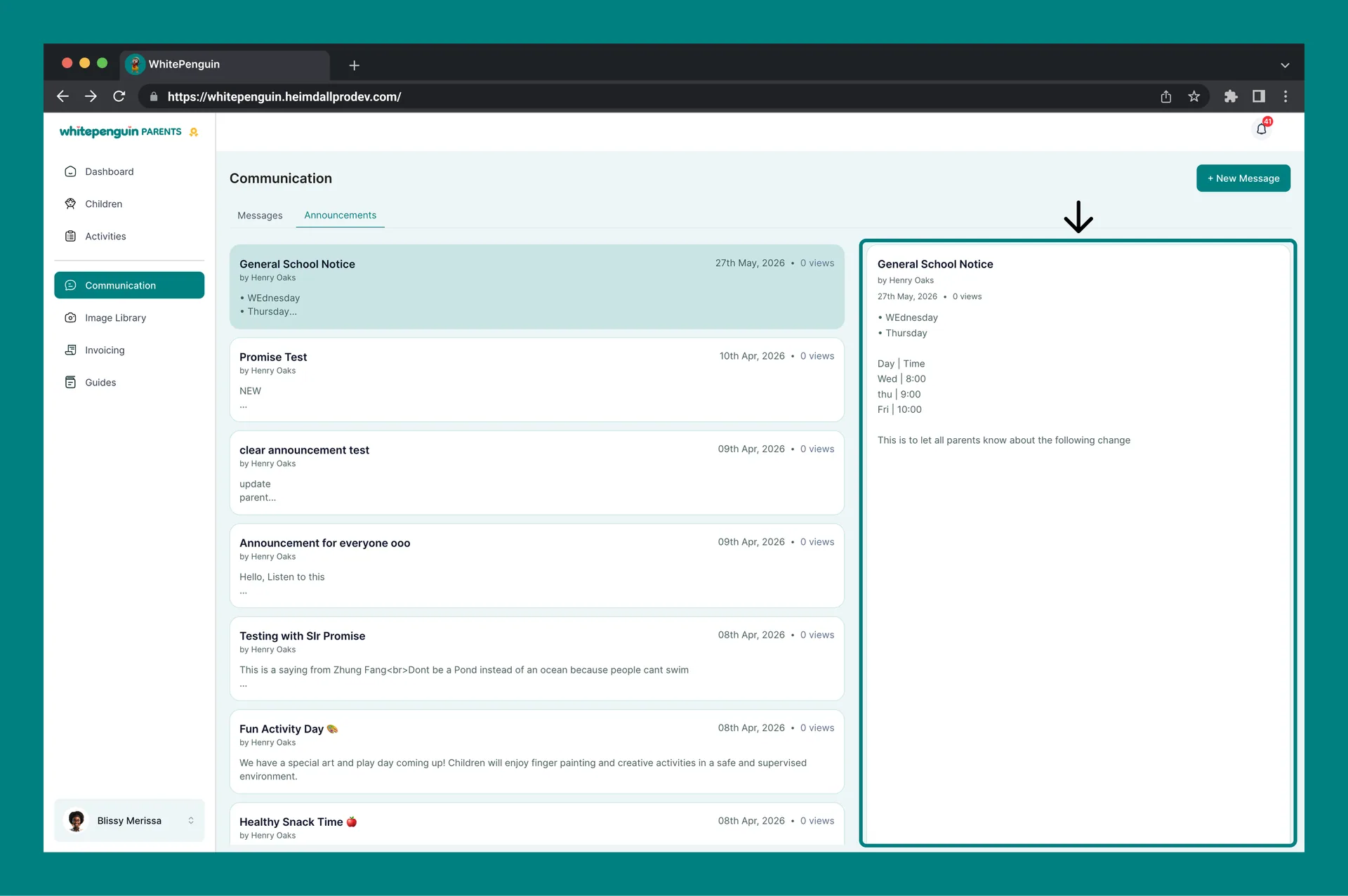
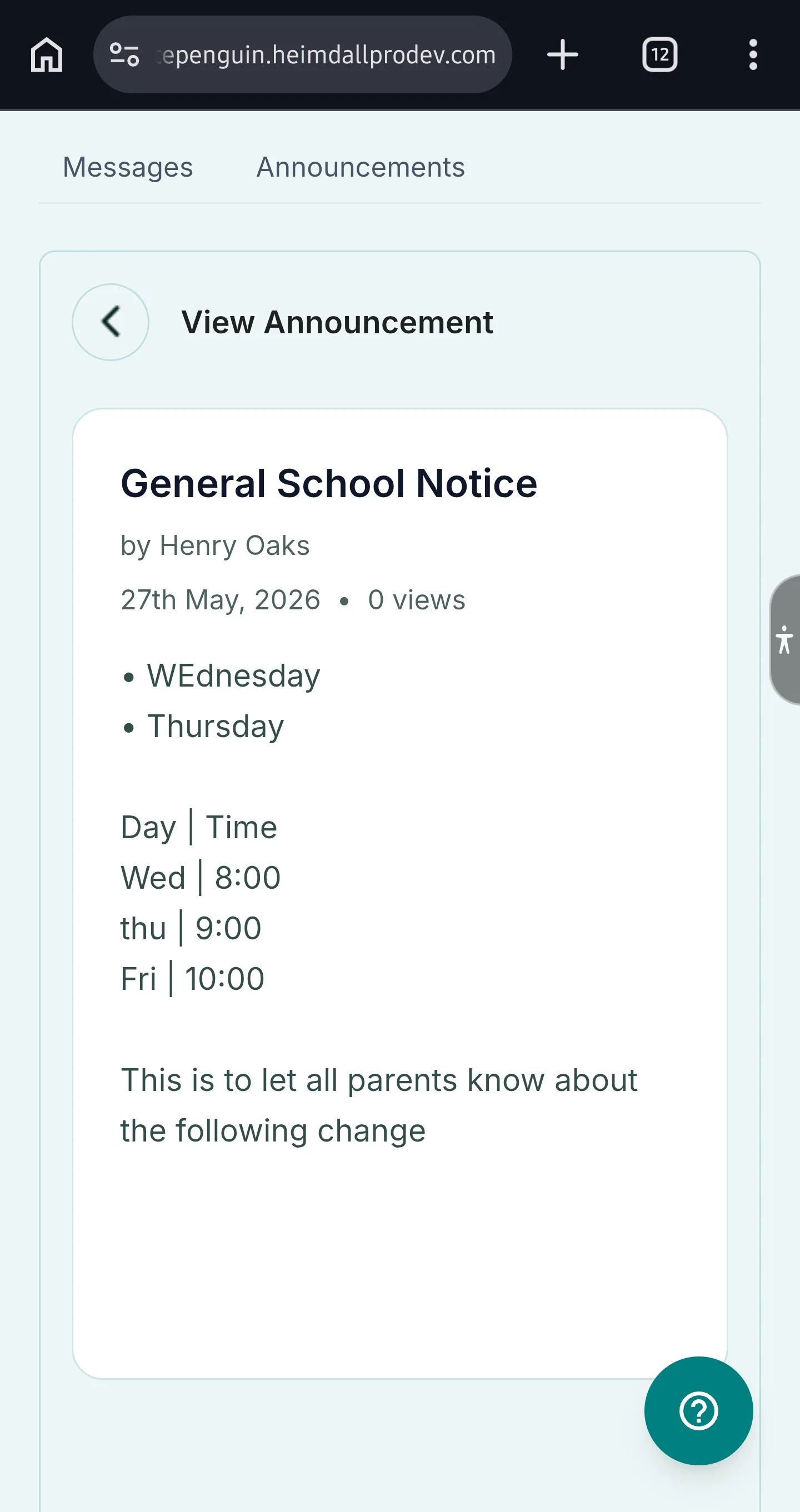
Click on any announcement card in the list to view its full content in the **right panel**. The full announcement shows:
* The **title** and **author** at the top
* The **publish date** and **view count**
* The **full announcement body** — which may include formatted text, bullet lists, tables, and other content
Announcements are **read-only** — parents cannot reply to or comment on announcements. For direct communication, use the **Messages** tab.
### Types of Announcements [#types-of-announcements]
Announcements can cover a wide range of school topics, including:
* General school notices and schedule changes
* Upcoming events (e.g., Fun Activity Day, school performances)
* Health and wellness reminders (e.g., Healthy Snack Time)
* Reminders about what to bring (e.g., Reminder: Bring Extra Clothes)
* Weekly welcome messages and classroom updates
## Tips [#tips]
* **Use Messages for private questions.** If you have a specific question about your child — their progress, behavior, health, or schedule — send a direct message to the relevant teacher or admin using **+ New Message**.
* **Check Announcements regularly.** School-wide notices, upcoming events, and important reminders are posted here. It's a good habit to check this tab a few times a week.
* **Search your message history.** Use the **Search** bar in the Messages list to quickly find a past conversation by the staff member's name.
* **You can attach media.** When messaging, you can attach up to 3 images or videos to provide context (e.g., a photo of something sent home from school).
* **Announcements are not private.** Everything in the Announcements tab is published to all parents at the school, not just you. For personal matters, always use the Messages tab.
* **Role badges help you identify who you're messaging.** Look for the **Admin** or **Staff** badge next to a name to understand who you're communicating with before sending a message.
## FAQs [#faqs]
Click **+ New Message** at the top right of the Communication page. In the **Send To** dropdown, select **Staff**. Then use the **Teacher** field to search for and select the teacher's name. Type your message and click **Send Message**.
Yes. Click **+ New Message**, then select **Admin** in the **Send To** dropdown. The recipient field will update to show available admin staff. Select the admin you want to contact and send your message.
Yes. When composing a new message or replying in a conversation, click the **attachment icon** (📎) to attach images or videos. You can attach up to **3 files** per message.
Click on the conversation in the Messages list to open the thread. Type your reply in the message input field at the bottom of the chat panel and click **Send**.
No. Announcements are read-only and are published to all parents at the school. If you have a question or response related to an announcement, send a direct message to the admin or teacher who posted it using the **Messages** tab.
Yes. A notification badge appears on the **bell icon** (🔔) at the top right of the portal when you have unread notifications. Check the **Communication** section to read new messages.
Use the **Search** bar at the top right of the Messages list. You can search by the staff member's name, class, or other keywords to quickly locate a past conversation.
Each announcement card shows the **publish date** (e.g., 27th May, 2026) next to the author's name. Announcements are sorted newest first, so the most recent notice always appears at the top of the list.