# My Child's Profile & Management
URL: https://whitepenguin.sonicar.tech/docs/parents/my-childs-profile-management/
> Learn how to view and manage your children's profiles in WhitePenguin — access their personal details, daily activities, attendance records, invoices, progress reports, and learning milestones all in one place.
## Overview [#overview]
The **Children** section in WhitePenguin is your complete hub for everything related to your enrolled children. From here, you can see all your children at a glance, check their attendance percentage and status, and dive into each child's full profile — including their schedule, medical info, daily activities, invoices, and learning results.
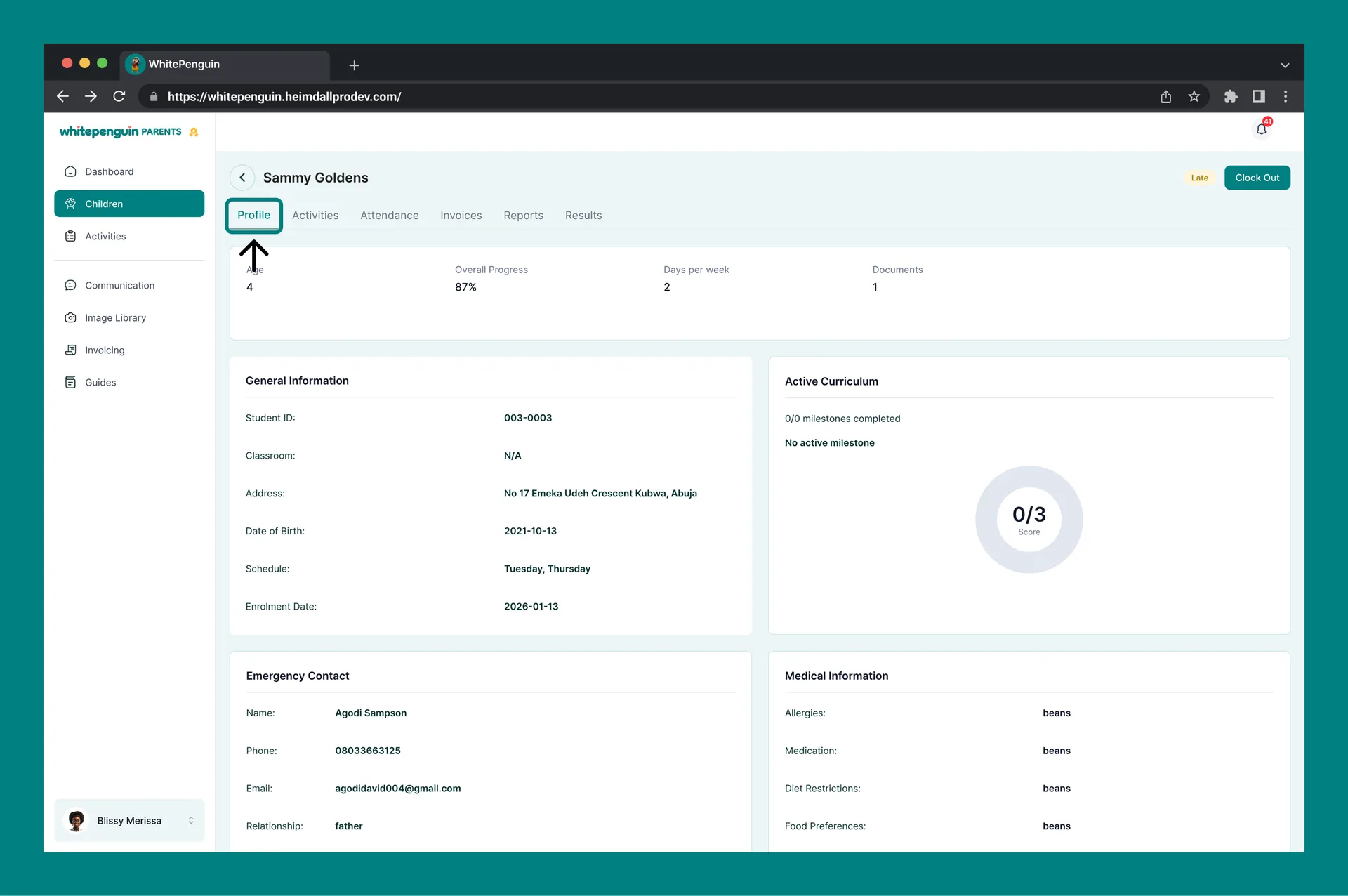
Each child's profile is organized into **six tabs**:
| Tab | What It Shows |
| -------------- | ------------------------------------------------------------------------------------------------------- |
| **Profile** | Personal details, general info, emergency contact, medical information, and active curriculum progress. |
| **Activities** | Daily activity log entries (meals, naps, water, photos, medication, bathroom) logged by teachers. |
| **Attendance** | Attendance summary stats and a detailed attendance log with time in/out records. |
| **Invoices** | A list of all invoices issued for this child, with status, amounts, and download options. |
| **Reports** | A history of activity-summary emails sent for this child, filterable by type and date range. |
| **Results** | Learning milestone results — Milestone Name, Subject, Date, and Grade achieved. |
## How to Access [#how-to-access]
1. Log in to the **WhitePenguin parent portal**.
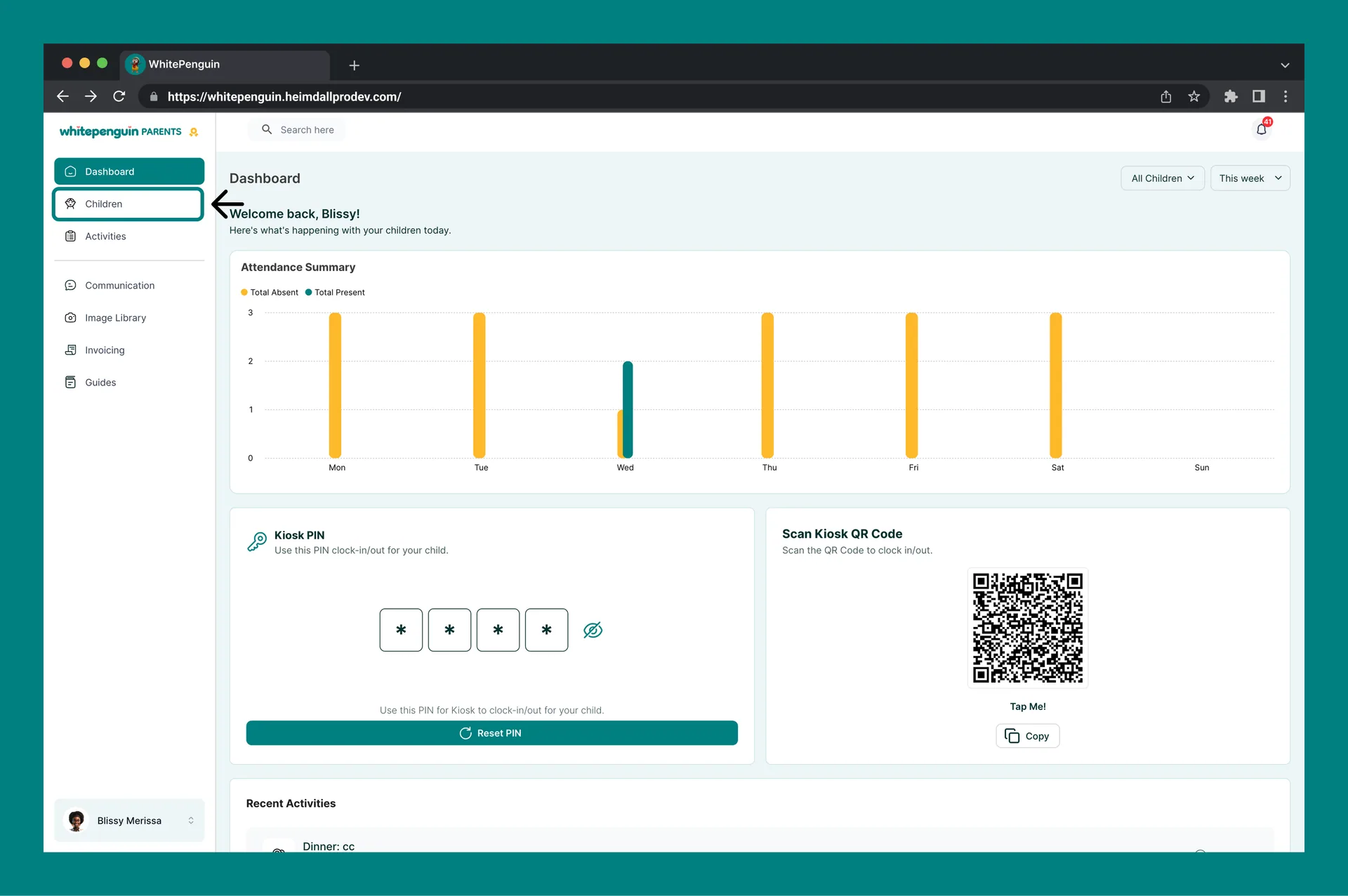
2. Click **Children** in the **left sidebar**.
3. The Children list will load, showing all children linked to your account.
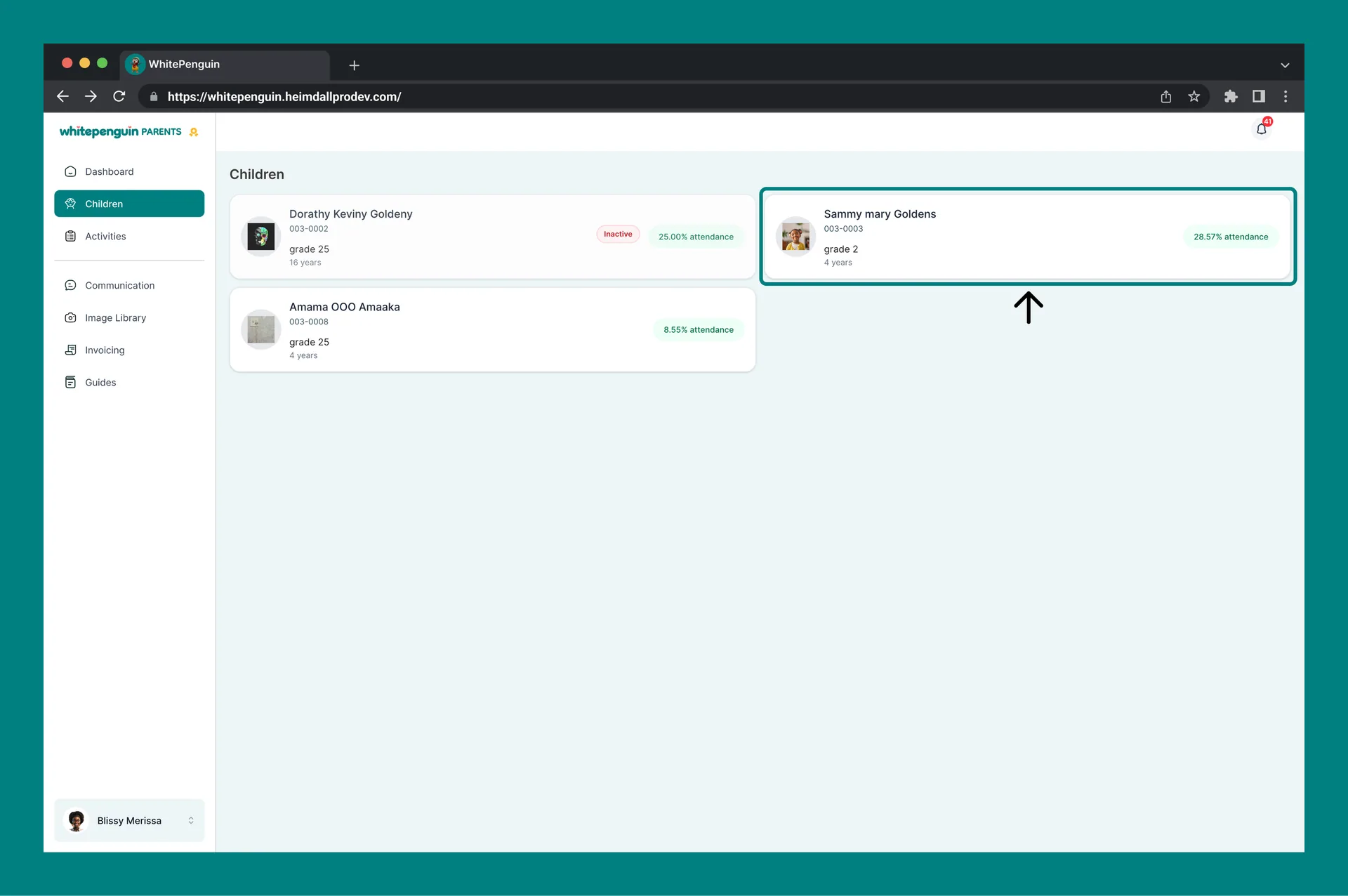
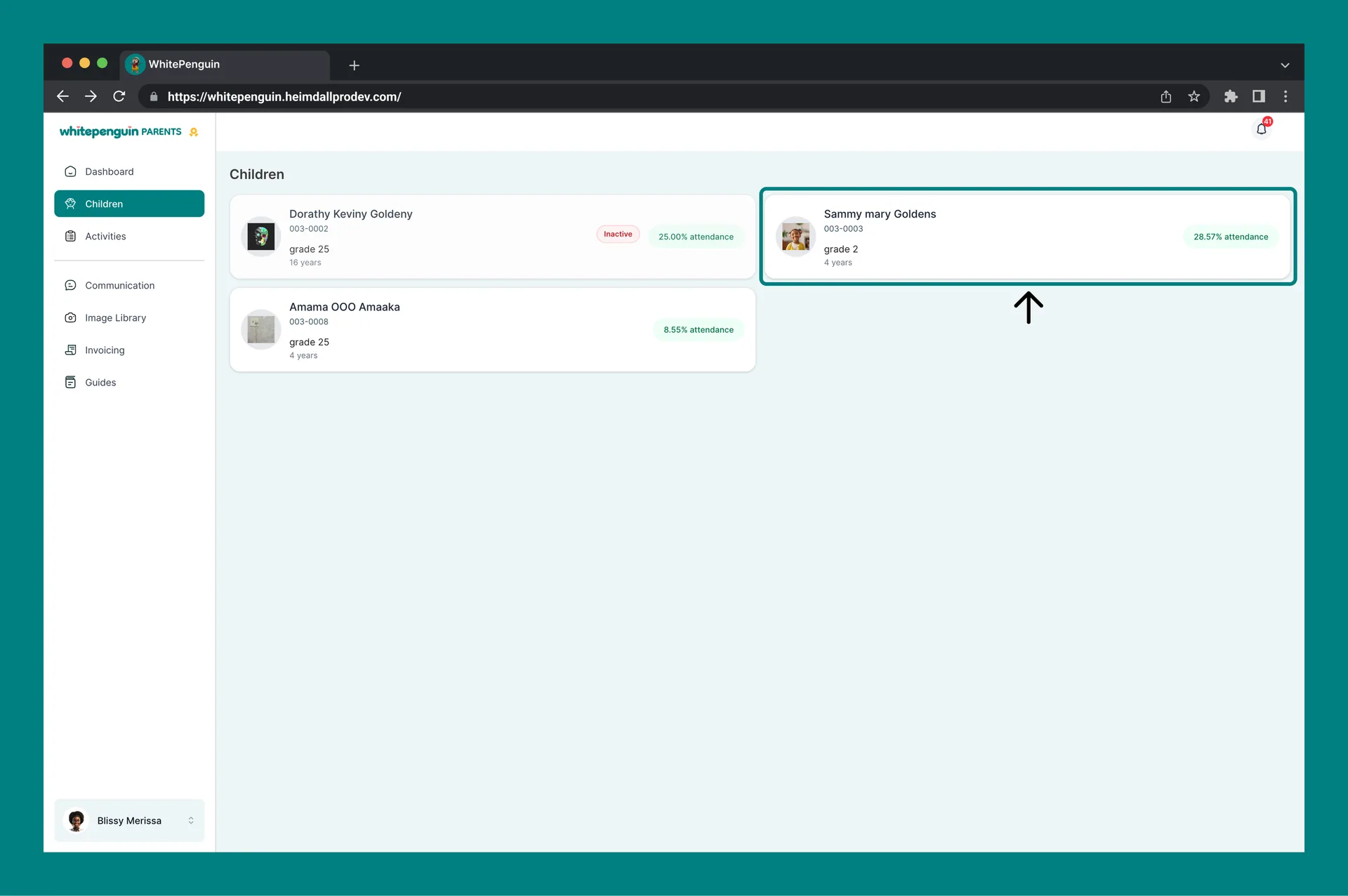
4. Click on any **active child card** to open their full profile.
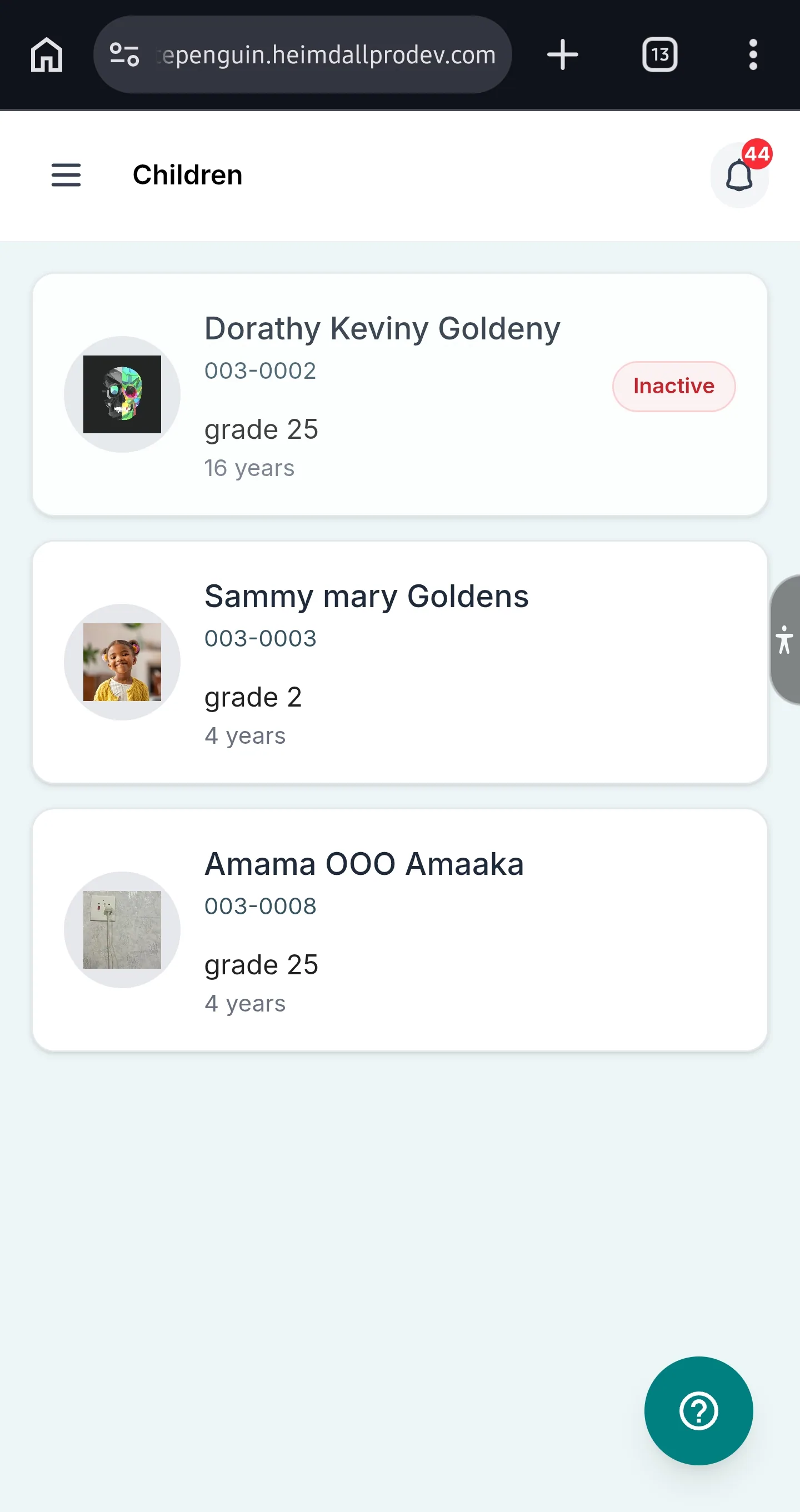
**Inactive children** are shown with an **Inactive** badge on their card. You can still view their card details, but their profile tabs may have limited or no data.
## Children List [#children-list]
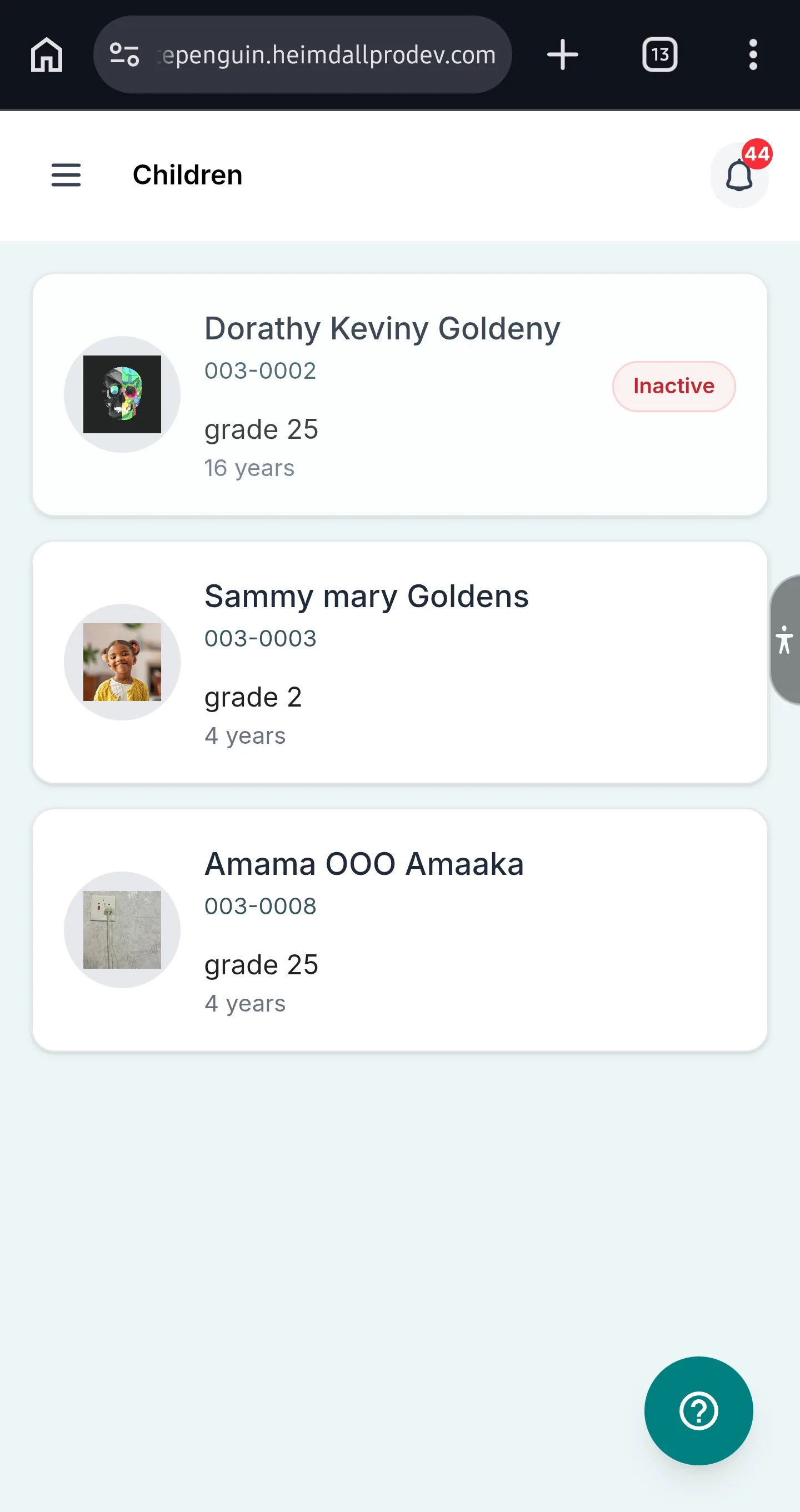
The **Children** page displays a card for each child linked to your parent account. Each card shows:
| Field | Description |
| ---------------- | ---------------------------------------------------------------------------------------- |
| **Photo** | The child's profile photo (if uploaded by the school). |
| **Full Name** | The child's full name as registered in the system. |
| **Student ID** | A unique identifier for the child (e.g., 003-0008). |
| **Grade** | The child's current grade level. |
| **Age** | The child's age in years. |
| **Attendance %** | The child's overall attendance percentage, shown in green on the right side of the card. |
| **Status Badge** | If the child is inactive, an **Inactive** badge is displayed on the card. |
Click any child card to open their detailed profile.
## Child Profile Tabs [#child-profile-tabs]
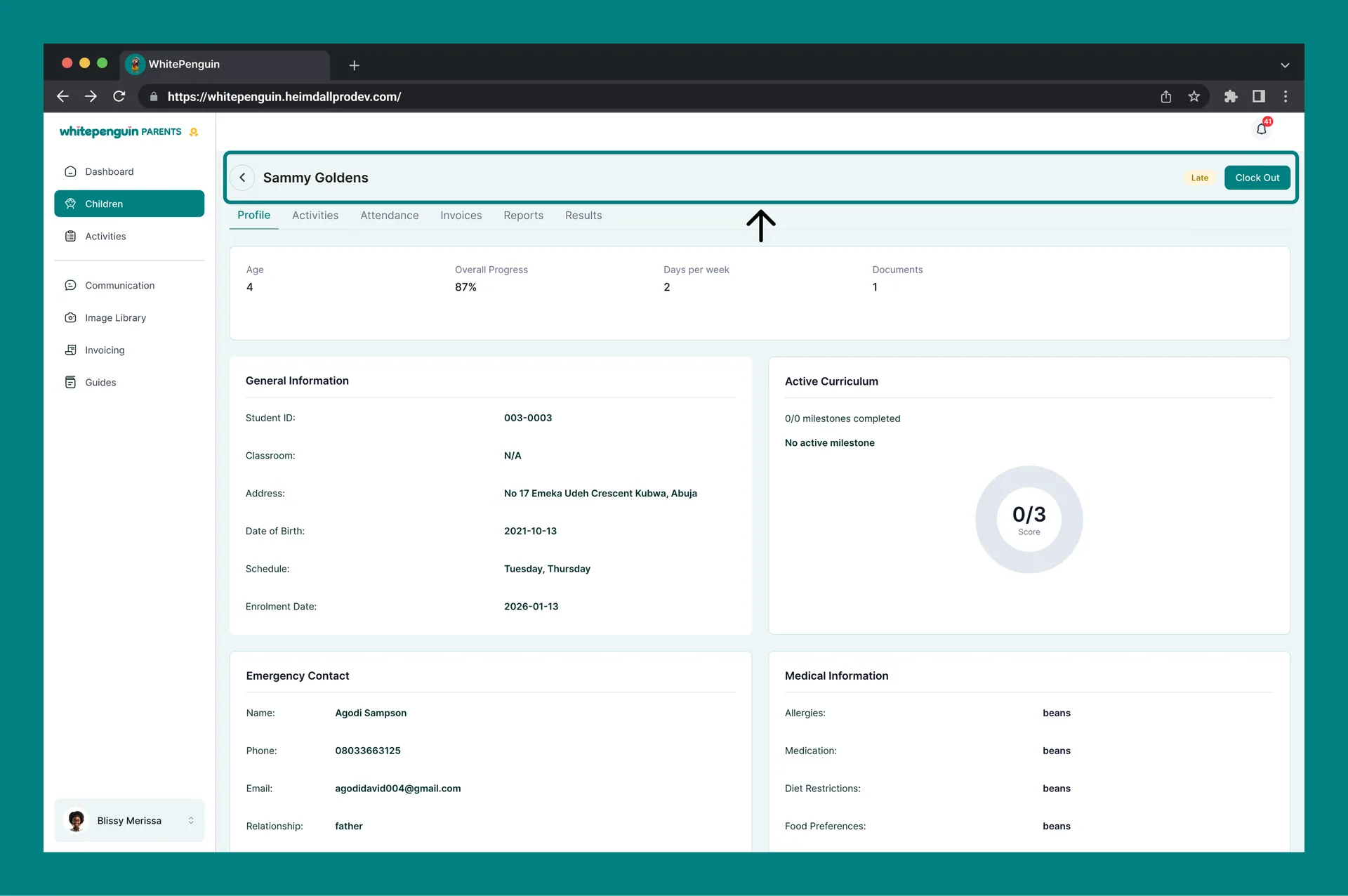
When you open a child's profile, their name appears at the top as a heading. The top-right corner shows:
* A **status badge** — **Present** (green) or **Absent** (red) — indicating today's attendance status.
* A **Clock In** or **Clock Out** button to manually record the child's arrival or departure.
* A **time period filter** (e.g., This Week) to scope activity and attendance data.
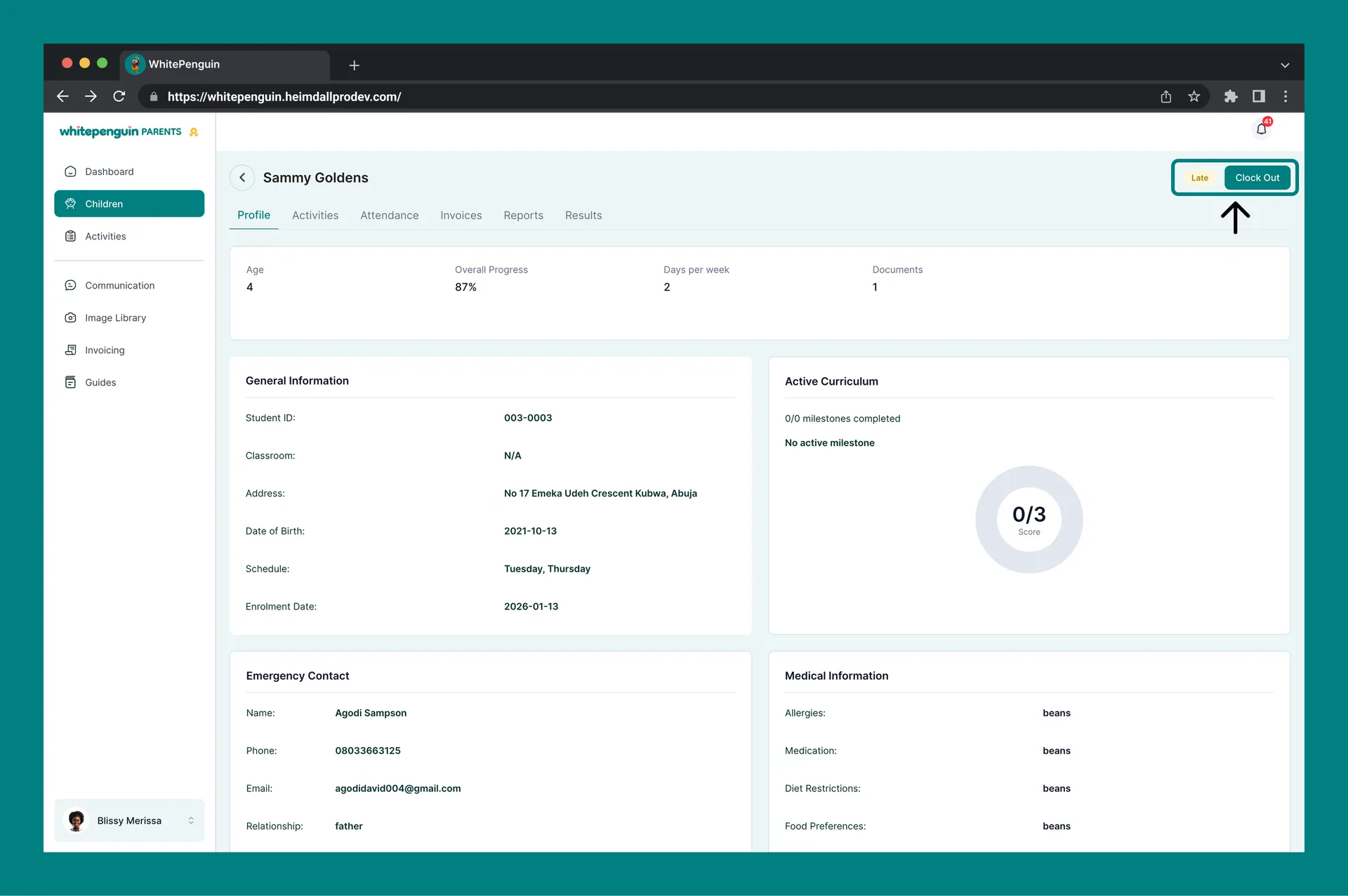
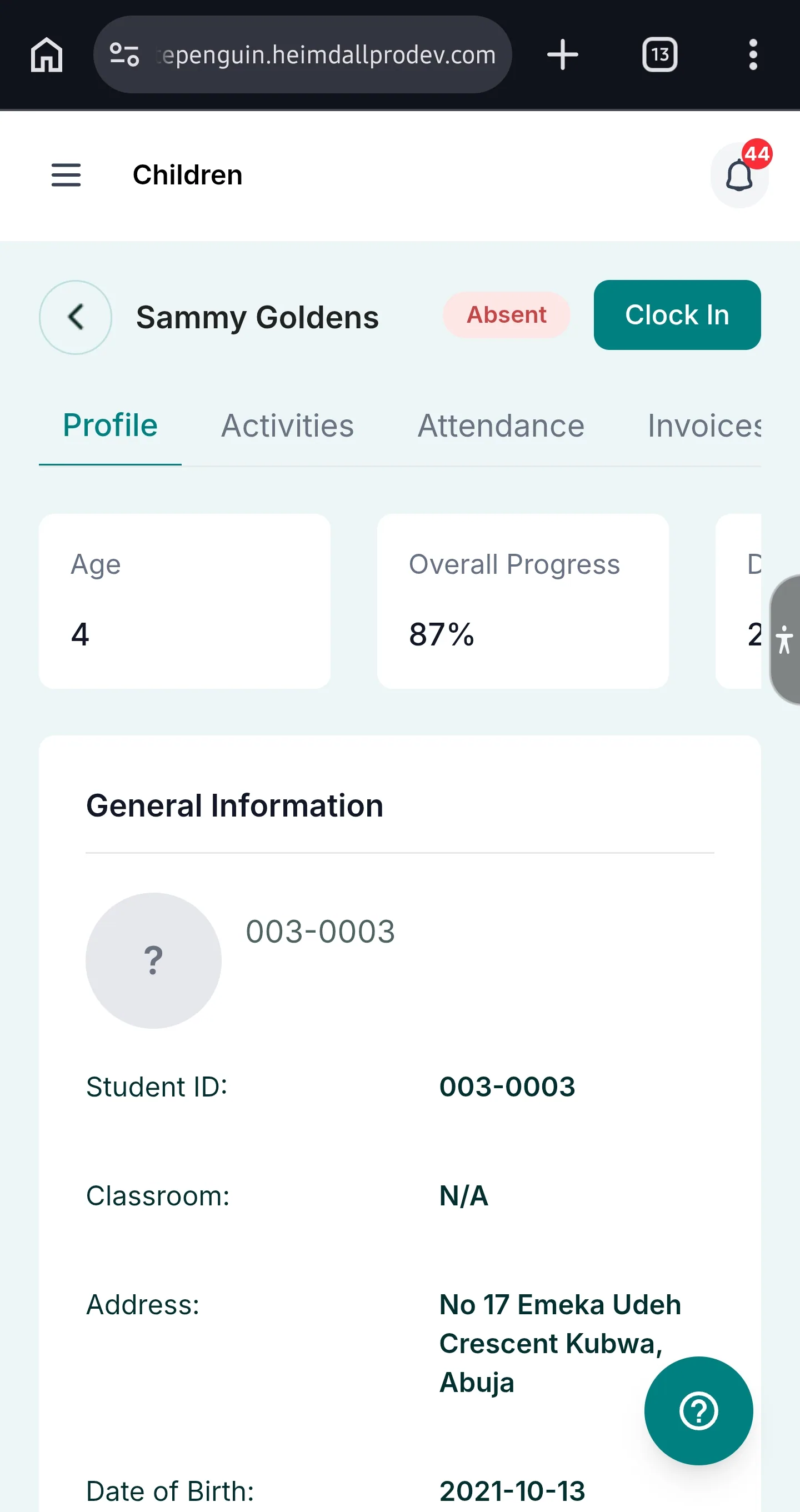
### Tab 1 — Profile [#tab-1--profile]
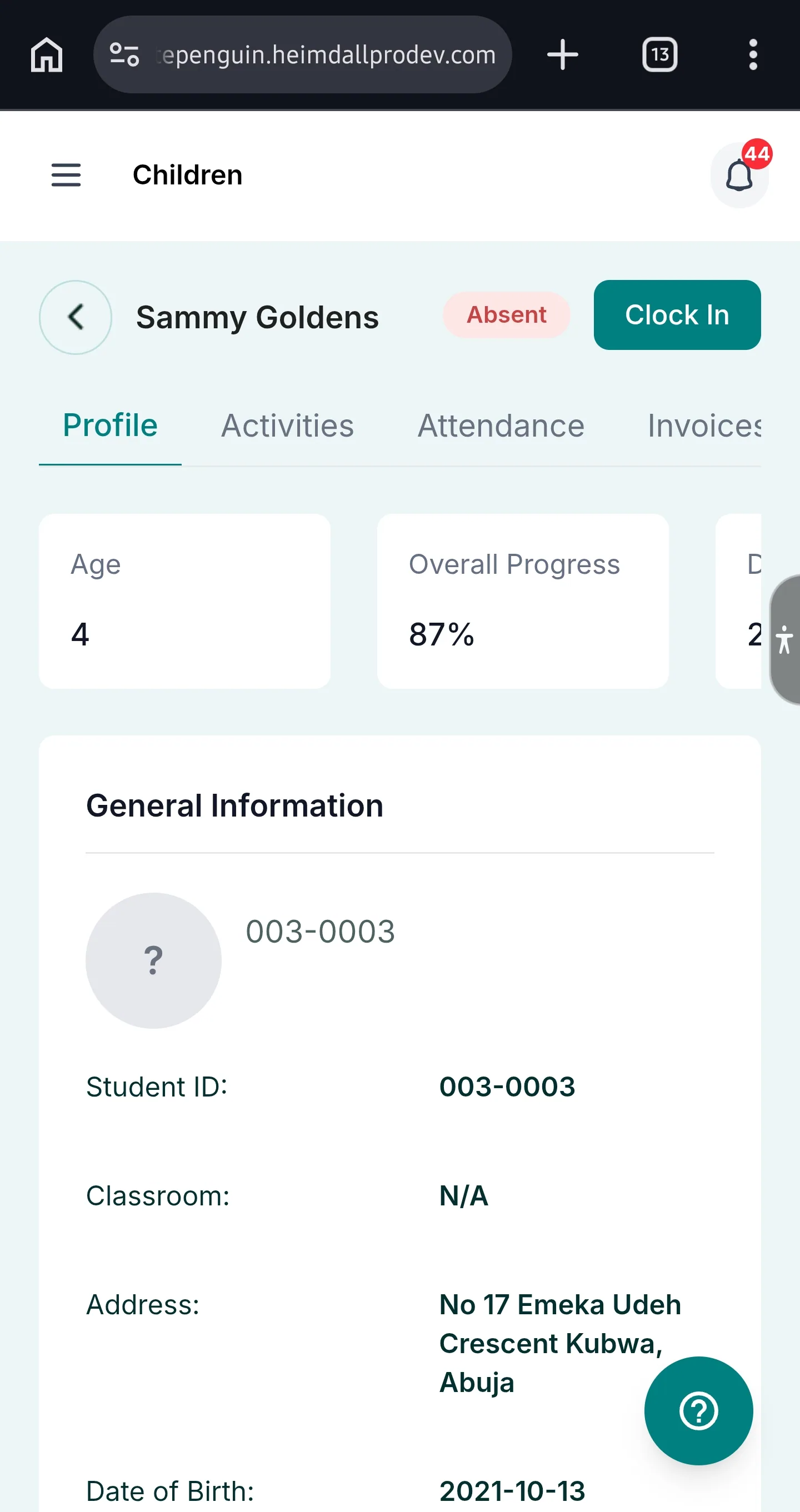
The **Profile** tab is the child's main information page. It contains four sections:
#### Summary Cards [#summary-cards]
Four quick-stat cards at the top:
| Card | What It Shows |
| -------------------- | -------------------------------------------------------------------- |
| **Age** | The child's current age in years. |
| **Overall Progress** | The child's overall curriculum progress as a percentage (e.g., 87%). |
| **Days per week** | The number of scheduled school days per week for this child. |
| **Documents** | The number of documents on file for this child. |
#### General Information [#general-information]
| Field | Description |
| ------------------- | ---------------------------------------------------------------------------- |
| **Student ID** | Unique ID assigned to the child by the school. |
| **Classroom** | The classroom the child is enrolled in (shows N/A if not yet assigned). |
| **Address** | The child's home address. |
| **Date of Birth** | The child's date of birth. |
| **Schedule** | The days of the week the child attends school (e.g., Monday through Sunday). |
| **Enrollment Date** | The date the child was officially enrolled. |
#### Emergency Contact [#emergency-contact]
| Field | Description |
| ---------------- | ------------------------------------------------------------------------- |
| **Name** | Emergency contact's full name. |
| **Phone** | Emergency contact phone number. |
| **Email** | Emergency contact email address. |
| **Relationship** | The contact's relationship to the child (e.g., mother, father, guardian). |
| **Address** | Emergency contact's physical address. |
#### Medical Information [#medical-information]
| Field | Description |
| --------------------- | ------------------------------------------------------------------------------------ |
| **Allergies** | Any known allergies (e.g., Peanuts and cashew). |
| **Medication** | Any medication the child is currently taking (e.g., omeprazole). |
| **Diet Restrictions** | Any dietary restrictions for the child. |
| **Food Preferences** | Any food preferences noted for the child. |
| **Notes** | Additional medical or behavioral notes from the school (e.g., "Doesn't talk a lot"). |
#### Active Curriculum [#active-curriculum]
Shows the child's current curriculum milestone progress:
* **Milestones completed** (e.g., 0/0 milestones completed)
* A **score ring** showing the current score out of total (e.g., 0/3)
* A label indicating the active milestone, or **"No active milestone"** if none is assigned yet
### Tab 2 — Activities [#tab-2--activities]
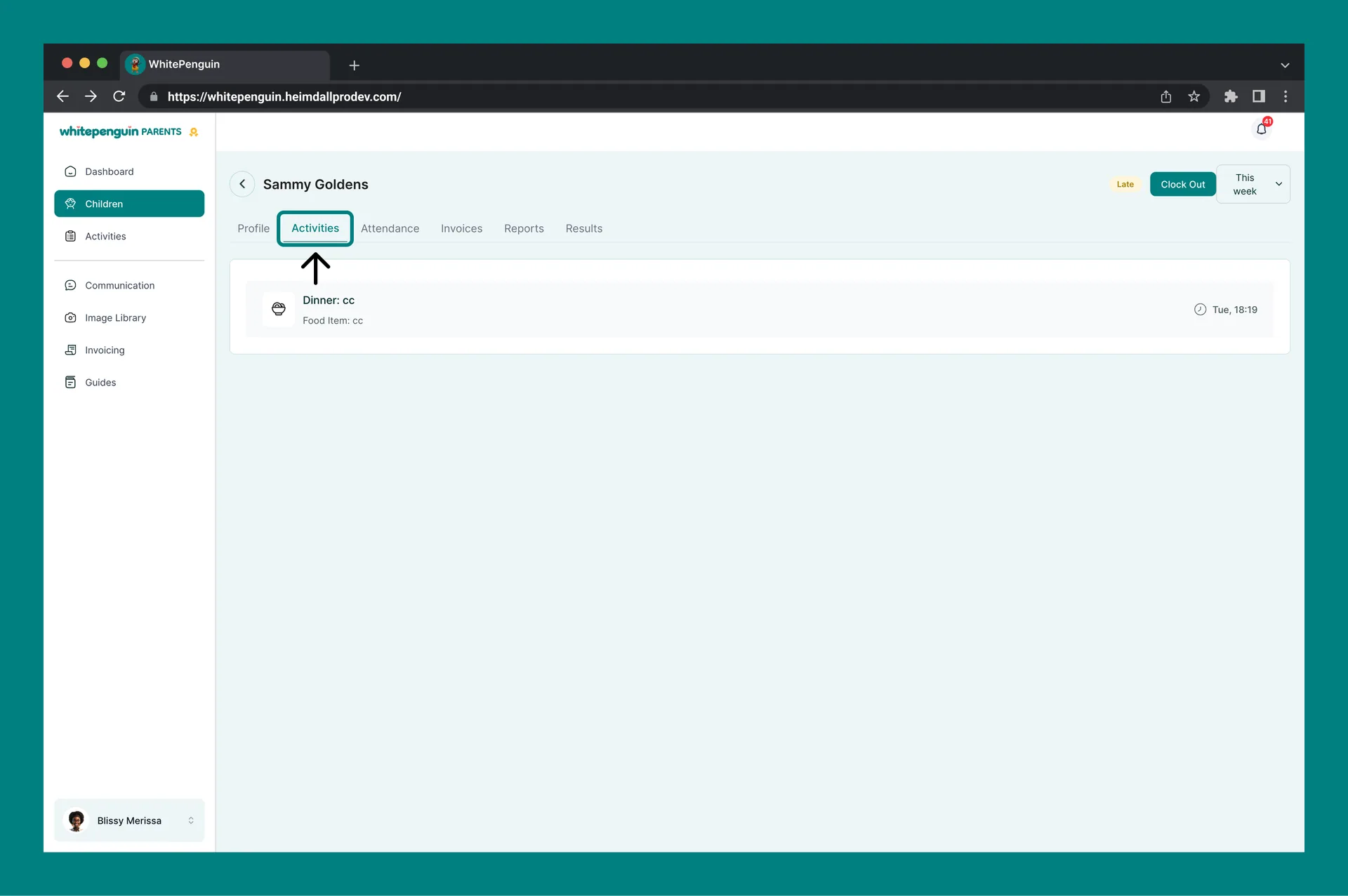
The **Activities** tab shows all daily activity entries logged by the child's teachers for the selected time period.
Each entry can include:
* **Activity type** — Meal, Nap, Water, Photo, Medication, Bathroom
* **Notes** — any details added by the teacher
* **Timestamp** — date and time the activity was logged
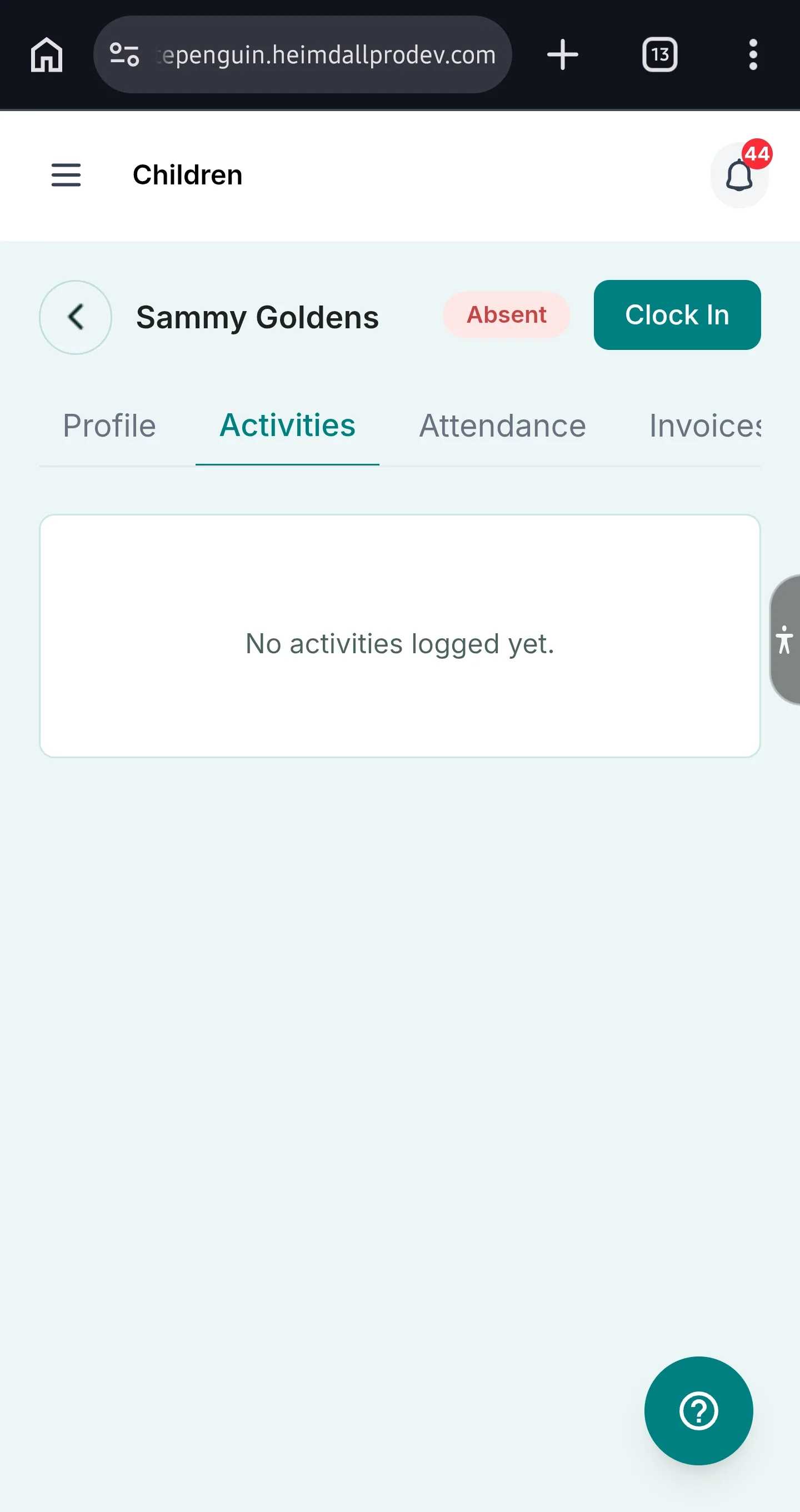
If no activities have been logged for the selected period, the tab will show: *"No activities logged yet."*
Use the **time period filter** (top right of the profile page) to change the date range and view activities for different weeks or months.
### Tab 3 — Attendance [#tab-3--attendance]
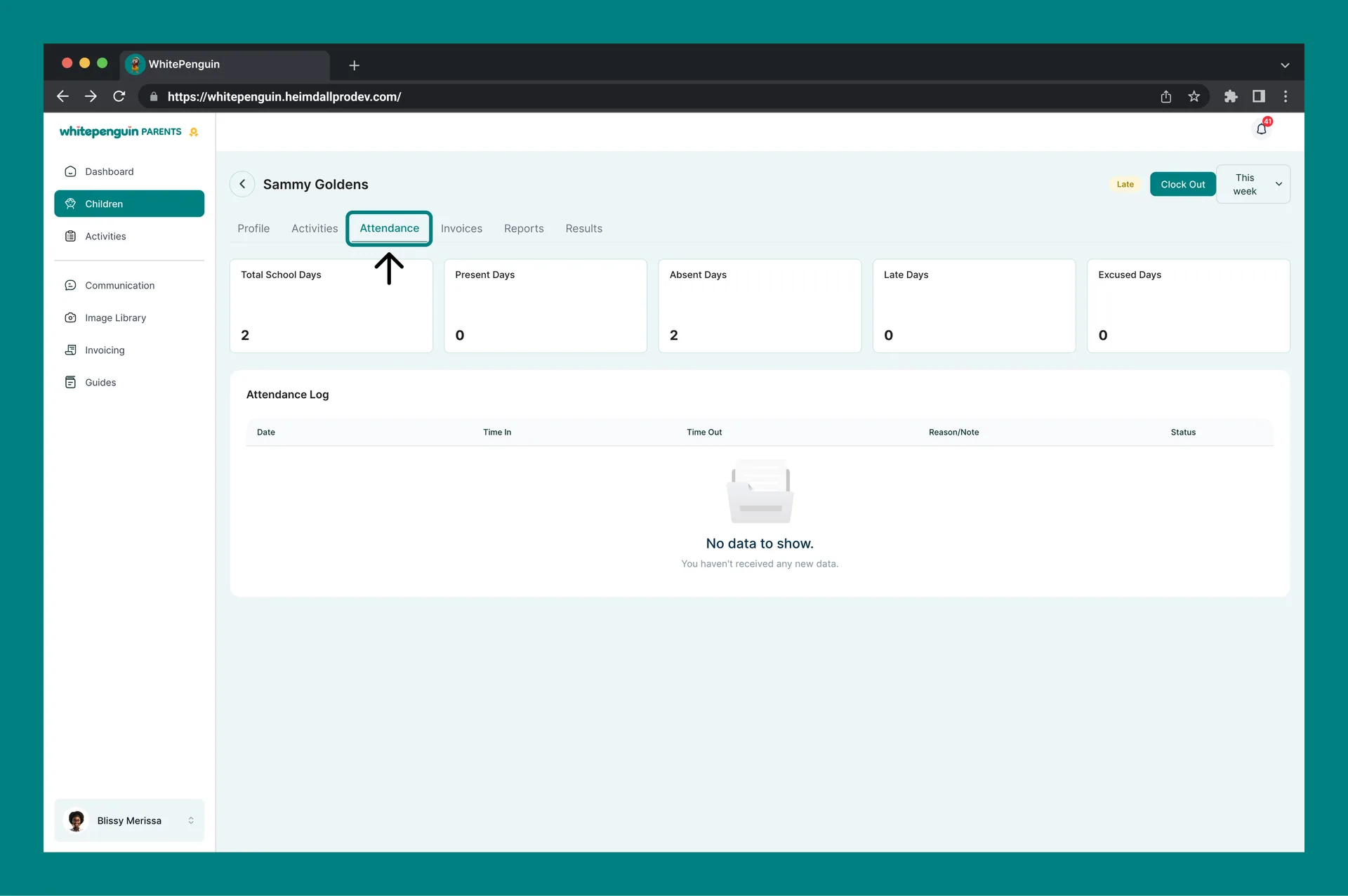
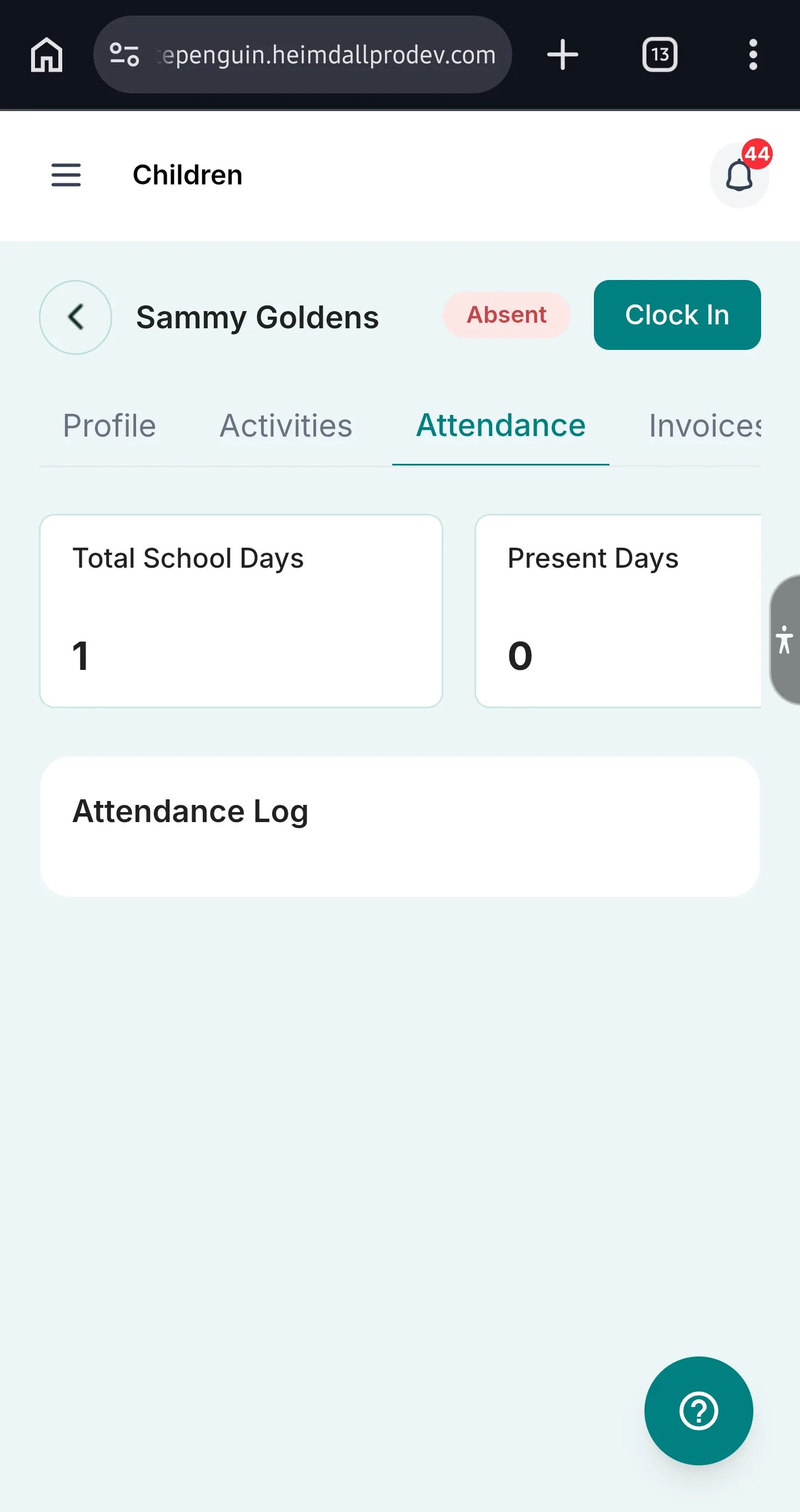
The **Attendance** tab gives a detailed breakdown of the child's attendance for the selected period.
#### Attendance Summary Cards [#attendance-summary-cards]
Five cards at the top summarize the attendance at a glance:
| Card | What It Shows |
| --------------------- | --------------------------------------------------- |
| **Total School Days** | Total number of school days in the selected period. |
| **Present Days** | Number of days the child was present. |
| **Absent Days** | Number of days the child was absent. |
| **Late Days** | Number of days the child arrived late. |
| **Excused Days** | Number of absences that were officially excused. |
#### Attendance Log [#attendance-log]
Below the summary cards, the **Attendance Log** table shows each attendance record with:
* **Date** — the specific school day
* **Time In** — the time the child clocked in
* **Time Out** — the time the child clocked out
* **Reason/Note** — any note or reason provided for an absence or late arrival
* **Status** — Present, Absent, Late, or Excused
If no records exist for the selected period, the log will show: *"No data to show. You haven't received any new data."*
### Tab 4 — Invoices [#tab-4--invoices]
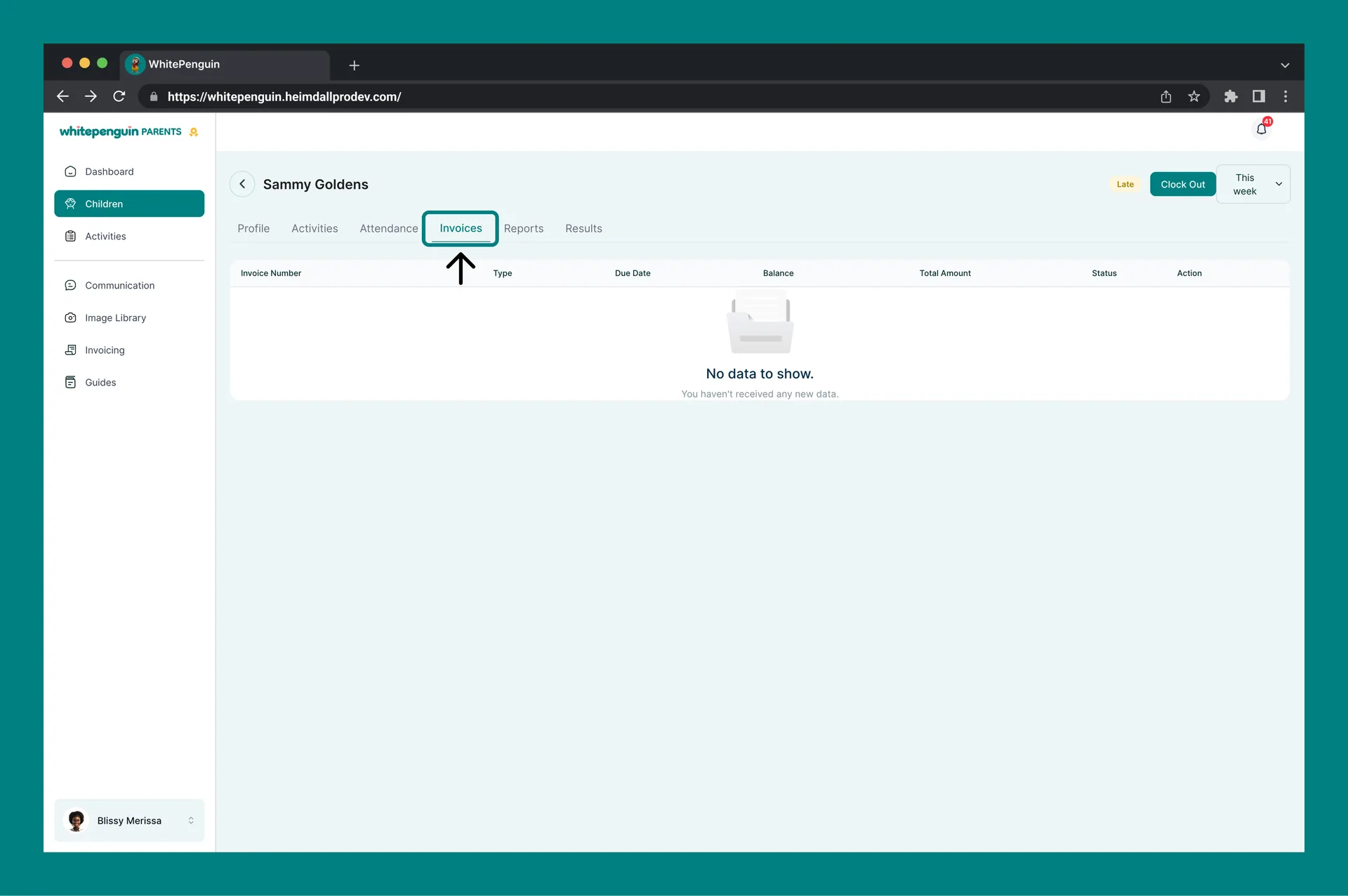
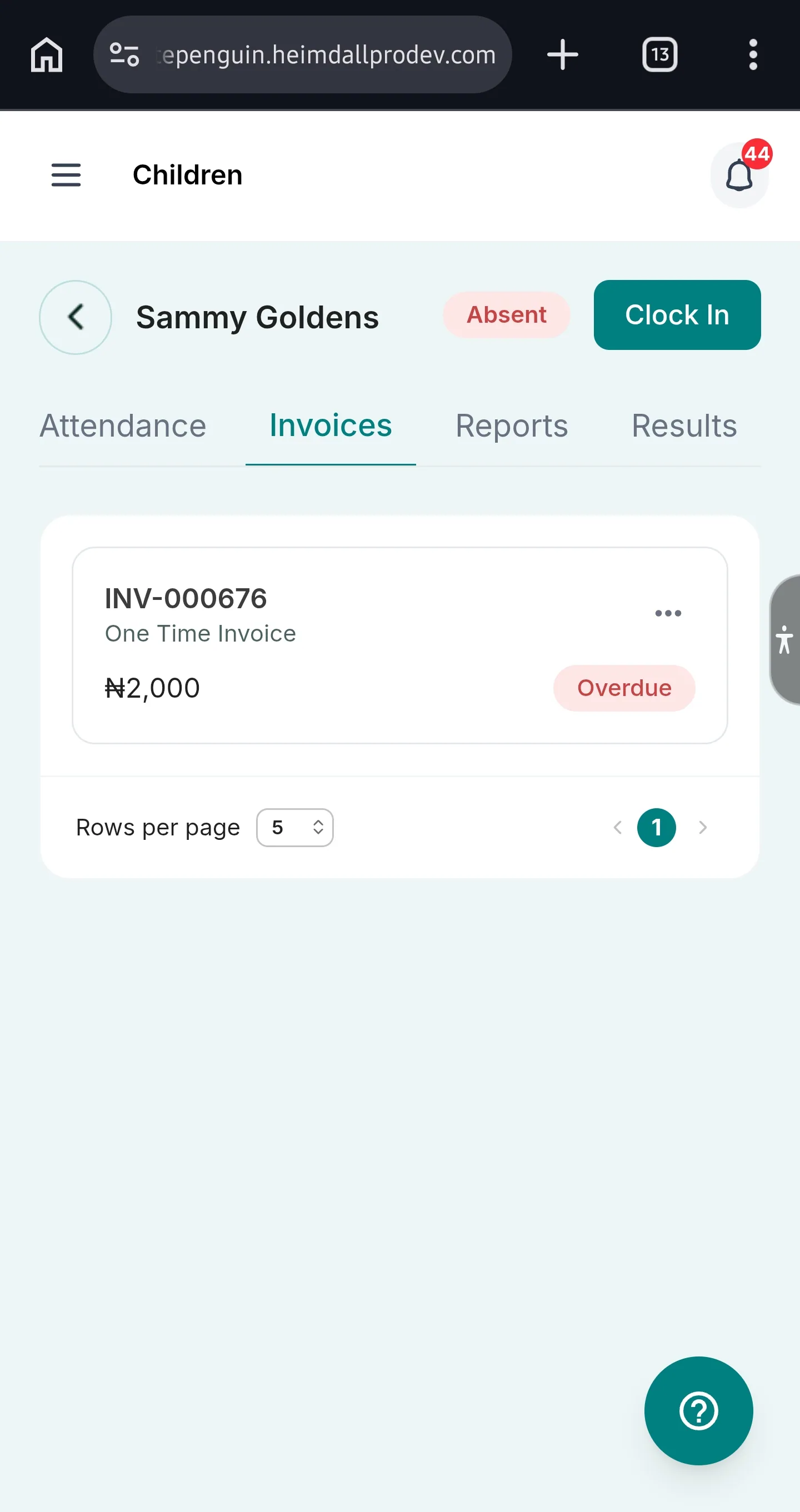
The **Invoices** tab lists all invoices issued for the child. Each row in the table shows:
| Column | Description |
| ------------------ | --------------------------------------------------------------------- |
| **Invoice Number** | A unique reference number for the invoice (e.g., INV-000410). |
| **Type** | The invoice type (e.g., One Time Invoice, Recurring). |
| **Due Date** | The payment due date for the invoice. |
| **Balance** | The outstanding balance remaining on the invoice. |
| **Total Amount** | The full invoice amount. |
| **Status** | Current invoice status — **Overdue** (red), **Paid**, or **Pending**. |
| **Action (⋯)** | Click to **View** the full invoice or **Download** it as a file. |
The table is paginated — use the page controls at the bottom right to navigate between pages. You can also adjust **Rows per page** at the bottom left.
**Overdue invoices** are highlighted in red. Contact your school's admin or use the **Invoicing** section in the sidebar to manage payments.
### Tab 5 — Reports [#tab-5--reports]
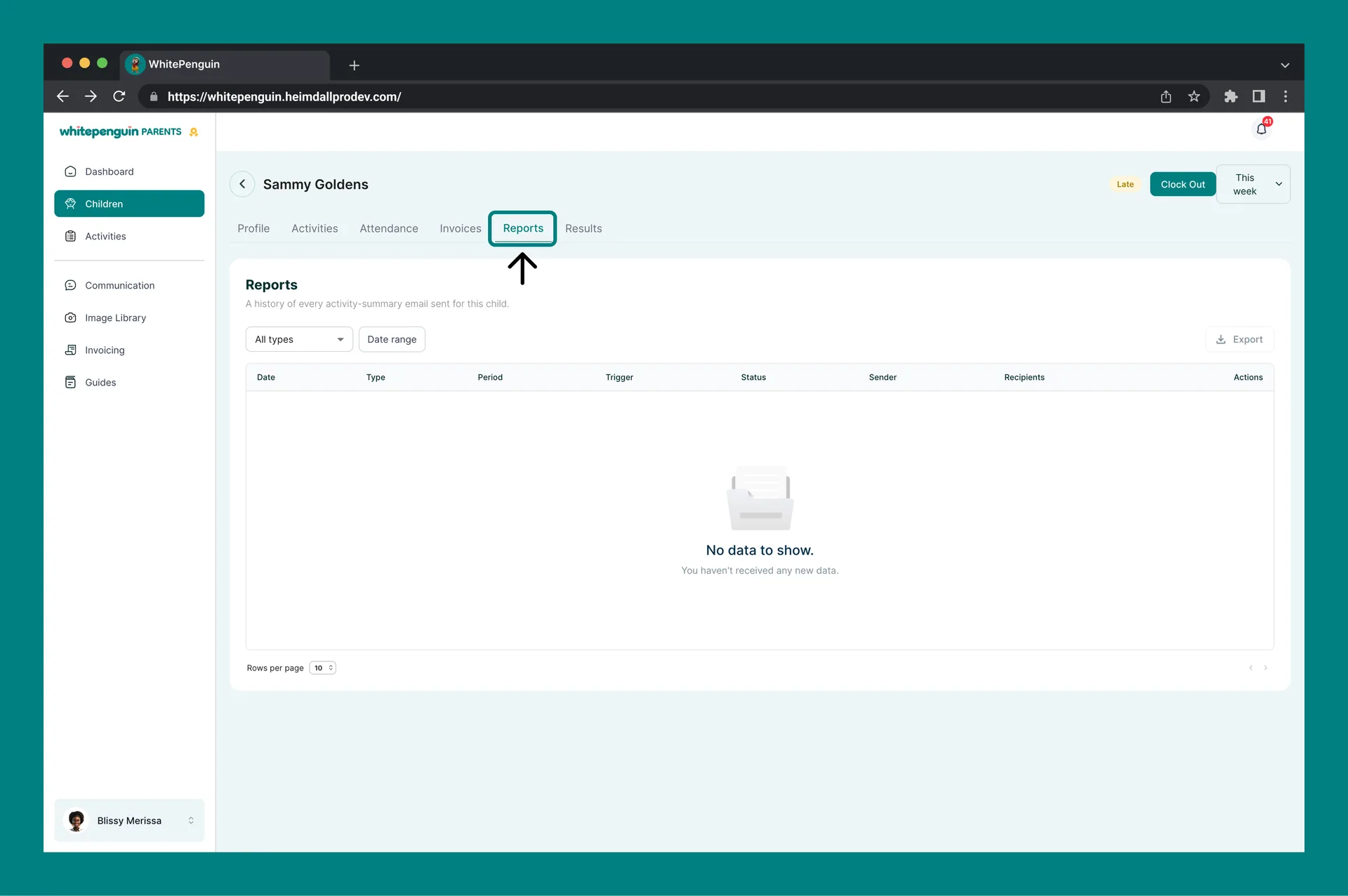
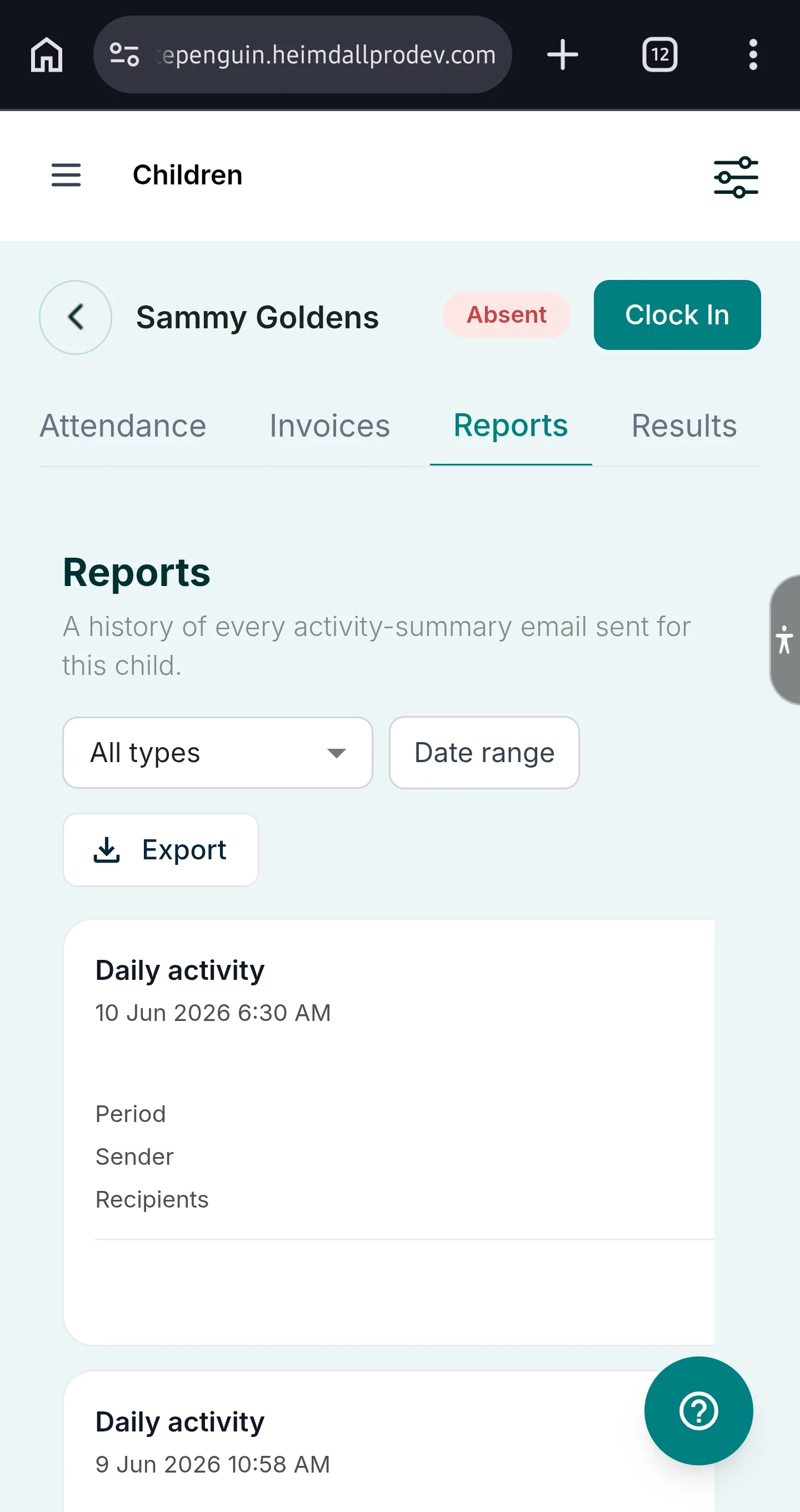
The **Reports** tab shows a history of **activity-summary emails** sent for this child by the school.
Each report entry shows:
| Column | Description |
| -------------- | --------------------------------------------------------- |
| **Date** | The date the report email was sent. |
| **Type** | The type of report (e.g., Daily Summary, Weekly Summary). |
| **Period** | The time period the report covers. |
| **Trigger** | What triggered the report (e.g., scheduled or manual). |
| **Status** | Delivery status of the report email. |
| **Sender** | Who sent the report. |
| **Recipients** | Who received the report. |
| **Actions** | Any available actions for the report entry. |
You can filter reports using:
* **All types** dropdown — filter by report type
* **Date range** — filter by a custom date range
* **Export** button (top right) — export the reports list
If no reports have been sent, the tab will show: *"No data to show. You haven't received any new data."*
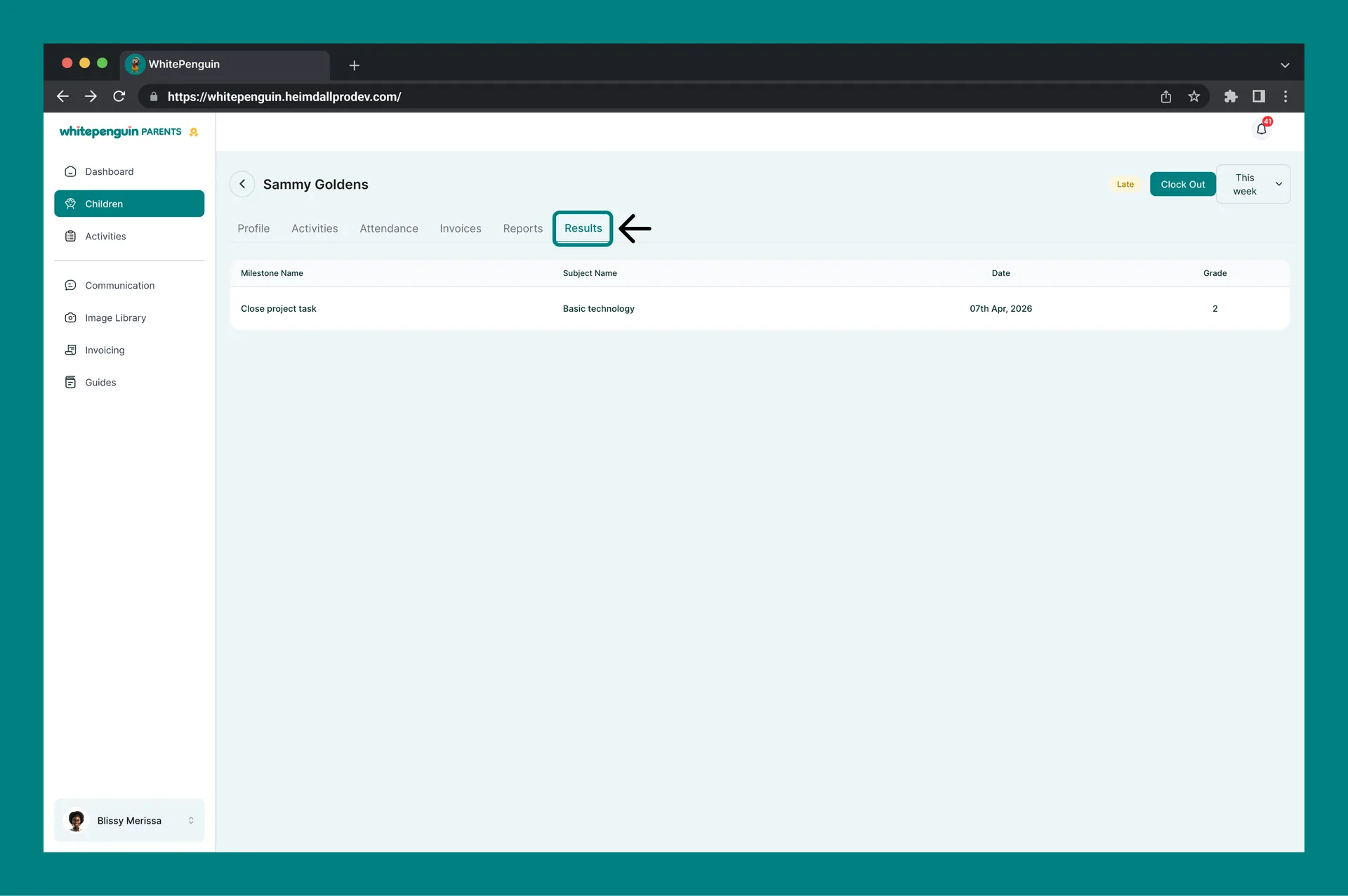
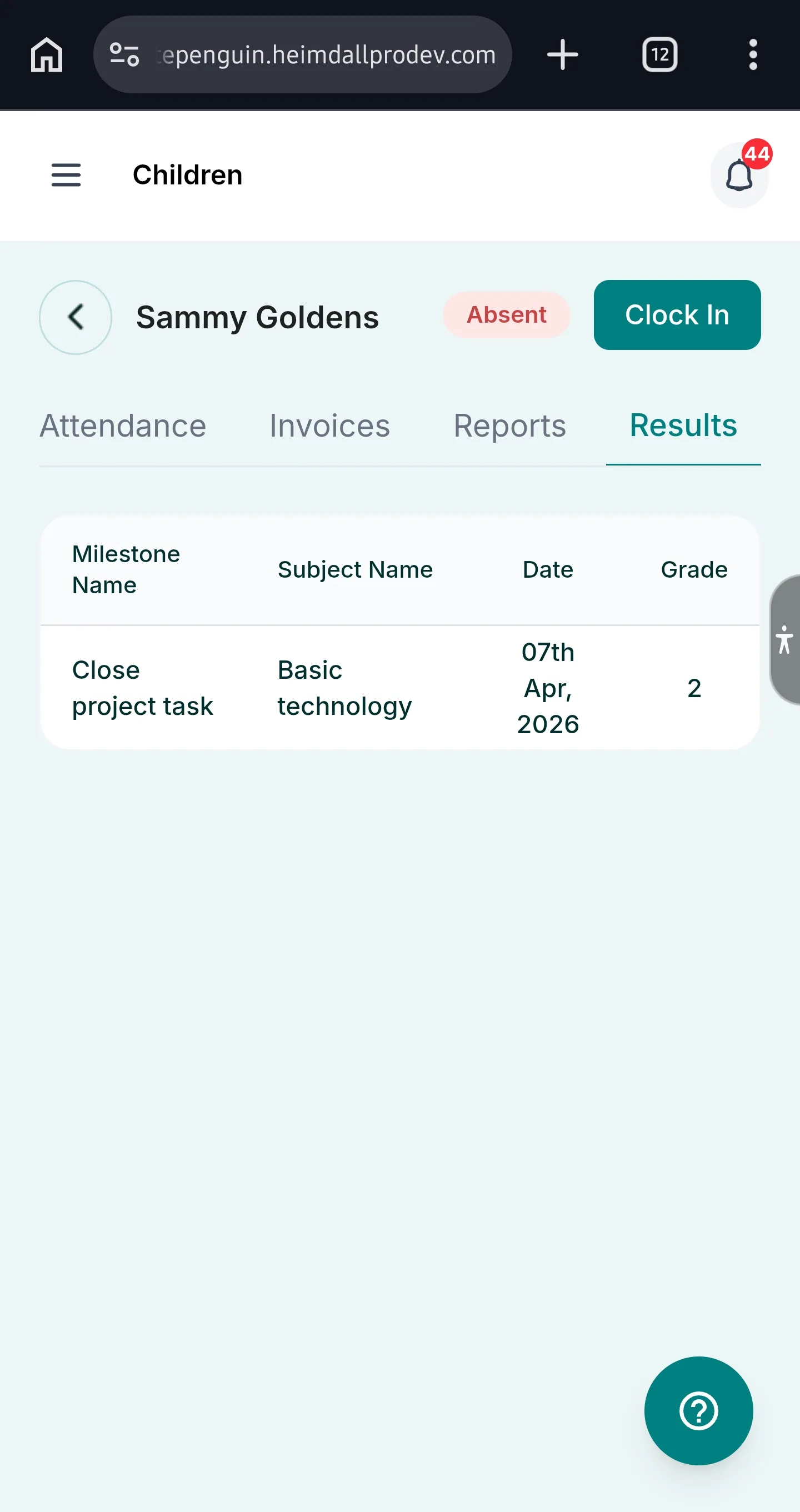
### Tab 6 — Results [#tab-6--results]
The **Results** tab shows your child's **learning milestone results** as assessed by their teachers.
Each row in the results table shows:
| Column | Description |
| ------------------ | ------------------------------------------------------------------------------------------ |
| **Milestone Name** | The name of the learning milestone (e.g., "Saying the vowels", "Spelling 3 letter words"). |
| **Subject Name** | The subject the milestone belongs to (e.g., Spelling, English). |
| **Date** | The date the milestone was assessed (e.g., 12th May, 2026). |
| **Grade** | The grade or score achieved for this milestone. |
Results are recorded by teachers when a child completes or is assessed on a curriculum milestone. These give you a clear view of your child's academic progress over time.
## Clock In / Clock Out [#clock-in--clock-out]
From any tab within a child's profile, you can manually clock your child in or out using the button at the top right:
* **Clock In** — records the child as arriving at school. The status badge changes to **Present** (green).
* **Clock Out** — records the child as leaving school. A confirmation toast message appears (e.g., *"Amama Amaaka clocked out"*).
This is an alternative to using your Kiosk PIN or QR code at the school's physical kiosk terminal.
The **Clock In / Clock Out** button only appears in the child's profile. It updates the attendance record in real time and is visible to the school's admin and teachers.
## Tips [#tips]
* **Check the Profile tab for medical info.** If your child has allergies or is on medication, this is where you can confirm what the school has on file. If anything is incorrect, contact the school's admin to update it.
* **Use the time period filter on Attendance.** Switch between This Week, This Month, or a custom range to see a broader attendance history for your child.
* **Download invoices for your records.** Use the **Download** action in the Invoices tab to save copies of invoices for your own records or expense tracking.
* **Results tab shows milestone history.** Each row in Results is a completed assessment — you can track your child's learning progress across subjects over time.
* **Reports tab tracks summary emails.** If you're not receiving activity summary emails, check the Reports tab — if nothing is listed, the school may not have configured automated reports for your child yet.
* **Inactive children are still visible.** If a child shows as **Inactive**, their card still appears on the Children list but their profile data may be limited. Contact the school to reactivate the child's enrollment.
* **Clock In/Out from the app if you forget the kiosk.** If you miss the kiosk at drop-off, you can manually clock in your child directly from their profile using the Clock In button.
## FAQs [#faqs]
Click **Children** in the left sidebar to see all your children listed as cards. Then click on the child's card to open their full profile with all six tabs (Profile, Activities, Attendance, Invoices, Reports, Results).
An **Inactive** badge means the child's enrollment has been deactivated by the school. Their card is still visible on the Children list, but their profile may have limited data. Contact your school's admin if you believe this is an error.
Yes. Open the child's profile from the **Children** section and use the **Clock In** or **Clock Out** button at the top right of the page. This records the attendance in real time, just like using the physical kiosk.
This usually means no attendance has been recorded for the selected time period. Try changing the **time period filter** (top right) to a different range such as This Month or a custom date range. If the issue persists, the child may not have been clocked in for those days.
Go to the child's profile → **Invoices** tab. Find the invoice you need, click the **Action (⋯)** menu on the right, and select **Download**. The invoice will be saved to your device.
The Reports tab shows activity-summary emails that have been sent for your child. If it shows "No data to show", the school may not have sent or configured automated reports for your child yet. Contact your school admin for more information.
The Results tab shows your child's learning milestone assessments — including the Milestone Name, Subject, Date of assessment, and Grade. These are recorded by teachers when your child completes or is assessed on a curriculum milestone.
Medical information (allergies, medication, diet restrictions, notes) is managed by the school's admin team. If you need to update any of these details, contact your school's administrator directly — parents cannot edit this information from the portal.
**Overall Progress** is a percentage that reflects how far your child has progressed through their assigned curriculum. It is calculated based on completed milestones out of the total milestones in their active curriculum plan.