# How to Add & Invite Teachers
URL: https://whitepenguin.sonicar.tech/docs/setup-your-school/how-to-add-invite-teachers/
> Learn how to add a new teacher to your school, assign them to a classroom, set their role, and automatically send them an email invitation to access their own dashboard.
## Overview [#overview]
The **Teachers** section allows Admin users to manage all teaching staff in the school. When you add a new teacher, the system automatically sends them an **email invitation** to set up and access their own teacher dashboard — no manual onboarding needed.
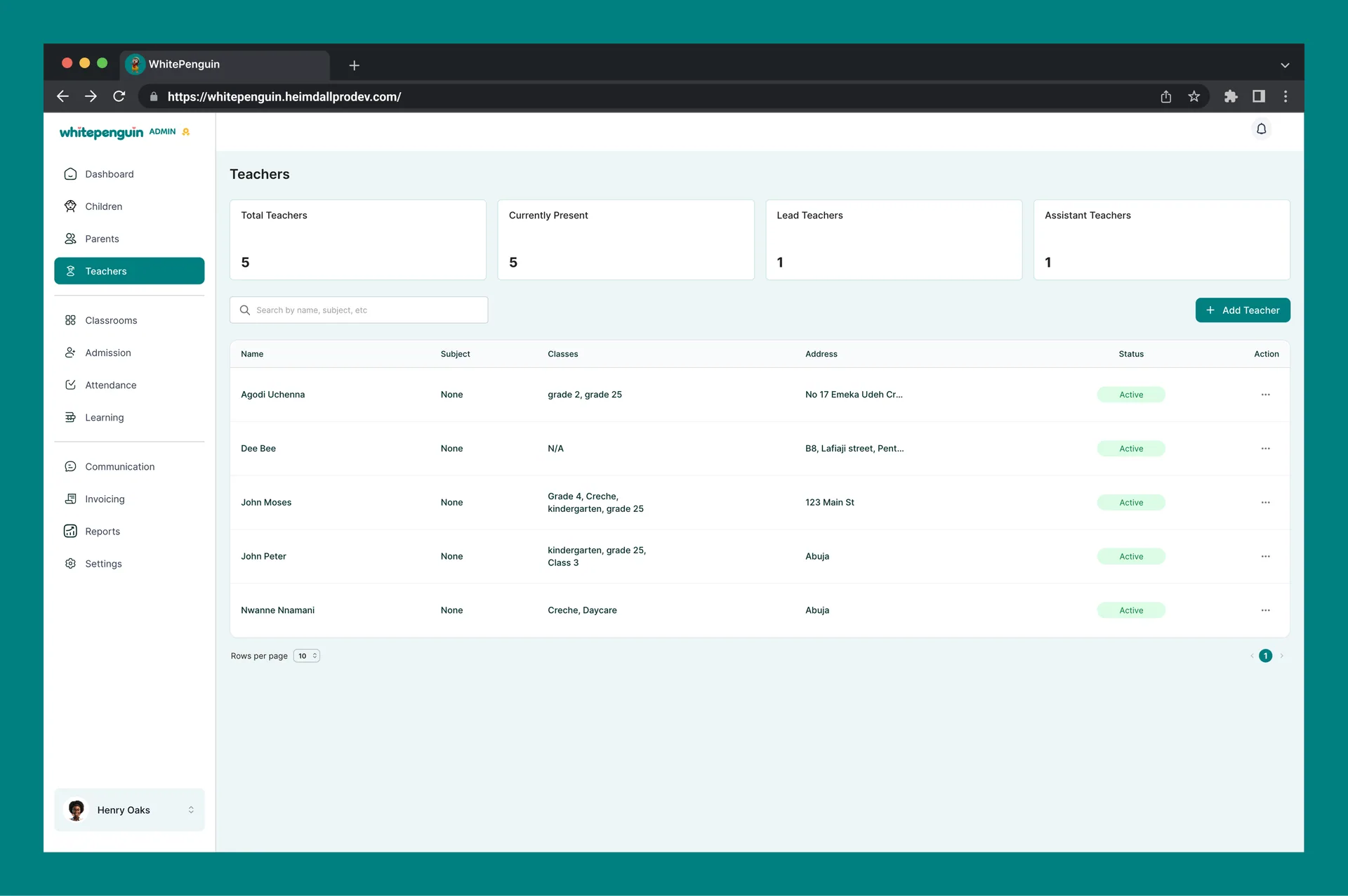
From the Teachers page, you can also get a quick overview of your staff through **four summary cards** at the top:
| Card | What it shows |
| ---------------------- | ------------------------------------------------ |
| **Total Teachers** | The total number of teachers added to the school |
| **Currently Present** | Teachers who have been marked present today |
| **Lead Teachers** | Teachers assigned the Lead Teacher role |
| **Assistant Teachers** | Teachers assigned the Assistant Teacher role |
## How to Access the Add Teacher Form [#how-to-access-the-add-teacher-form]
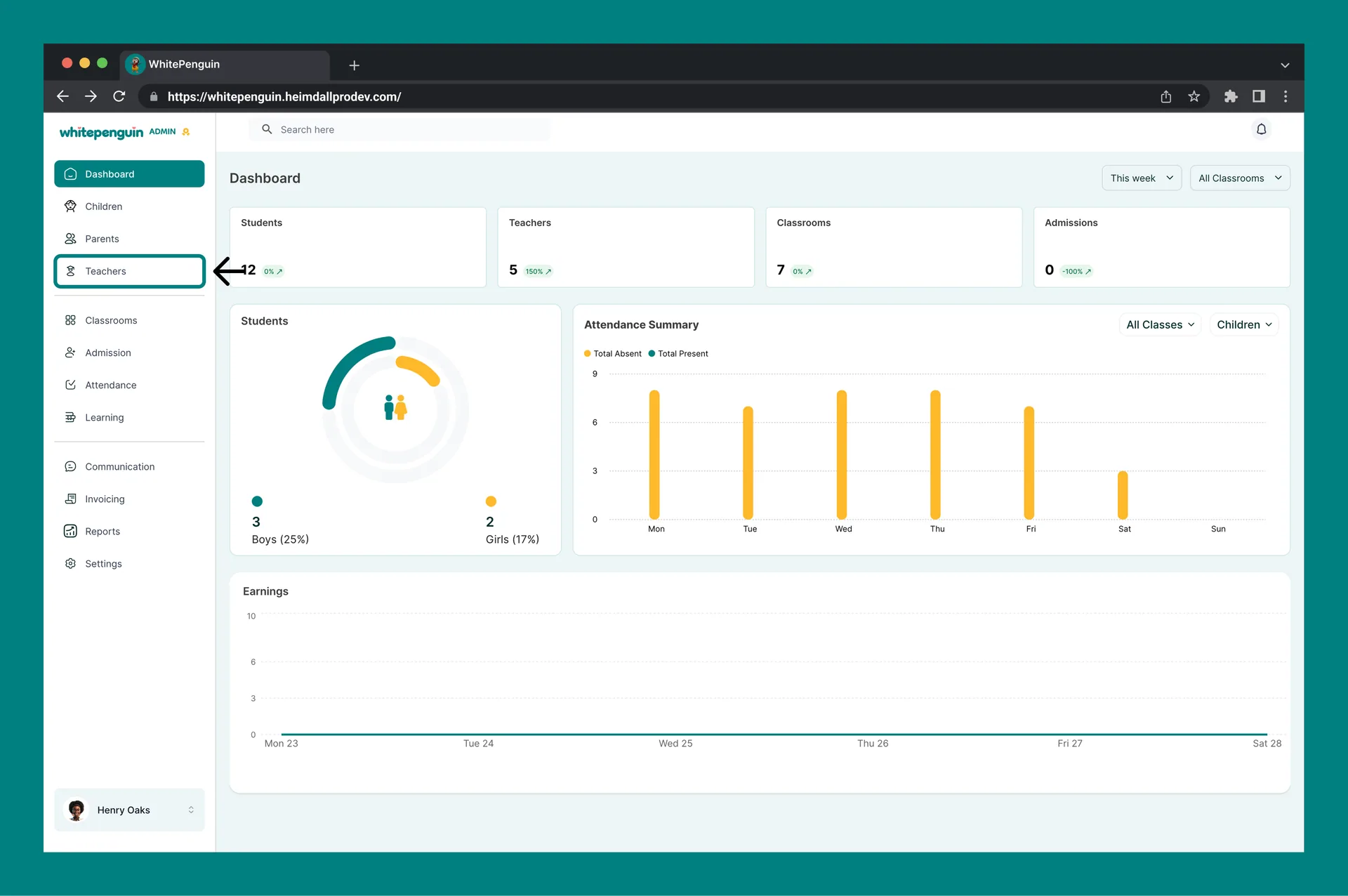
1. Click **Teachers** in the **left sidebar**.
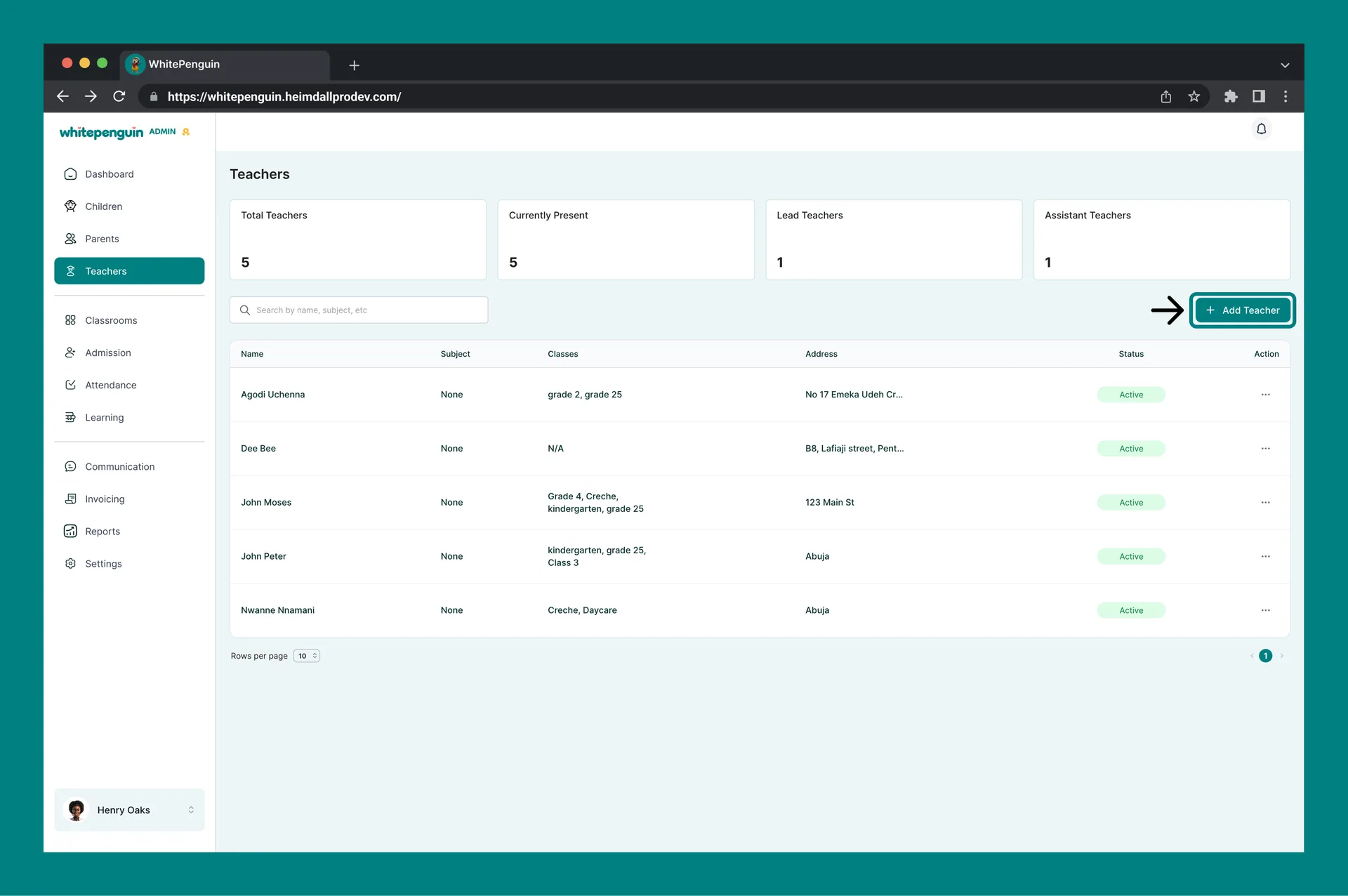
2. On the Teachers page, click the **+ Add Teacher** button at the top right.
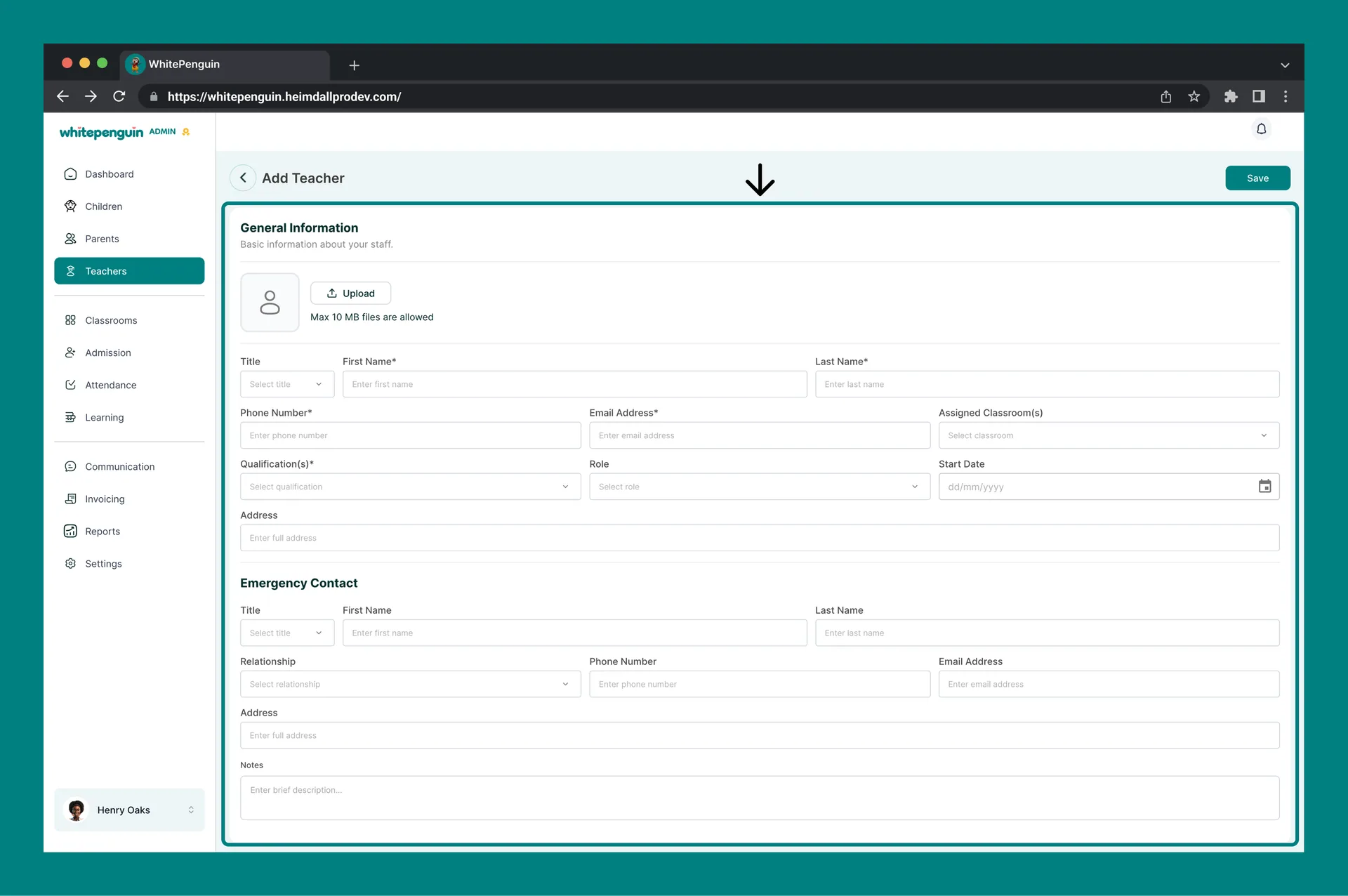
3. The **Add Teacher** form will open as a full page.
4. Fill in all required fields (marked with \*).
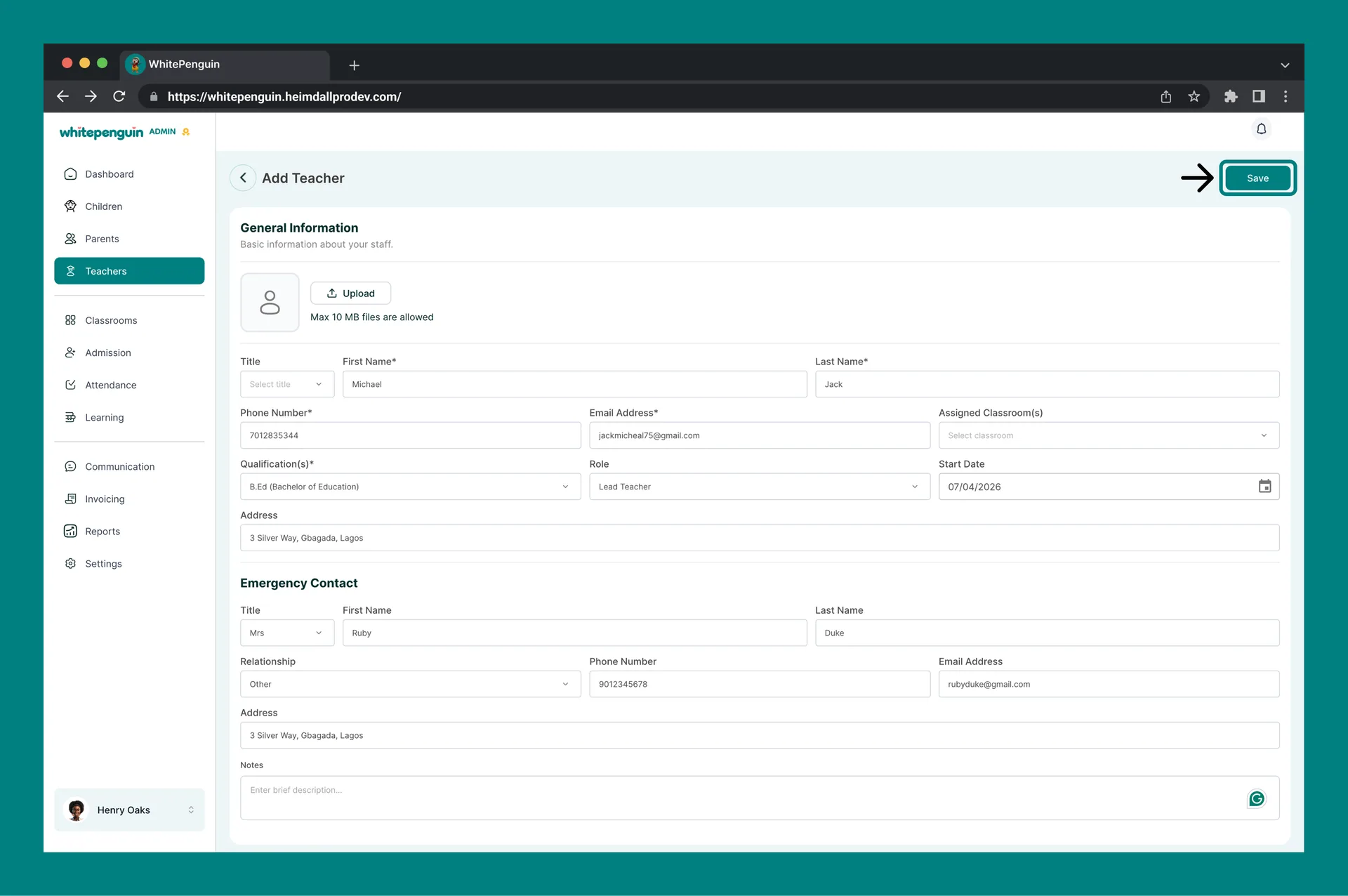
5. Click **Save** — the teacher will be added and an **invitation email** will be sent automatically.
## Add Teacher Form — Field by Field [#add-teacher-form--field-by-field]
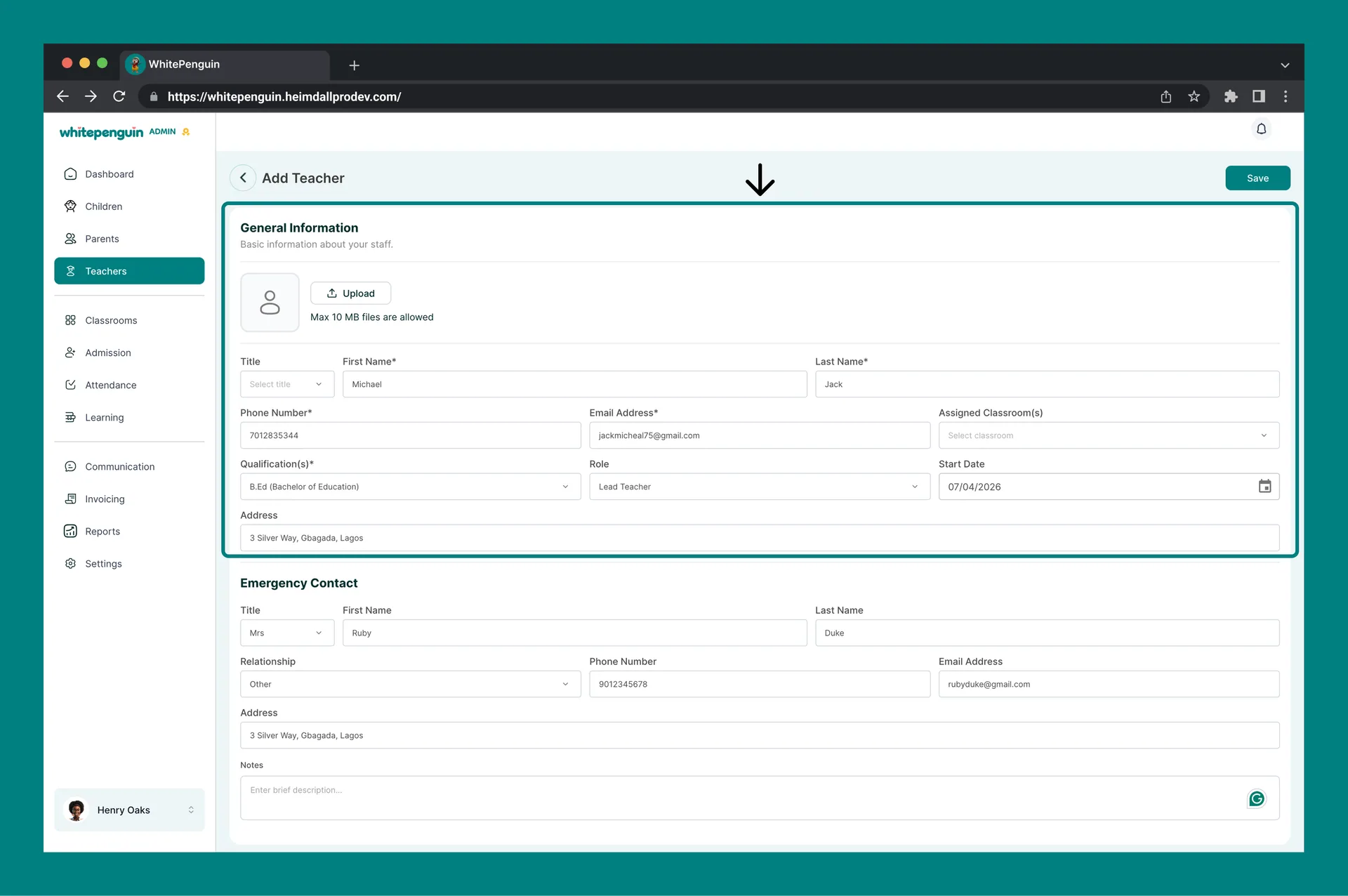
The form is divided into two sections: **General Information** and **Emergency Contact**.
### General Information [#general-information]
| Field | Required | Description |
| ------------------------- | ---------- | ------------------------------------------------------------------------------------------------------------------------------------------------------------------------------ |
| **Profile Photo** | Optional | Upload a profile photo for the teacher. Max file size: **10 MB**. |
| **Title** | Optional | Select a title (e.g., Mr., Ms., Dr.) from the dropdown. |
| **First Name** | ✅ Required | The teacher's first name. |
| **Last Name** | ✅ Required | The teacher's last name. |
| **Phone Number** | ✅ Required | The teacher's contact phone number. |
| **Email Address** | ✅ Required | The teacher's email address. This is used to send the **invitation email** to access the teacher dashboard. |
| **Assigned Classroom(s)** | Optional | Select one or more classrooms to assign this teacher to. Only classrooms already created in the system will appear here. You can leave this empty and assign classrooms later. |
| **Qualification(s)** | ✅ Required | Select the teacher's academic or professional qualification(s) from the dropdown. |
| **Role** | Optional | Select the teacher's role in the school. See the **Teacher Roles** section below for a full description of each role. |
| **Start Date** | ✅ Required | The date the teacher started or will start working at the school. Use the date picker (dd/mm/yyyy format). |
| **Address** | ✅ Required | The teacher's full residential address. |
### Emergency Contact [#emergency-contact]
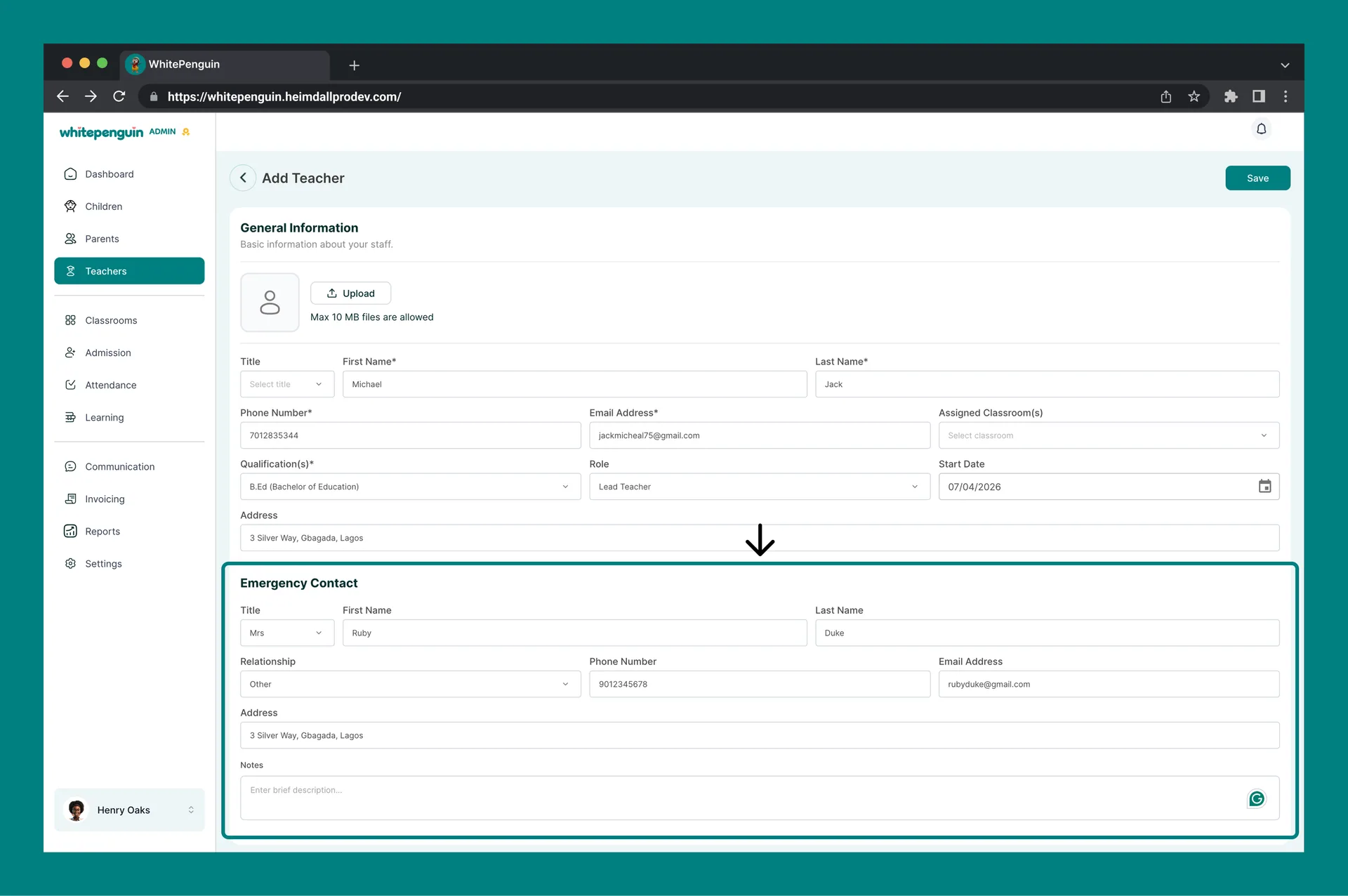
The Emergency Contact section collects details of a person to contact in case of an emergency involving the teacher. All fields in this section are **required**.
| Field | Description |
| ----------------- | ------------------------------------------------------------------------- |
| **Title** | Title of the emergency contact (e.g., Mr., Ms.) |
| **First Name** | First name of the emergency contact |
| **Last Name** | Last name of the emergency contact |
| **Relationship** | The contact's relationship to the teacher (e.g., Spouse, Parent, Sibling) |
| **Phone Number** | The emergency contact's phone number |
| **Email Address** | The emergency contact's email address |
| **Address** | The emergency contact's full address |
## Teacher Roles [#teacher-roles]
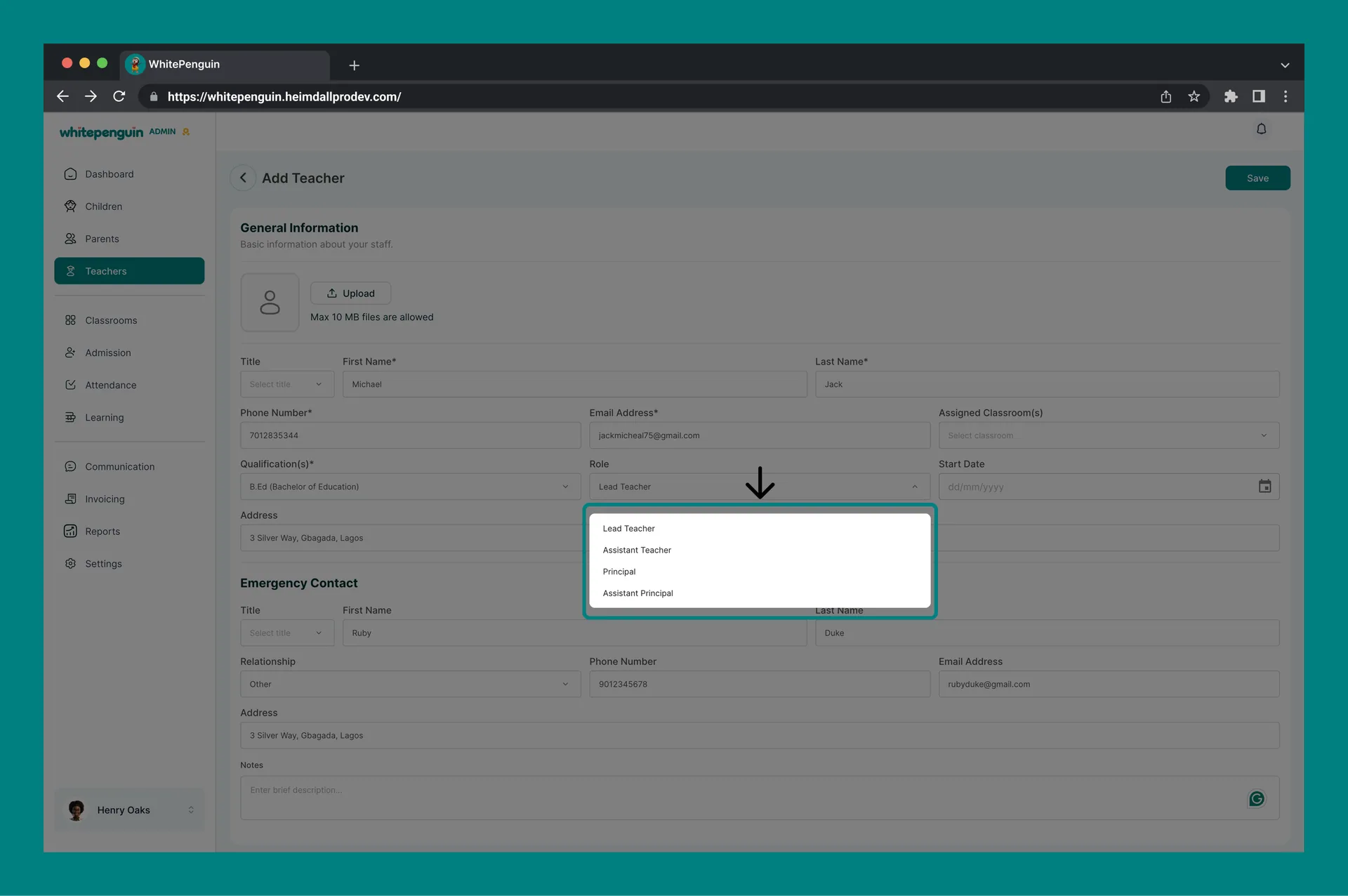
When adding a teacher, you can assign one of four roles. Each role reflects the teacher's position and level of responsibility within the classroom:
| Role | Description |
| ----------------------- | --------------------------------------------------------------------------------------------------------------------------------------------------------------------------------------------------------- |
| **Lead Teacher** | The primary teacher responsible for the classroom. They lead curriculum delivery, manage daily activities, and are the main point of contact for the room. Counted in the **Lead Teachers** summary card. |
| **Assistant Teacher** | Supports the Lead Teacher in daily classroom activities, helps with children's needs, and assists with lessons. Counted in the **Assistant Teachers** summary card. |
| **Principal** | A senior staff member who oversees one or more classrooms and may have broader administrative responsibilities across the school. |
| **Assistant Principal** | Supports the Principal in managing school operations and may step in to cover classroom supervision when needed. |
The **Role** field is optional when creating a teacher profile. You can always assign or update a role later by editing the teacher's profile.
## Email Invitation [#email-invitation]
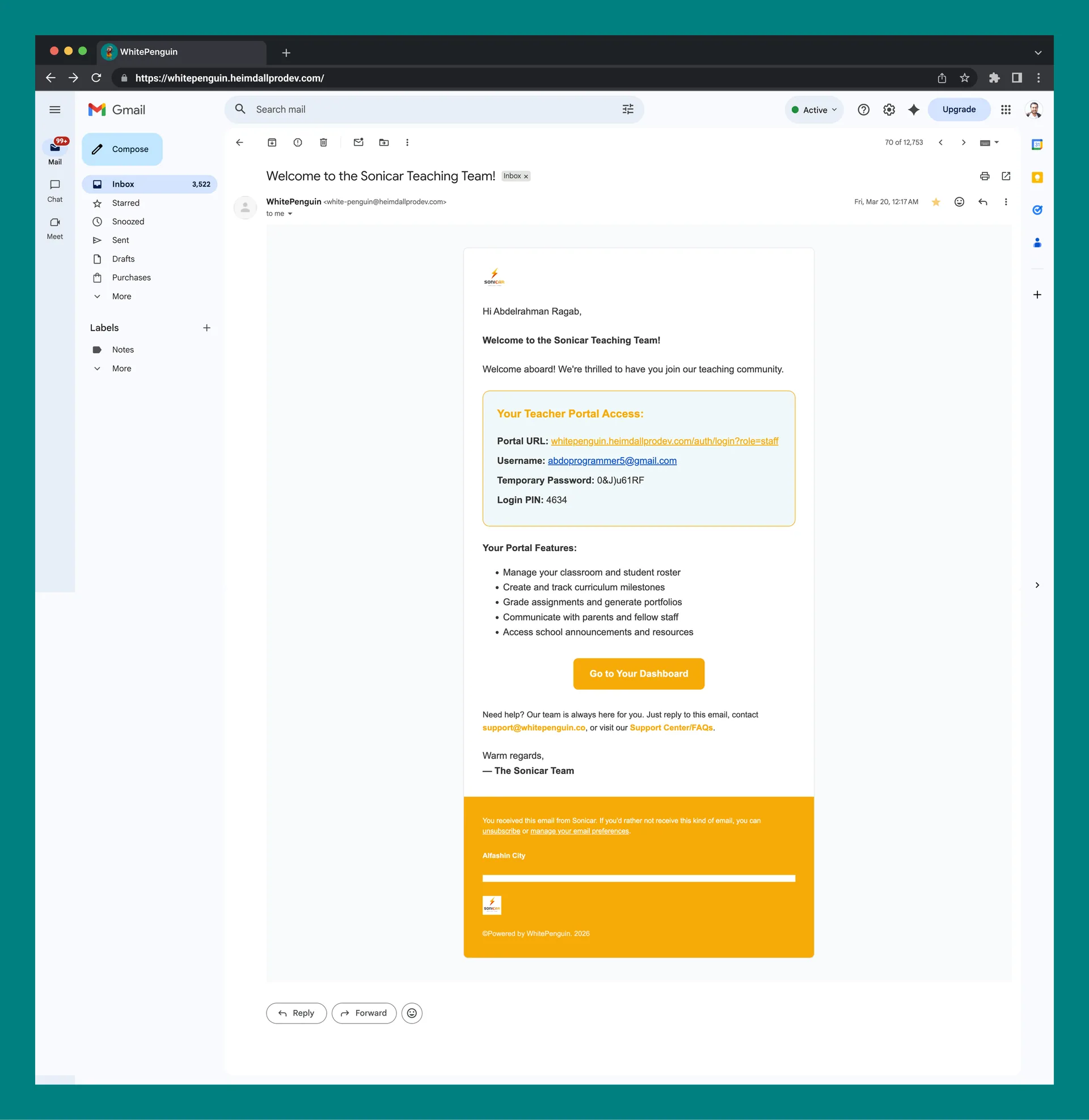
Once you click **Save**, the system automatically sends an **invitation email** to the address provided in the Email Address field. This email contains a link for the teacher to:
* Set up their password
* Access their **personal teacher dashboard**
* View their assigned classroom(s), attendance records, and activities
Make sure the **email address is correct** before saving. If the teacher does not receive the invitation, ask them to check their spam folder. You can also resend the invite from the teacher's profile via the **Actions** menu.
## Tips [#tips]
* **No classrooms yet?** You can add a teacher without assigning a classroom. Once you create classrooms, go back to the teacher's profile and edit it to assign them.
* **Multiple classrooms:** A single teacher can be assigned to more than one classroom, which is useful for teachers who rotate or cover multiple rooms.
* **Roles affect dashboard counts:** Assigning the correct role ensures the Lead Teachers and Assistant Teachers summary cards on the Teachers page reflect accurate numbers.
* **Profile photo:** Although optional, adding a photo helps you and your staff quickly identify teachers across the platform.
* **Start date matters:** The start date is used in reporting and staff tenure tracking, so make sure it reflects the actual or expected first working day.
## FAQs [#faqs]
Yes. As soon as you click **Save**, the system sends an invitation email to the address you entered. The teacher can use the link in the email to set up their password and access their teacher dashboard.
Ask the teacher to check their **spam or junk mail folder** first. If the email is not there, you can resend the invitation from the teacher's profile page via the **Actions (⋯) menu → Resend Invite**.
Yes. The **Assigned Classroom(s)** field is optional. You can save the teacher profile first and assign a classroom later by editing the profile. Make sure at least one classroom has been created in the **Classrooms** section before trying to assign one.
A **Lead Teacher** is the primary teacher responsible for a classroom — leading lessons and managing the room. An **Assistant Teacher** supports the Lead Teacher. Both roles are counted separately in the Teachers summary cards on the Teachers page.
Yes. The Assigned Classroom(s) field supports selecting **multiple classrooms**. This is useful for teachers who cover more than one group or rotate across rooms.
Yes. Go to **Teachers**, find the teacher in the list, click the **Actions (⋯)** menu, and select **Edit**. You can update any field including name, role, assigned classroom(s), contact details, and emergency contact information.
Emergency contact information is required to ensure the school has a reliable person to reach in the event of an incident involving the teacher. All fields in this section must be filled before the form can be saved.