

View Image Library
Learn how to view photos and videos shared by your school in WhitePenguin — browse your children's student profile photos, classroom activity shots, and portfolio images all in one place.
Overview
The Image Library in WhitePenguin is a dedicated media gallery where the school shares photos and videos of your children. It gives you a visual window into your child's daily life at school — from their official student profile photo to candid classroom activity shots and portfolio highlights.
The Image Library is split into two tabs:
- Photos — a grid of all photos shared by the school, organized by child and category.
- Videos — a space for videos shared by the school (displayed when available).
All media in the Image Library is uploaded and managed by the school's admin and teaching staff. Parents can view and browse the media but cannot upload or delete files.
How to Access
- Log in to the WhitePenguin parent portal.
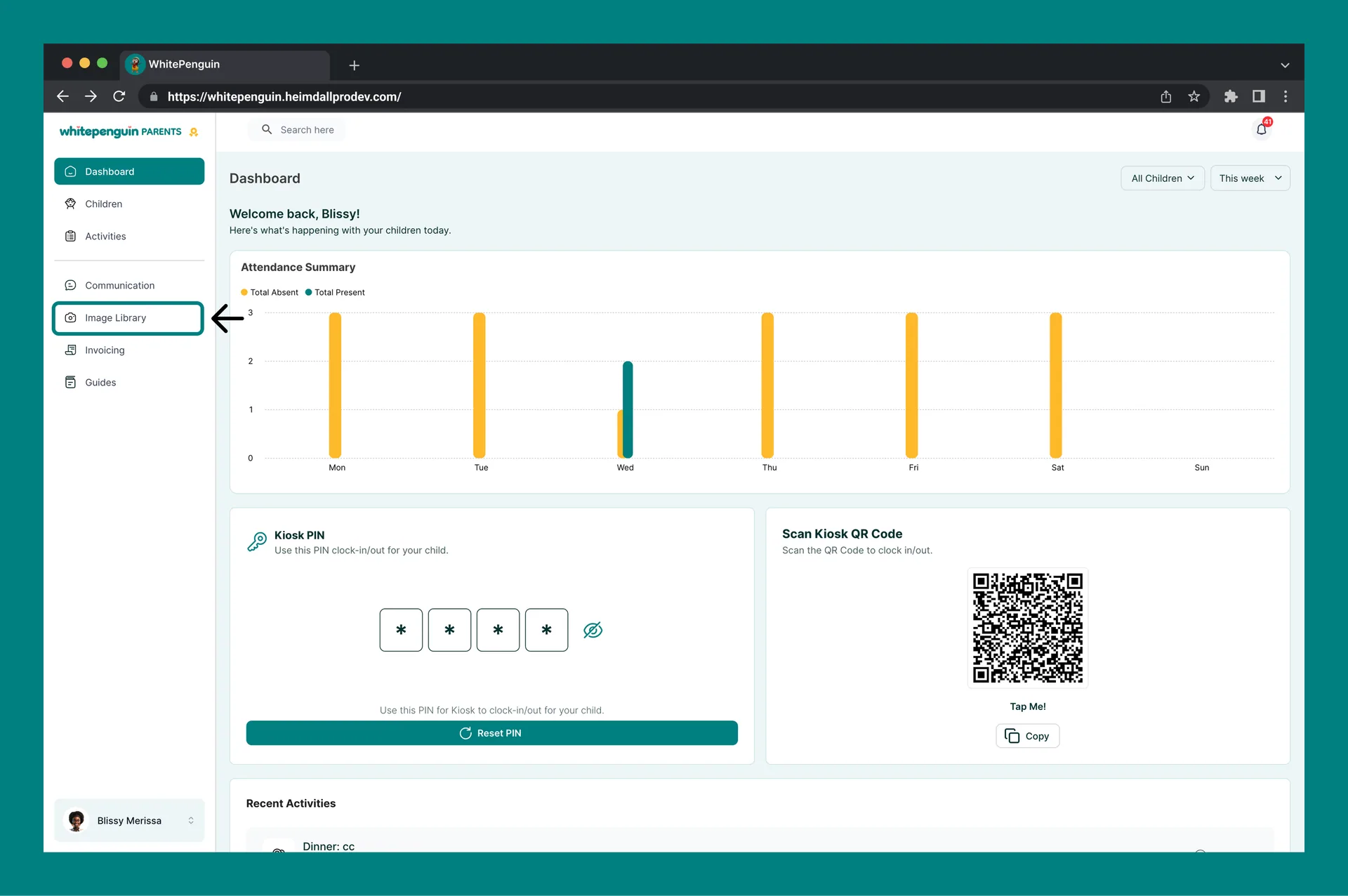
- Click Image Library in the left sidebar.
- The Image Library will open on the Photos tab by default.
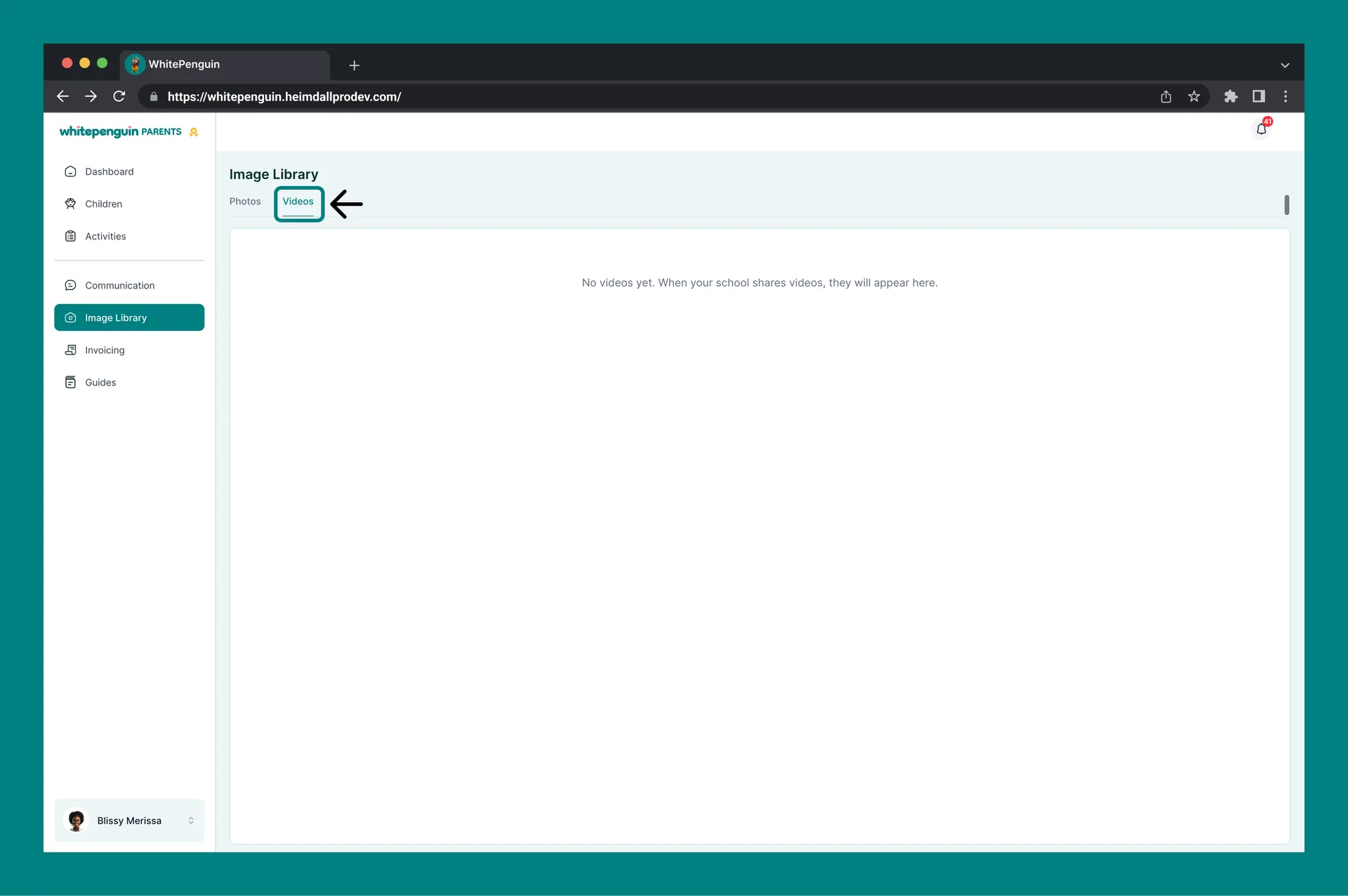
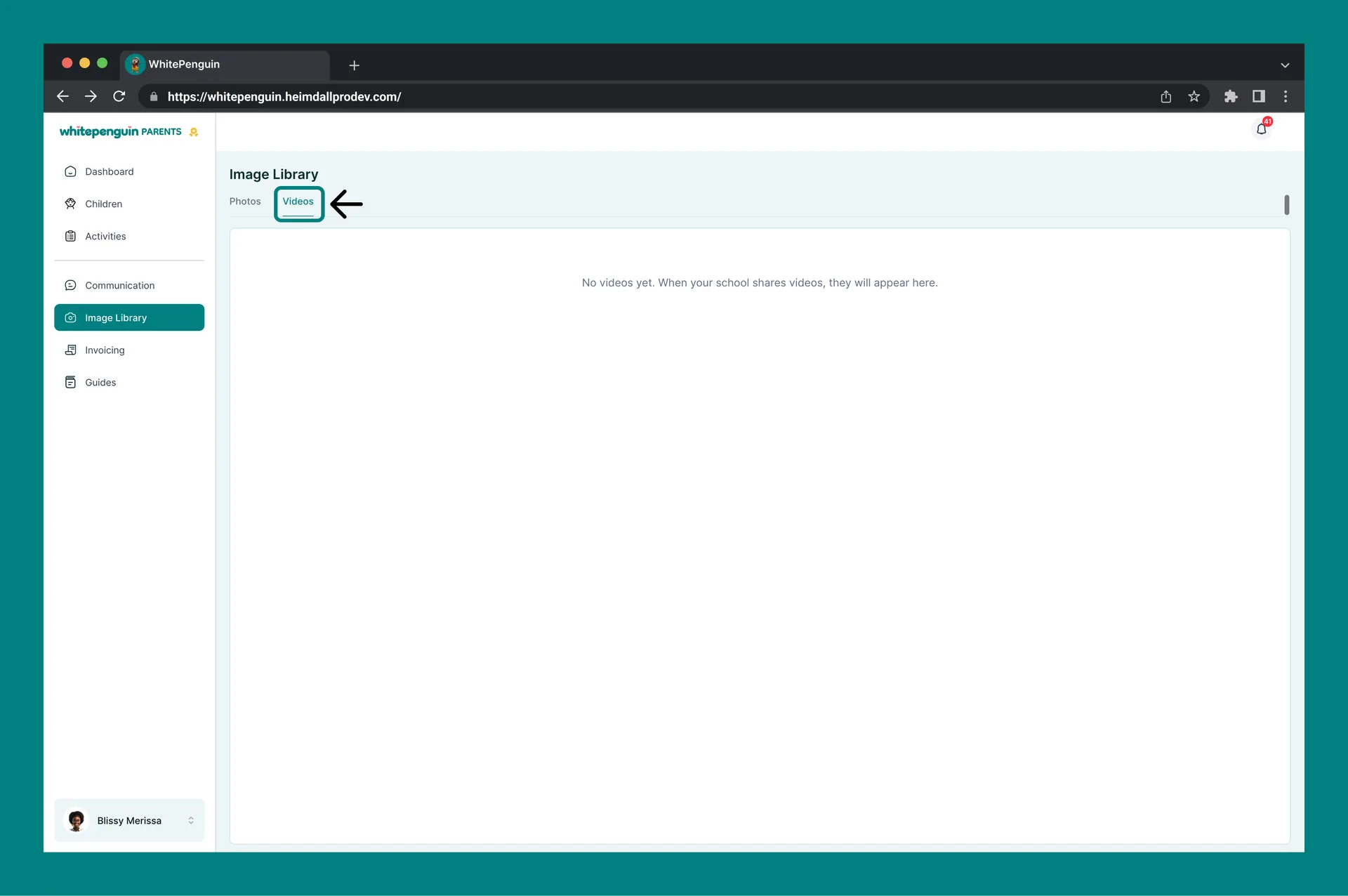
- Click the Videos tab to switch to the video gallery.
Photos Tab
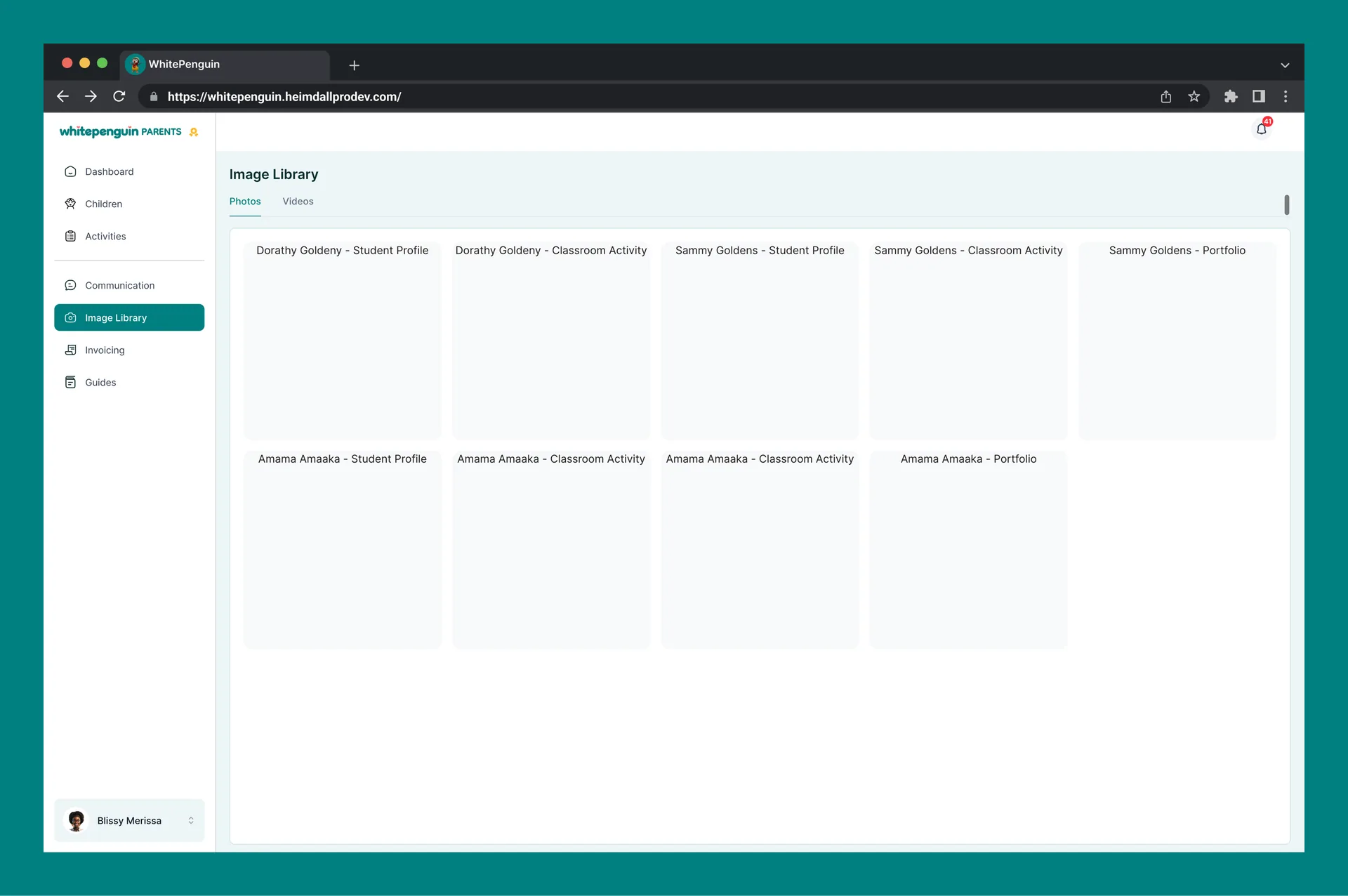
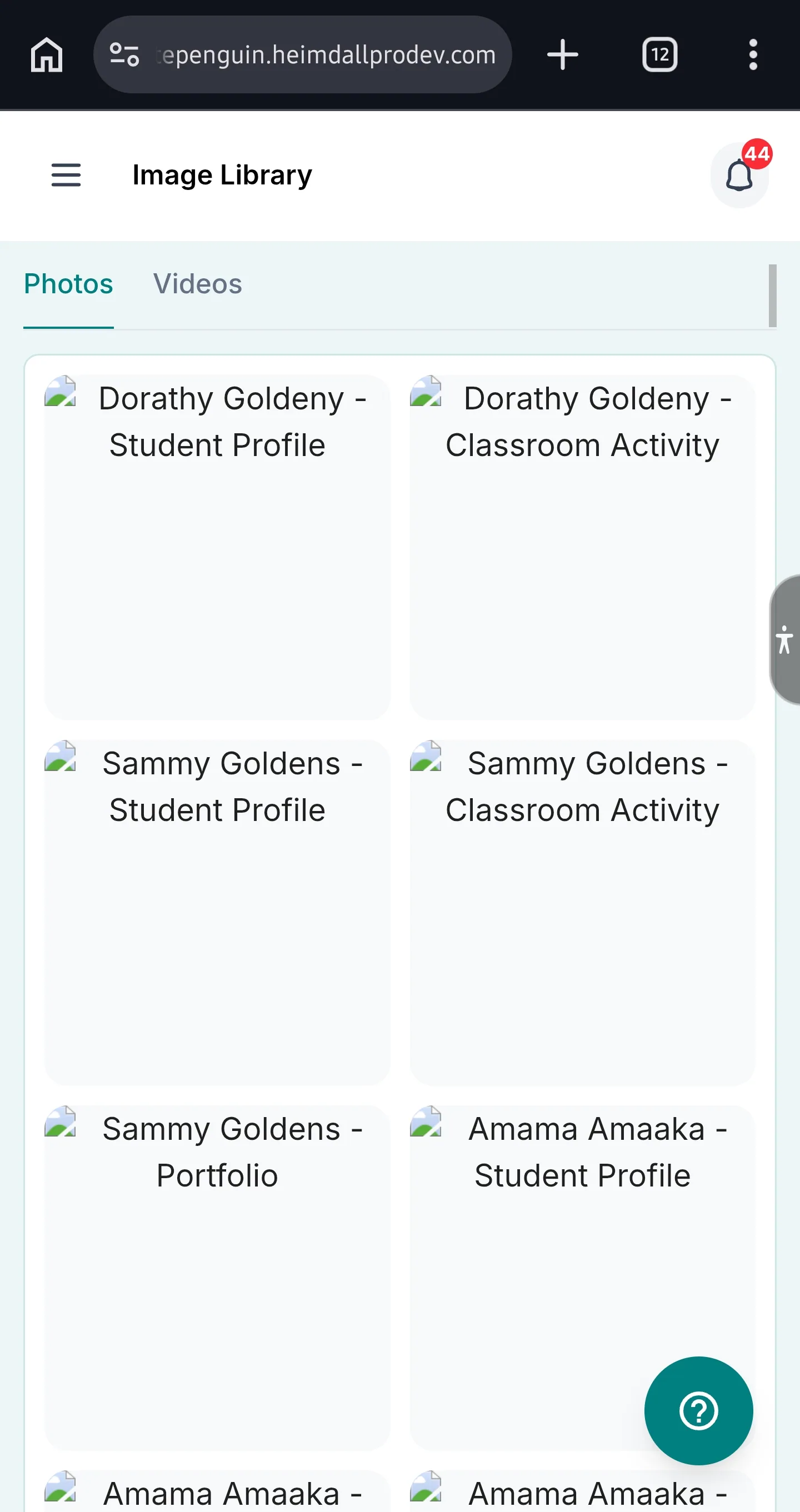
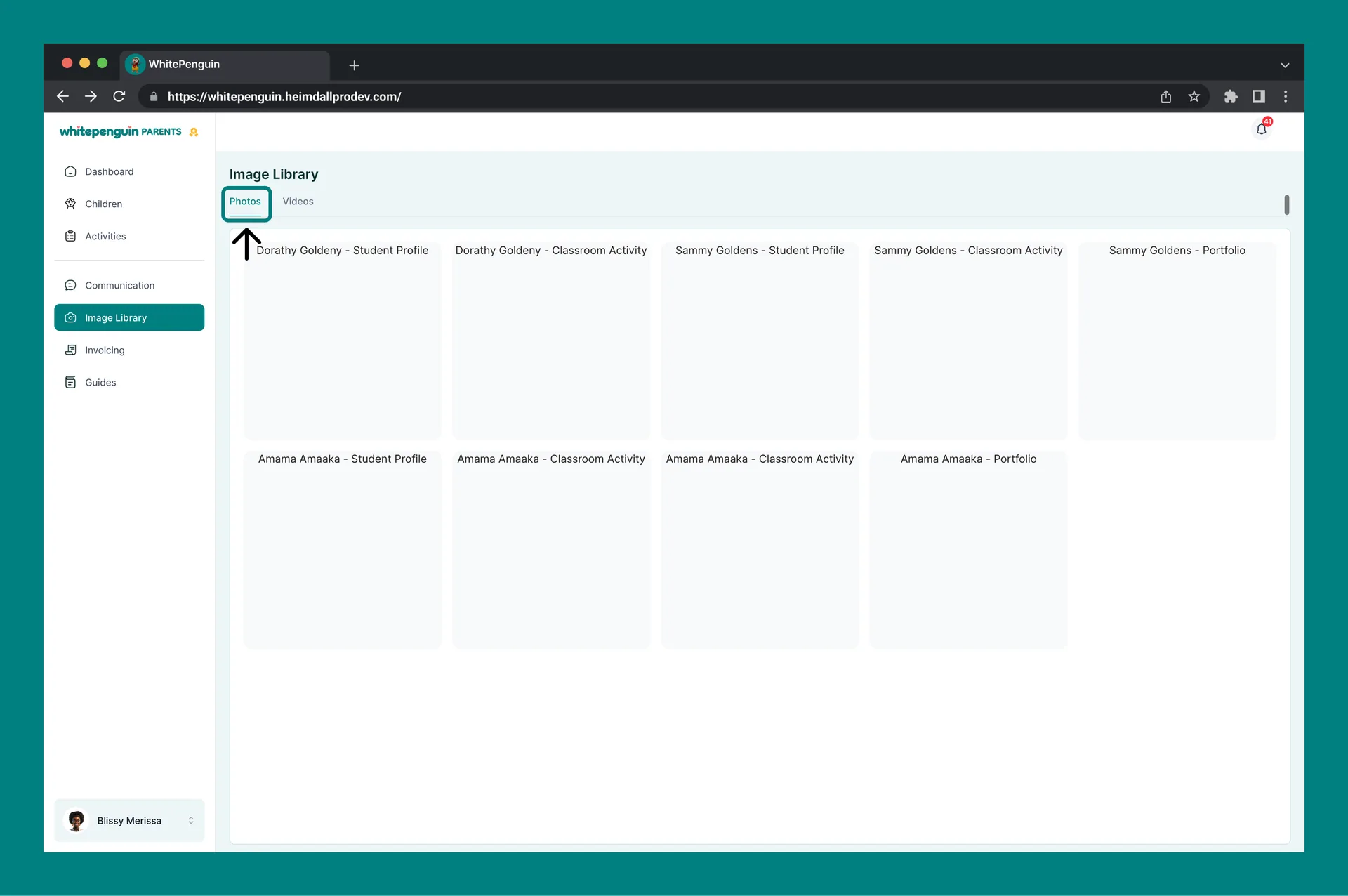
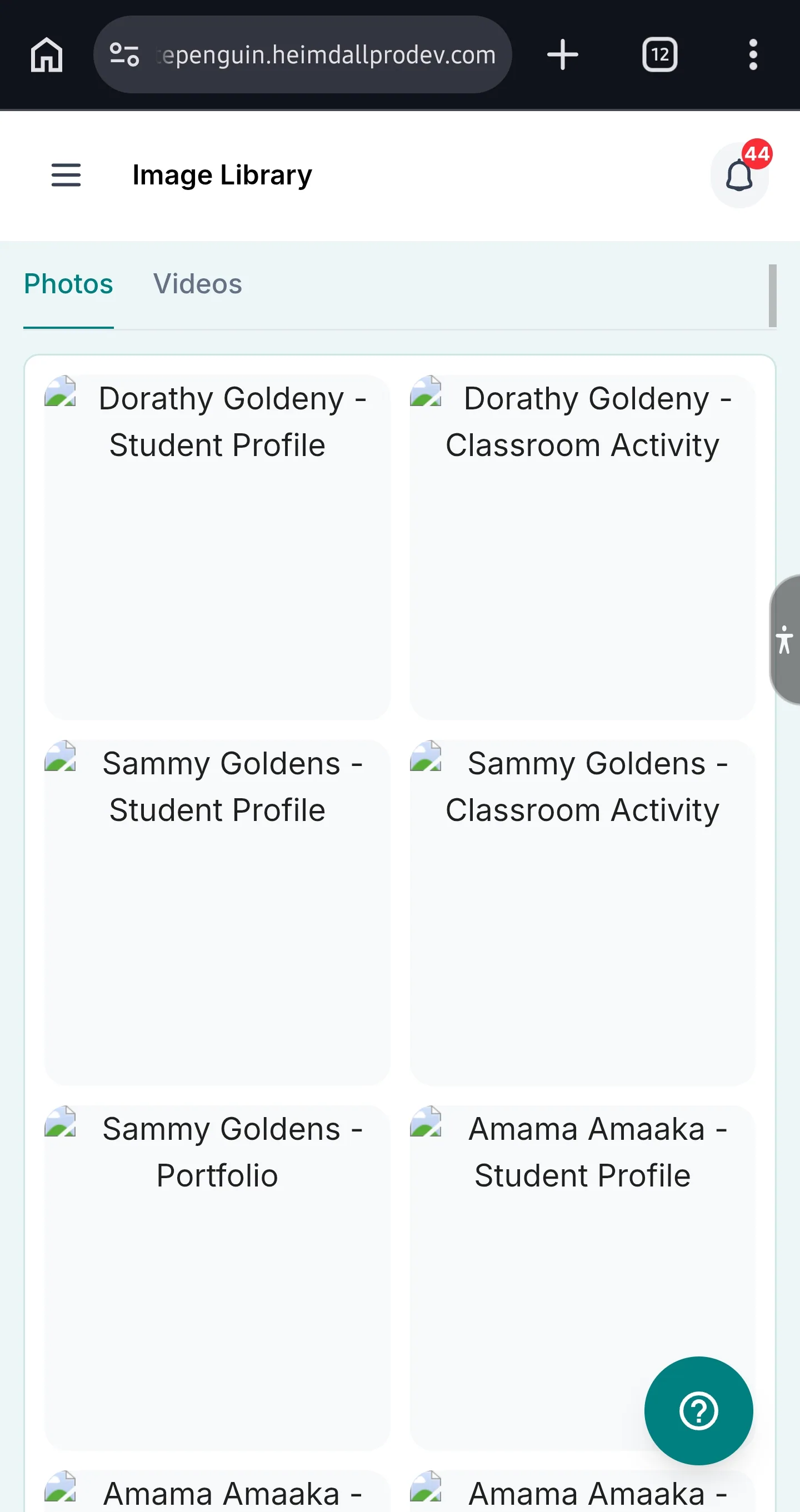
The Photos tab displays all photos that the school has shared for your children, arranged in a grid layout.
Photo Categories
Each photo card is labeled with the child's name and the photo category. The following categories are used:
| Category | Description |
|---|---|
| Student Profile | The child's official profile or portrait photo (e.g., "Amama Amaaka – Student Profile"). |
| Classroom Activity | Photos taken during day-to-day classroom activities and learning sessions (e.g., "Amama Amaaka – Classroom Activity"). |
| Portfolio | Selected portfolio photos showcasing the child's work or achievements (e.g., "Sammy Goldens – Portfolio"). |
Photo Grid Layout
- Photos are displayed in a multi-column grid, grouped by child.
- Each grid card shows the child's name and category label at the top of the image.
- Multiple photos of the same category may appear for the same child (e.g., two Classroom Activity photos for the same child).
- Click on any photo card to view it at full size.
If a photo card appears blank or doesn't load, it may still be processing or the image may not have been uploaded yet by the school. Try refreshing the page.
Videos Tab
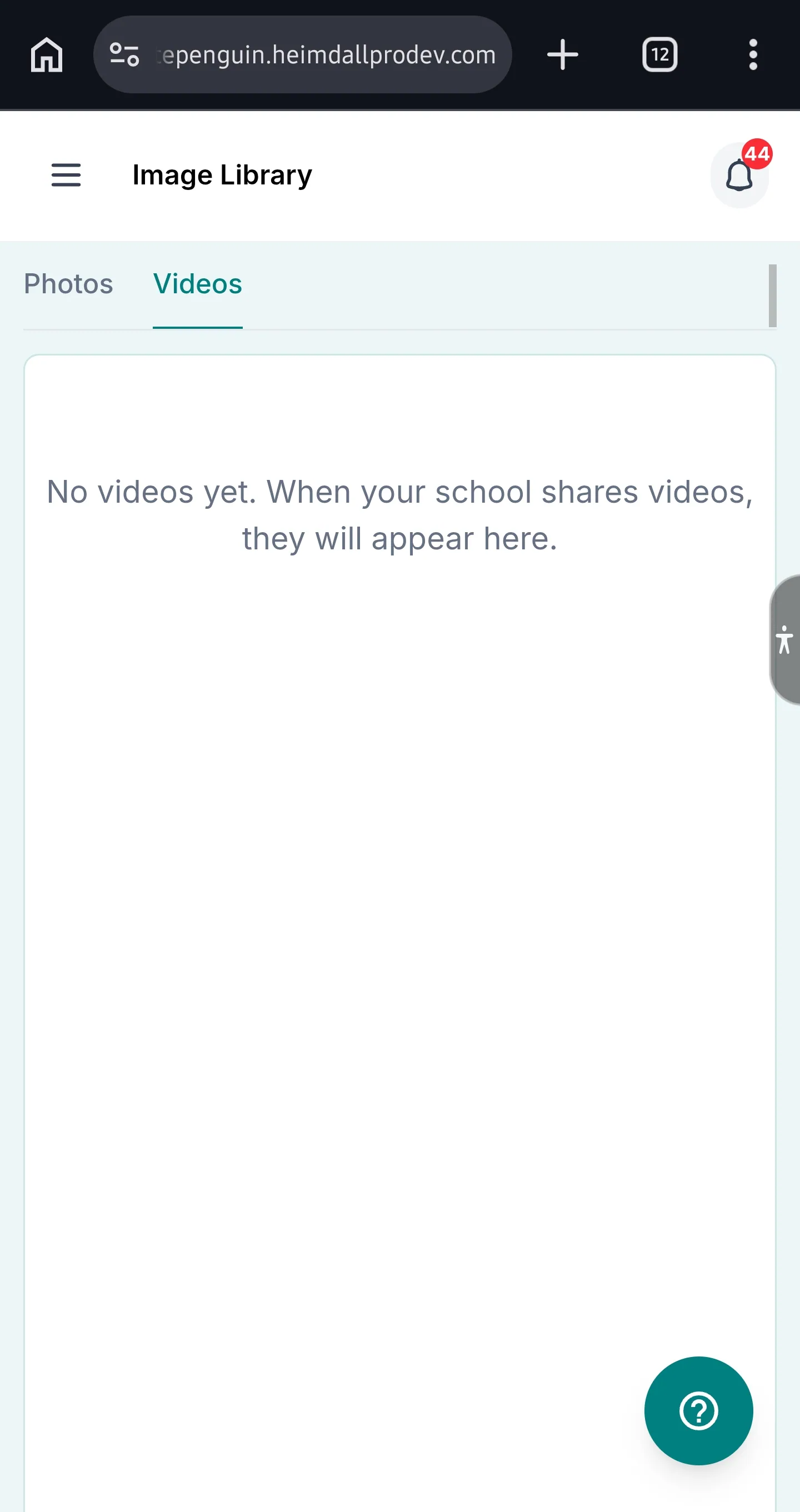
The Videos tab is where the school shares video content related to your children's activities, events, or milestones.
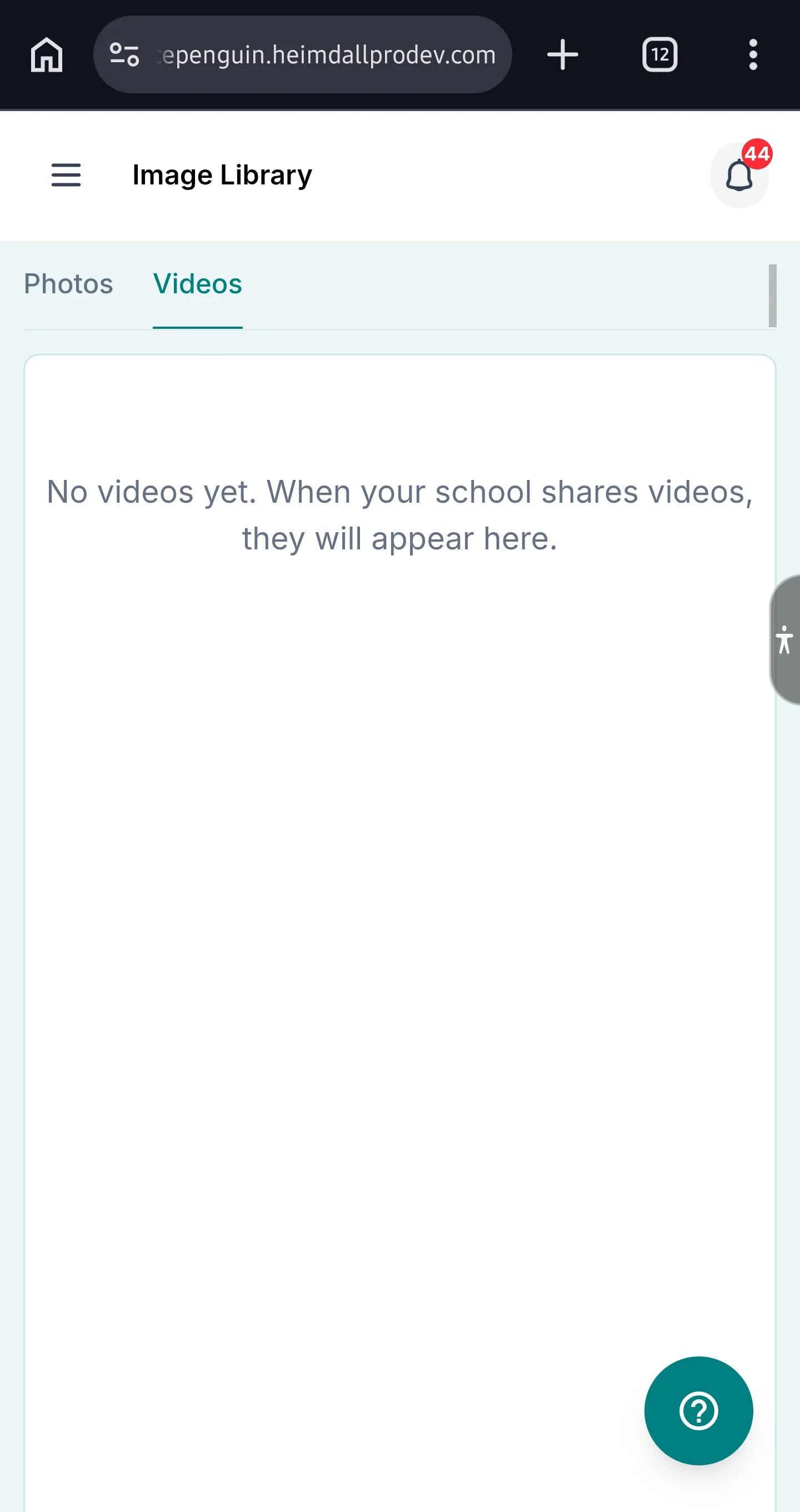
If no videos have been shared yet, the tab will display:
"No videos yet. When your school shares videos, they will appear here."
When videos are available, they will appear in a grid similar to the Photos tab, with labels identifying the child and content type.
Video availability depends entirely on whether the school's admin or teachers have uploaded video content. If you see the empty state message, check back later or contact the school to ask when videos will be shared.
Tips
- Photos are organized by child and category. Look for the label at the top of each photo card to identify which child the photo belongs to and whether it's a Student Profile, Classroom Activity, or Portfolio shot.
- Multiple photos per child are normal. A child may have several Classroom Activity photos — each one represents a different moment captured by teachers throughout the school year.
- You cannot upload or delete photos from the portal. The Image Library is managed entirely by the school. If you want a specific photo added or removed, contact your school's admin.
- Check the Videos tab regularly. Even if it's empty now, the school may begin sharing videos of events, performances, or classroom activities at any time.
- Photos may take time to appear. After the school uploads a photo, it may take a moment to process and display in the library. If you're expecting a recently uploaded photo, refresh the page after a few minutes.
FAQs
You will see photos organized into three categories: Student Profile (official portrait photos), Classroom Activity (day-to-day activity shots), and Portfolio (selected highlight photos of your child's work or achievements).
This depends on your browser and device. You can try right-clicking on a photo and selecting "Save image as" to download it locally. The Image Library itself does not currently have a built-in download button.
No. The Image Library is managed exclusively by the school's admin and teaching staff. Parents can view and browse media but cannot upload, edit, or delete any files.
The Videos tab shows: "No videos yet. When your school shares videos, they will appear here." This means the school has not yet uploaded any video content. Videos will appear automatically once the school shares them. Contact your school admin if you have questions about when videos will be available.
Photo cards may appear blank if the image is still processing or if there was a temporary loading issue. Try refreshing the page. If the problem persists, contact your school's admin to verify that the photo was uploaded correctly.
Yes. The Image Library shows photos for all children linked to your parent account. Each photo card is clearly labeled with the child's name, so you can easily identify which child each photo belongs to.
Contact your school's admin directly — either via the Messages tab in the Communication section or by reaching out to the school through your usual contact method. Parents do not have the ability to add or remove photos from the library themselves.
Last updated on
Messaging & Announcements
Learn how to use the Communication section in WhitePenguin — send direct messages to teachers or admins, view your message history, and read school-wide announcements all in one place.
Manage My Invoices
Learn how to view, download, and manage your school invoices in WhitePenguin — track outstanding balances, understand invoice types, and pay securely online using Paystack or Bank Transfer.