How can we help you today?
Welcome to the WhitePenguin Help Center. Here you can find guides for all users—Admin, Staff, and Parent—along with video walkthroughs and the most common FAQs for each guide.
Popular:
- Guides
- 57
- Topics
- 12
- Video walkthroughs
- 7
- FAQs answered
- 344
Browse by topic
Guides for admins & staff
Create your WhitePenguin admin account, then learn the dashboard, full search, quick actions and the notification panel.
- Sign Up & Getting StartedSoon
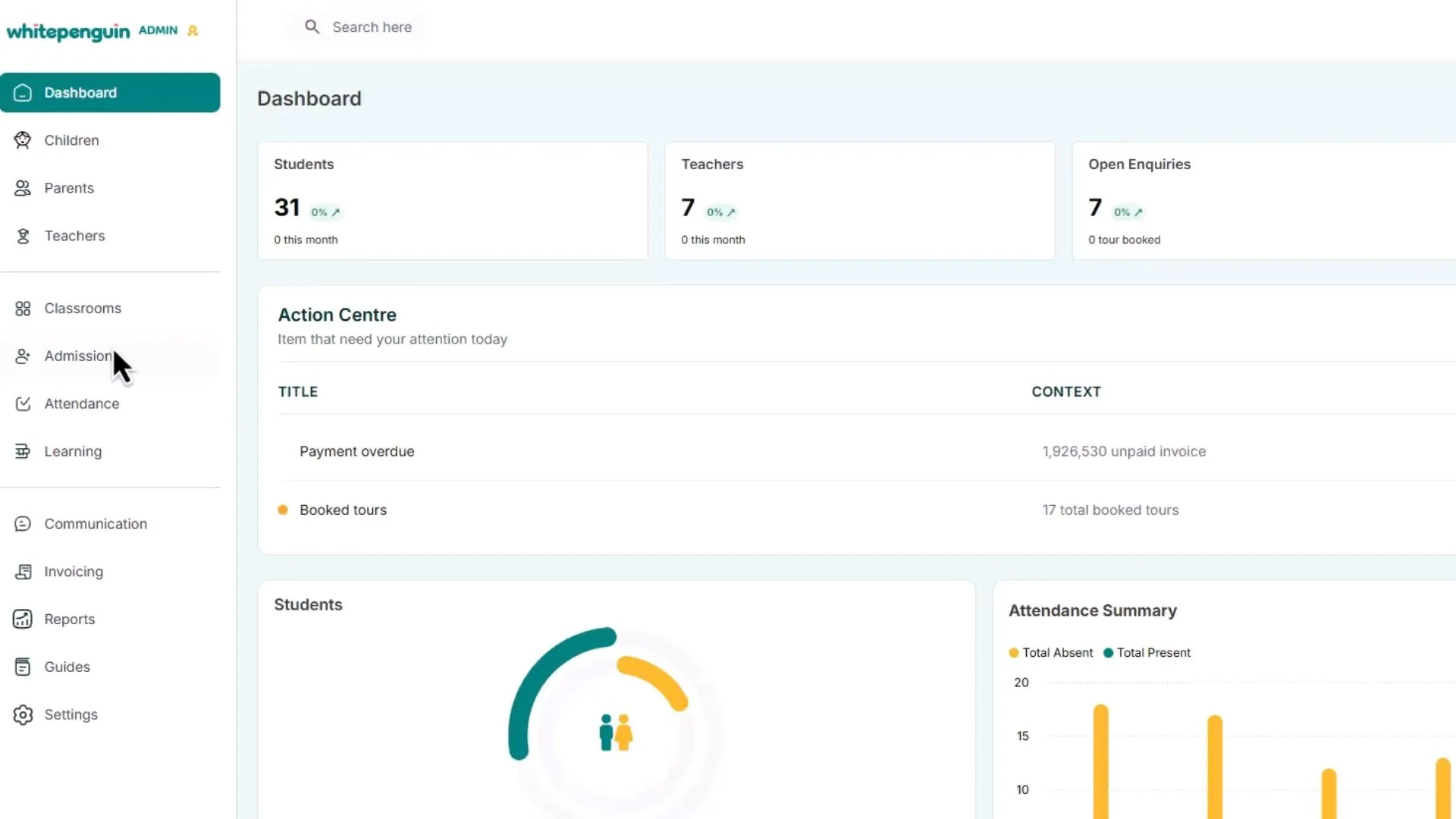
- Understanding the Dashboard
- Using Full Search Feature
- Using Quick Actions
Set up your school in WhitePenguin: create classrooms, add and invite teachers, add children profiles and add or link parents.
Manage classrooms and log daily activities in WhitePenguin: naps, meals, water intake, photos, medication, diaper changes and observations.
View all 9 guidesTrack learning in WhitePenguin with milestones, subjects, curriculum, grading and a portfolio for every child.
- Add & Manage MilestonesSoon
- Add & Manage SubjectsSoon
- Add & Manage CurriculumSoon
- View & Manage GradingSoon
Run admissions in WhitePenguin: the events calendar, school tours and forms, leads and requests, and enrolment decisions.
Record and review daily attendance in WhitePenguin with the child, teacher and admin attendance sheets.
Message parents and teachers one-to-one and publish school-wide announcements from WhitePenguin.
Bill families in WhitePenguin with single invoices for one-off fees and recurring invoices for tuition and other regular charges.
Track your school with WhitePenguin reports for billing, attendance, children, staff and admissions.
View all 5 guidesConfigure WhitePenguin: school profile, account security, notifications, public links, admin users and payment methods.
View all 6 guidesClock in and out with the WhitePenguin kiosk, and set up or reset the kiosk PIN for admins, teachers and parents.
For parents
Parent Dashboard
Guides for parents: your WhitePenguin dashboard, your child's profile and activities, messages, photos, invoices and profile.
Parent guidesStart here
Popular guides
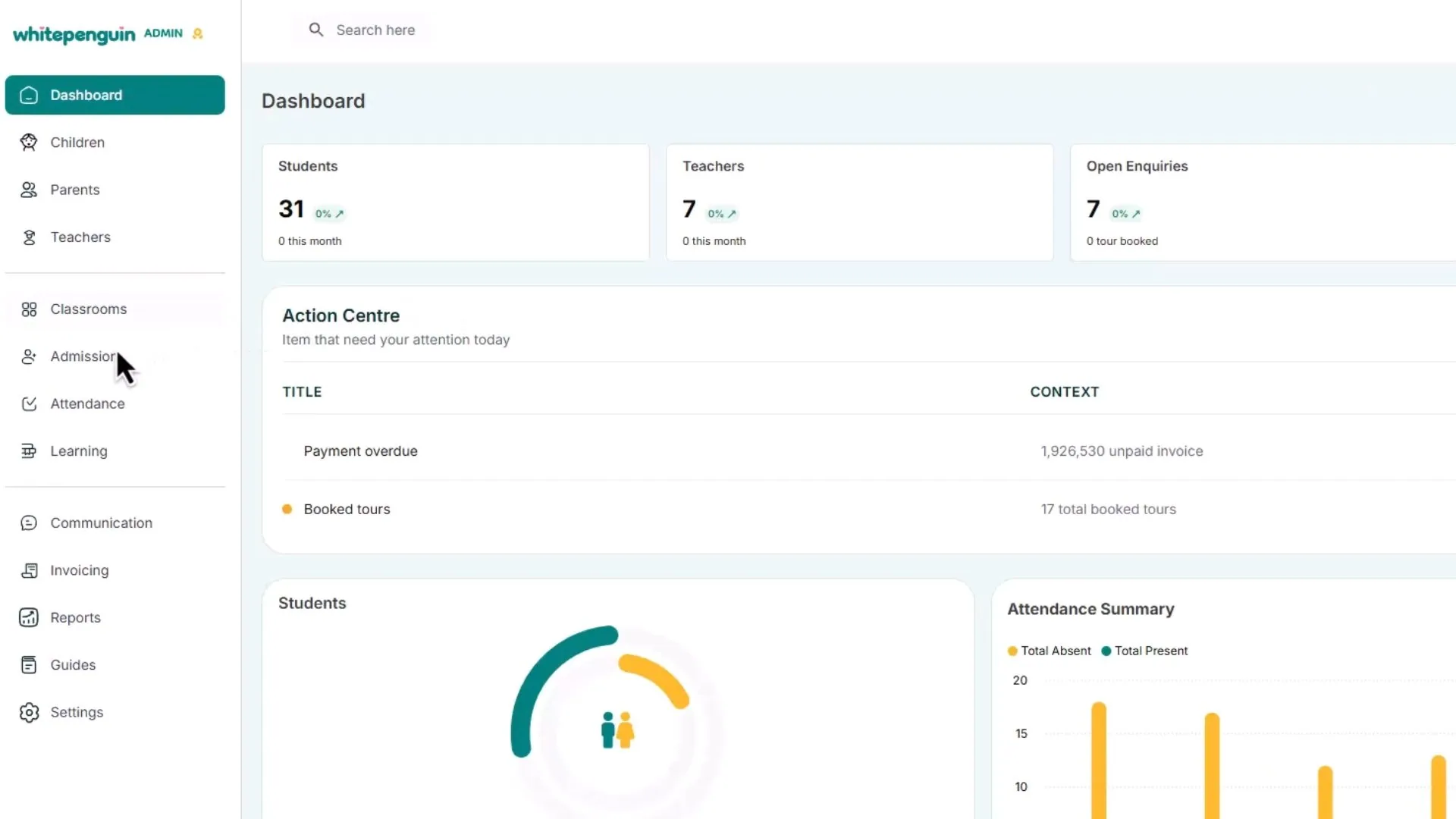
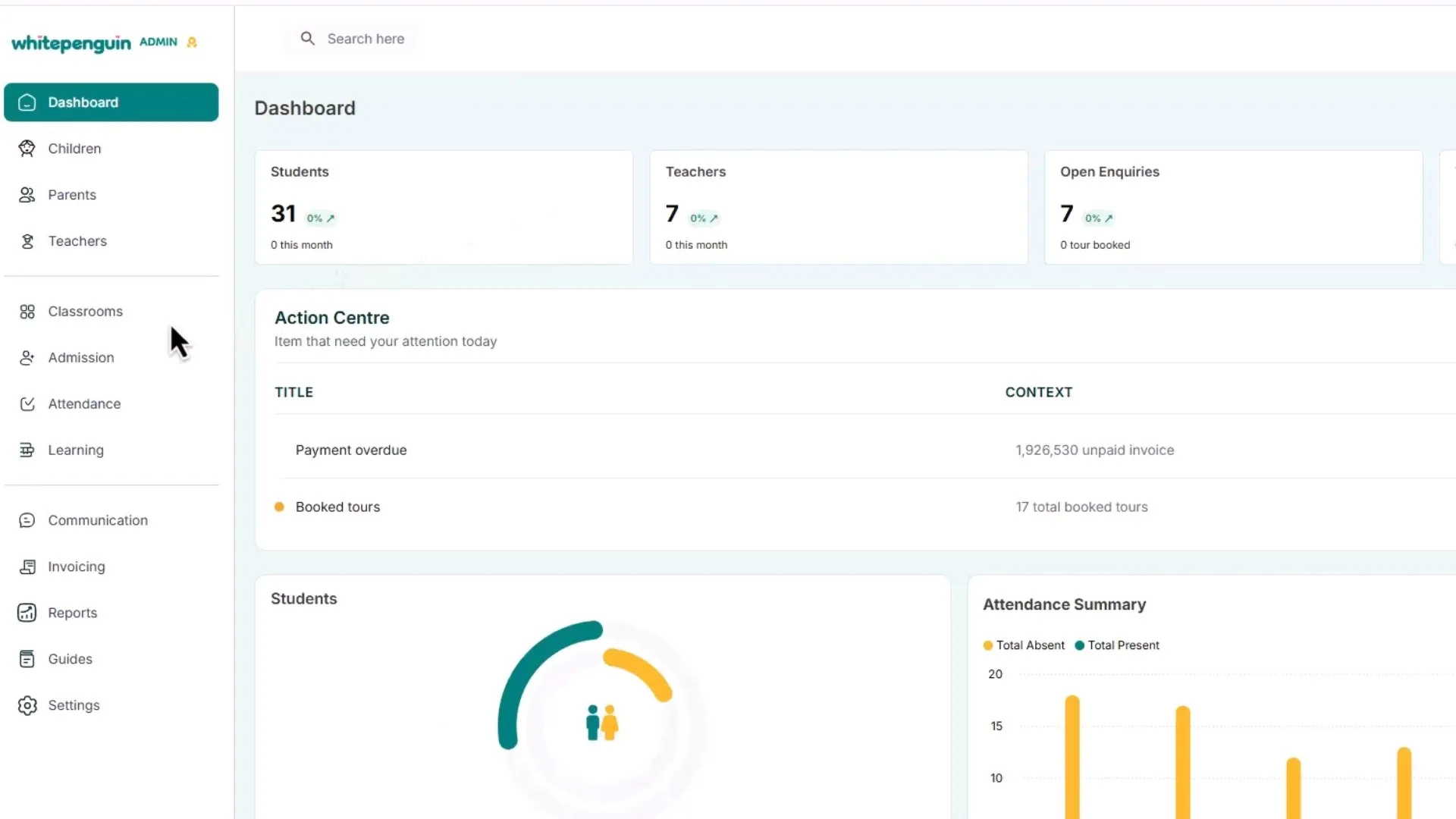
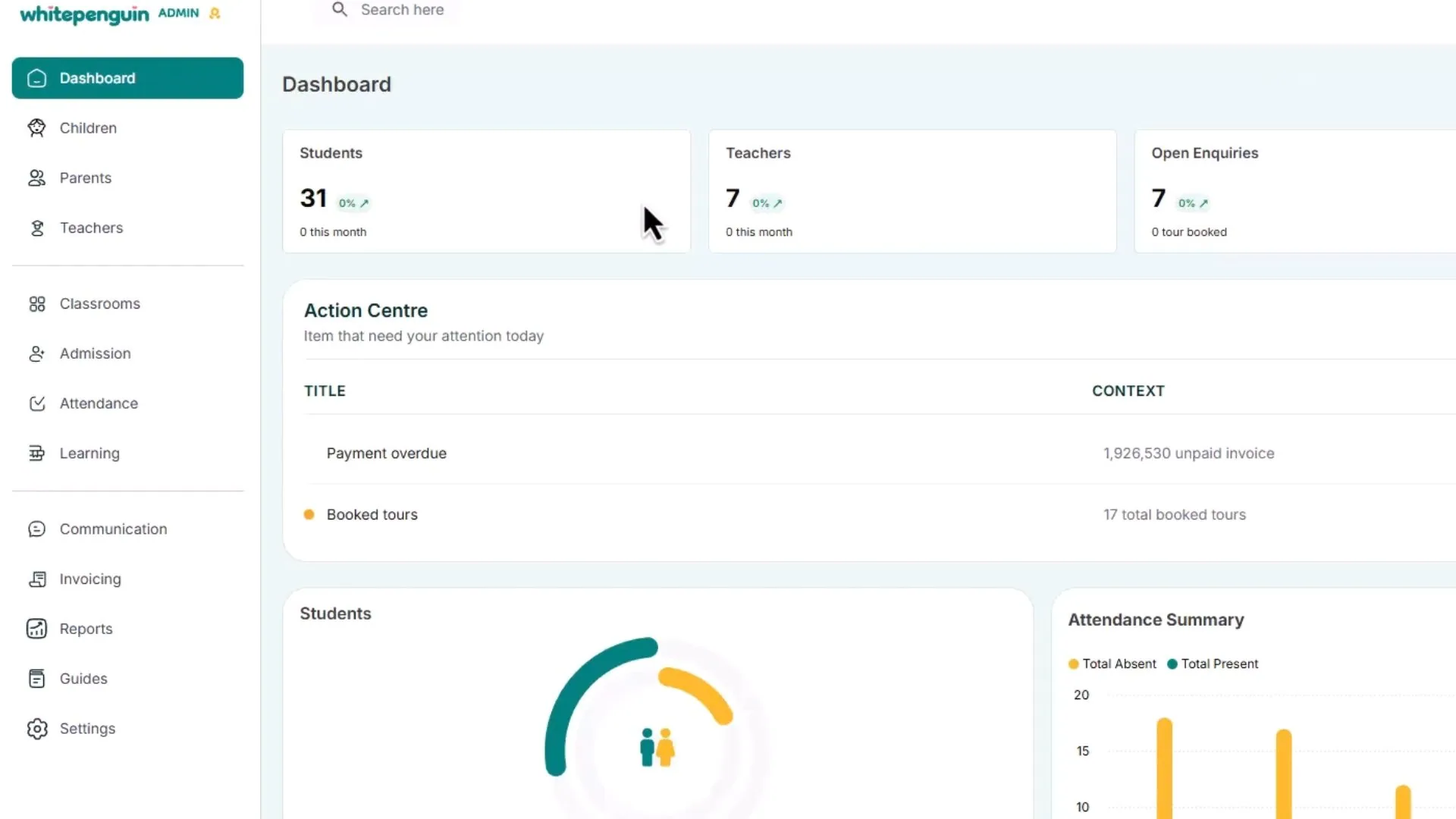
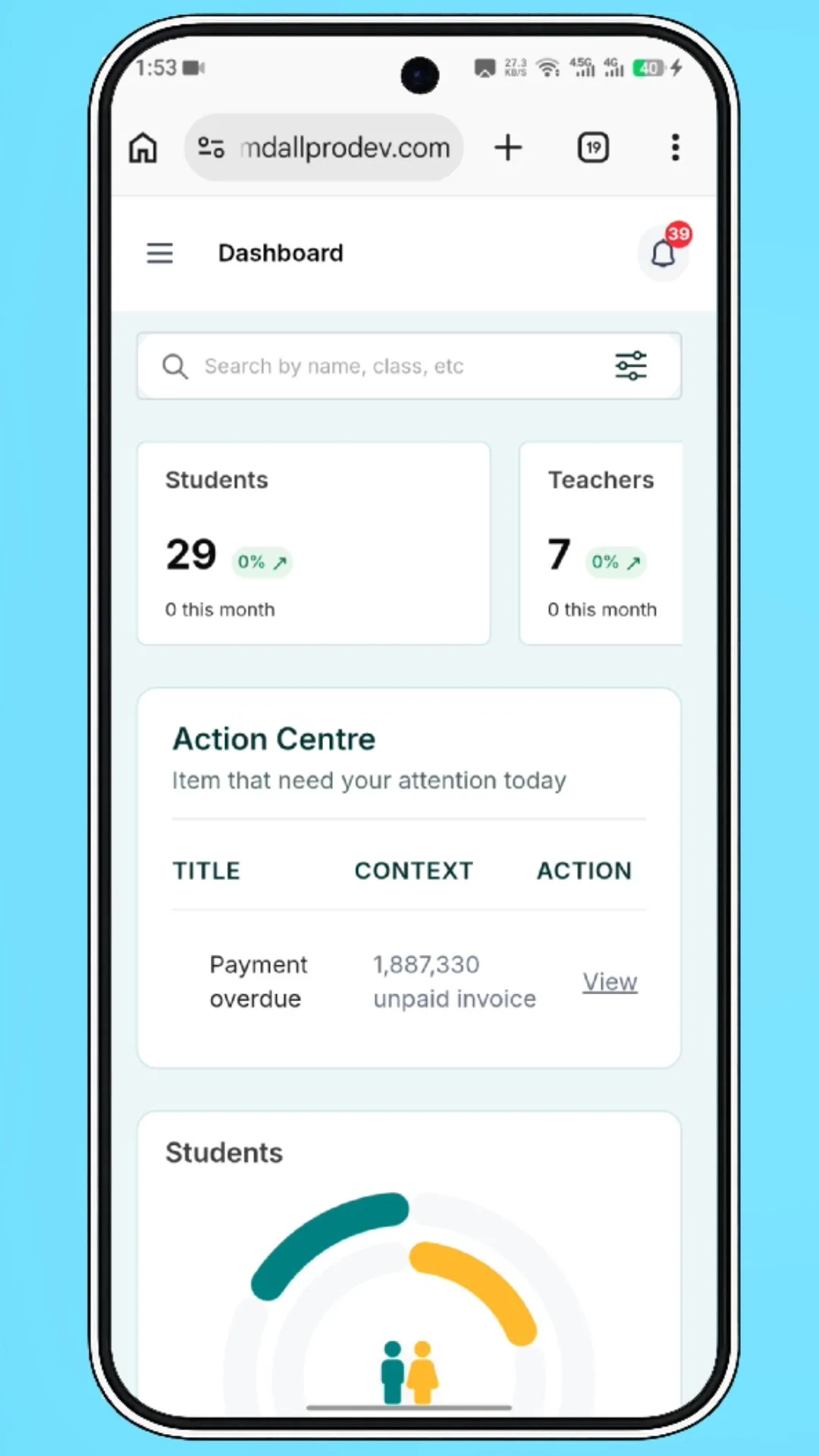
 Getting Started📊 Understanding the DashboardDiscover your administration dashboard with all its charts and graphs. Stay up-to-date on everything happening in your school — all on a single page.
 Getting Started🔍 Using Full Search FeatureDiscover how to use the Full Search feature to quickly find any parent, teacher, or child in your school — all from a single search bar.
 Getting Started🧲 Using Quick ActionsDiscover how to use Quick Actions to jump directly to common tasks — like viewing children, checking attendance, browsing curriculum, or posting announcements — in just one click.
 Setup Your School📔 How to Create a New ClassroomLearn how to set up a new classroom in WhitePenguin — configure age ranges, capacity, assign staff, and get your room ready for children in just a few steps.
 Setup Your School👨🏫 How to Add & Invite TeachersLearn how to add a new teacher to your school, assign them to a classroom, set their role, and automatically send them an email invitation to access their own dashboard.
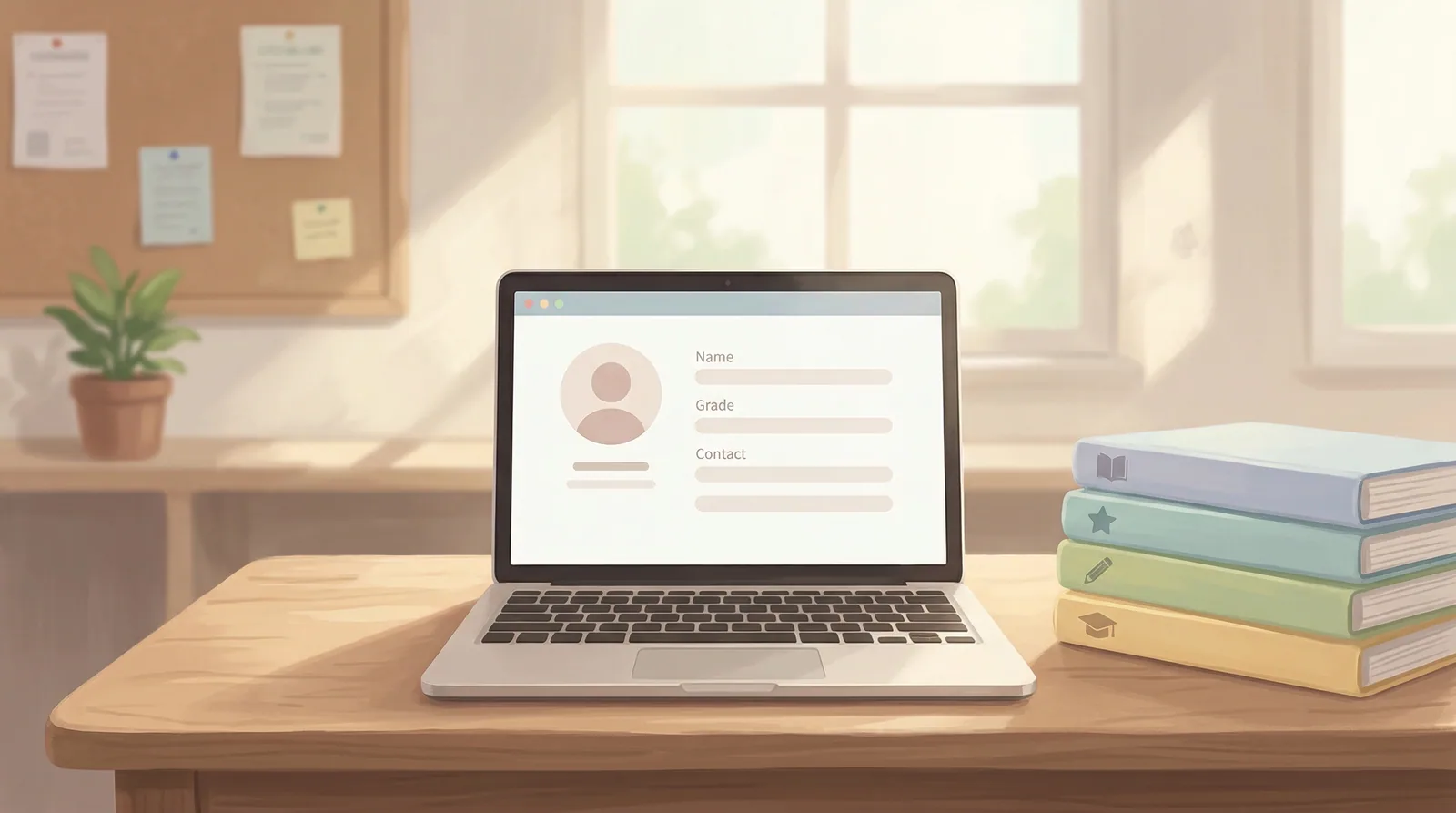 Setup Your School🧑🎓 How to Add a Children ProfileLearn how to create a complete child profile in WhitePenguin — fill in the child's details, add parent or guardian information, upload required documents, and save the profile to complete enrollment.
Watch & learn
Video walkthroughs
 View Events CalendarLearn how to use the events calendar (monthly, weekly, or daily) to view all admission requests, tours, forms, and leads.
 Manage Tours & FormsLearn how to create custom tours and admission request forms, then preview them before publishing.
 Manage Leads & RequestsLearn how to view all new leads and admission requests in one place and take action by accepting or rejecting them.
 Manage AdmissionsView and manage all admissions for your school in one place.
 Clock In using Kiosk (Admin/Teacher - Parent)Learn how to use the WhitePenguin Kiosk to clock in — for Admins, Staff/Teachers, and Parents. The Kiosk is a shared check-in station (tablet or desktop) placed at the school entrance for daily attendance tracking.
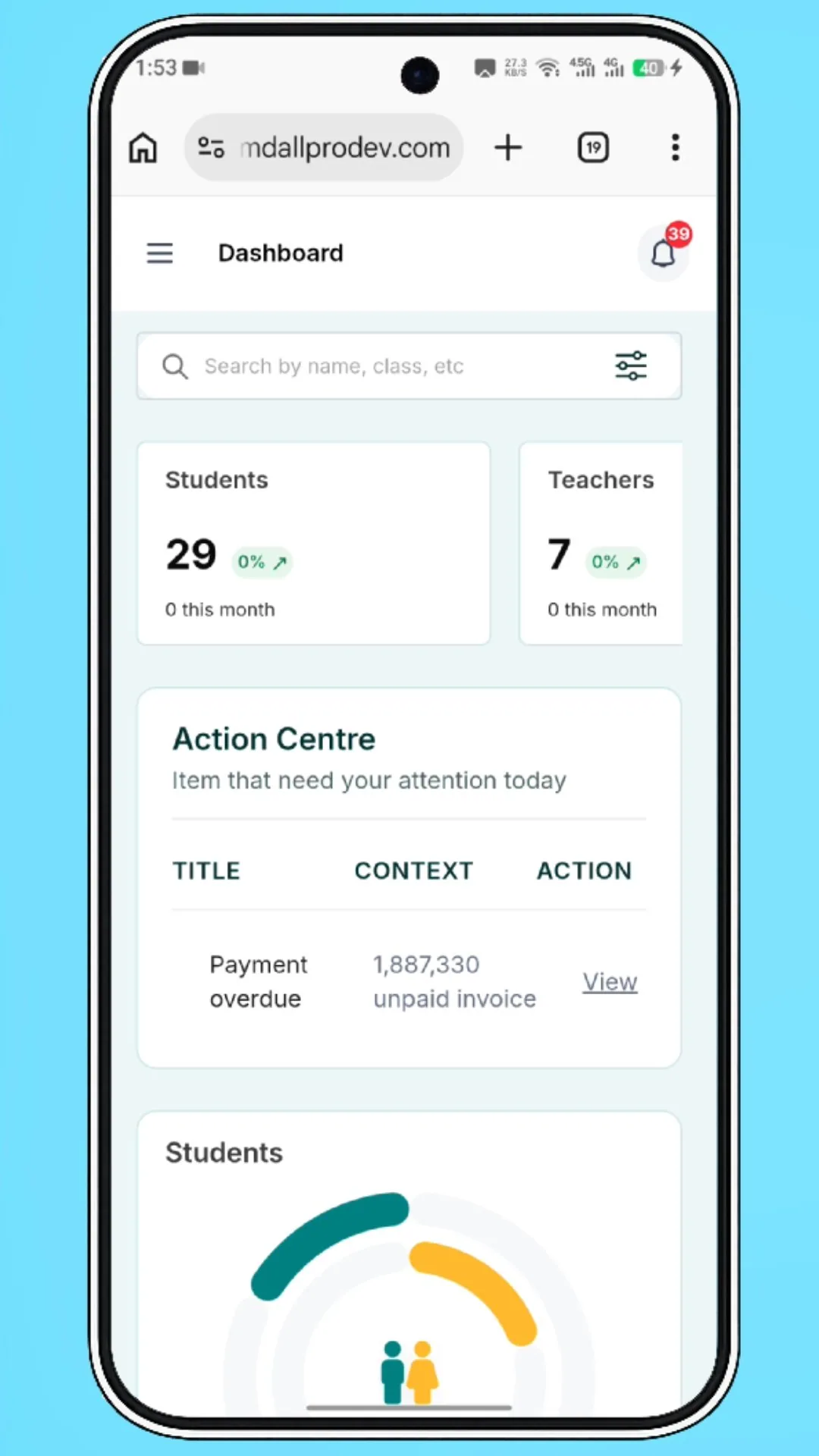 Clock Out using Kiosk (Admin/Teacher - Parent)Learn how to use the WhitePenguin Kiosk to clock out — for Admins, Staff/Teachers, and Parents. The Kiosk is a shared check-out station (tablet or desktop) placed at the school entrance for daily attendance tracking.
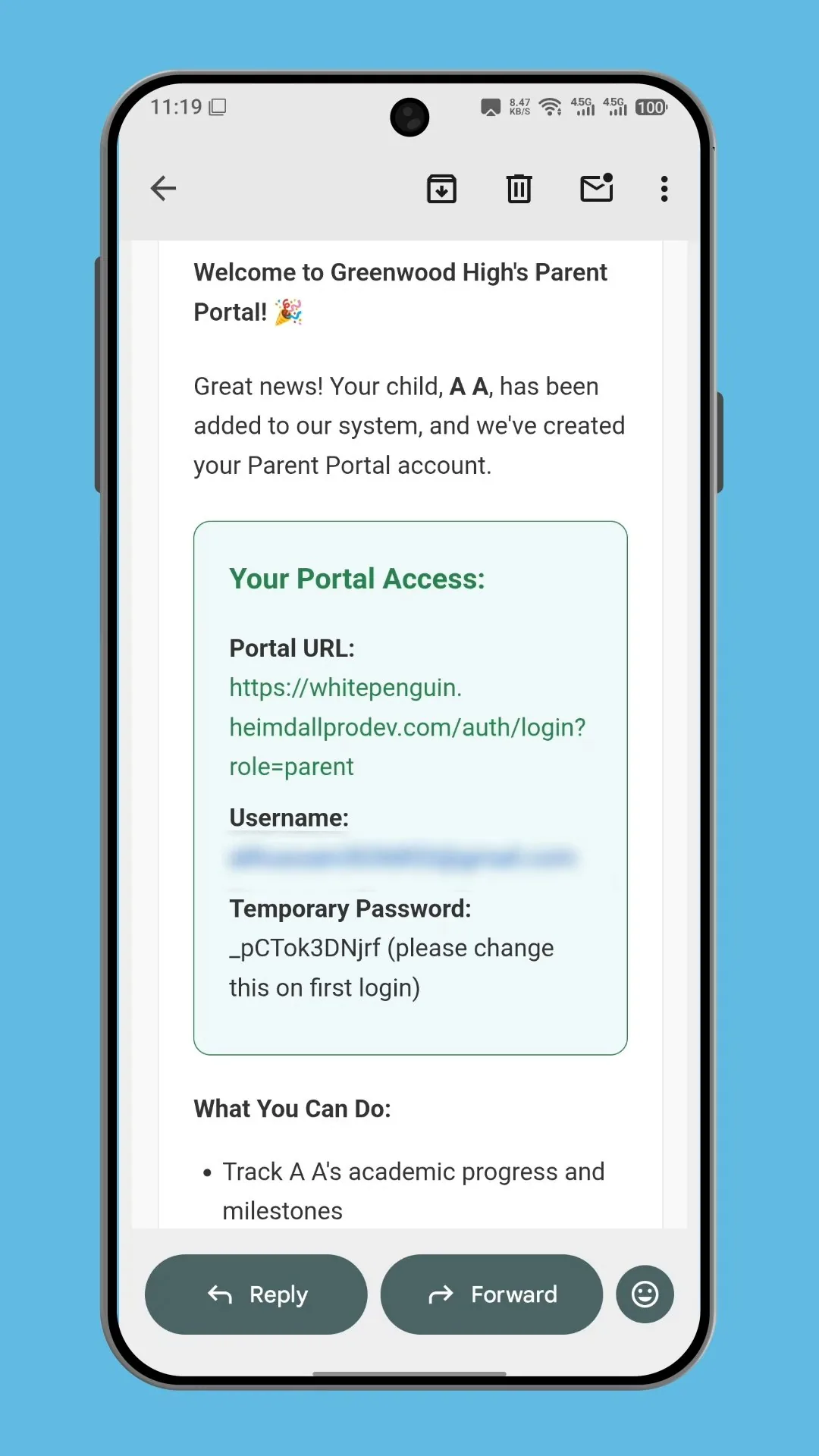 Understanding My DashboardLearn how to use your parent dashboard in WhitePenguin — view your children's attendance at a glance, access your Kiosk PIN and QR code for check-in/out, and stay on top of recent activities.
FAQs
Common questions
Every guide ends with the questions schools ask most. Here are a few to get you started.
This usually means no records exist for the selected date range. Try switching the date filter to "This month" or "All time". If counts are still 0, make sure you have added children, teachers, or classrooms in their respective sections.
Understanding the DashboardYes. The Assigned Staff field is optional at the time of creation. You can save the classroom first and then assign a teacher later by going to Classrooms, clicking on the classroom, selecting Edit, choosing the teacher from the Assigned Staff dropdown, and clicking Save.
How to Create a New ClassroomAny user whose custom role includes Create and Delete permissions for Classrooms can add and remove classrooms. Your school admin configures this in Settings → Roles & Permissions.
Add & Manage ClassroomsTour bookings come from parents using the public tour link you created on the Tours & Forms tab. Other items (PTA, Assignments, Extra) come from their respective modules in WhitePenguin. The Events Calendar is the unified view across all of them.
View Events CalendarAdmins can create, view, edit, and delete any record. Other users can add records if their custom role includes Create permission for Attendance.
Child Attendance SheetAdmins with full Communication access can message any parent in the school. Any other user can send messages if their custom role includes Create permission for Communication.
Parent MessagingA Single Invoice is created manually for one specific student at a time as a one-off charge. A Recurring Invoice lets you automatically generate and send invoices on a repeating schedule (e.g., monthly tuition). Use Single Invoice for custom or one-time charges; use Recurring Invoice for fees that repeat on a regular basis.
Invoicing — Create Single InvoiceOnly the school's admin (owner) account has access to the Settings section and can update the School Profile. Teachers, parents, and other users do not have access to these settings.
Manage School Profile
Can’t find what you’re looking for?
The WhitePenguin team is here to help — send us a message or book a free walkthrough.