

Customize Notifications
Learn how to configure notification channels for admins, parents, and staff in WhitePenguin — including email, SMS, and WhatsApp, and how often daily reports are sent to parents.
Overview
The Notifications section lets you control how each user group receives updates and alerts from your school. You can enable or disable different notification channels — Email, SMS, and WhatsApp — for each user type independently.
Notifications in WhitePenguin are configured differently depending on the user role:
| User Type | Access Level | What they can configure |
|---|---|---|
| Admin | Full access | Can configure notification channels for all user groups — Admin, Parent, and Staff — and set the Daily Reports Frequency for parents. |
| Staff (Teacher) | Limited access | Can only configure their own notification channel preferences (Email and SMS). Access is limited to the classrooms they are assigned to. |
| Parent | Personal settings | Can manage their own notification preferences from the parent portal settings. |
How to Access
For Admins:
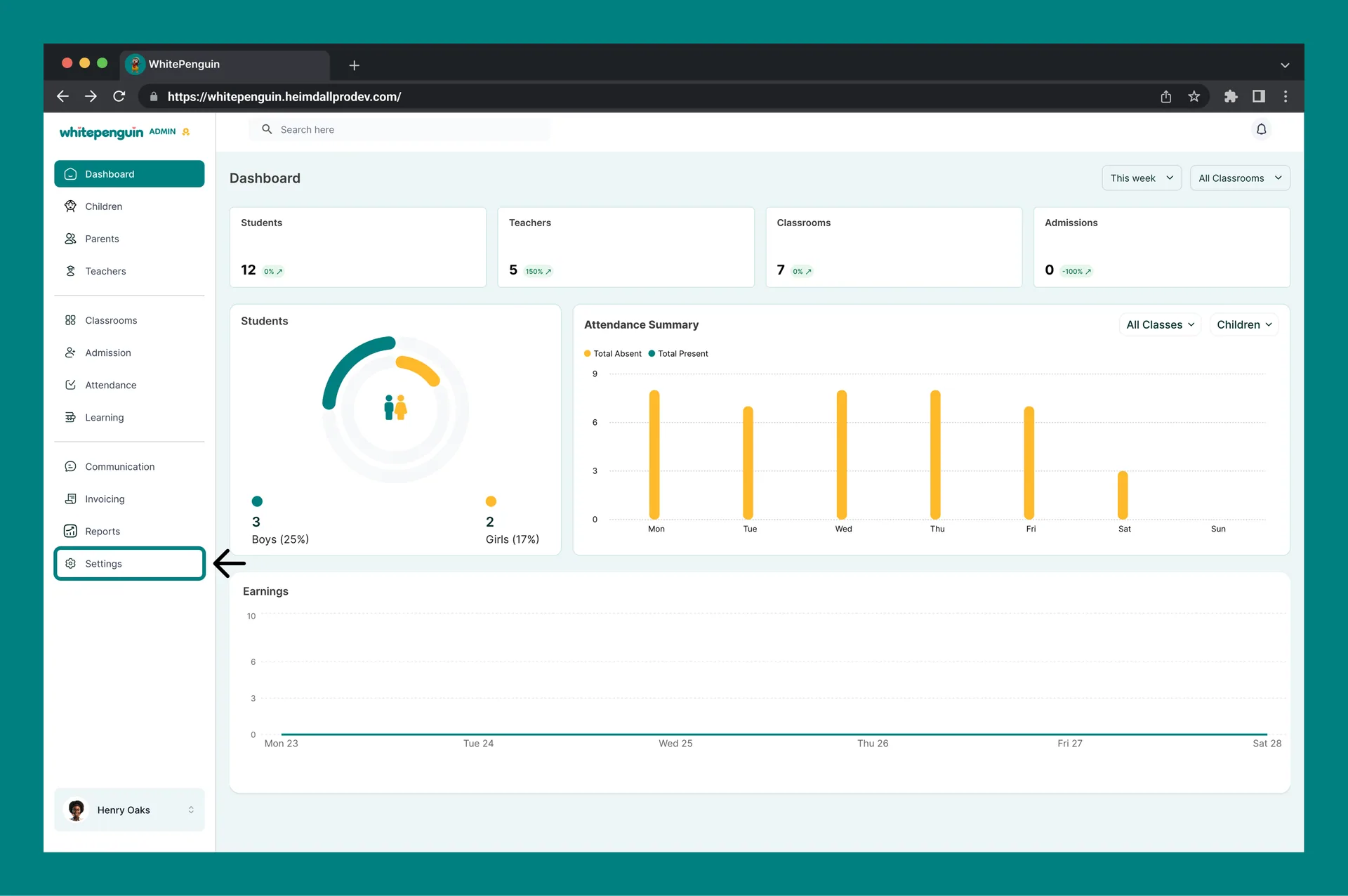
- Click Settings in the left sidebar.
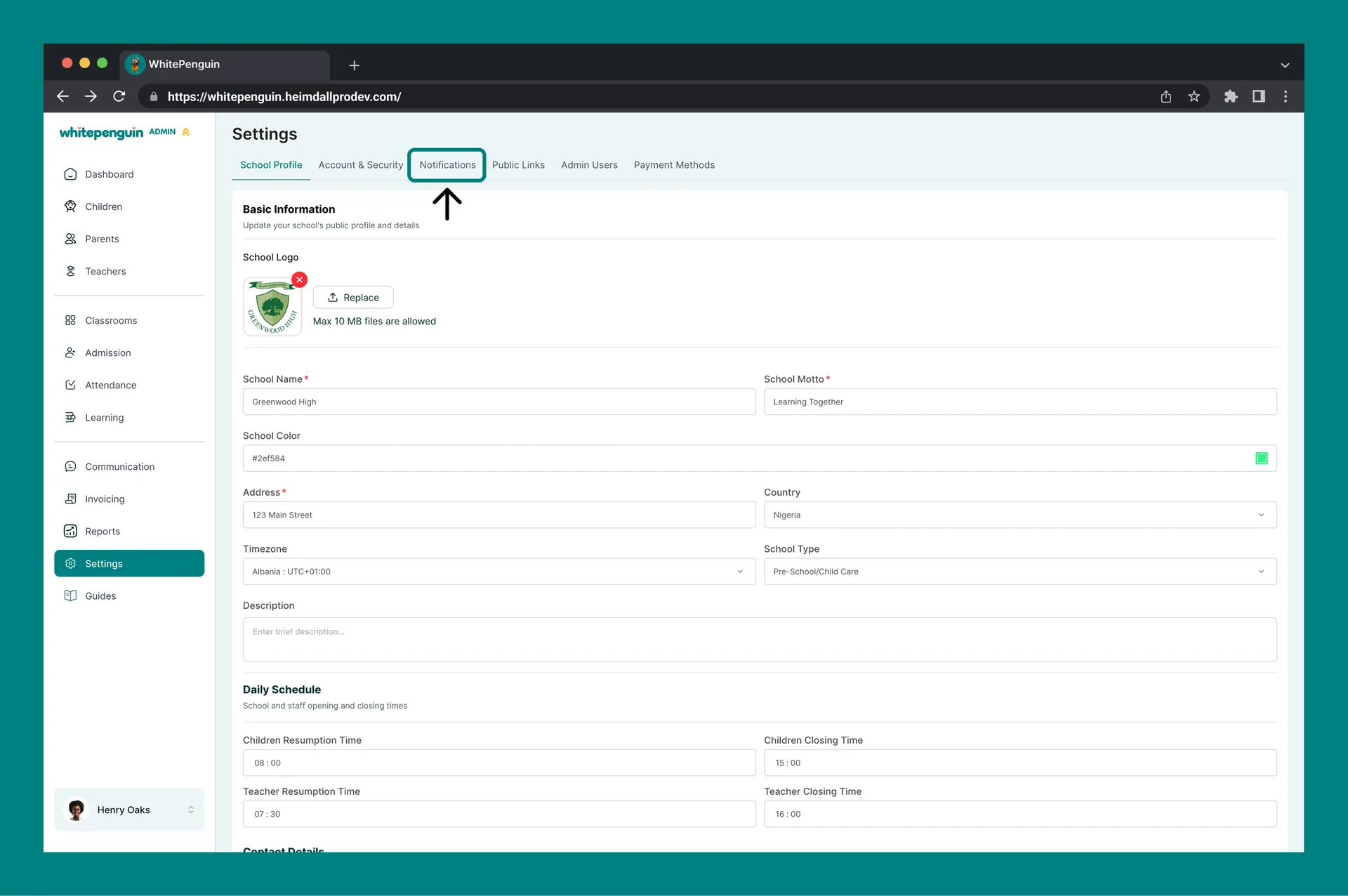
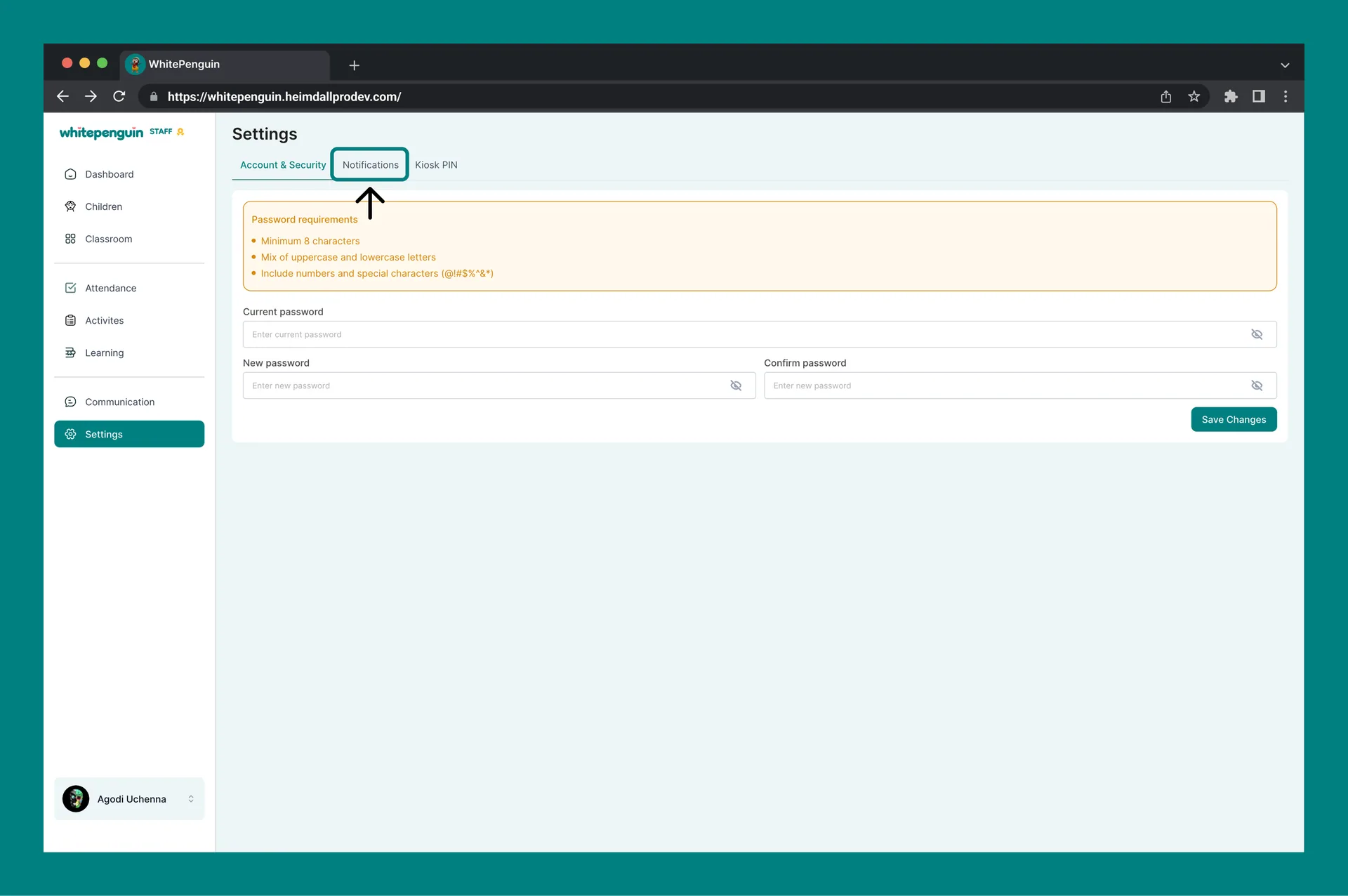
- Click the Notifications tab at the top of the Settings page.
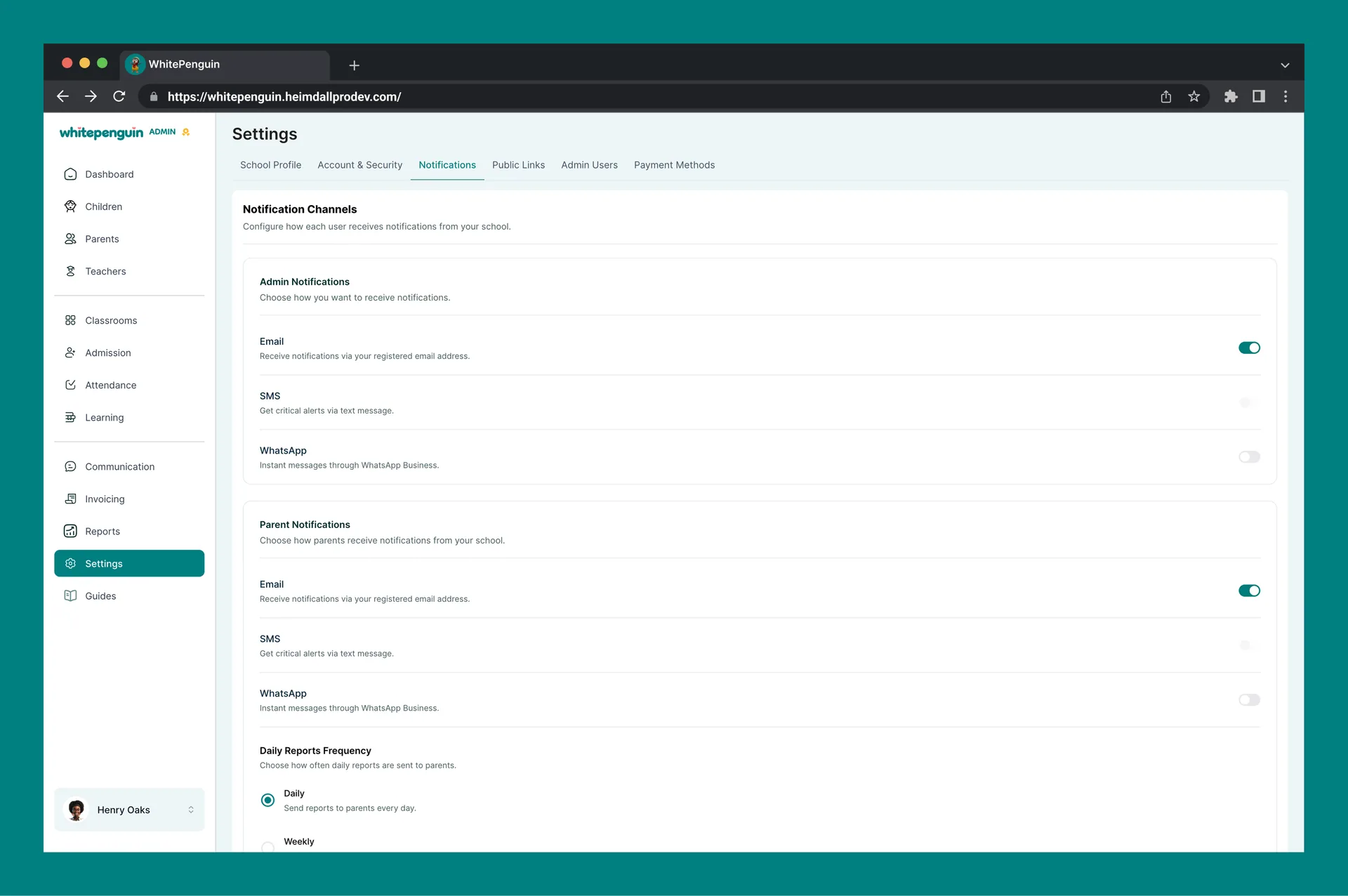
- The Notification Channels page will load with all three user group sections.
- Toggle channels on or off as needed and click Save Changes at the bottom right.
For Staff (Teachers):
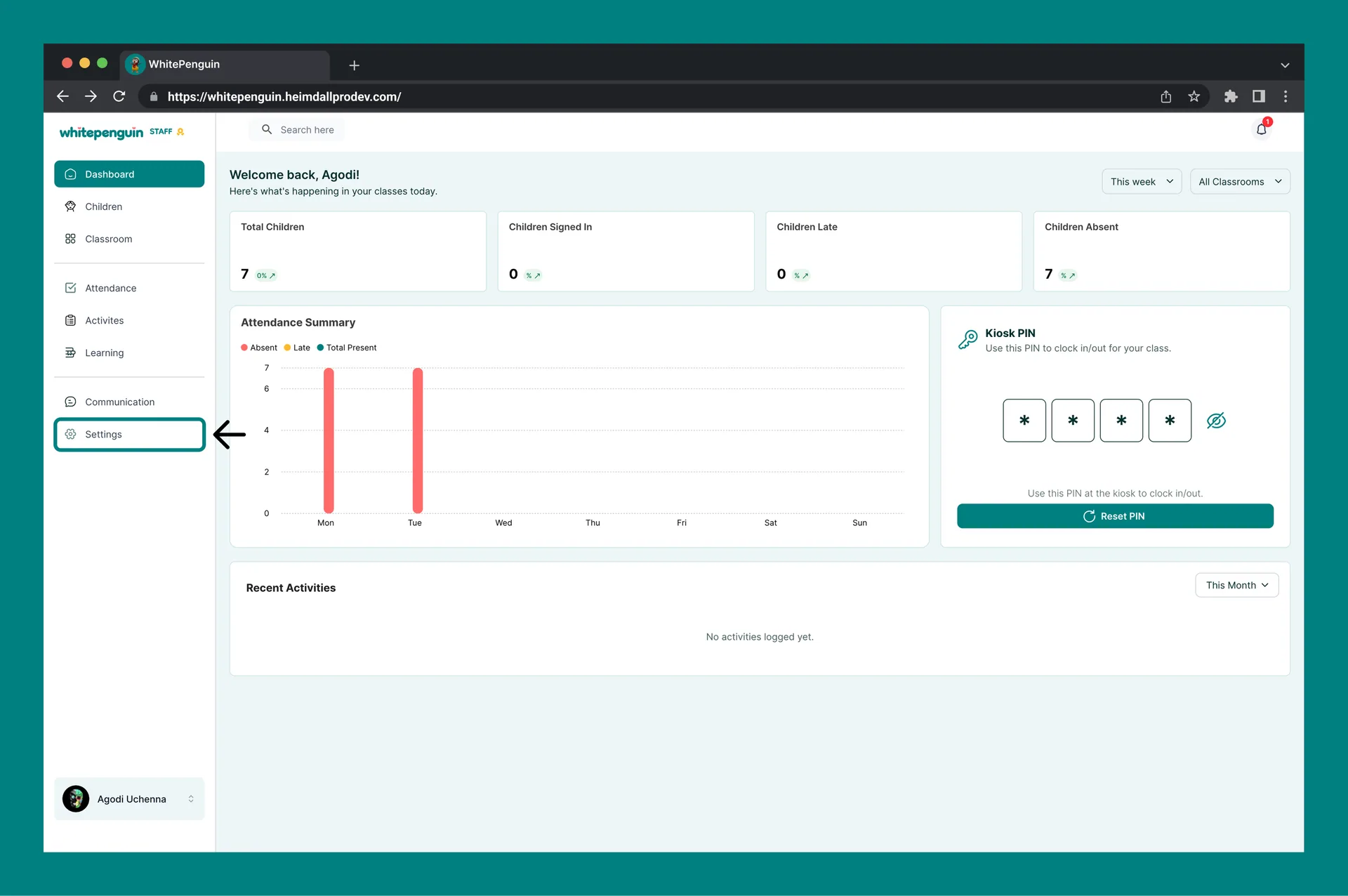
- Click Settings in the left sidebar of the staff portal.
- Click the Notifications tab.
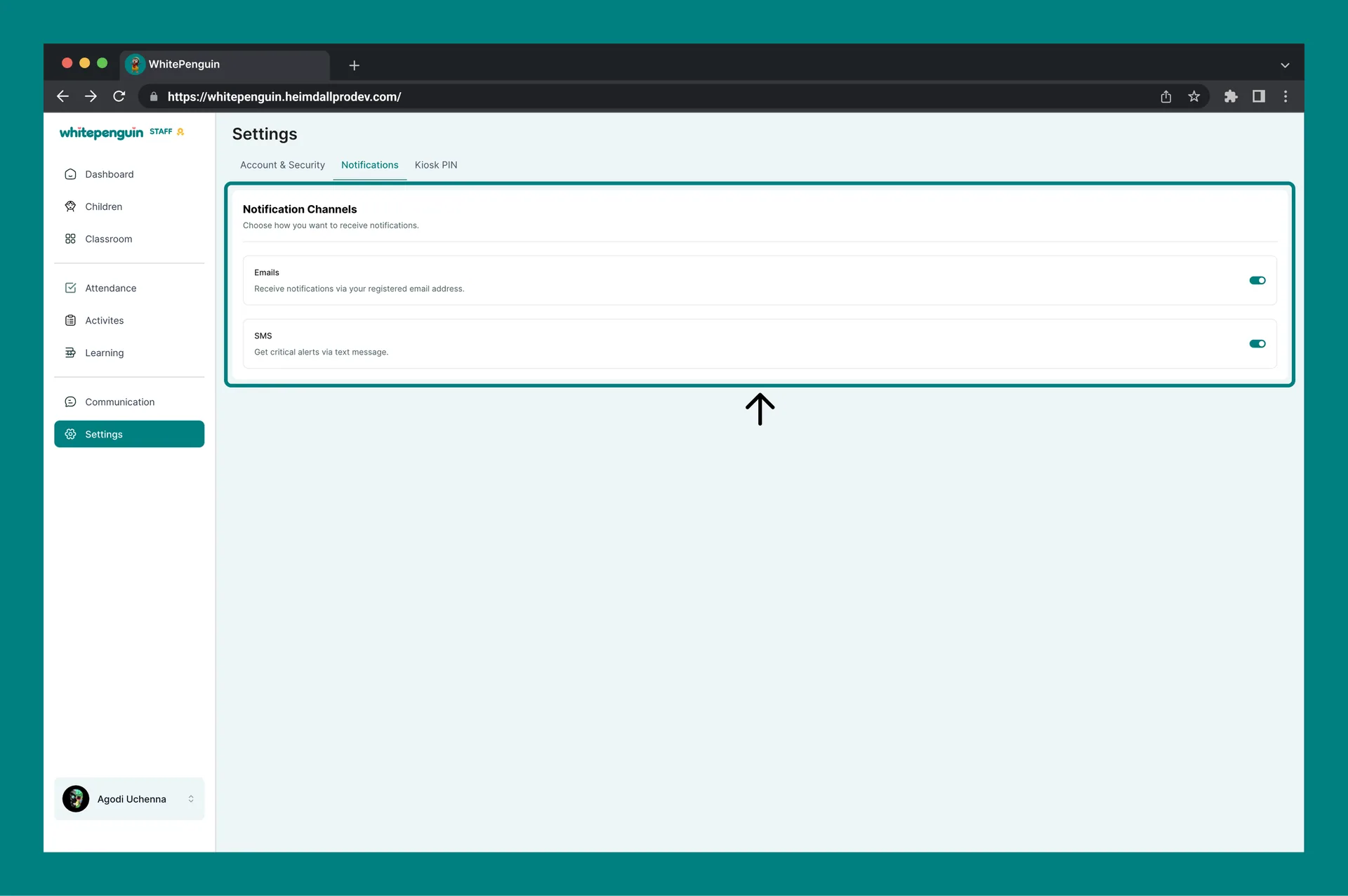
- You will see your own Notification Channels with Email and SMS toggles.
- Toggle your preferred channels on or off — changes apply to your own account only.
Admin — Notification Settings
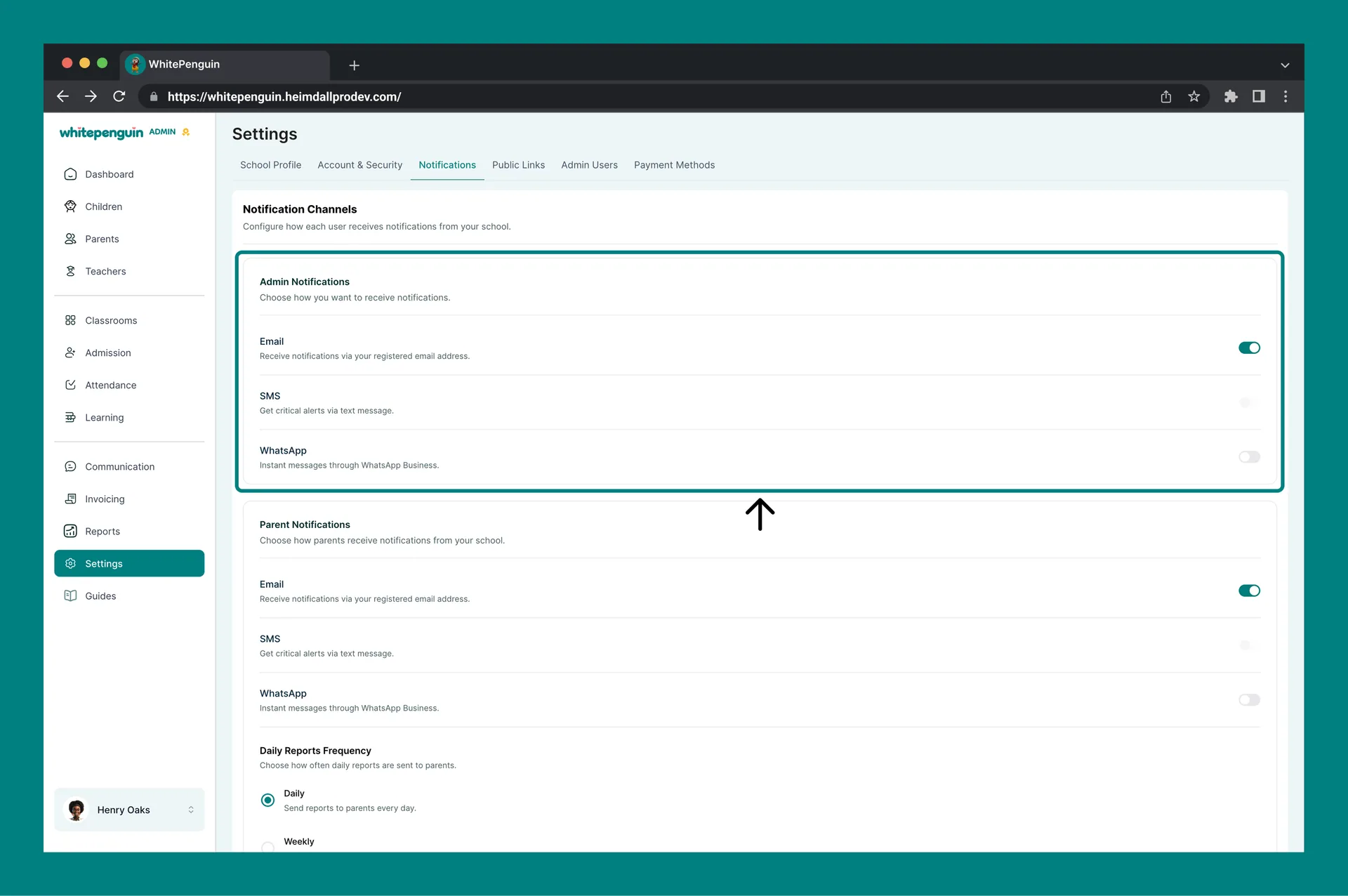
Admins have full control over notification channels for all three user groups from a single page. The Notifications tab is divided into three sub-sections:
Admin Notifications
Configure how the admin account itself receives notifications from the school.
| Channel | Description |
|---|---|
| Receive notifications via your registered email address. Toggle on/off. | |
| SMS | Get critical alerts via text message. Toggle on/off. |
| Receive instant messages through WhatsApp Business. Toggle on/off. |
Parent Notifications
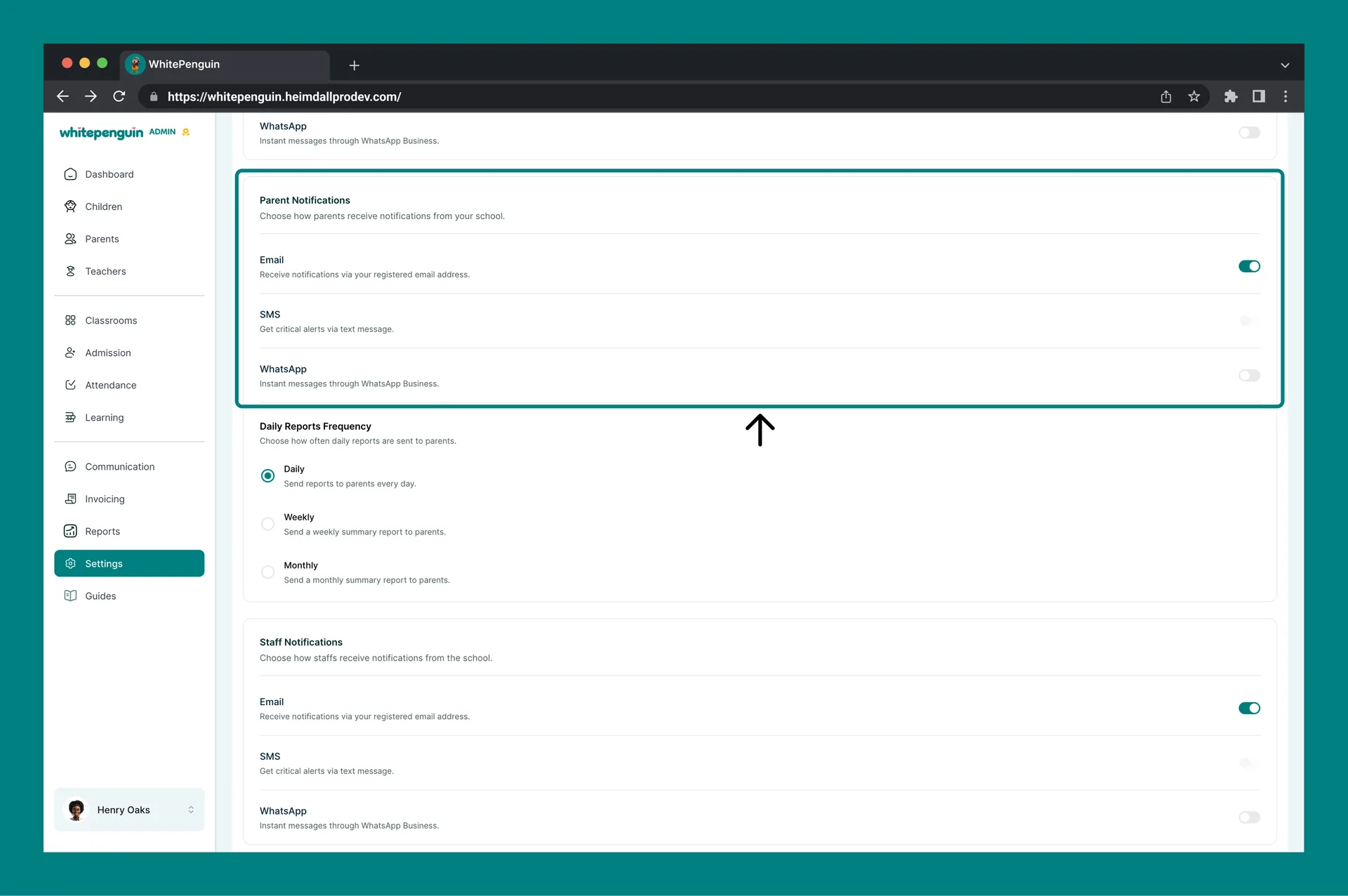
Configure how parents receive notifications from your school.
| Channel | Description |
|---|---|
| Parents receive notifications via their registered email address. Toggle on/off. | |
| SMS | Parents get critical alerts via text message. Toggle on/off. |
| Parents receive instant messages through WhatsApp Business. Toggle on/off. |
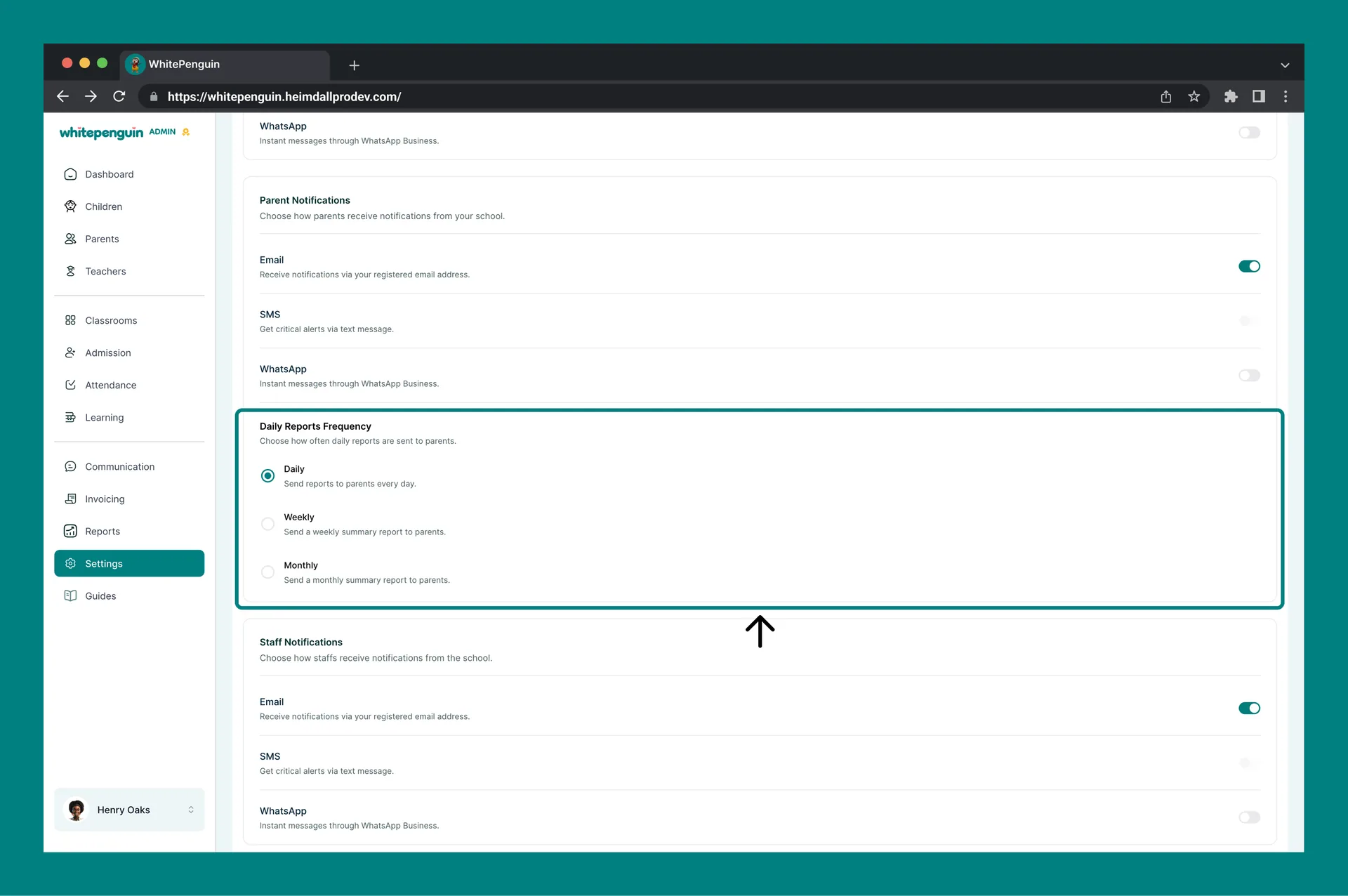
Daily Reports Frequency
This setting controls how often daily activity reports are automatically sent to parents. Select one option:
| Frequency | Description |
|---|---|
| Daily | Send reports to parents every day. |
| Weekly | Send a weekly summary report to parents. |
| Monthly | Send a monthly summary report to parents. |
The Daily frequency is selected by default. Choose the frequency that best matches your school's communication style and parent expectations.
Staff Notifications
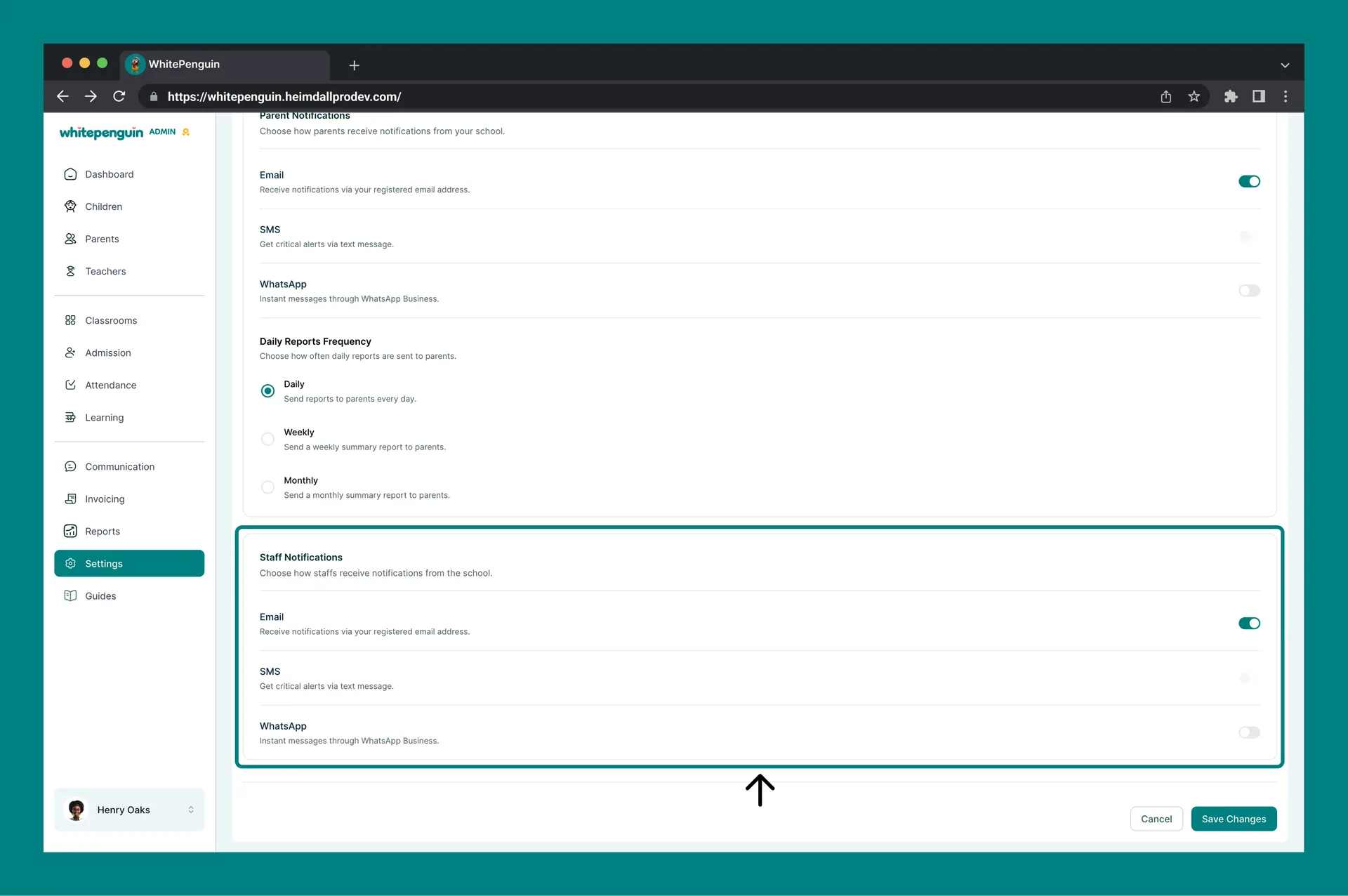
Configure how staff (teachers) receive notifications from your school.
| Channel | Description |
|---|---|
| Staff receive notifications via their registered email address. Toggle on/off. | |
| SMS | Staff get critical alerts via text message. Toggle on/off. |
| Staff receive instant messages through WhatsApp Business. Toggle on/off. |
Staff (Teacher) — Notification Settings
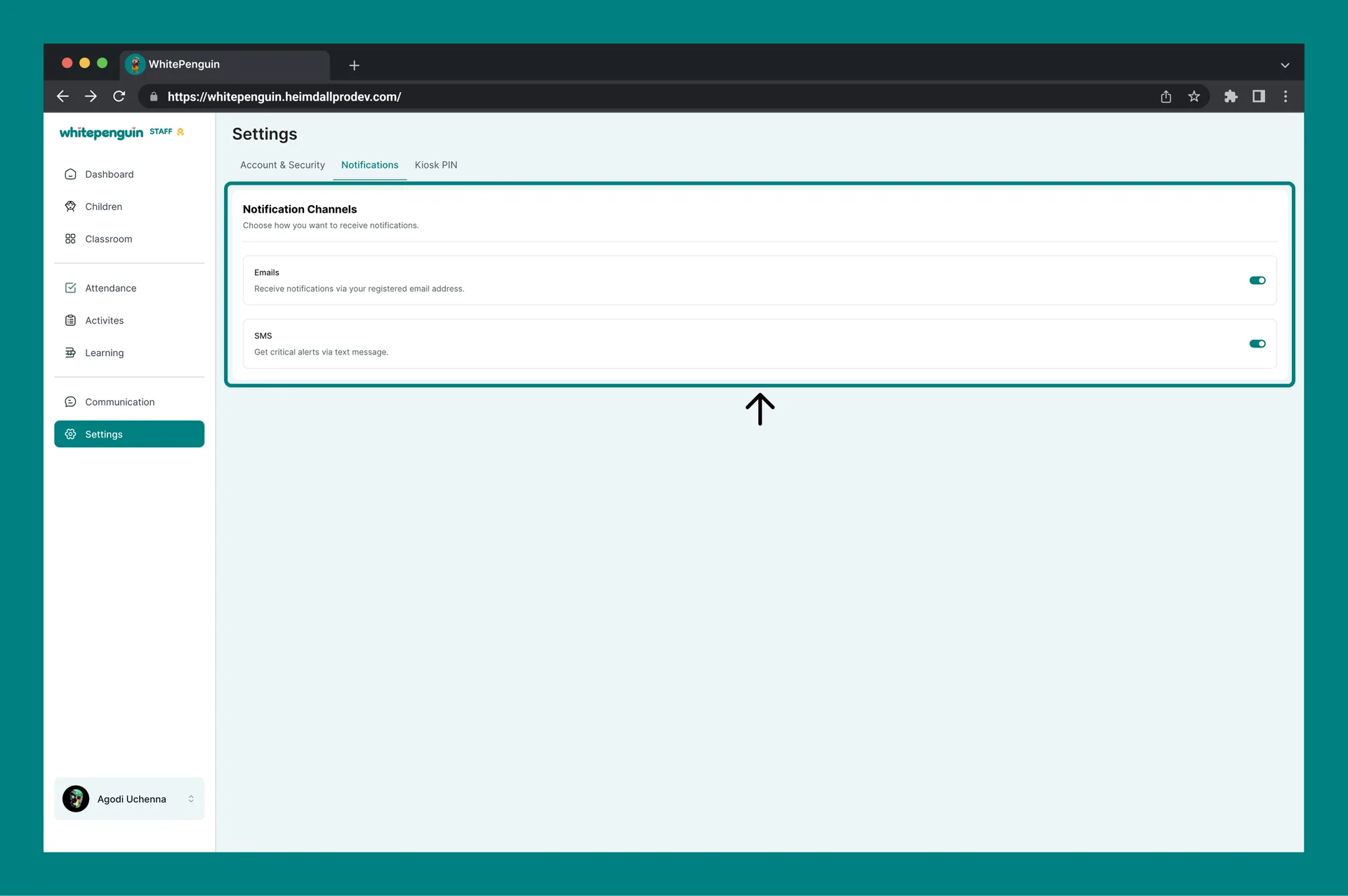
Staff members have a simplified Notifications page with two channels:
| Channel | Description |
|---|---|
| Receive notifications via your registered email address. | |
| SMS | Get critical alerts via text message. |
Staff notification settings apply only to the classrooms the teacher is assigned to. Teachers do not receive notifications for classrooms or children outside their assignment.
Parent — Notification Preferences
Parents can manage their own personal notification preferences directly from the parent portal — independently of the school-wide settings configured by the admin.
How Parents Access Notification Preferences
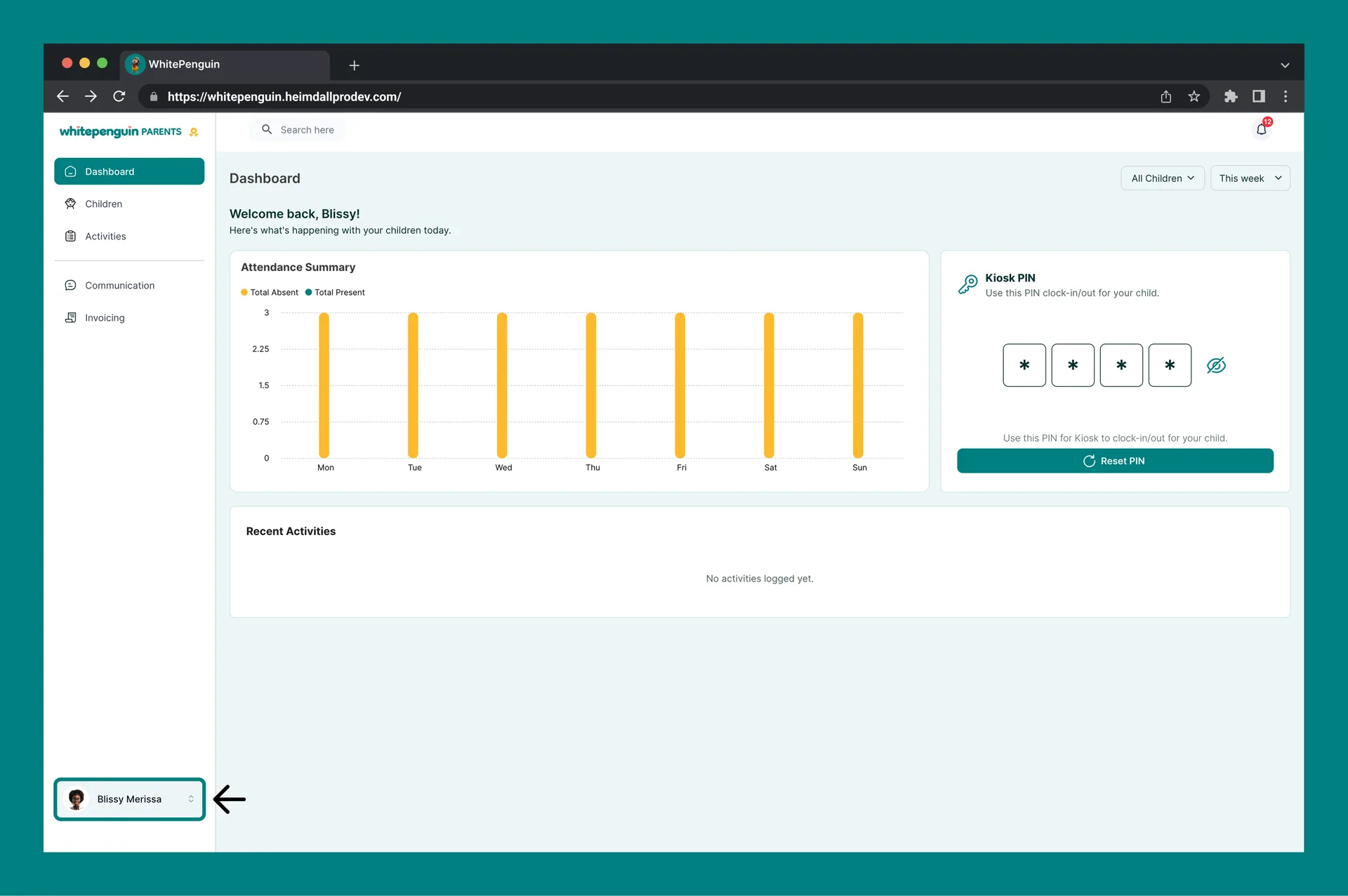
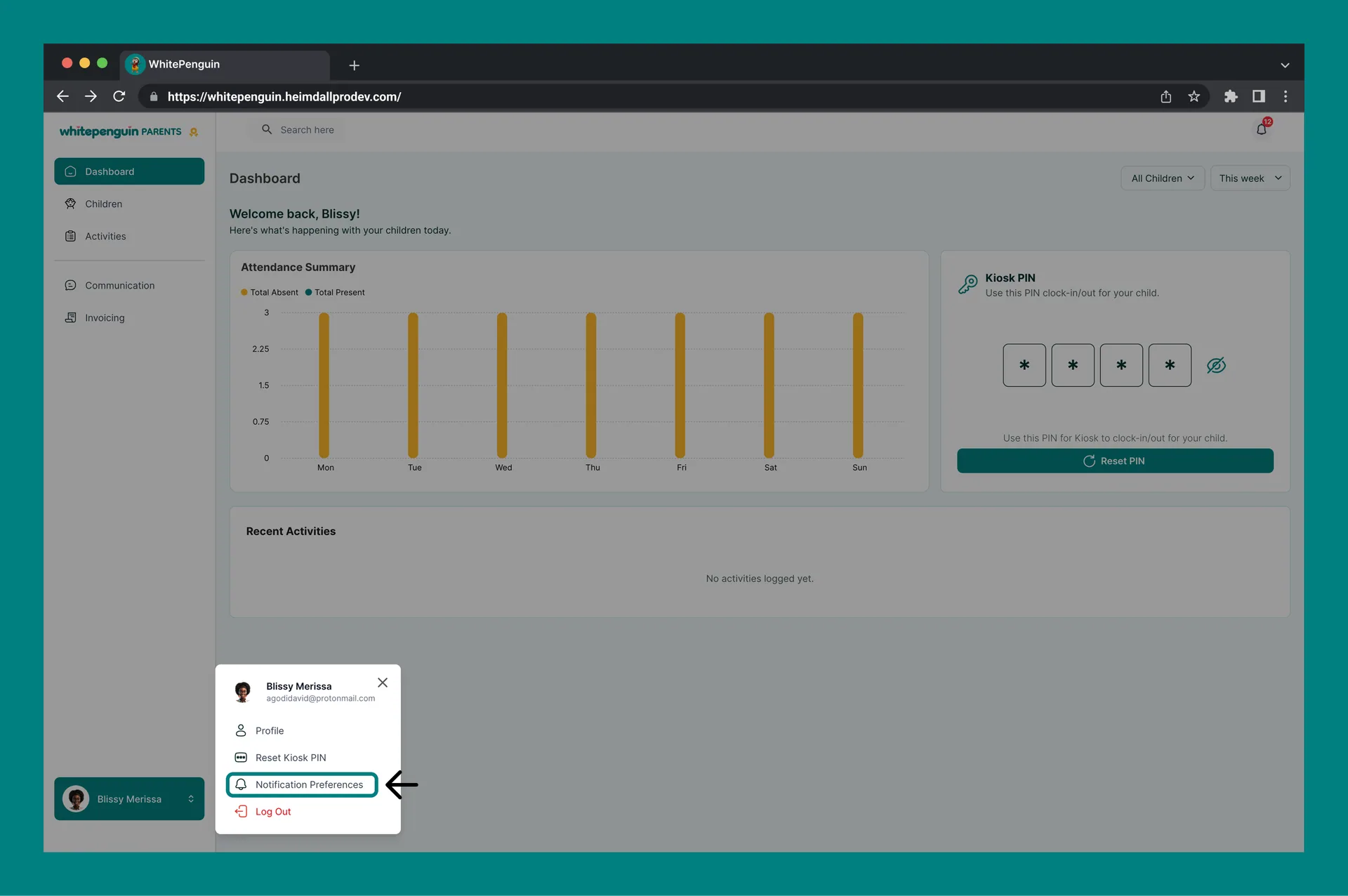
- Log in to the parent portal.
- Click your profile name at the bottom left of the screen.
- Select Notification Preferences from the menu.
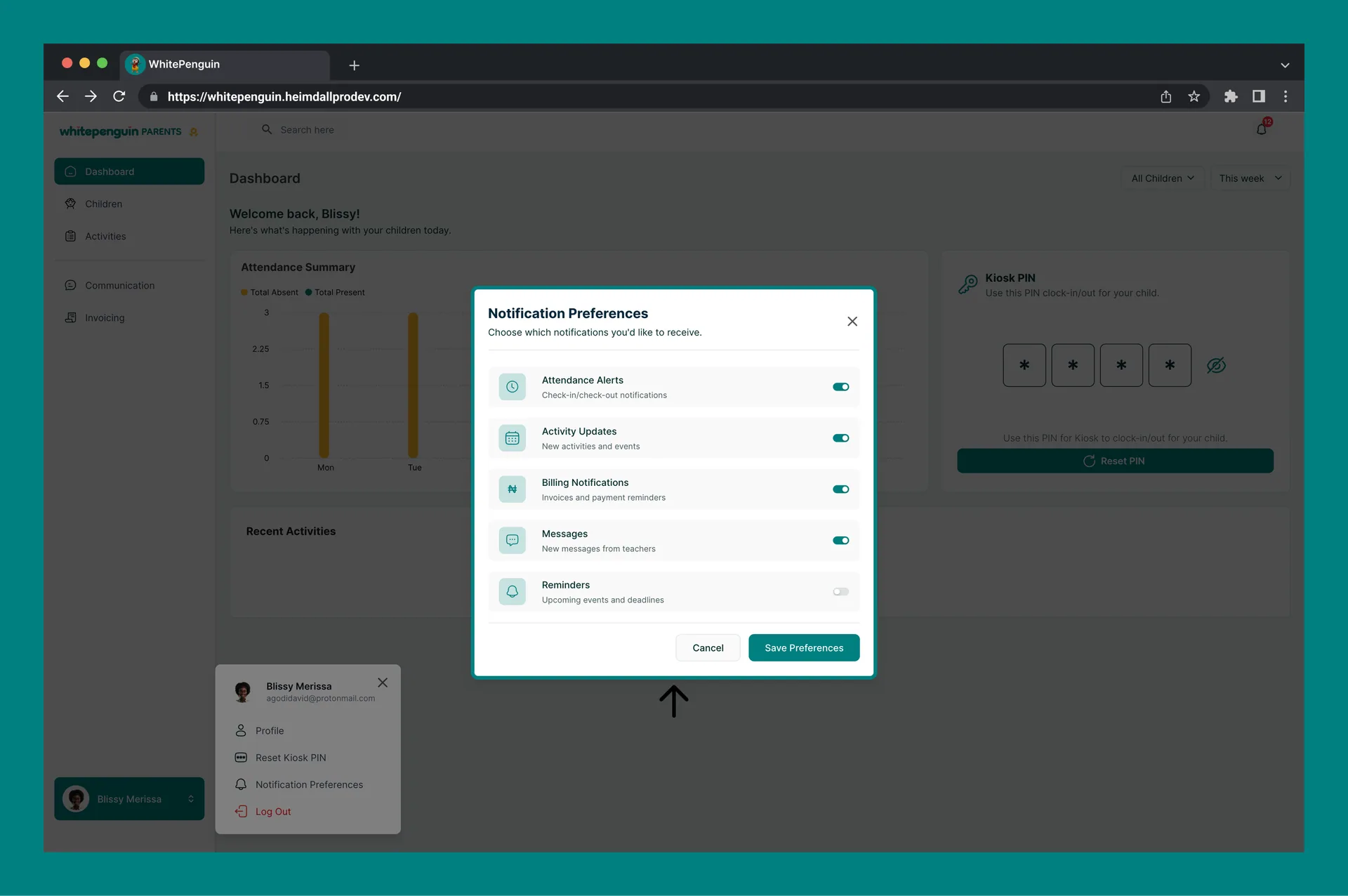
- A Notification Preferences pop-up will appear.
- Toggle each notification type on or off as preferred.
- Click Save Preferences to apply, or Cancel to discard.
Available Notification Types for Parents
| Notification Type | Description |
|---|---|
| Attendance Alerts | Check-in and check-out notifications for your child. |
| Activity Updates | Updates about new activities and events involving your child. |
| Billing Notifications | Invoices and payment reminders for school fees. |
| Messages | New messages received from teachers. |
| Reminders | Upcoming events and deadlines related to your child. |
Parents can also access Reset Kiosk PIN and Profile settings from the same profile menu. Notification Preferences is one of several quick-access options available to parents.
Tips
- Enable Email at minimum. Email is the most reliable notification channel. It is recommended to keep Email enabled for all user groups at all times to ensure critical updates are always delivered.
- WhatsApp requires WhatsApp Business. The WhatsApp notification channel works through WhatsApp Business integration. Make sure this is set up for your school before enabling it.
- Choose a report frequency that fits your parents. Daily reports keep parents highly informed but can feel overwhelming for some families. Weekly or Monthly can work well for schools with less frequent activity updates.
- Staff only see their classrooms. When a teacher has notifications enabled, they will only be notified about events and activities in the classrooms they are assigned to — not the whole school.
- Save after every change. Admin notification changes are not saved automatically. Always click Save Changes after toggling any channel or changing the report frequency.
- Staff save their own settings. When a staff member updates their notification preferences, their changes apply only to their own account and do not affect the school-wide settings configured by the admin.
FAQs
Only the Admin can configure notification settings for all user groups (Admin, Parents, and Staff) from the Notifications tab in Settings. Staff can only update their own personal notification preferences.
Three channels are available for admins to configure school-wide: Email, SMS, and WhatsApp. Staff members can configure Email and SMS for their own accounts. Each channel can be toggled on or off independently.
This setting controls how often automatic activity reports are sent to parents — Daily, Weekly, or Monthly. It is configured by the admin from the Notifications tab in Settings. The default is Daily.
Staff notifications are scoped to the classrooms the teacher is assigned to. A teacher will only receive alerts and updates for the children and activities in their assigned classrooms, not school-wide events.
WhatsApp notifications require a WhatsApp Business integration to be set up for your school. Simply toggling it on will not work unless the integration is already active. Contact your platform administrator if you're unsure whether this is configured.
No. Admin settings must be saved by clicking Save Changes at the bottom right of the Notifications page. Staff settings are saved when the staff member updates their own preferences in the staff portal.
Yes. You can toggle off all channels (Email, SMS, WhatsApp) for any user group. However, this is not recommended — disabling all channels means that user group will receive no alerts or updates from the school at all.
Last updated on
Account & Security
Learn how to change your account password and keep your WhitePenguin account secure. This feature is available to all users — Admins, Staff, and Parents.
Manage Public Links
Learn how to view and share your school's public links in WhitePenguin — including Tour Booking Page URLs and Admission Form links that can be sent to parents or embedded on your school's website.