

Manage Public Links
Learn how to view and share your school's public links in WhitePenguin — including Tour Booking Page URLs and Admission Form links that can be sent to parents or embedded on your school's website.
Overview
The Public Links section in WhitePenguin Settings gives admins access to all publicly shareable URLs generated by the system. These links are used in two key ways:
- Automatically — WhitePenguin includes these URLs in automated emails sent to parents (e.g., tour booking confirmations, admission invitations).
- Manually — Admins can copy and share these links directly, or embed them on the school's public website.
Public links are organized into two categories:
- Tour Booking Page — one link per tour event created by the school.
- Admission Form — one link per admission form created by the school.
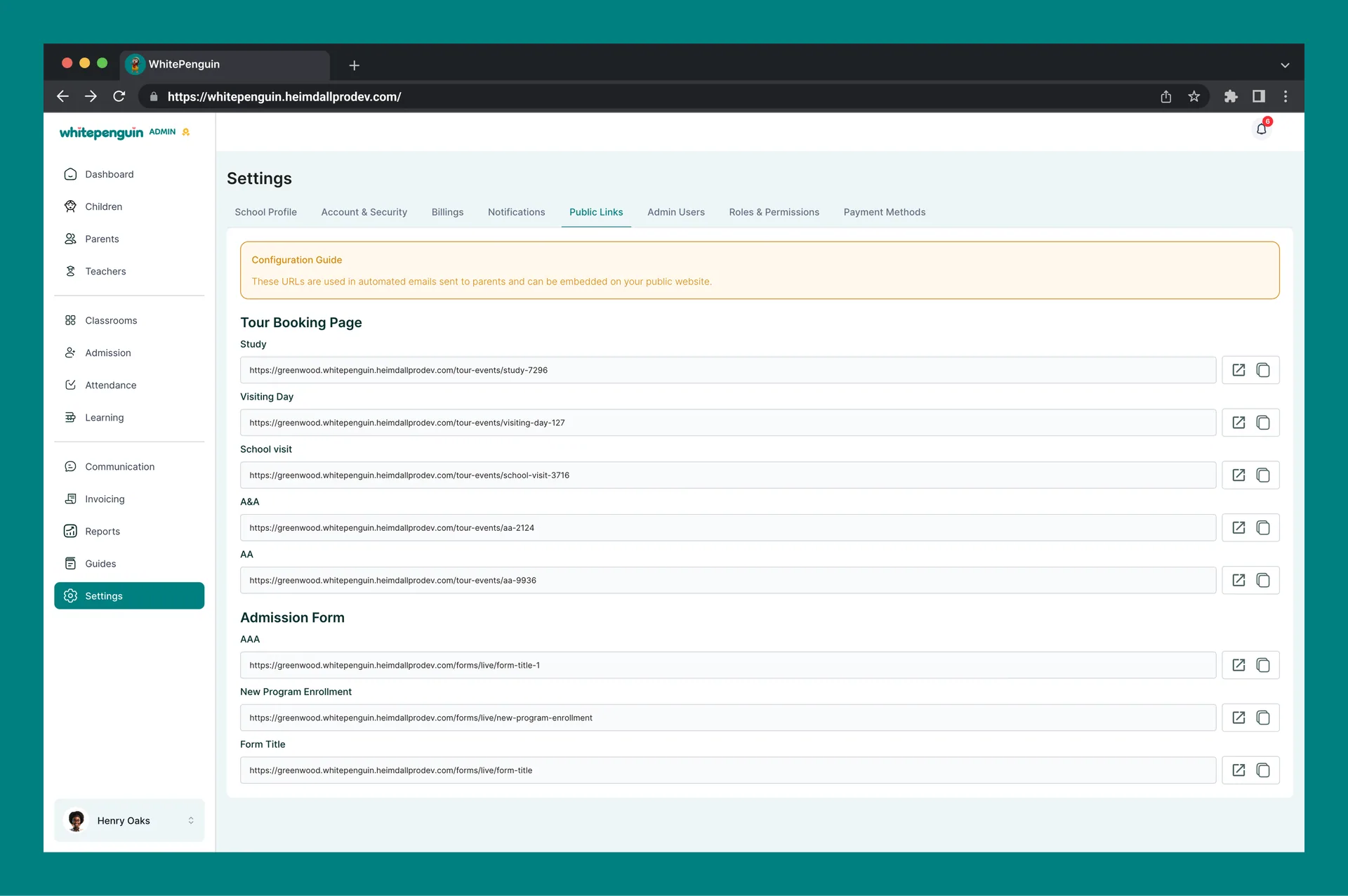
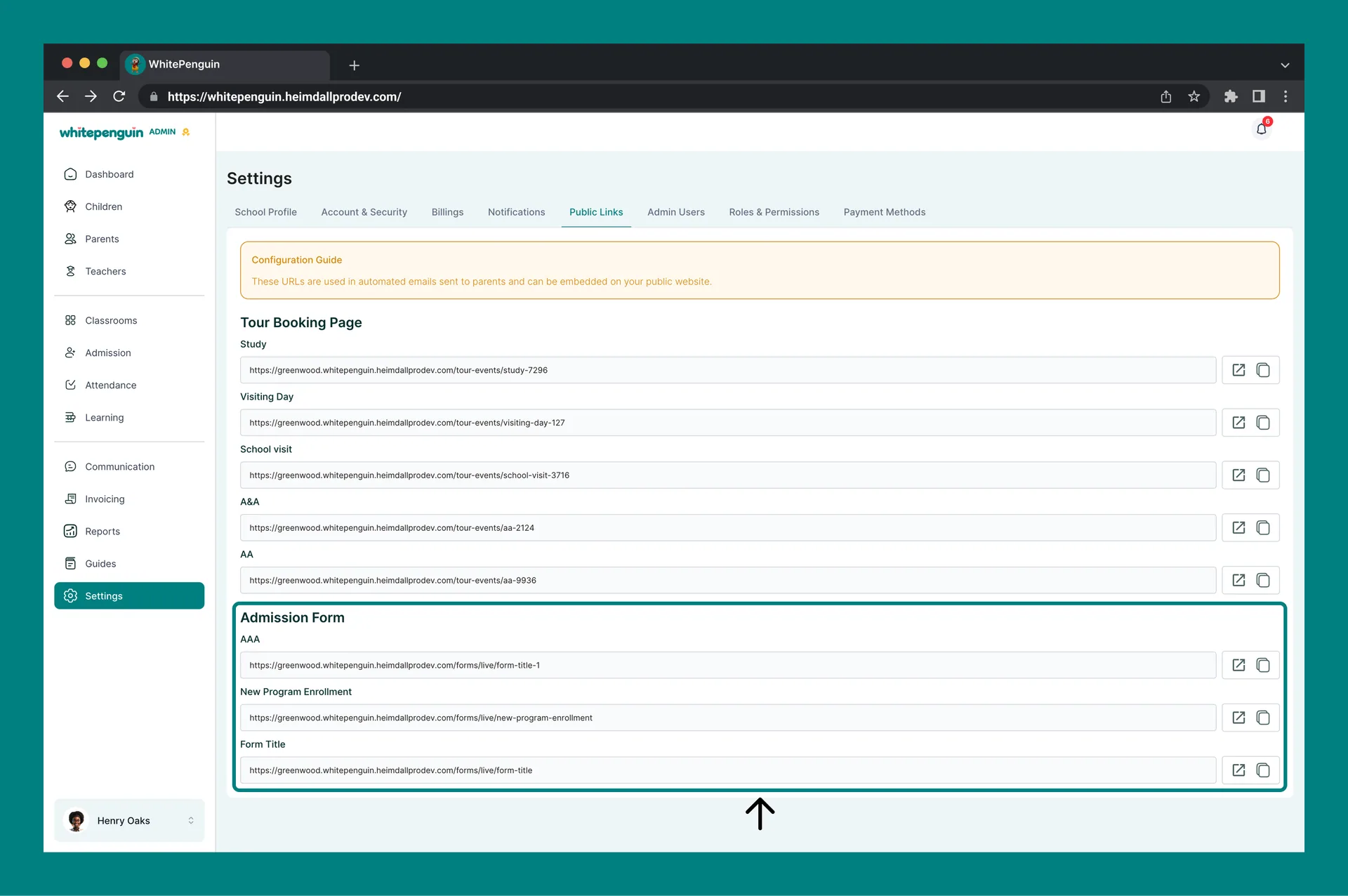
Configuration Guide: The Public Links page displays a notice at the top: "These URLs are used in automated emails sent to parents and can be embedded on your public website." Treat these links as public-facing — anyone with the link can access the tour booking page or admission form.
How to Access
- Log in to the WhitePenguin admin portal.
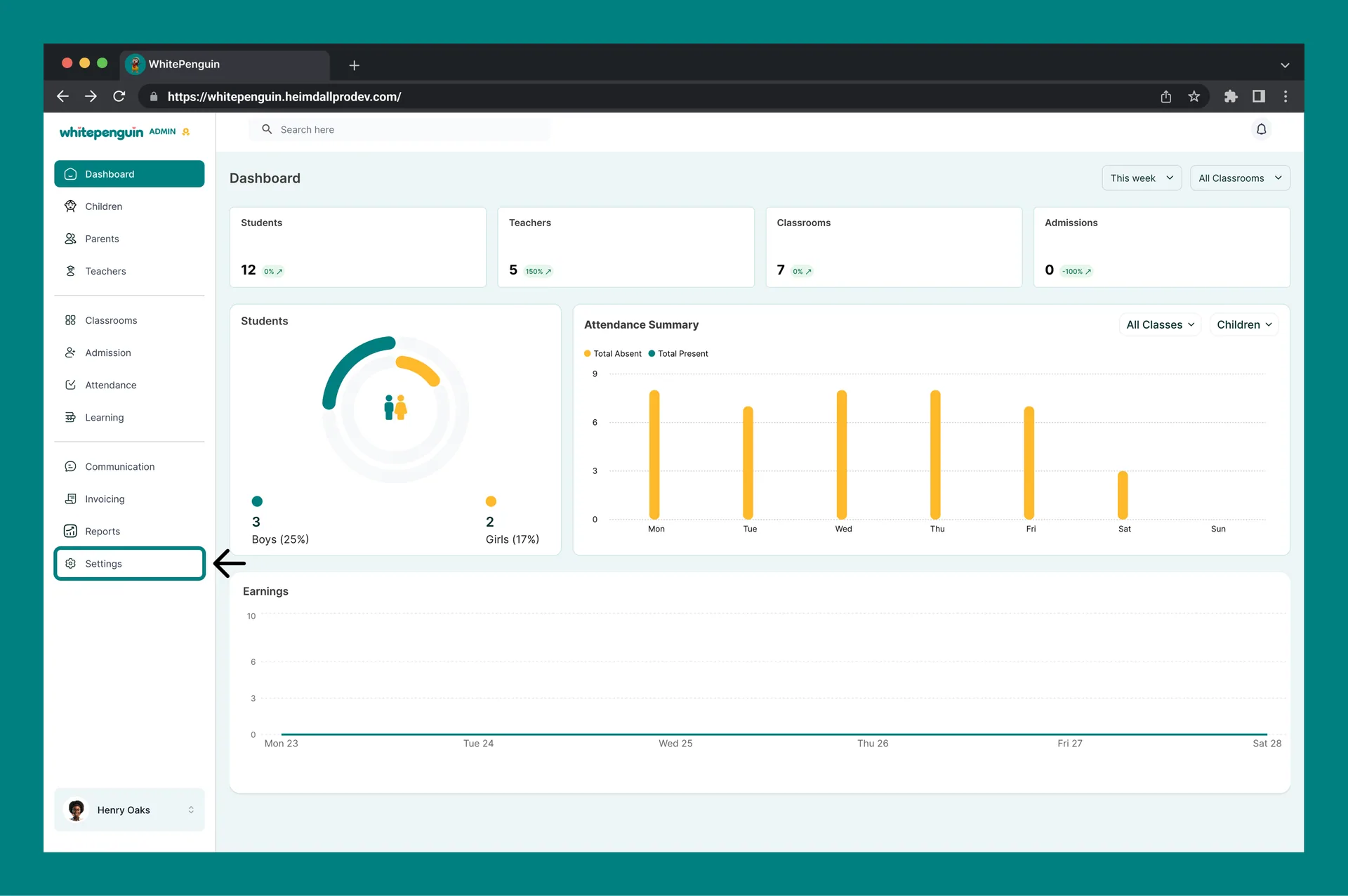
- Click Settings in the left sidebar.
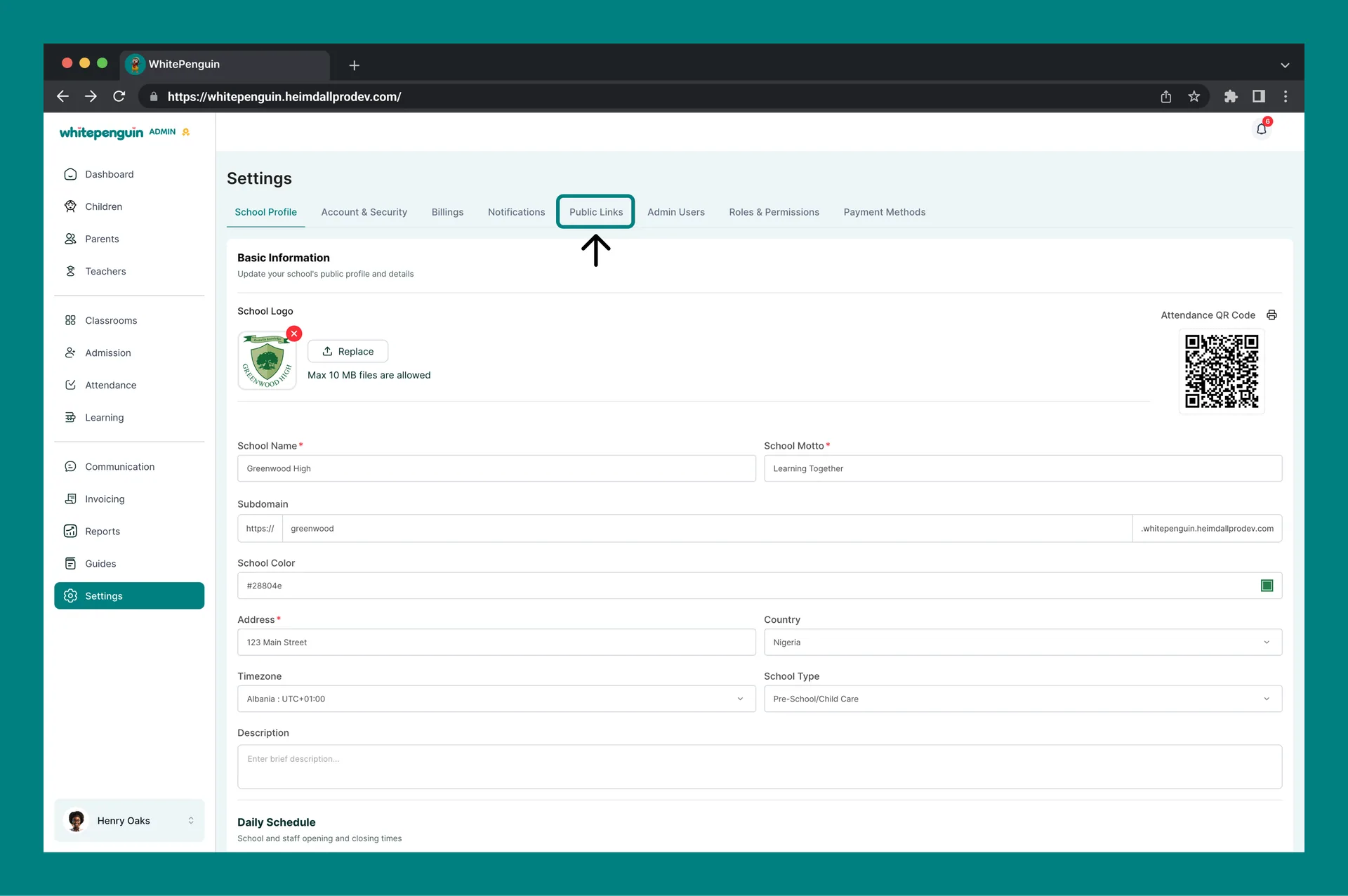
- Click the Public Links tab at the top of the Settings page.
- The Public Links page will load, showing all available Tour Booking Page and Admission Form links.
Tour Booking Page
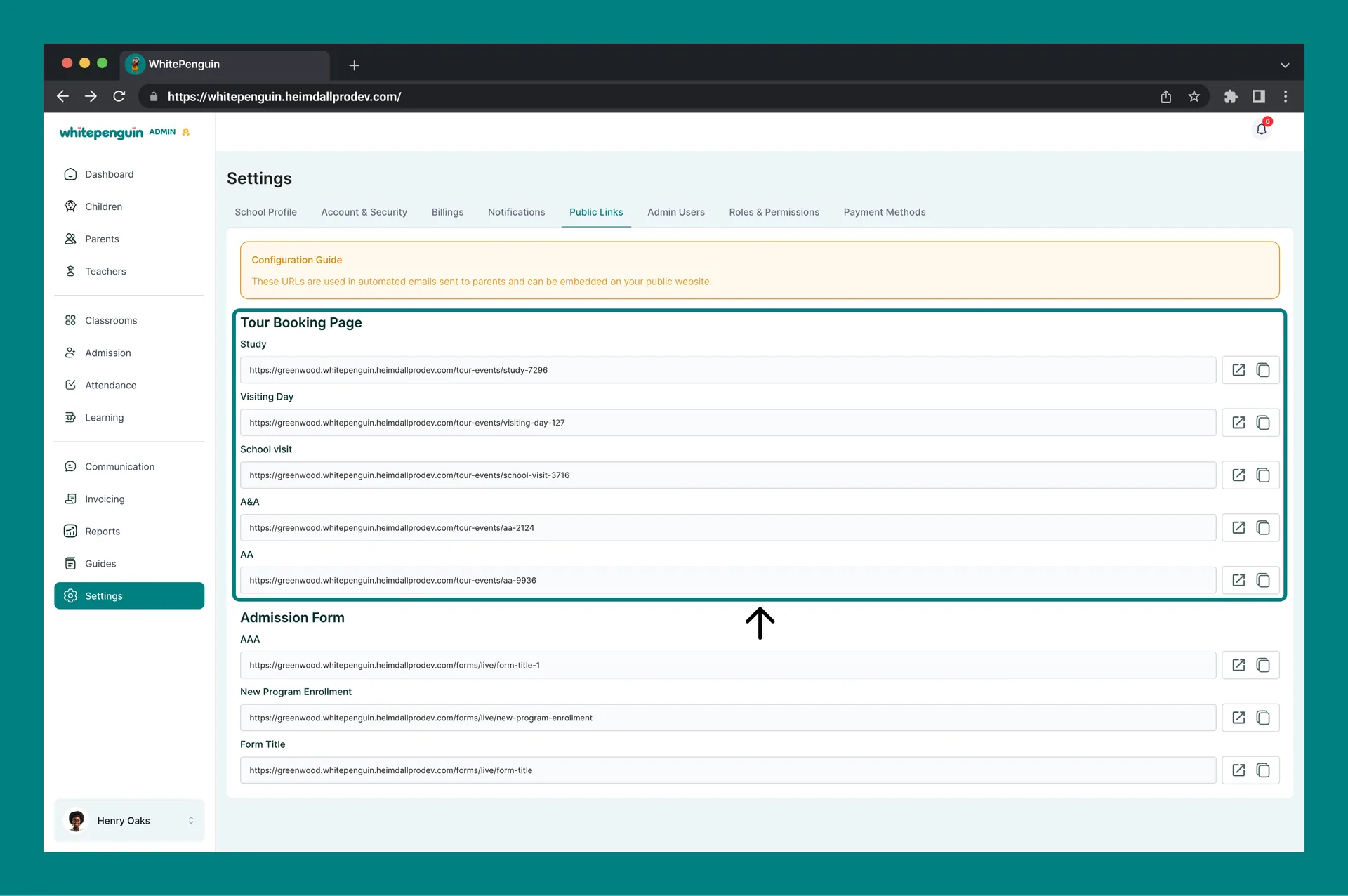
The Tour Booking Page section lists a public URL for each tour event that has been created in WhitePenguin. When parents receive an invitation or find the link, they can use it to view tour details and book a spot.
How Tour Links Are Generated
-
A Tour Booking Page link is automatically created each time a new tour event is added in WhitePenguin (e.g., via the Admission or Tours section).
-
Each tour type gets its own unique link.
-
Links follow this format:
https://[school-subdomain].whitepenguin.heimdallprodev.com/tour-events/[tour-name-slug]
Example Tour Links (from Greenwood High)
| Tour Name | Public URL |
|---|---|
| Study | https://greenwood.whitepenguin.heimdallprodev.com/tour-events/study-7296 |
| Visiting Day | https://greenwood.whitepenguin.heimdallprodev.com/tour-events/visiting-day-127 |
| School visit | https://greenwood.whitepenguin.heimdallprodev.com/tour-events/school-visit-3716 |
| A&A | https://greenwood.whitepenguin.heimdallprodev.com/tour-events/aa-2124 |
| AA | https://greenwood.whitepenguin.heimdallprodev.com/tour-events/aa-9936 |
Actions Available
For each tour link, two action icons are available on the right:
| Icon | Action |
|---|---|
| 🔗 Open (external link icon) | Opens the Tour Booking Page in a new browser tab so you can preview what parents see. |
| 📋 Copy (clipboard icon) | Copies the full URL to your clipboard so you can paste it into an email, message, or website. |
Admission Form
The Admission Form section lists a public URL for each admission form created in WhitePenguin. Parents can use these links to fill out and submit their child's admission application directly online.
How Admission Form Links Are Generated
-
An Admission Form link is automatically created each time a new admission form is built in WhitePenguin.
-
Each form gets its own unique public link.
-
Links follow this format:
https://[school-subdomain].whitepenguin.heimdallprodev.com/forms/live/[form-name-slug]
Example Admission Form Links (from Greenwood High)
| Form Name | Public URL |
|---|---|
| AAA | https://greenwood.whitepenguin.heimdallprodev.com/forms/live/form-title-1 |
| New Program Enrollment | https://greenwood.whitepenguin.heimdallprodev.com/forms/live/new-program-enrollment |
| Form Title | https://greenwood.whitepenguin.heimdallprodev.com/forms/live/form-title |
Actions Available
For each admission form link, the same two action icons are available:
| Icon | Action |
|---|---|
| 🔗 Open (external link icon) | Opens the live admission form in a new browser tab so you can preview it as a parent would see it. |
| 📋 Copy (clipboard icon) | Copies the full URL to your clipboard for sharing via email, WhatsApp, social media, or embedding on your website. |
Tips
- Links are auto-generated — you don't need to create them manually. Whenever a new tour event or admission form is created in WhitePenguin, its public link appears here automatically. Just come to Public Links to find and share it.
- Use the Copy button, not manual typing. Always use the clipboard (Copy) icon to copy URLs — this prevents typos and ensures the exact link is shared.
- Preview before sharing. Use the Open (external link) icon to preview each Tour Booking Page or Admission Form as a parent would see it before distributing the link publicly.
- Embed links on your school website. These public URLs can be added to your school's website as button links or hyperlinks, allowing prospective parents to book tours or apply directly from your site.
- Share via WhatsApp or email. Copy the link and paste it directly into a WhatsApp message, email, or any other communication channel to share it with parents instantly.
- Each tour and form has its own unique link. If you have multiple tours or forms, make sure you copy the correct link for the one you want to share.
- Links remain active as long as the tour or form is active. If a tour event or form is deleted or deactivated in WhitePenguin, its link may no longer work.
FAQs
No. Public links are automatically generated by WhitePenguin whenever a new tour event or admission form is created. You don't need to do anything extra — just go to Settings → Public Links to find and share the link.
Click the clipboard icon on the right side of the URL you want to share. The link will be copied to your clipboard. You can then paste it into an email, WhatsApp message, SMS, or anywhere else.
Yes. These public URLs are designed to be embedded on your school's website. Copy the link and add it to your website as a hyperlink or button (e.g., "Book a Tour" or "Apply Now"). Parents clicking it will be taken directly to the tour booking page or admission form.
Click the external link icon (open icon) next to the URL. This opens the Tour Booking Page or Admission Form in a new browser tab exactly as a parent would see it, so you can verify it looks correct before sharing.
Try refreshing the Public Links page. If the tour or form was just created, it may take a moment to appear. If it still doesn't show up after refreshing, verify that the tour event or admission form was saved successfully in the relevant section of the admin portal.
If a tour event or admission form is deleted or deactivated in WhitePenguin, its public link will likely no longer work and may return an error page for parents who try to access it. Always notify parents if a previously shared link is no longer active.
Yes. WhitePenguin automatically includes relevant public links in emails sent to parents — for example, tour booking confirmation emails and admission invitation emails. The Public Links page also lets you share or embed these URLs manually whenever needed.
These are public links — anyone with the URL can access the Tour Booking Page or Admission Form without needing a WhitePenguin account. This is intentional, as prospective parents (who don't yet have an account) need to be able to book tours and submit admission forms.
Last updated on
Customize Notifications
Learn how to configure notification channels for admins, parents, and staff in WhitePenguin — including email, SMS, and WhatsApp, and how often daily reports are sent to parents.
Manage Admin Users
Learn how to invite new admin users, manage their roles and permissions, and control their access to your WhitePenguin school account.