

Using Quick Actions
Discover how to use Quick Actions to jump directly to common tasks — like viewing children, checking attendance, browsing curriculum, or posting announcements — in just one click.
Overview
Quick Actions are a set of shortcuts available inside the Search menu that allow Admin users to navigate directly to the most frequently used sections of the platform — without scrolling through the sidebar or opening multiple pages. They are designed to save time and reduce the number of clicks needed to reach key areas of your school's admin panel.
Quick Actions appear automatically the moment you open the Search menu, before you start typing anything.
How to Access Quick Actions
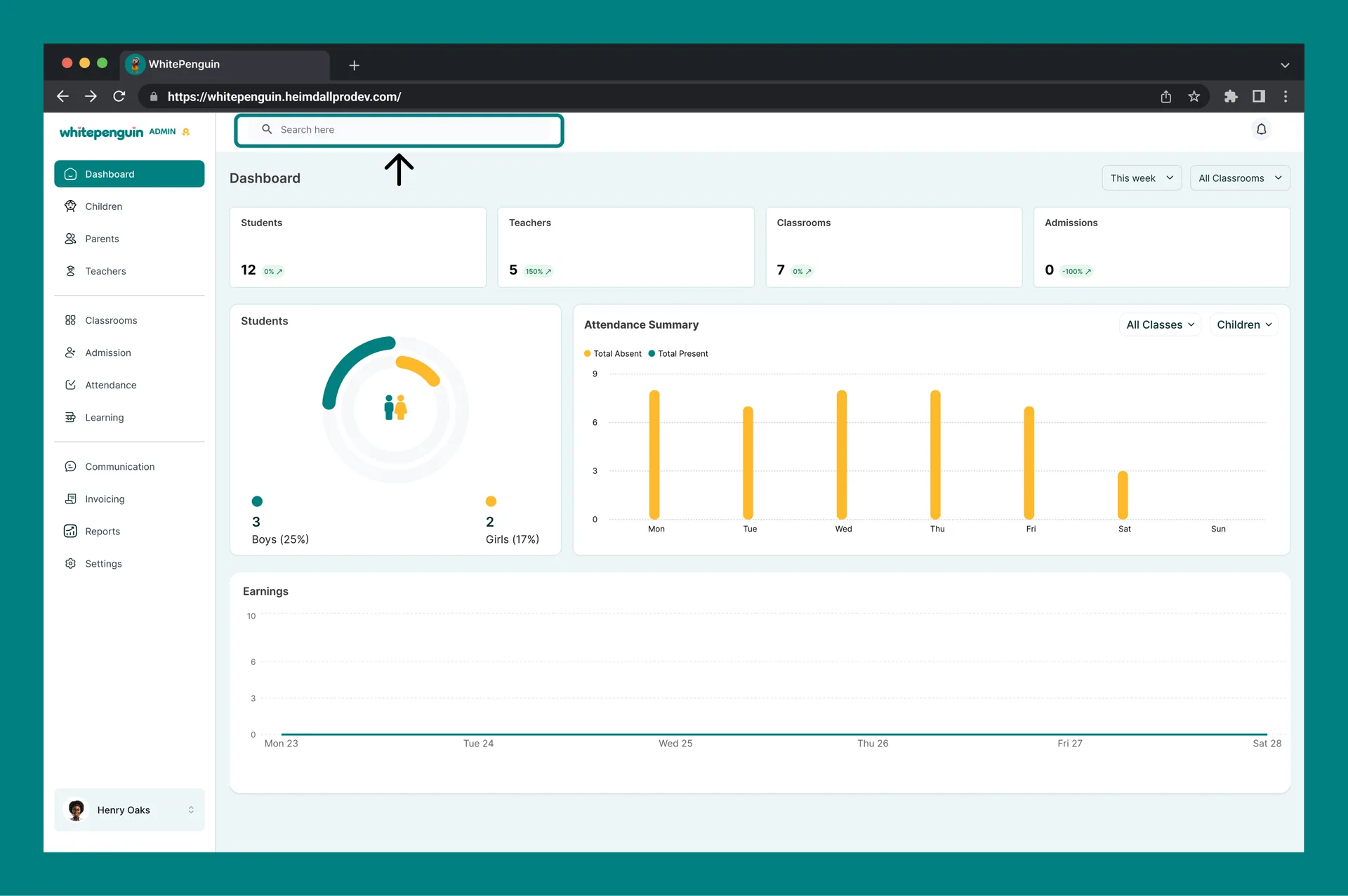
- Click the Search bar at the top left of the admin header (labeled "Search here").
- The Search menu modal will open.
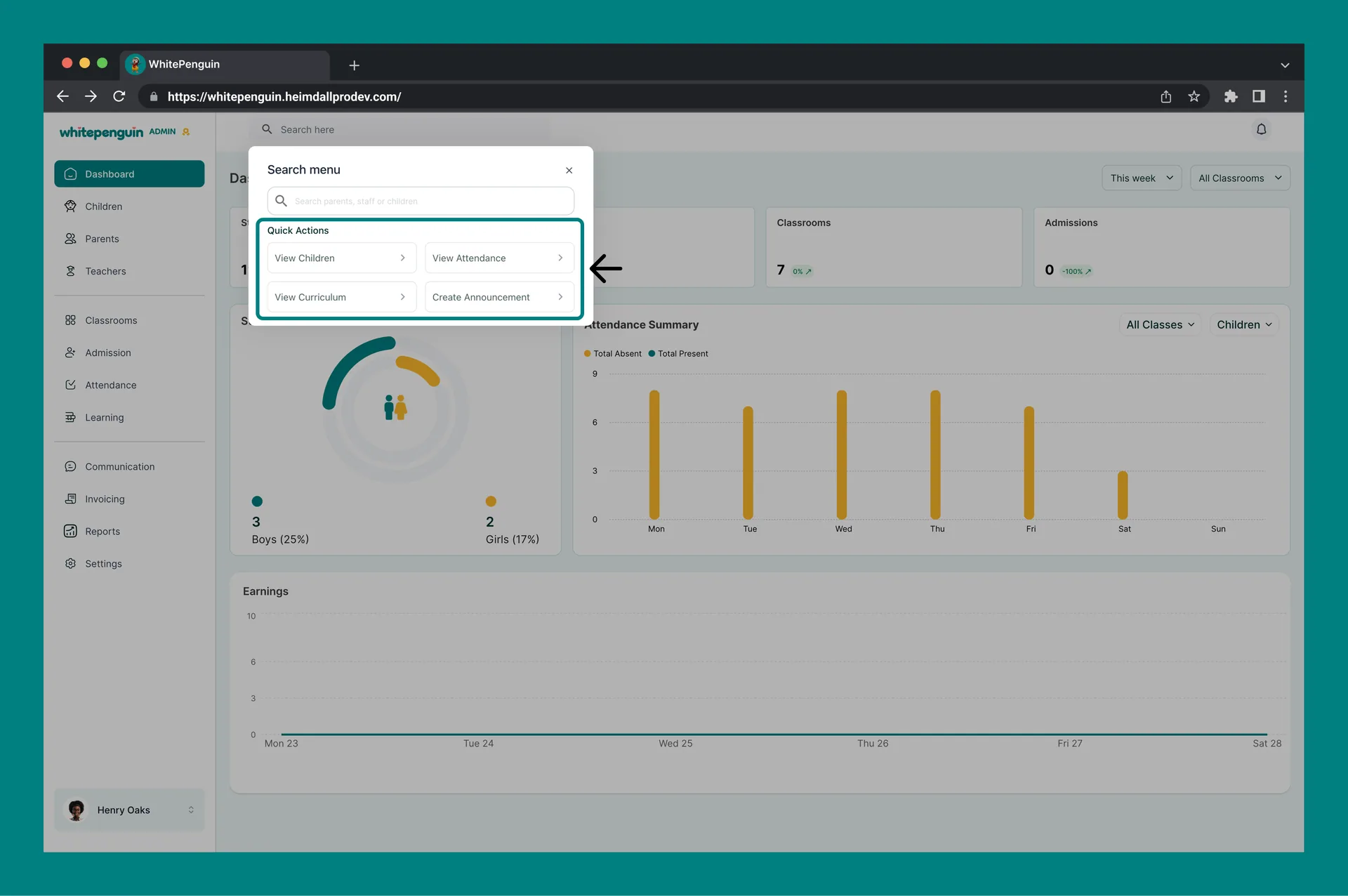
- Before you type anything, the Quick Actions panel appears at the top of the modal, displaying all available shortcuts.
- Click any Quick Action button to navigate instantly.
Quick Actions are available from any page in the admin panel. You do not need to be on the Dashboard to use them.
Types of Quick Actions & Descriptions
The Search menu currently supports 4 Quick Actions, displayed in a 2×2 grid:
| Quick Action | Where it takes you | When to use it |
|---|---|---|
| How to Add a Children Profile | The full list of enrolled children (Students section) | When you need to quickly check, search, or manage a child's profile |
| Admin Attendance Sheet | The Attendance section for logging and reviewing attendance records | When you want to check today's attendance or review past records |
| Add & Manage Curriculum | The Curriculum section under Learning management | When you need to review or manage subjects, milestones, or lesson plans |
| Create Announcements | The Create Announcement form in the Communication section | When you want to send a school-wide or classroom-specific announcement to parents or staff |
Each Quick Action button has a → arrow icon on the right, indicating it will navigate you to a new page. Clicking it will close the search modal and redirect you immediately.
Tips for Using Quick Actions Efficiently
- Use View Children as the fastest way to pull up a student record during a parent call or meeting.
- Use View Attendance every morning to quickly check who has been marked present or absent for the day.
- Use Create Announcement to send urgent messages to parents without navigating through Communication → Announcements manually.
- If you start typing in the search bar, the Quick Actions panel is replaced by search results. Clear the search field to bring Quick Actions back.
FAQs
Quick Actions appear inside the Search menu modal, which opens when you click the Search bar at the top left of the admin header. They are shown automatically before you start typing — no search query is needed.
Yes. Once you begin typing a search query, the Quick Actions panel is replaced by live search results. To bring Quick Actions back, simply clear the text in the search field.
Currently, Quick Actions are predefined by the system and cannot be customized or reordered. The four available actions — View Children, View Attendance, View Curriculum, and Create Announcement — cover the most common admin tasks.
You will be taken directly to the Create Announcement form inside the Communication section. From there you can write your announcement, select the target audience (all parents, specific classrooms, etc.), and publish it.
Yes, the View Attendance Quick Action takes you to the exact same Attendance section accessible from the left sidebar. It is simply a faster way to get there without scrolling through the navigation menu.
The View Curriculum Quick Action navigates to the Learning section where you can manage subjects, milestones, and lesson plans assigned to your classrooms. It is the same as clicking Learning in the sidebar.
Last updated on
Using Full Search Feature
Discover how to use the Full Search feature to quickly find any parent, teacher, or child in your school — all from a single search bar.
Using Notification Panel
Stay up-to-date on the most important things happening at your school — new messages, student enrollments, and more — all from the Notification Panel at the top right of your admin header.