

Activities Dashboard
Learn how to use the Activities Dashboard in WhitePenguin — monitor real-time stats, log new activities, and understand what admins and staff can see based on their role.
Overview
The Activities Dashboard is the central hub for tracking daily child activities across classrooms. It gives both admins and staff a real-time snapshot of what's happening throughout the school day — from nap times and meals to medications, photos, and bathroom logs.
The dashboard is split into two key areas:
- Summary cards — at-a-glance stats for the current period
- Recent Activities feed — a live log of all activities recorded
Six activity types can be logged directly from the dashboard:
| Activity | Description |
|---|---|
| 🌙 Nap | Log a child's nap or sleep session. |
| 🍽️ Meal | Record meal times and food consumed. |
| 💧 Water | Track water or fluid intake. |
| 📷 Photo | Upload and share photos with parents. |
| 💊 Medication | Log medication administered to a child. |
| 🚽 Bathroom | Record bathroom visits and notes. |
Who Can Access the Activities Dashboard?
Access is based on custom roles. Your school admin creates custom roles for all users and controls exactly which permissions each role has — View, Edit, Create, and Delete — for every section of the system, including Activities.
What you can see and do on the Activities Dashboard depends entirely on the custom role assigned to you:
- Roles with View permission for Activities can see the dashboard stats and Recent Activities feed.
- Roles with Create permission can log new activity entries.
- Roles with Edit or Delete permission can update or remove existing entries.
- Classroom and child visibility follows the role's permissions and the user's classroom assignments.
Where to manage roles: Go to Settings → Roles & Permissions, then click + Create Role to build a new custom role, or select an existing role to toggle its permissions. Super Admin permissions are fixed and cannot be edited.
Admin View — How to Access
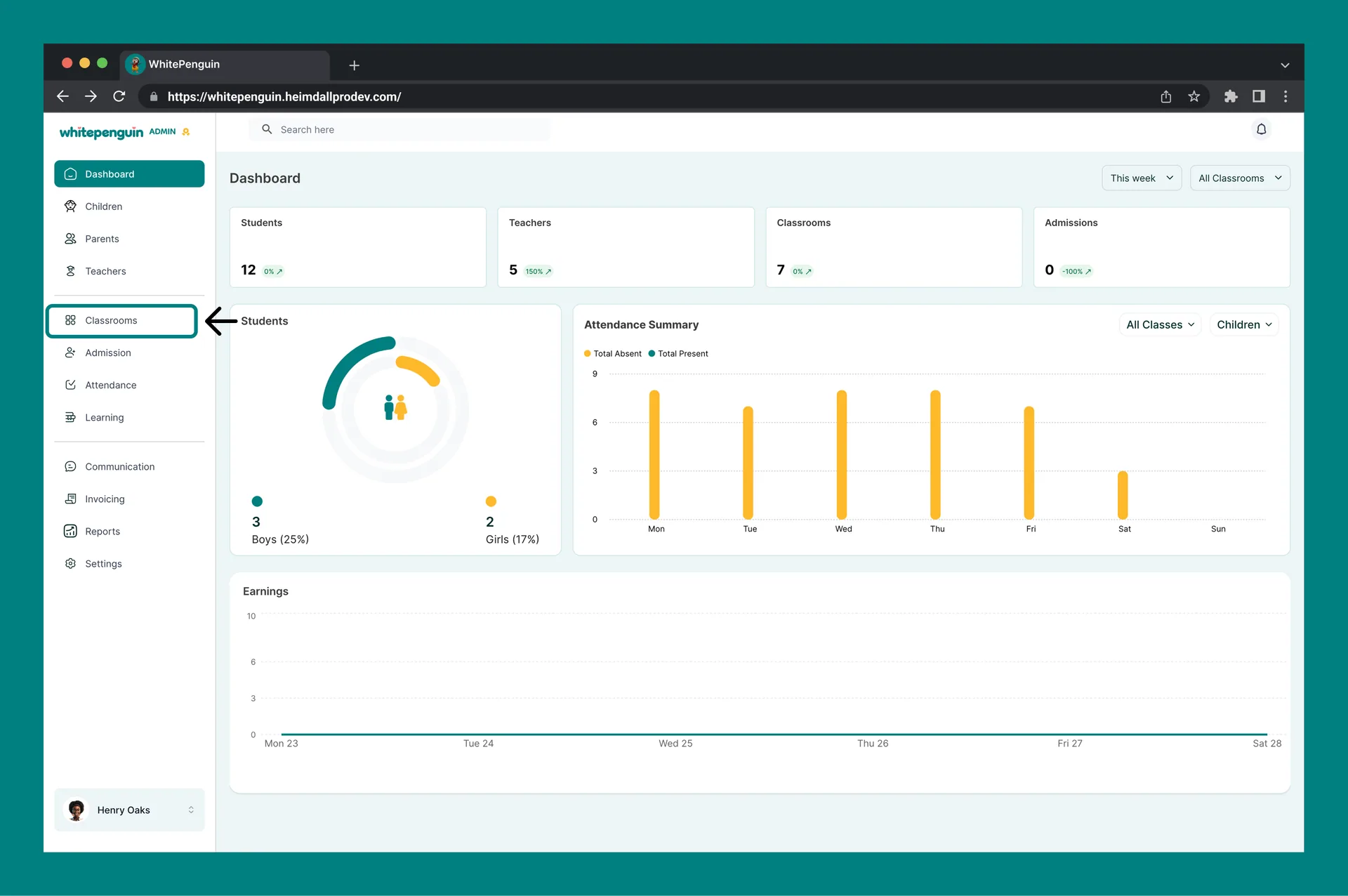
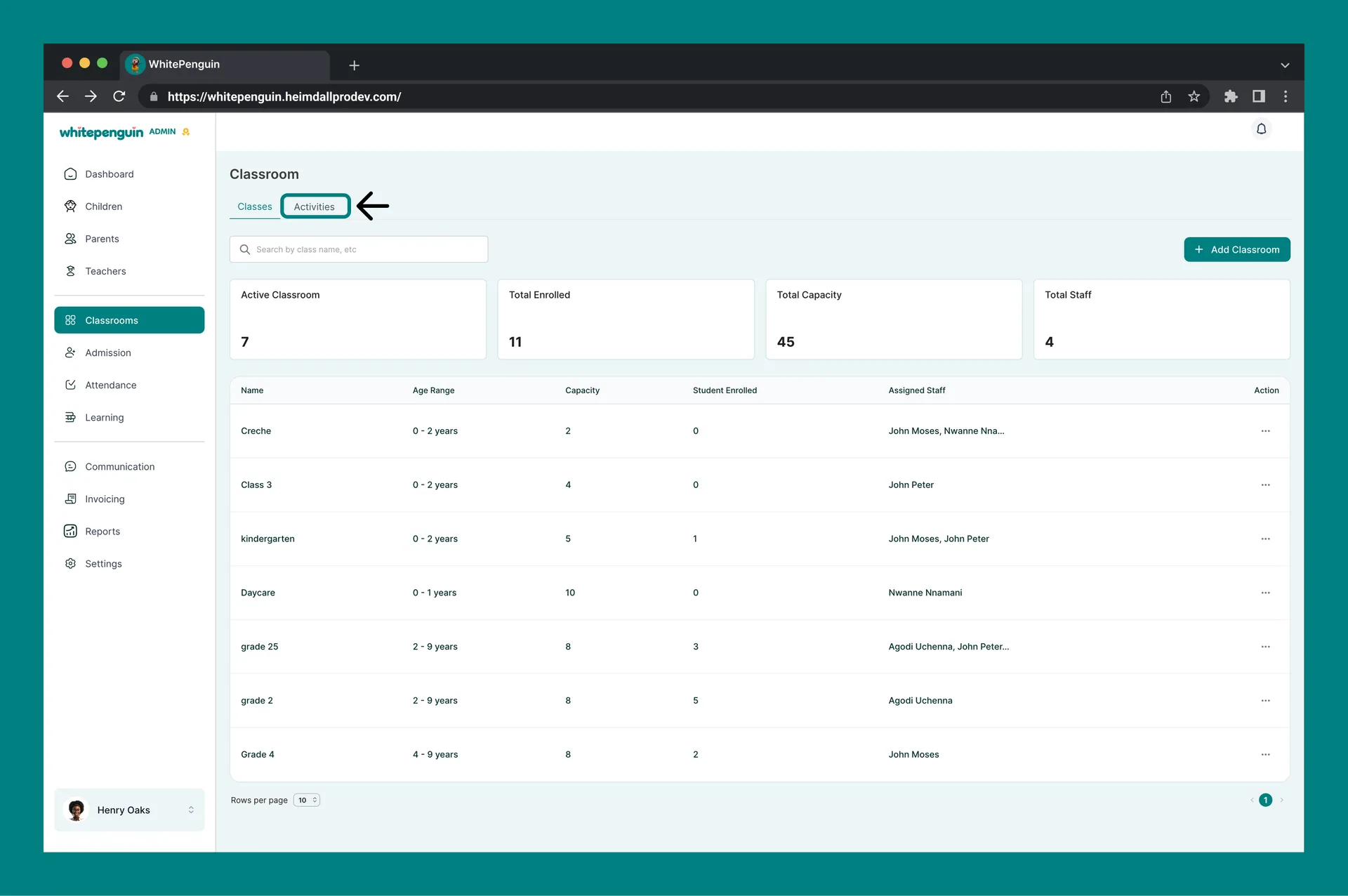
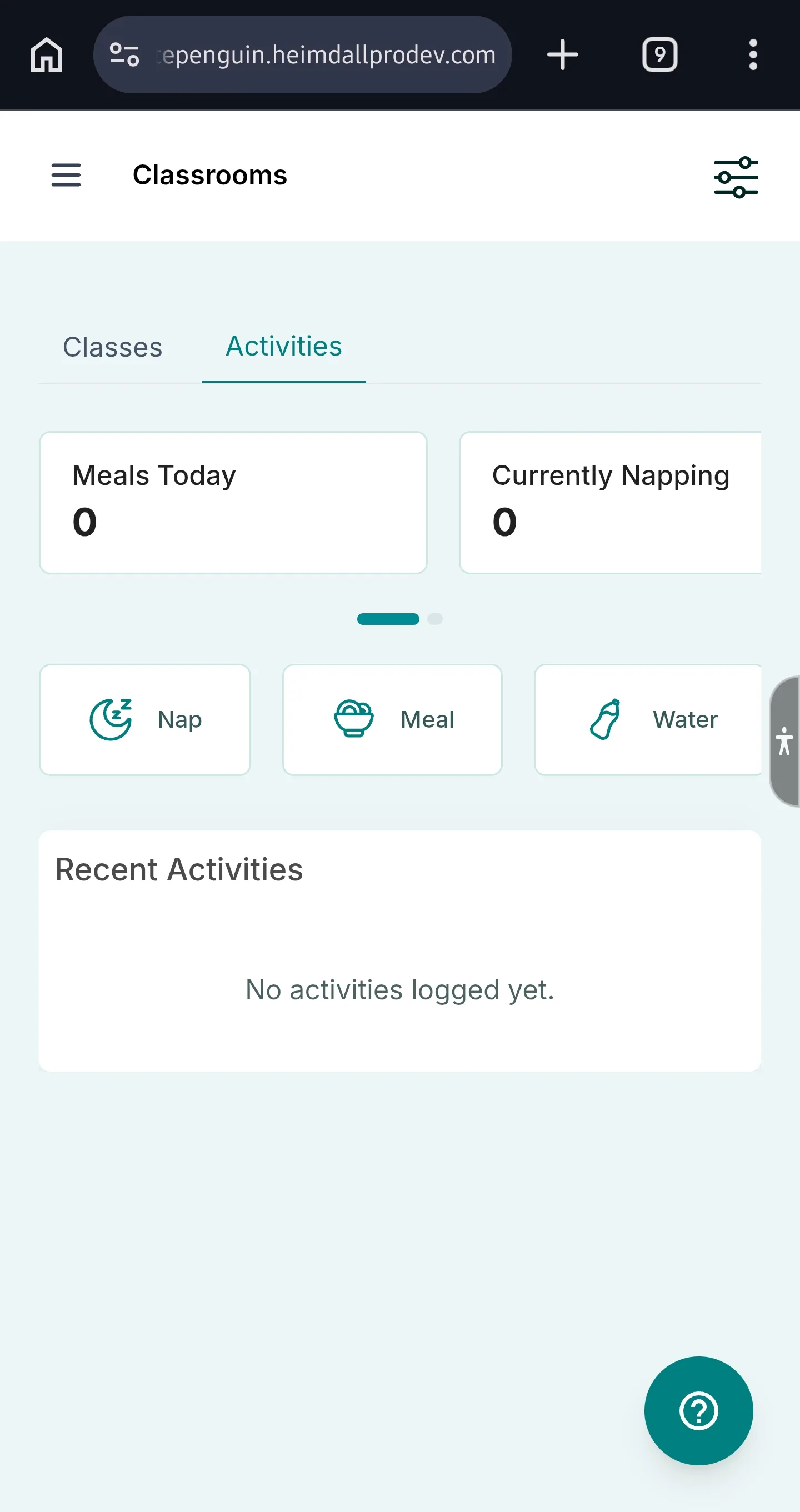
Admins access the Activities Dashboard from the Classrooms section:
- Click Classrooms in the left sidebar.
- Click the Activities tab at the top of the Classrooms page.
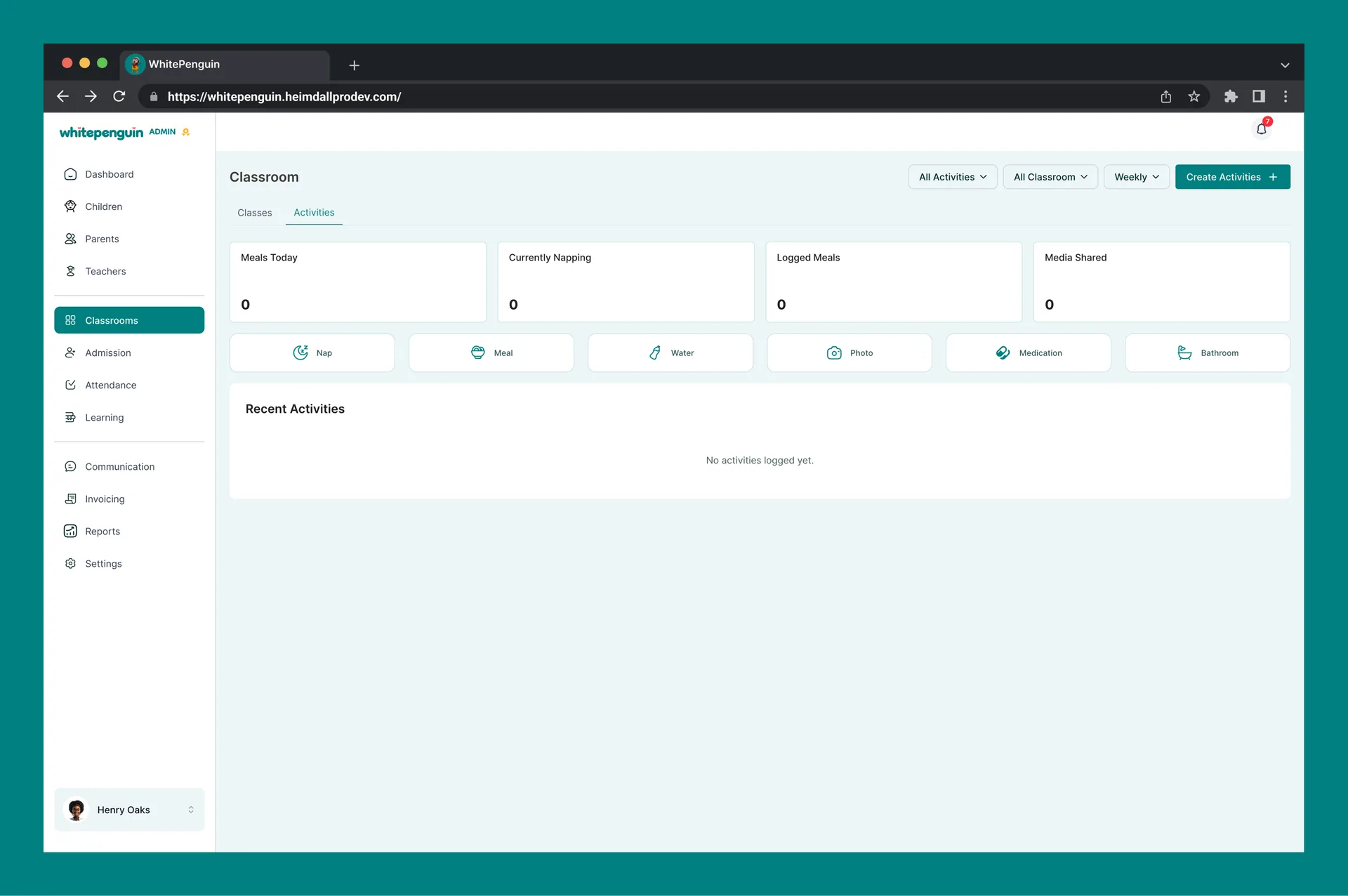
- The Activities Dashboard will load showing all activity stats and the Recent Activities feed.
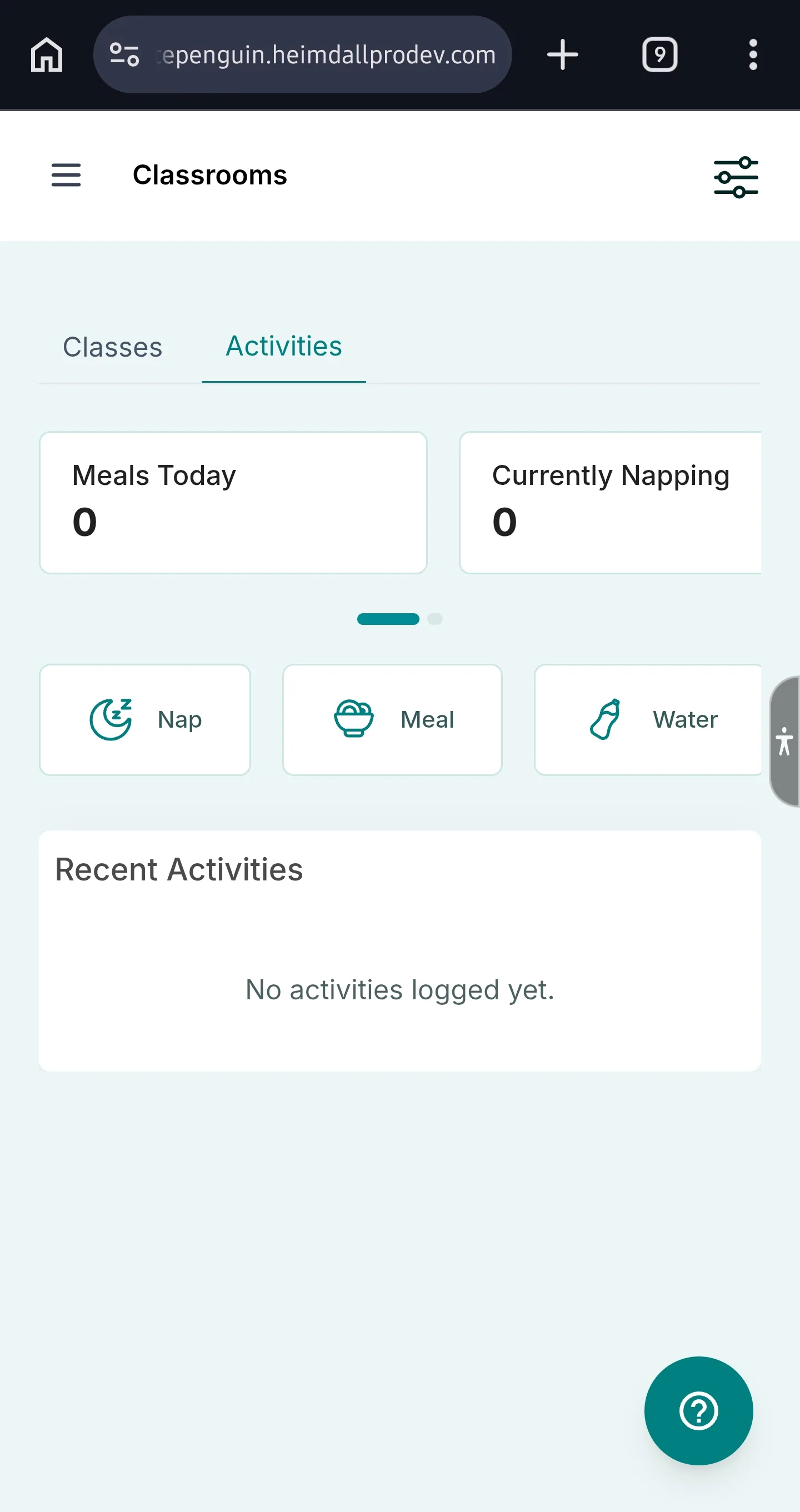
Admin Dashboard Features
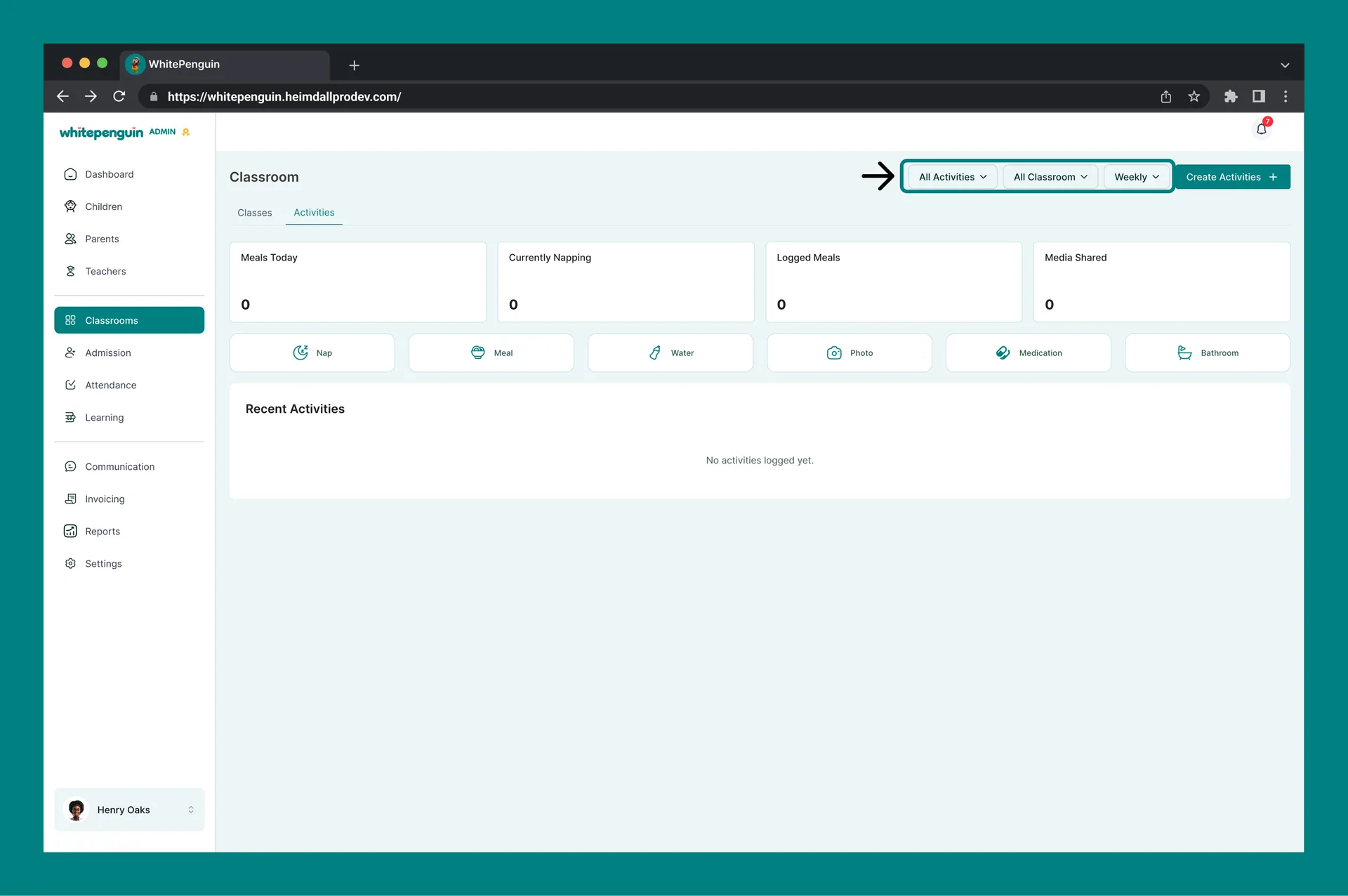
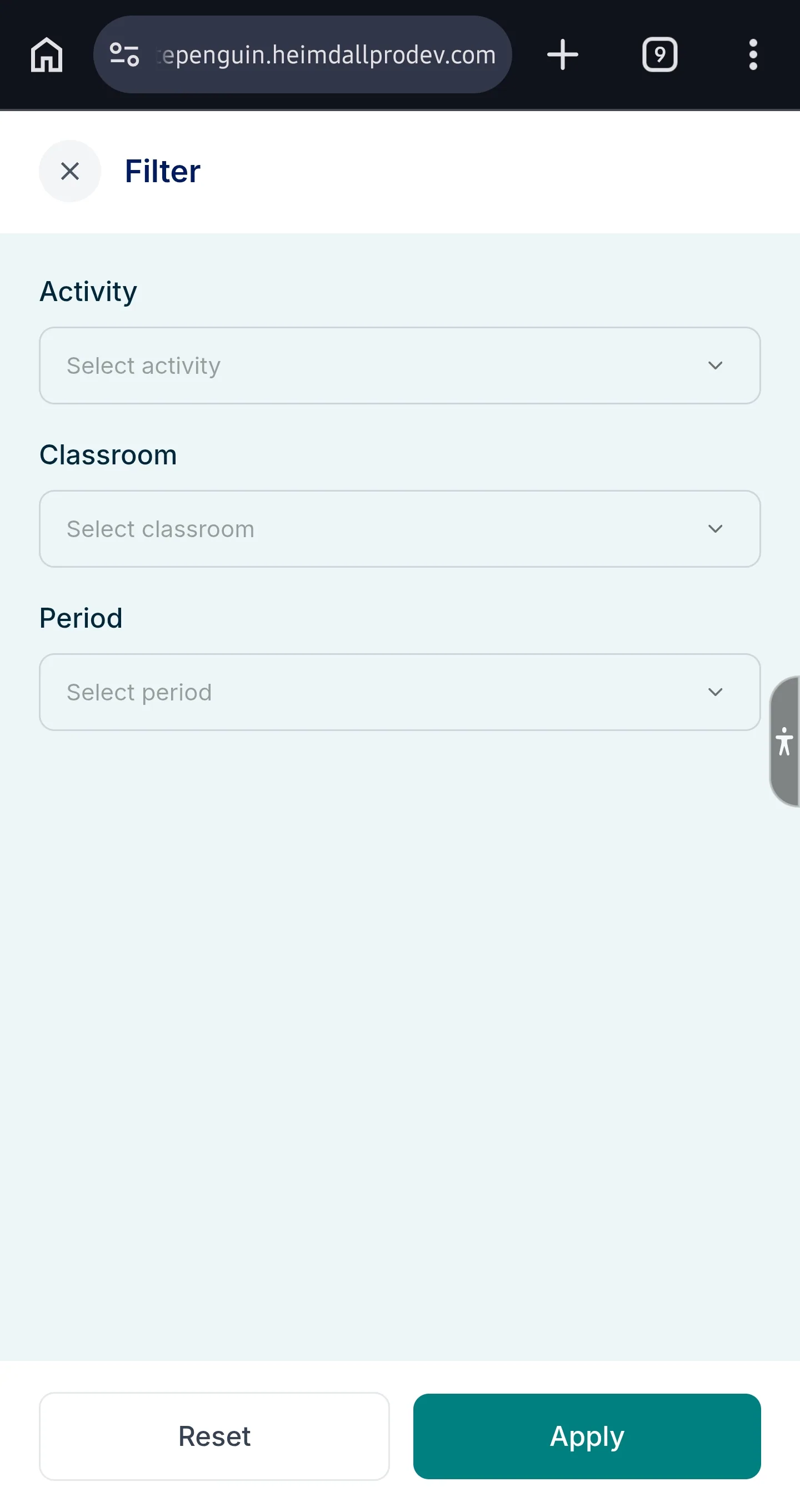
At the top, admins can filter the dashboard using two dropdowns:
| Filter | Options |
|---|---|
| Activity Type | All Activities, Nap, Meal, Water, Photo, Medication, Bathroom |
| Classroom | All Classrooms, or filter by a specific classroom |
| Time Period | Weekly, or other available time periods |
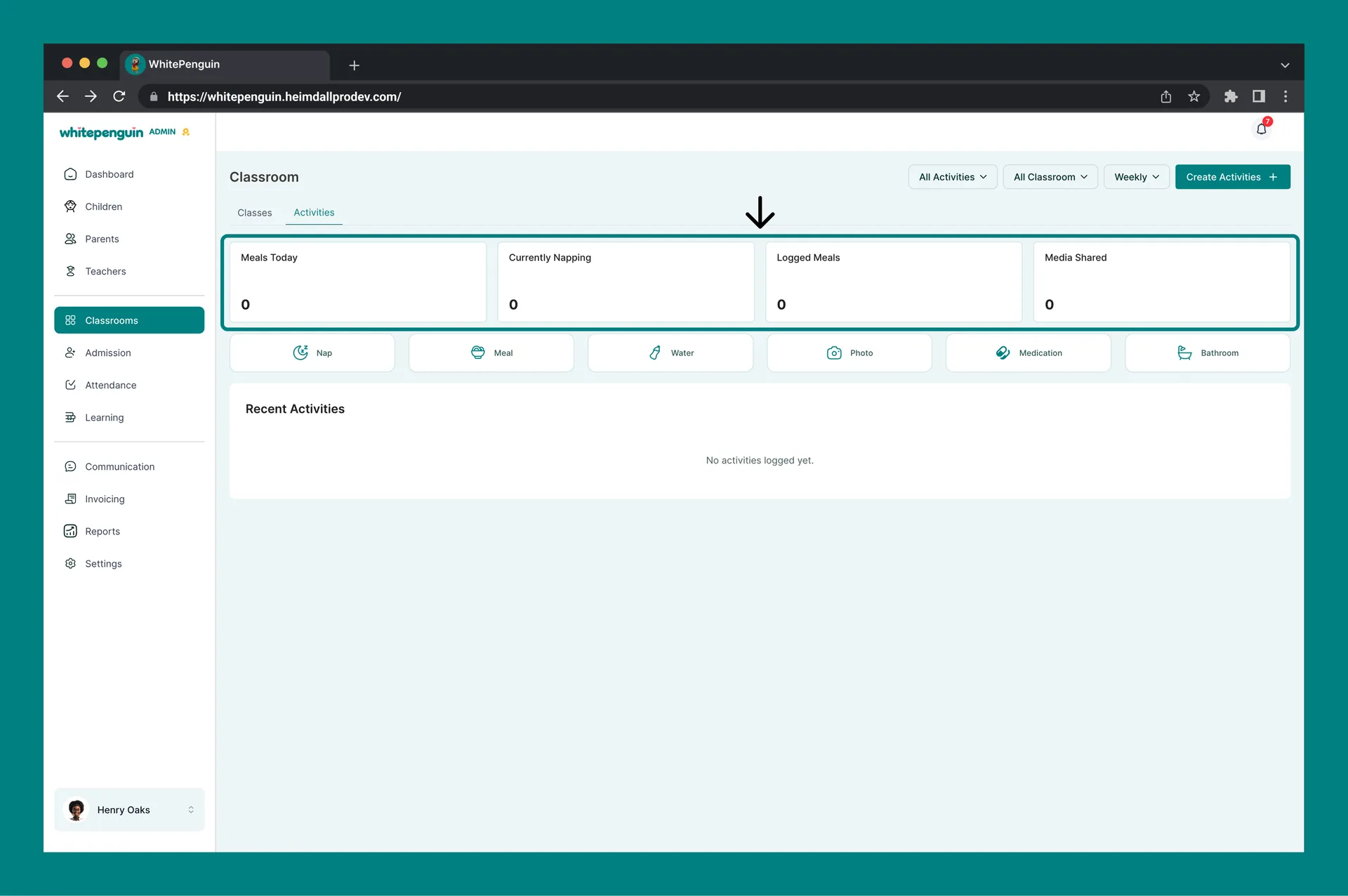
The four summary cards show:
| Card | What It Shows |
|---|---|
| Meals Today | Total meals logged today across all classrooms. |
| Currently Napping | Number of children currently in an active nap session. |
| Logged Meals | Total meal activity entries logged in the selected period. |
| Media Shared | Total photos or media shared with parents in the selected period. |
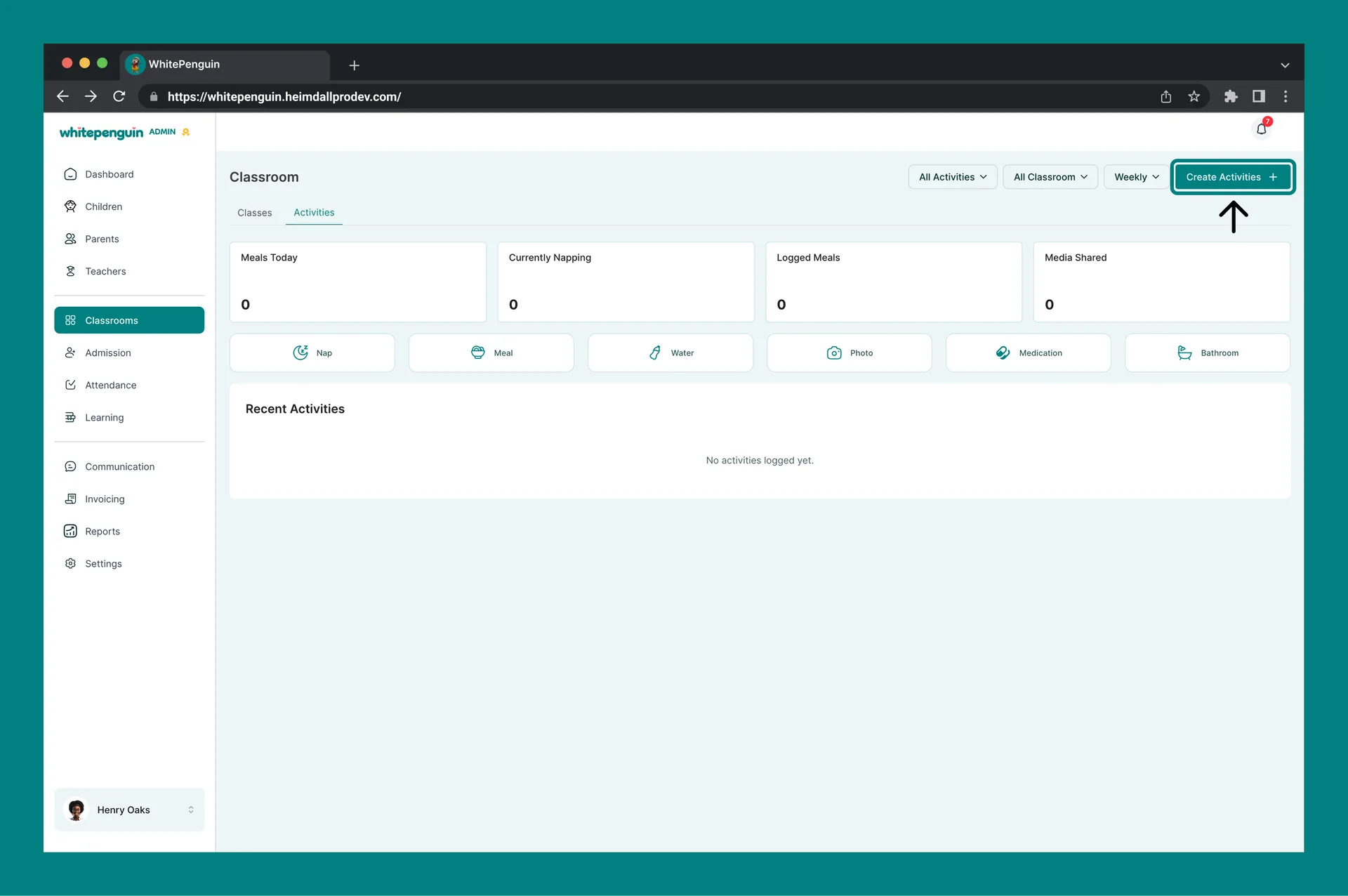
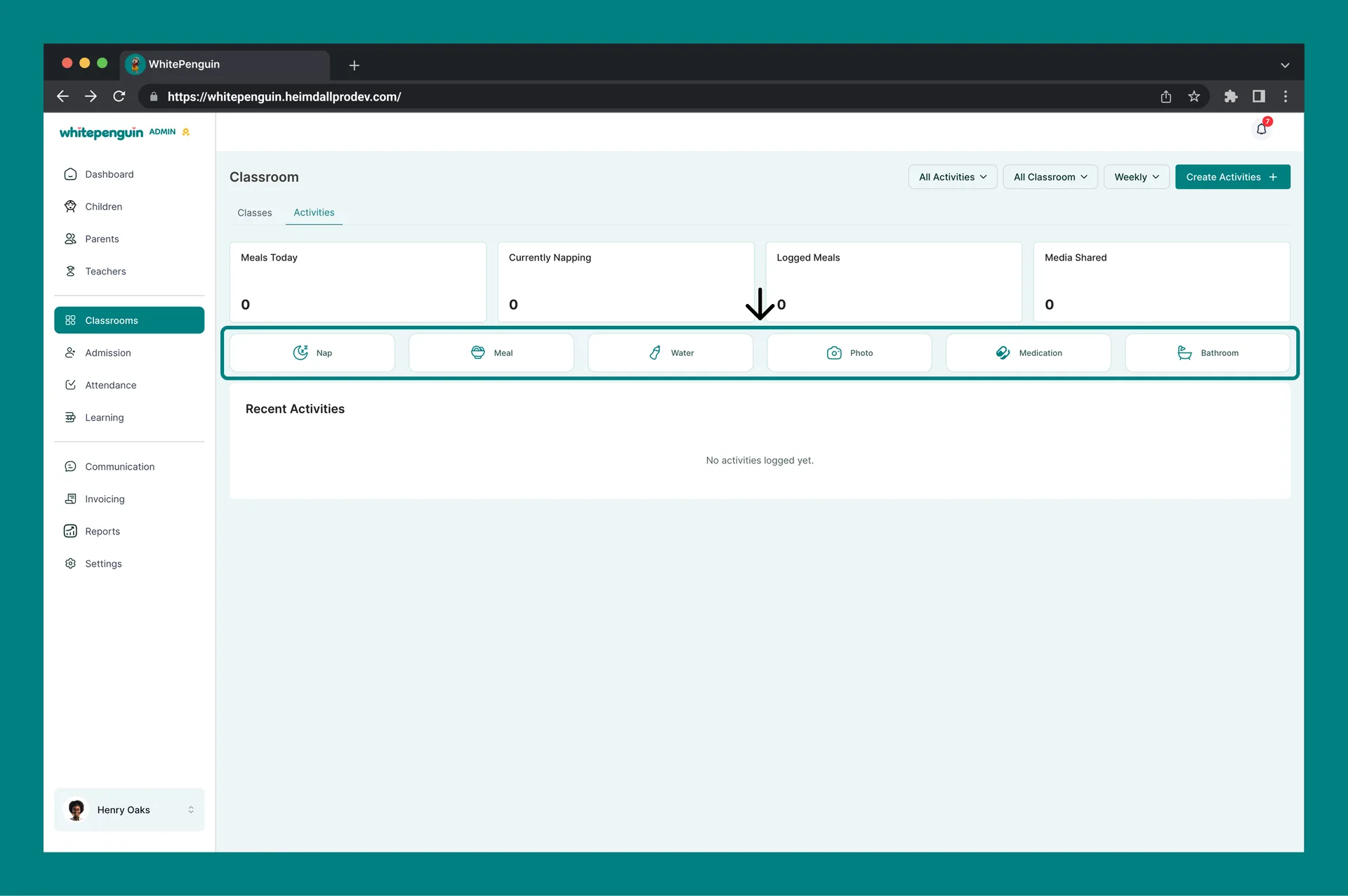
Below the summary cards, the six activity type buttons (Nap, Meal, Water, Photo, Medication, Bathroom) allow admins to create a new activity entry directly from this page by clicking Create Activities (top right button).
The Recent Activities feed shows the most recent entries logged across all classrooms, with each entry showing the activity type, any notes, and the timestamp.
Staff View — How to Access
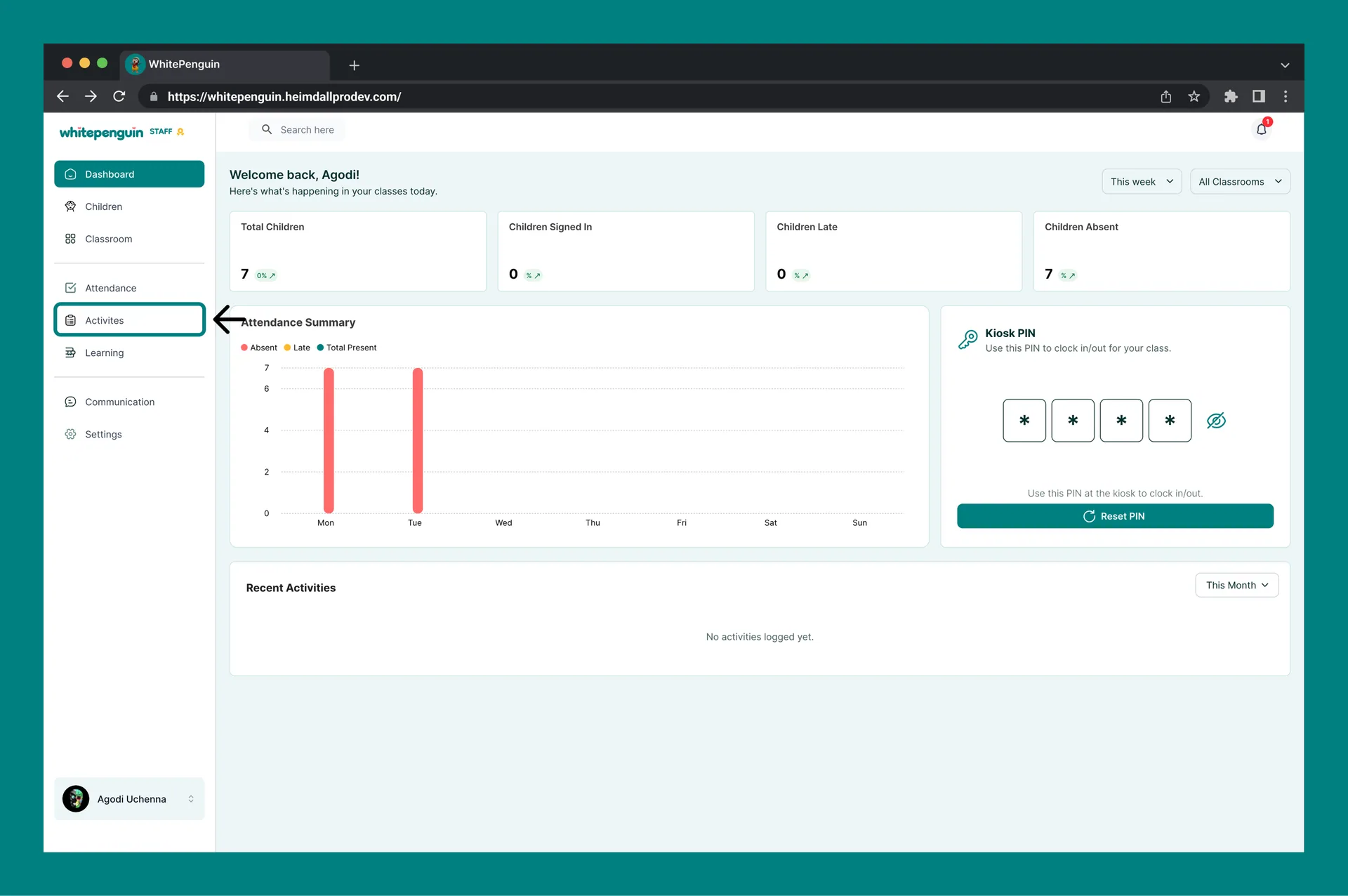
Staff members access the Activities Dashboard from the Activities section:
- Click Activities in the left sidebar.
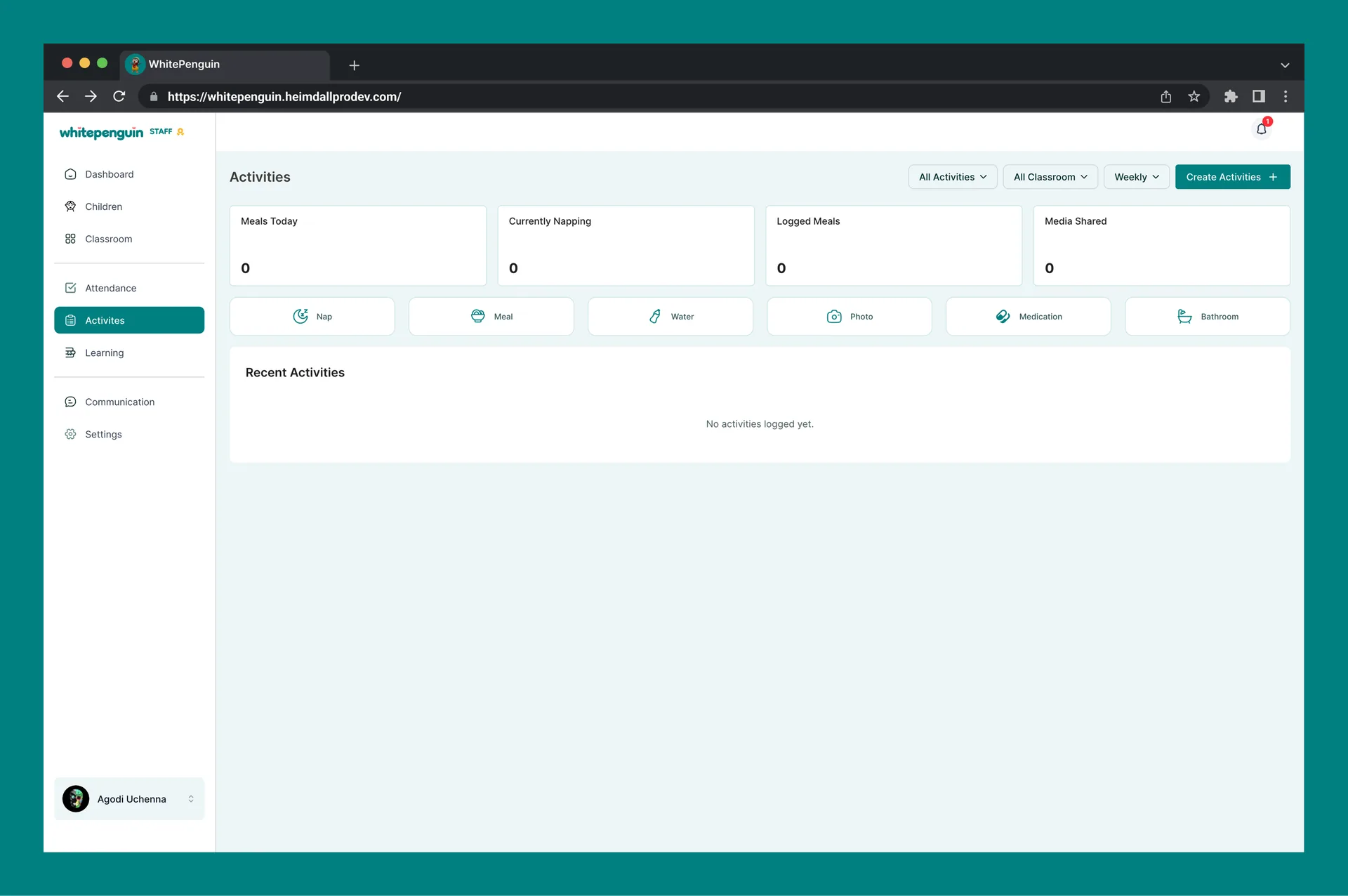
- The Activities Dashboard will load showing stats and the Recent Activities feed — scoped to their assigned classroom or children only.
Staff Dashboard Features
The staff view shares the same layout as the admin view, but is scoped to the staff member's assigned classroom only:
- The summary cards (Meals Today, Currently Napping, Logged Meals, Media Shared) reflect data for their classroom only.
- The Recent Activities feed shows only activities logged in their classroom.
- The activity type buttons (Nap, Meal, Water, Photo, Medication, Bathroom) are available to log new activities.
- Staff can filter by All Activities or a specific activity type, and by Monthly or other time periods.
Some custom roles can be scoped to specific assigned children only — those users will not see the full classroom activity feed.
Creating a New Activity
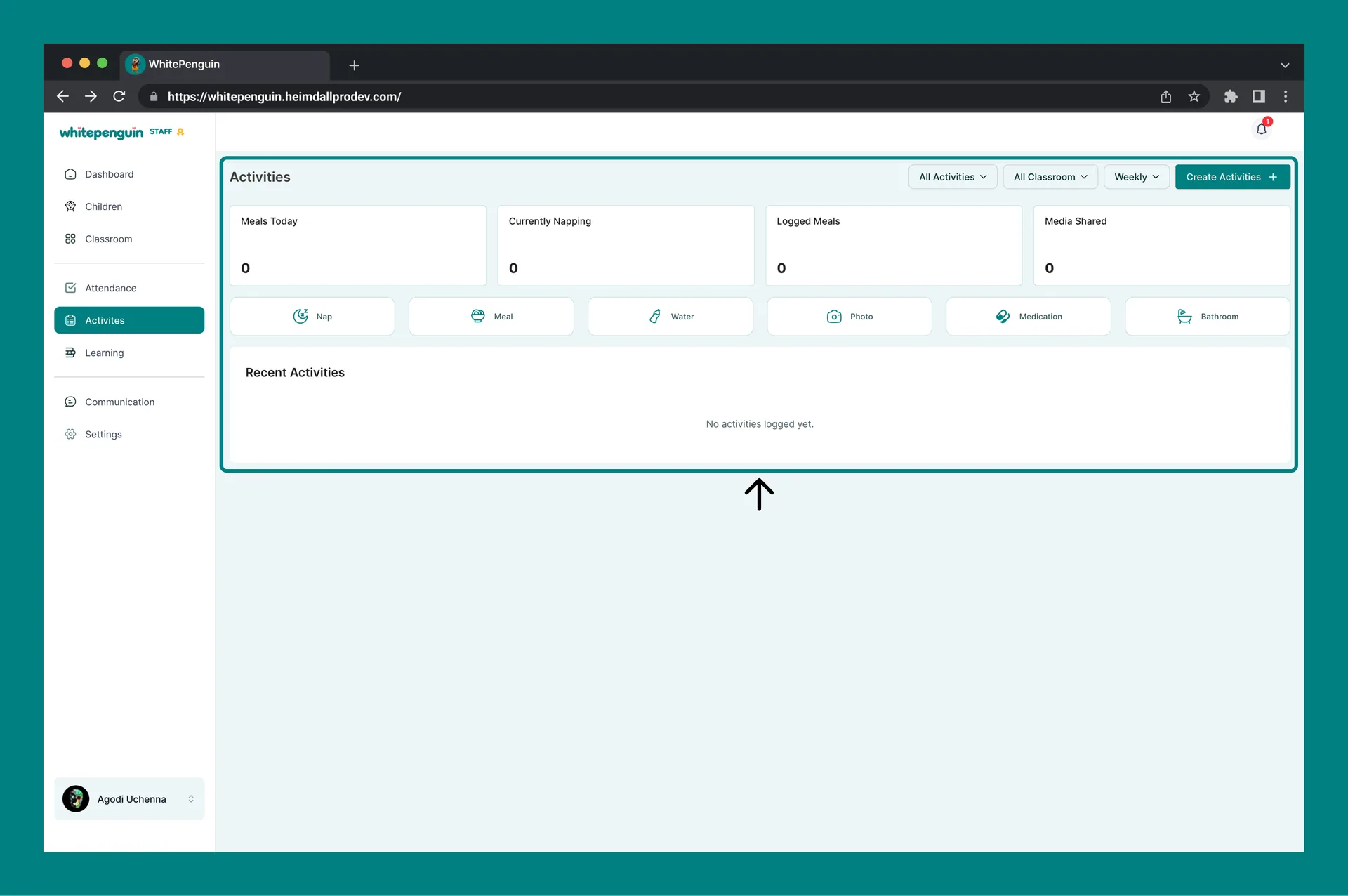
Both admins and eligible staff can log a new activity directly from the Activities Dashboard:
- Click the Create Activities button (top right of the dashboard).
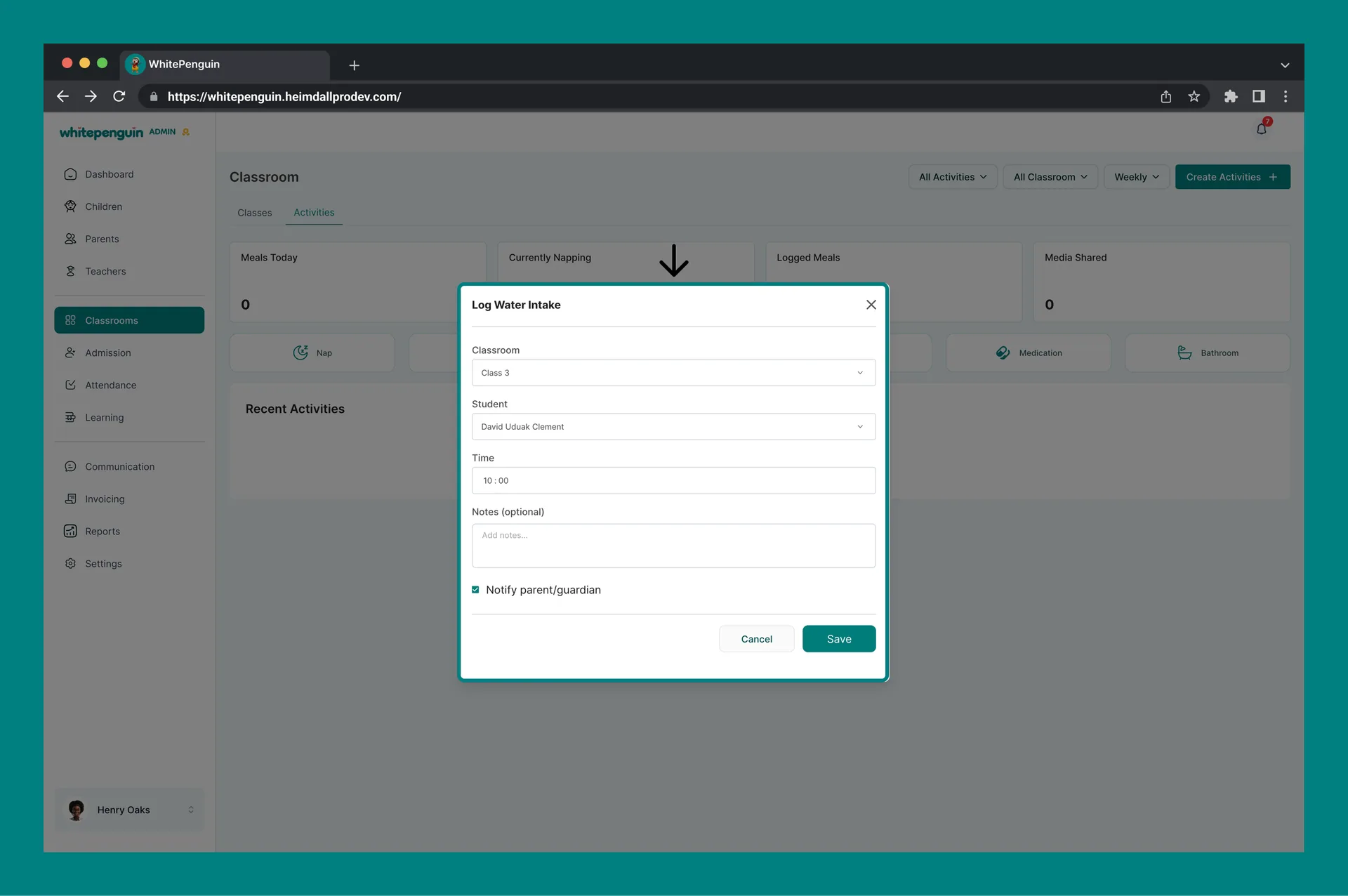
- Alternatively, click one of the six activity type buttons (Nap, Meal, Water, Photo, Medication, Bathroom) to pre-select the activity type.
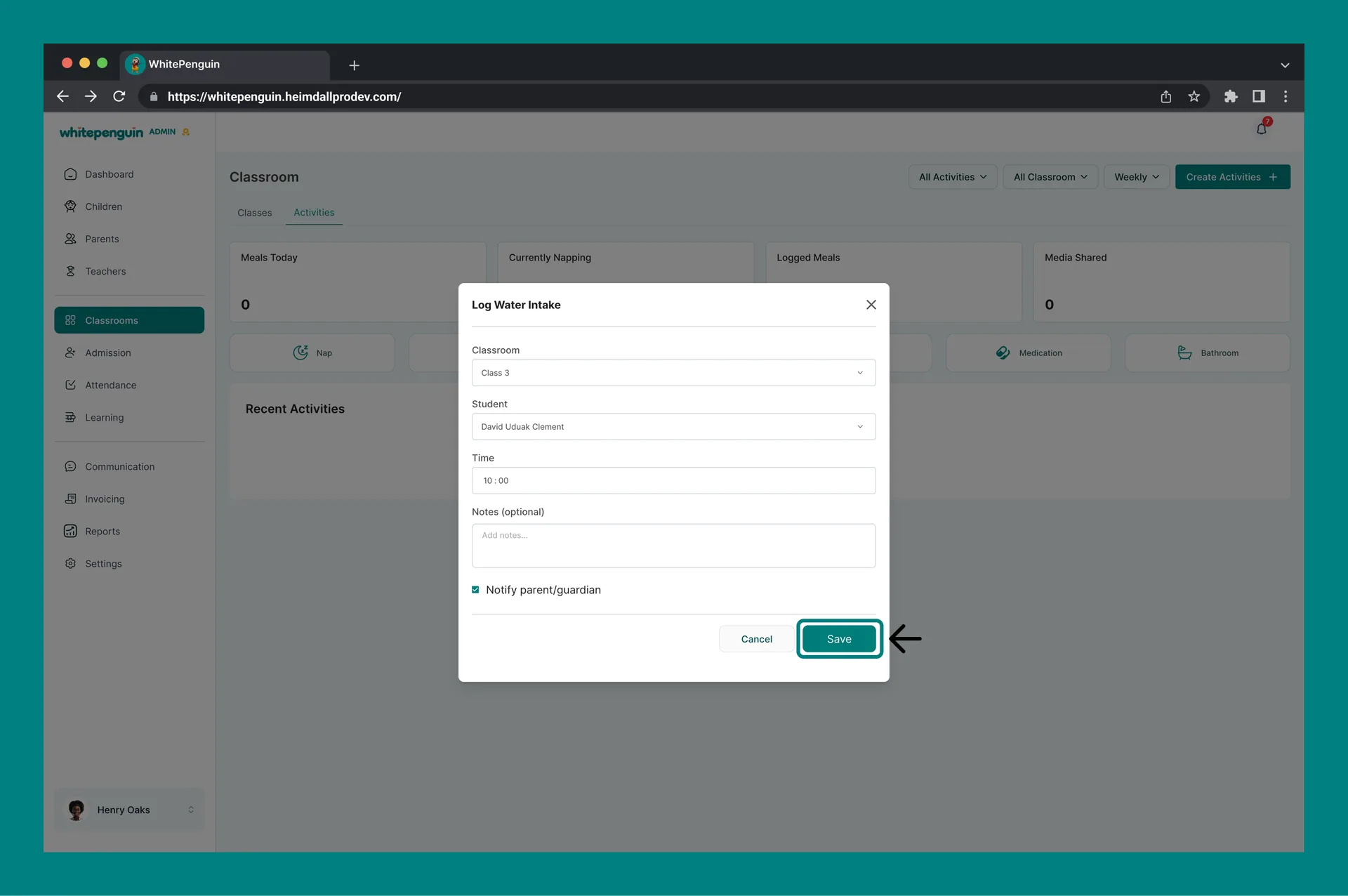
- Fill in the activity details in the form that appears.
- Save the entry — it will immediately appear in the Recent Activities feed.
Tips
- Admins have a school-wide view. Use the All Classroom filter to see activities across all rooms, or select a specific classroom to narrow down the feed.
- Use the activity type filter. Click the All Activities dropdown to filter the recent feed and stats by a specific activity type — useful when checking nap status or how many meals have been logged today.
- Check "Currently Napping" in real time. The Currently Napping card updates as staff log nap entries, giving admins and teachers an instant view of how many children are asleep.
- Photo logging notifies parents. When a Photo activity is logged and shared, parents receive a notification in the parent portal. Use this regularly to keep parents engaged.
- Some roles are limited to assigned children. If a user reports not seeing certain children in their log, check that those children are correctly assigned to them in the Children section.
- Access is role-based. If a user needs visibility into another classroom's activities, update their custom role in Settings → Roles & Permissions.
FAQs
Any user whose custom role grants full View permission for Activities across all classrooms. Your school admin decides which roles get school-wide visibility in Settings → Roles & Permissions.
Activities visibility is based on your custom role and classroom assignments. If your role is scoped to your own classroom (or to specific assigned children), other classrooms won't appear. Ask your school admin to adjust your role permissions if you need wider visibility.
Any role with Create permission for Activities can log entries. Your school admin builds each custom role and toggles its Create permission in Settings → Roles & Permissions.
Admins access the Activities Dashboard from Classrooms → Activities tab in the left sidebar. The Activities tab is the second tab on the Classrooms page, next to the Classes tab.
Staff members access the Activities Dashboard by clicking Activities directly in the left sidebar. Their view is automatically scoped to their assigned classroom.
The four summary cards show: Meals Today (meals logged today), Currently Napping (children in an active nap session), Logged Meals (total meal entries in the selected period), and Media Shared (photos shared with parents in the selected period). These update in real time as activities are logged.
Yes. When a Photo activity is logged and shared, parents receive a notification in the parent portal so they can view the media shared from their child's classroom.
Yes. Admins can filter by Activity Type (All Activities, Nap, Meal, Water, Photo, Medication, Bathroom) and by Classroom (All Classrooms or a specific room). Staff can filter by activity type within their assigned classroom view.
Last updated on
Add & Manage Classrooms
Learn how to create and manage classrooms in WhitePenguin — including adding new rooms, assigning staff, viewing enrolled children, and understanding who has access to do what.
Log Nap Time
Learn how to log nap time in WhitePenguin by selecting the classroom and child, then recording the start and end times.