

Add & Manage Classrooms
Learn how to create and manage classrooms in WhitePenguin — including adding new rooms, assigning staff, viewing enrolled children, and understanding who has access to do what.
Overview
Classrooms are the core organizational unit in WhitePenguin. Every child, teacher, attendance record, activity, and learning item is tied to a classroom. Before you can enroll children or assign teachers, a classroom must first be created in the system.
The Classrooms section has two tabs:
| Tab | What It Shows |
|---|---|
| Classes | All classrooms with their age range, capacity, enrolled students, and assigned staff. |
| Activities (Admin) | Activities logged across classrooms. |
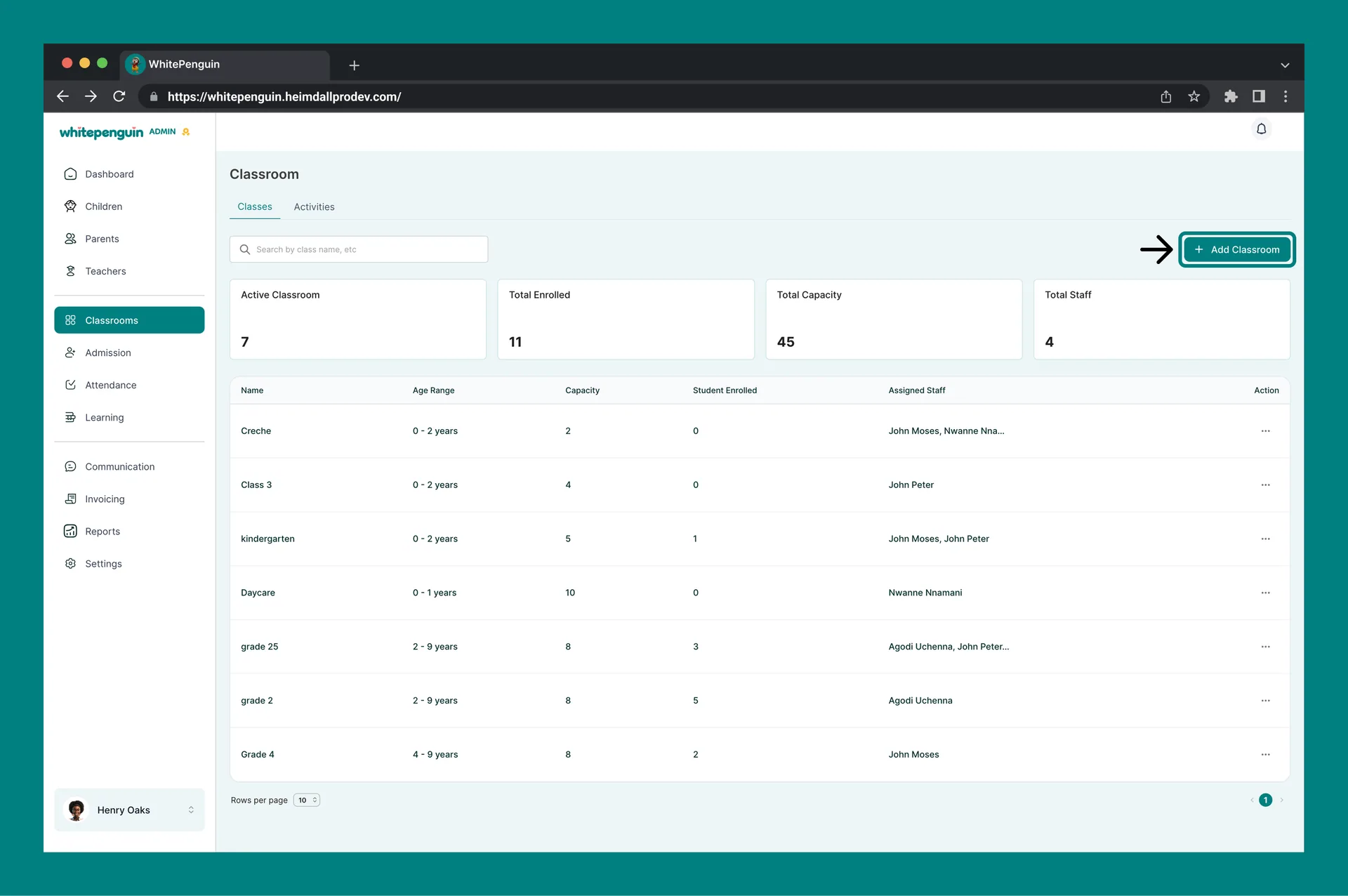
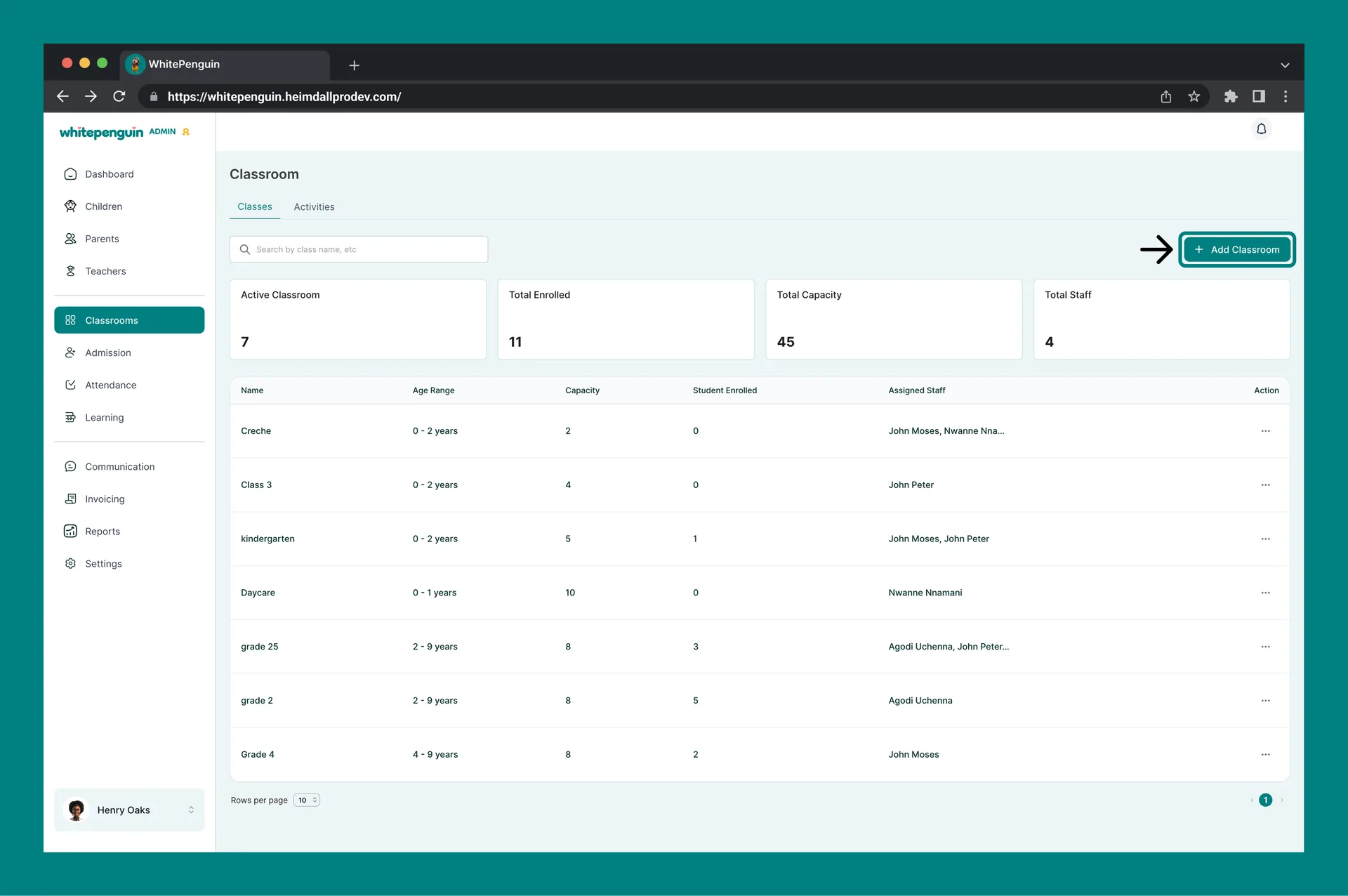
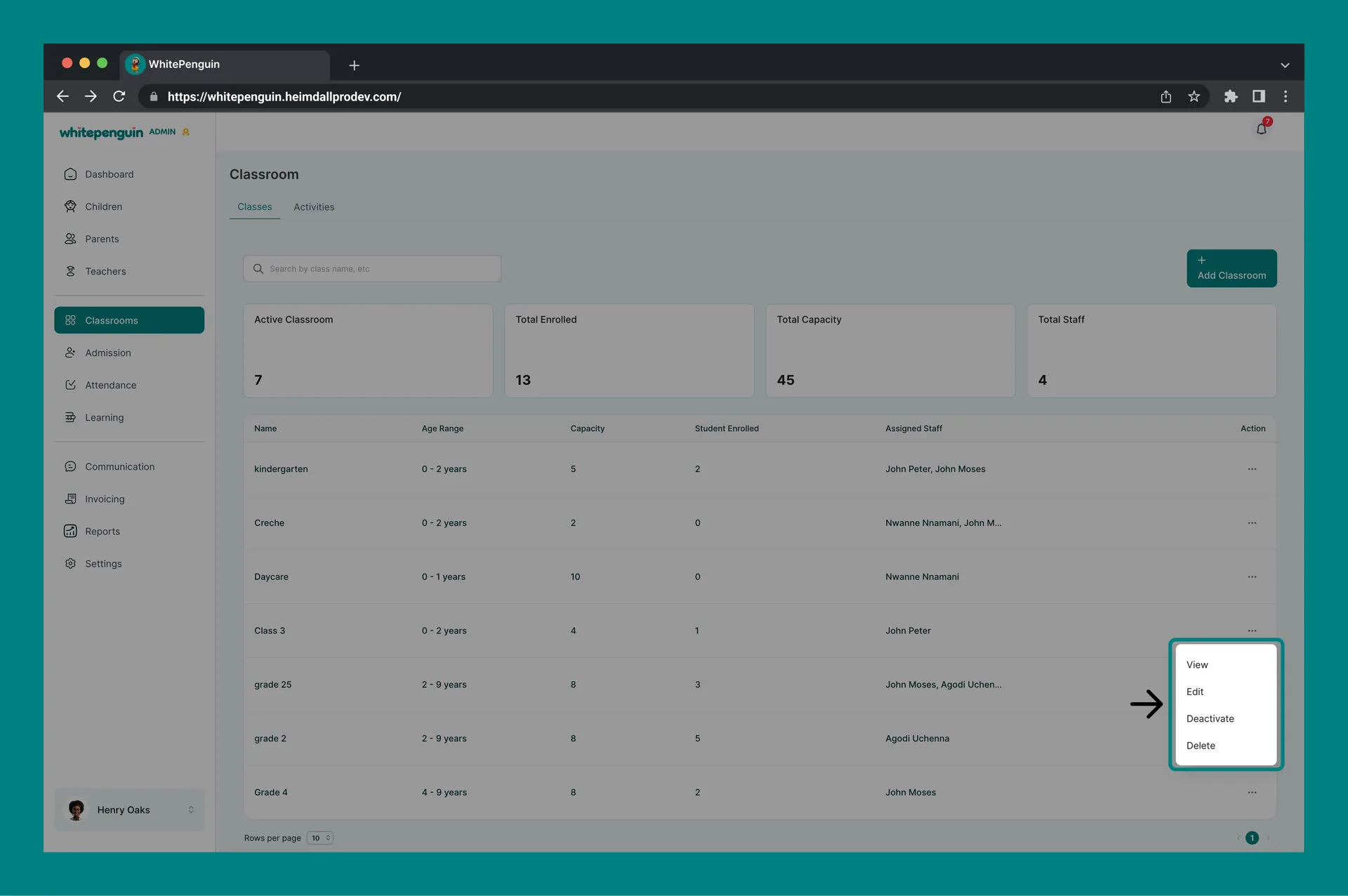
At the top of the Classes tab, four summary cards display a quick snapshot of your school:
| Card | What It Shows |
|---|---|
| Active Classrooms | Number of classrooms currently active in the system. |
| Total Enrolled | Total number of children enrolled across all classrooms. |
| Total Capacity | Combined maximum capacity across all classrooms. |
| Total Staff | Total number of staff members assigned across all classrooms. |
Who Can Manage Classrooms?
Access is based on custom roles. Your school admin creates custom roles for all users and controls exactly which permissions each role has — View, Edit, Create, and Delete — for every section of the system, including Classrooms.
Access to the Classrooms section depends entirely on the custom role assigned to each user:
- Roles with View permission for Classrooms can see classrooms.
- Roles with Create, Edit, or Delete permission can add, update, or remove classrooms.
- Roles with no Classroom permissions won't see the Classrooms section at all.
- Classroom visibility can also be limited to a user's assigned classrooms.
Where to manage roles: Go to Settings → Roles & Permissions, then click + Create Role to build a new custom role, or select an existing role to toggle its permissions. Super Admin permissions are fixed and cannot be edited.
How to Access
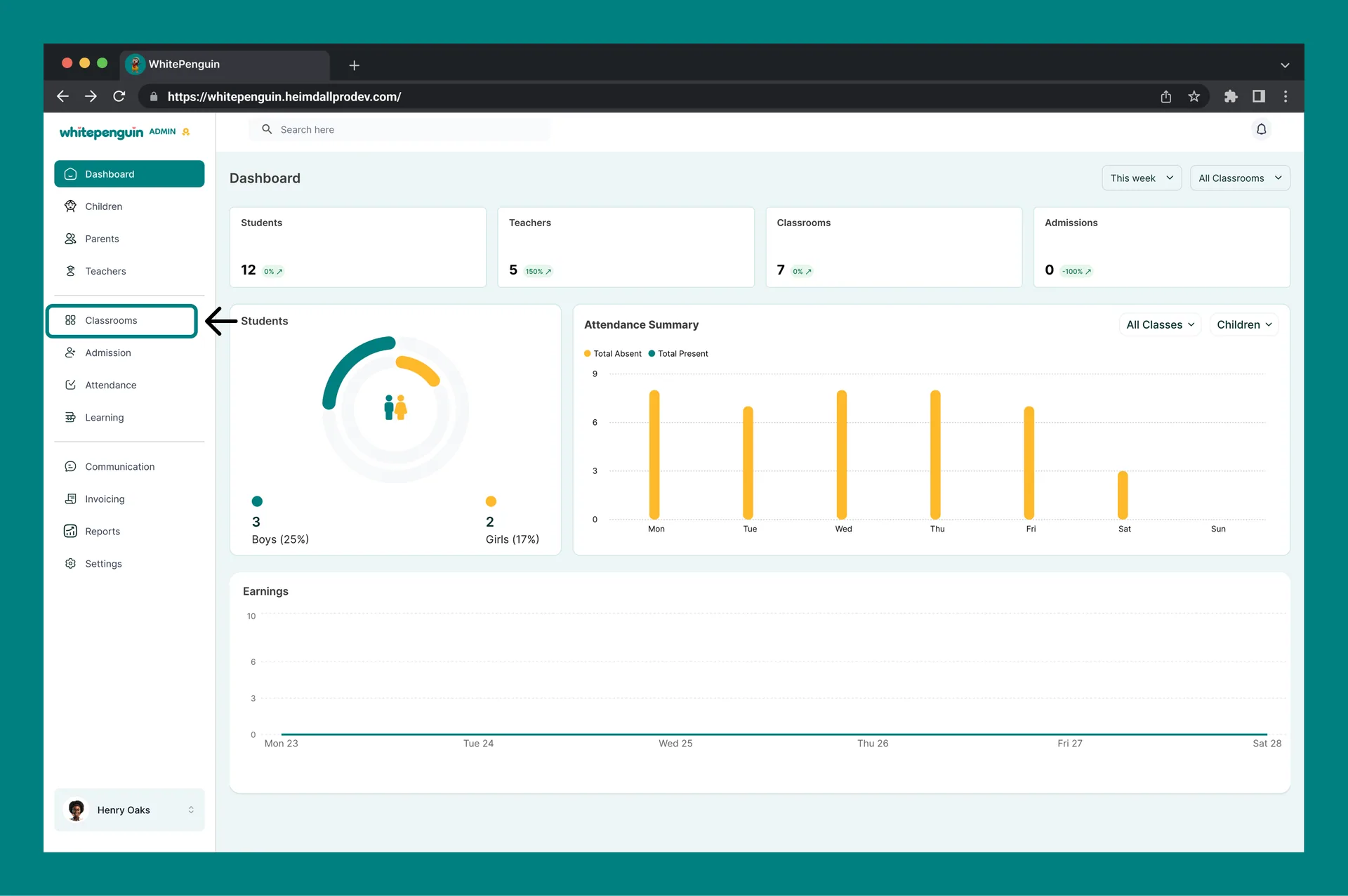
- Click Classrooms in the left sidebar.
- The Classes tab will load by default, showing all existing classrooms in a table.
- From here you can add new classrooms or manage existing ones using the Action (⋯) menu.
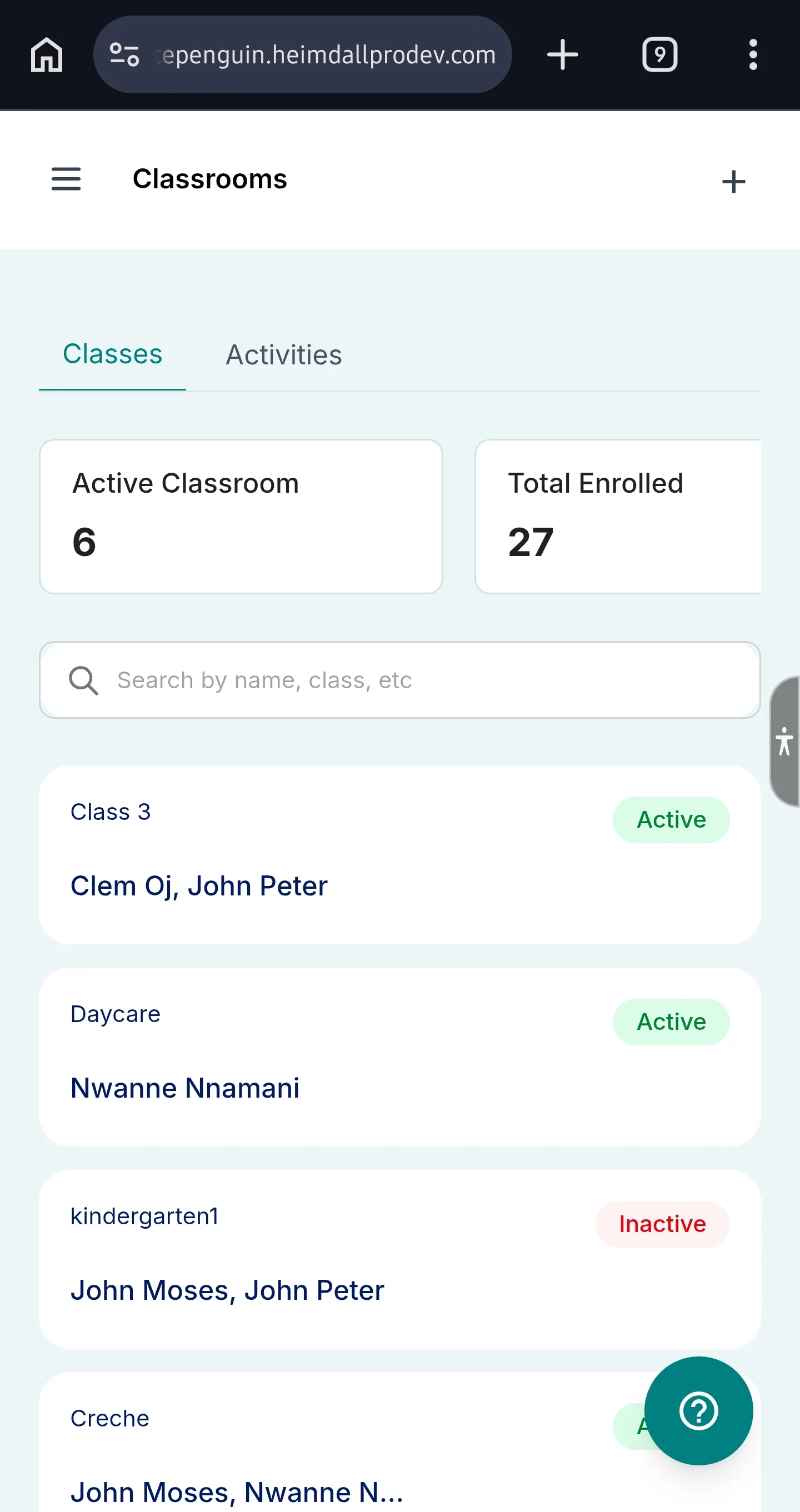
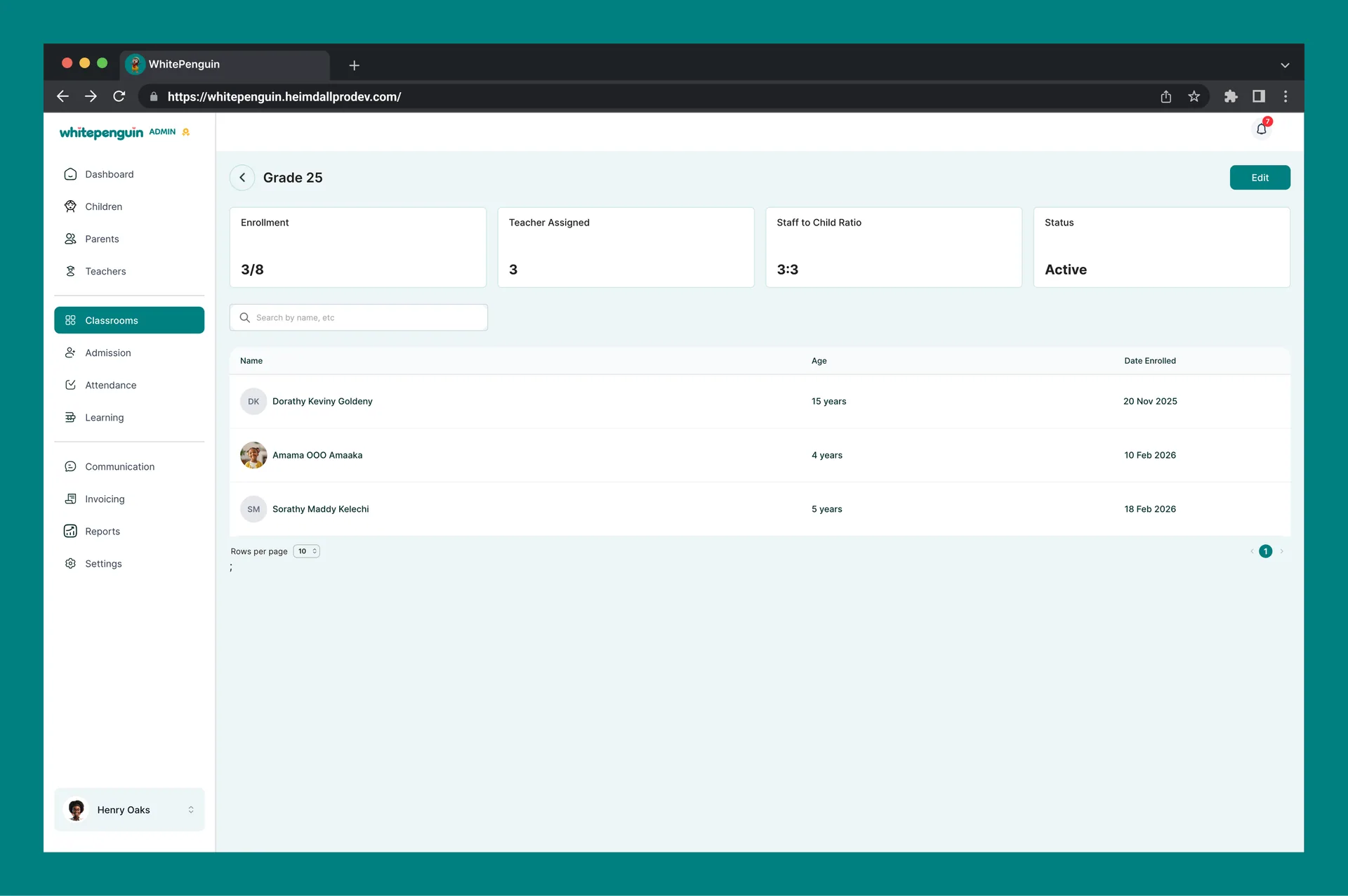
Staff view: Users whose custom role limits them to an assigned classroom access it from the Classroom section in the sidebar. Their view shows only their assigned classroom with a summary of Total Children, Teachers Assigned, Staff to Child Ratio, and Status — along with a list of enrolled children showing Name, Age, and Date Enrolled.
Adding a New Classroom
To add a new classroom:
- Click the + Add Classroom button at the top right of the Classes page.
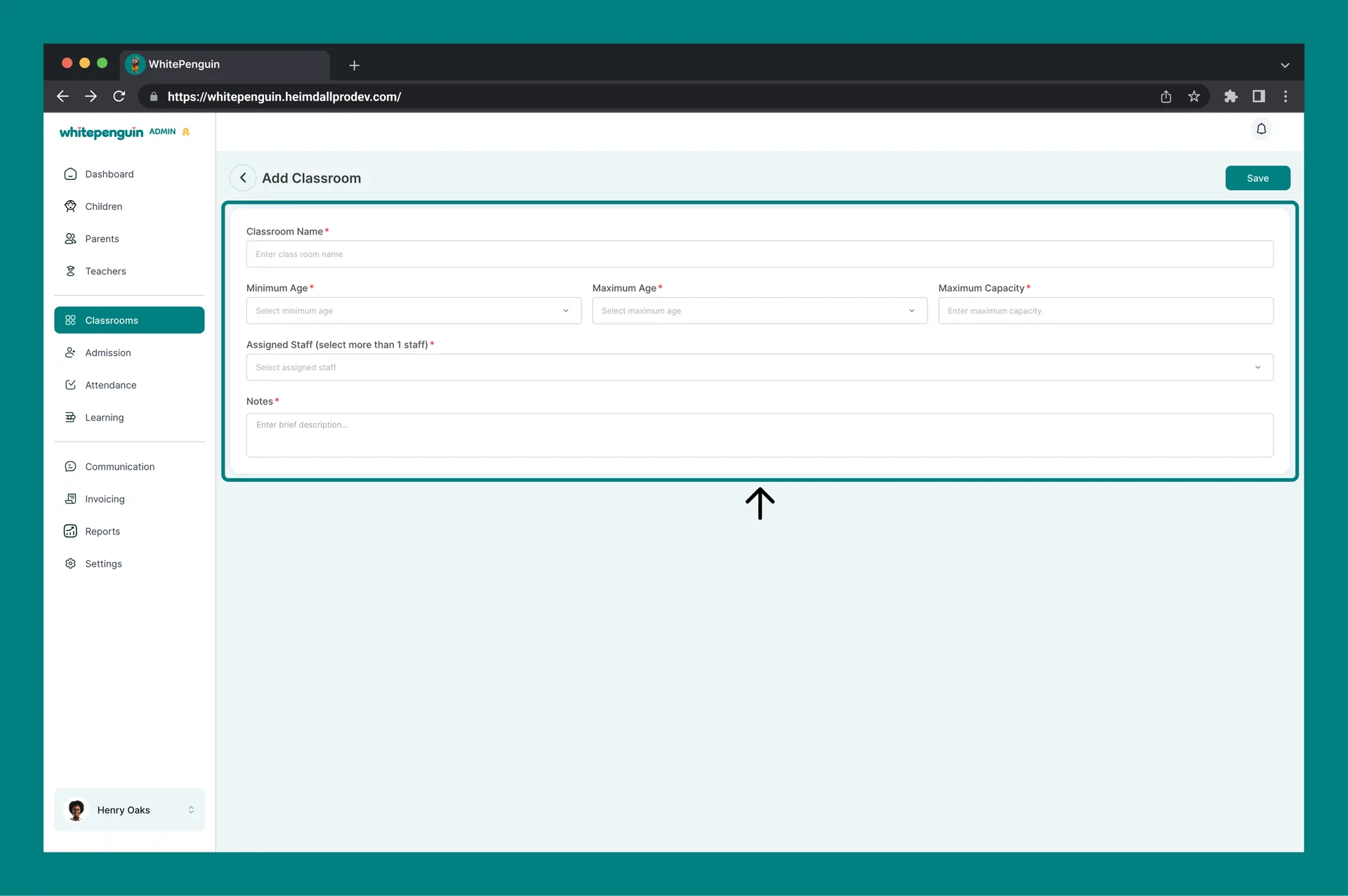
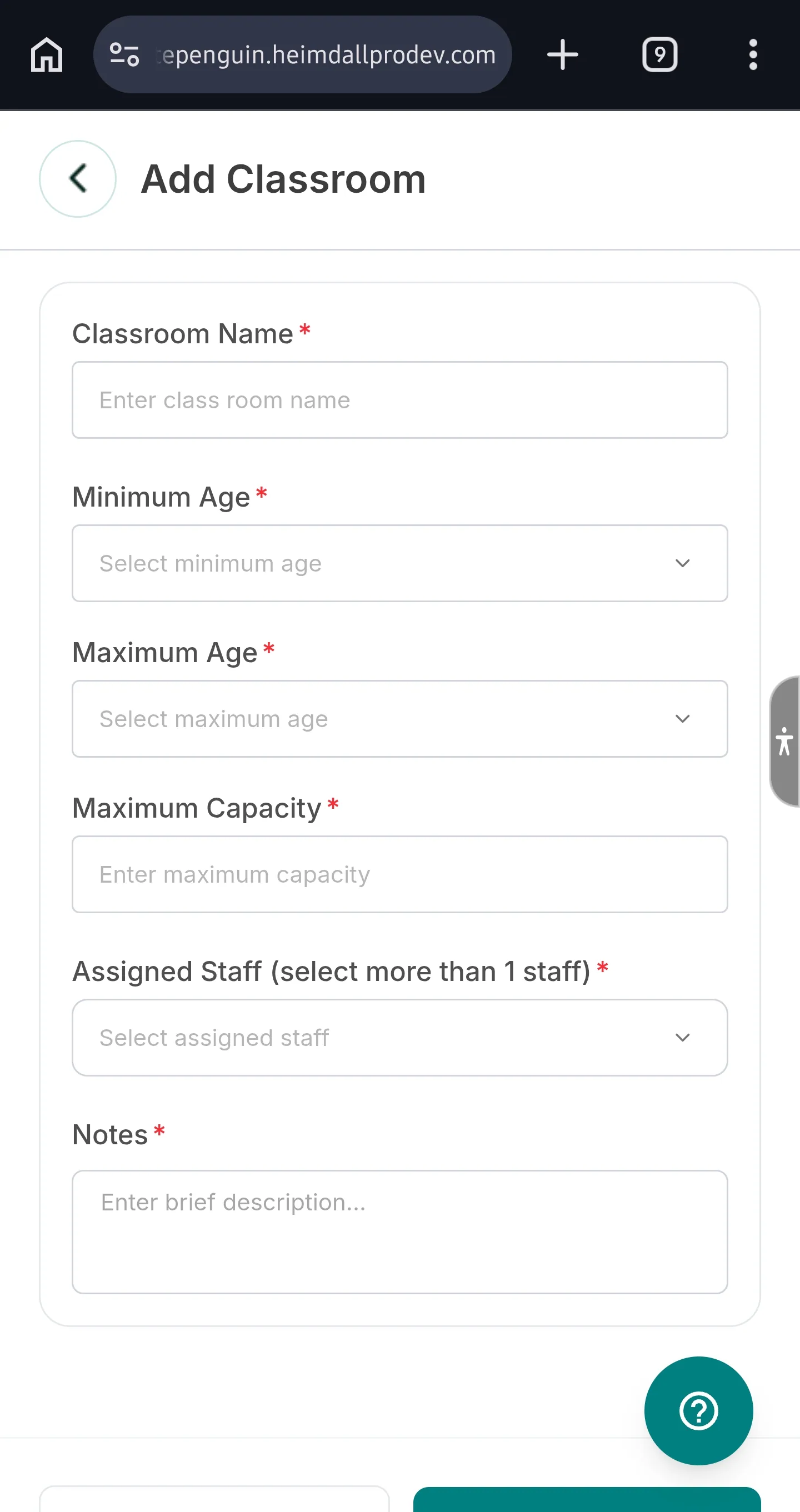
- The Add Classroom form will open as a full page.
- Fill in the following fields:
| Field | Required | Description |
|---|---|---|
| Classroom Name | ✅ Required | A clear, recognizable name for the classroom (e.g., Butterflies Room, Toddlers A, Pre-K Blue). This name appears across the system. |
| Minimum Age | ✅ Required | The minimum age of children eligible for this classroom. Supports ages 0–20 years. |
| Maximum Age | ✅ Required | The maximum age of children eligible. Must be greater than the Minimum Age. Supports ages 0–20 years. |
| Maximum Capacity | ✅ Required | The maximum number of children the classroom can accommodate. |
| Assigned Staff | Optional | Select one or more teachers to assign to this classroom. Teachers must be added to the system first. You can assign staff later by editing the classroom. |
| Notes | ✅ Required | A brief description or any relevant notes — such as curriculum focus, room location, or special considerations. |
- Click Save to create the classroom, or use the back arrow to cancel.
Managing Existing Classrooms
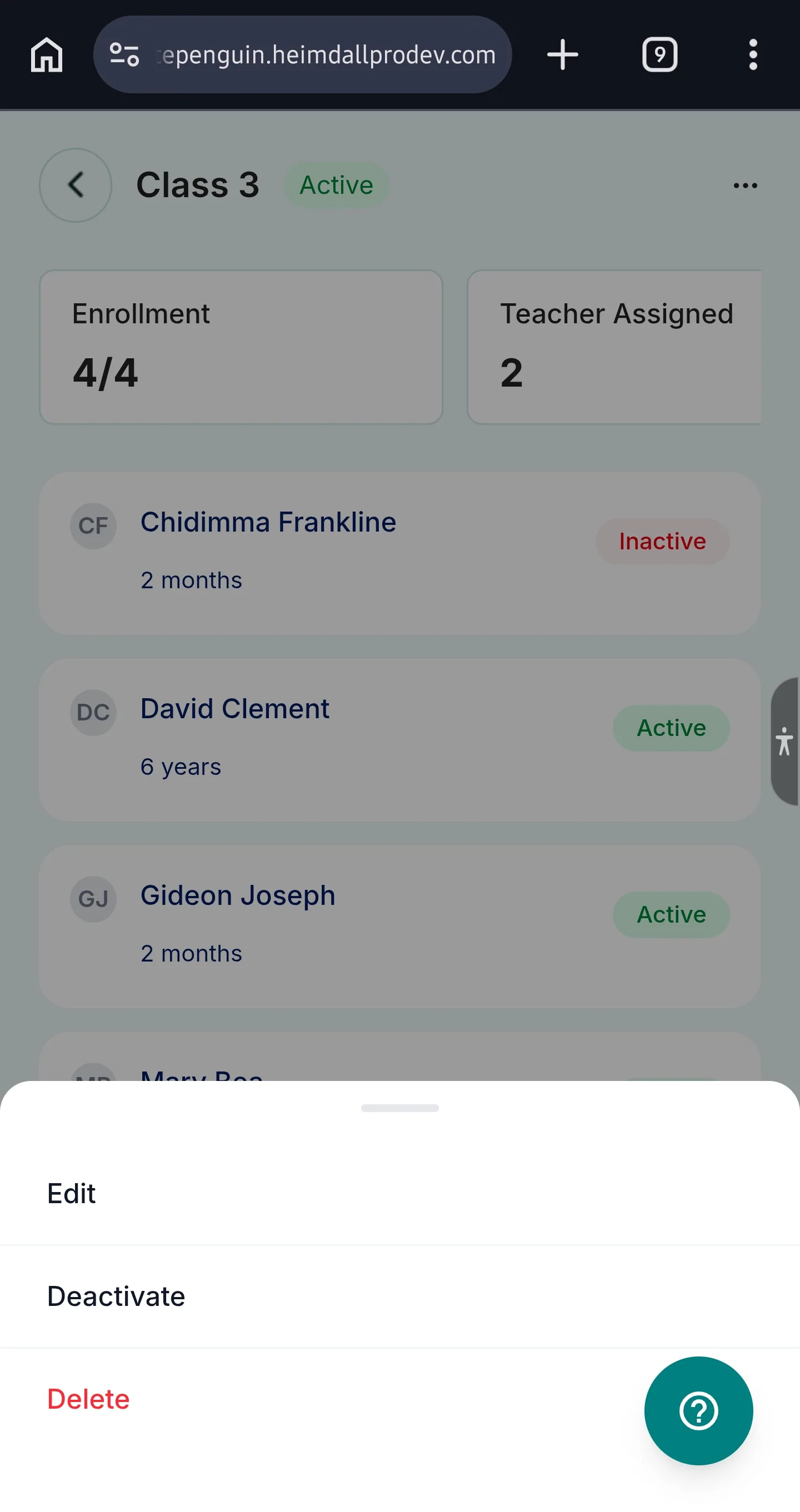
From the Action (⋯) menu on any classroom row in the Classes table, the following actions are available:
| Action | Description |
|---|---|
| View | Opens the classroom's detail page showing enrolled children, assigned staff, capacity, and classroom stats. |
| Edit | Update the classroom's name, age range, capacity, assigned staff, or notes. |
| Deactivate / Activate | Toggle the classroom's status. Deactivating a classroom hides it from active use without deleting it. Activating restores it. |
| Delete | Permanently removes the classroom from the system. This action cannot be undone. |
Delete is permanent. Before deleting a classroom, consider using Deactivate instead to suspend the room while keeping all associated data intact.
Viewing a Classroom
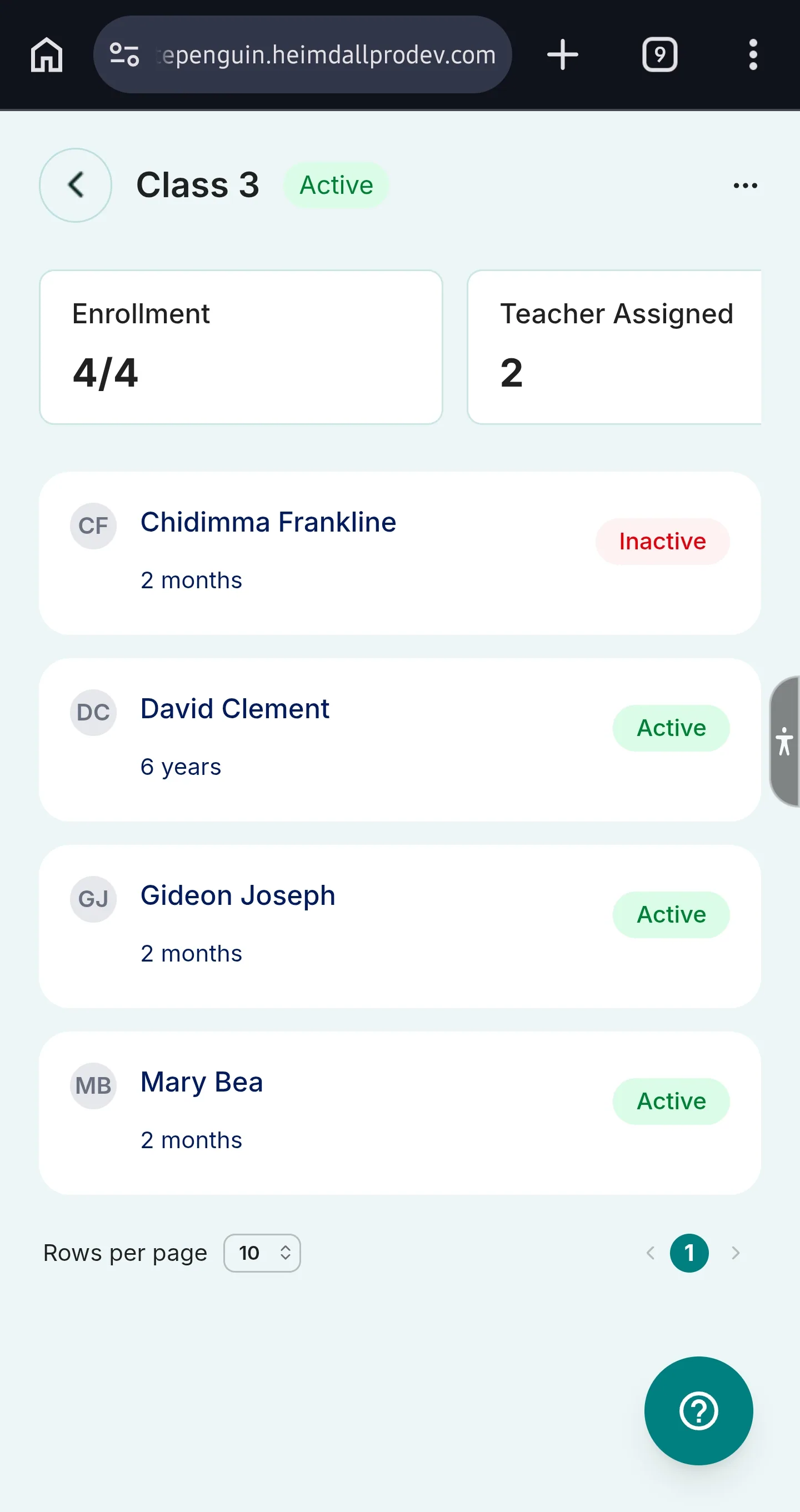
Clicking View from the Action menu — or clicking a classroom name — opens the classroom detail page. This page shows:
- Summary cards at the top: Total Children, Teacher Assigned, Staff to Child Ratio, and Status
- Children table listing all enrolled children with their Name, Age, and Date Enrolled
- A search bar to find children by name within the classroom
- A classroom selector (top right) to switch between classrooms quickly
Tips
- Create classrooms before adding children. Children can only be enrolled into classrooms that already exist in the system. Set up your classrooms first before inviting parents or enrolling children.
- Assign multiple staff per classroom. The Assigned Staff field supports selecting more than one teacher. Use this for co-teachers, assistants, or rotating staff.
- You can save a classroom without assigning staff. Staff assignment is optional at creation. Once teachers are added in the Teachers section, go back, edit the classroom, and assign them.
- Use clear classroom names. Classroom names appear in attendance sheets, reports, parent-facing views, and notifications. Use friendly, recognizable names.
- Deactivate instead of deleting. If a classroom is temporarily not in use, deactivate it rather than deleting it. You can reactivate it at any time.
- Monitor capacity. Check the Total Capacity card regularly as you enroll more children. If a classroom is nearing its limit, update the Maximum Capacity or create a new classroom.
- Role permissions control access. What each user can see and do in Classrooms depends on the custom role your admin assigned them. To grant more access, update their role in Settings → Roles & Permissions.
FAQs
Any user whose custom role includes Create and Delete permissions for Classrooms can add and remove classrooms. Your school admin configures this in Settings → Roles & Permissions.
Yes. Children can only be enrolled into classrooms that already exist in the system. Make sure you create at least one classroom before enrolling children or assigning teachers.
Yes. The Assigned Staff field supports selecting multiple teachers per classroom. This is useful for co-teachers, classroom assistants, or rooms with rotating staff.
Both the Minimum Age and Maximum Age dropdowns support values from 0 to 20 years, making the system suitable for nurseries, preschools, and primary school programs. The Maximum Age must always be greater than the Minimum Age.
- Deactivate — Suspends the classroom without removing it. All data (enrolled children, attendance records, etc.) is preserved and the classroom can be reactivated.
- Delete — Permanently removes the classroom and cannot be undone. Use with caution.
It depends on their custom role. Users limited to an assigned classroom see a summary of Total Children, Teachers Assigned, Staff to Child Ratio, and Status — plus a list of enrolled children with their Name, Age, and Date Enrolled.
The system will flag the classroom as full during enrollment. You will need to either increase the Maximum Capacity in the classroom settings or create a new classroom to accommodate additional children.
Yes. Go to Classrooms, find the classroom in the table, click the Action (⋯) menu, and select Edit. You can update the classroom name, age range, capacity, assigned staff, and notes at any time.
Last updated on
Classrooms & Activities Management
Manage classrooms and log daily activities in WhitePenguin: naps, meals, water intake, photos, medication, diaper changes and observations.
Activities Dashboard
Learn how to use the Activities Dashboard in WhitePenguin — monitor real-time stats, log new activities, and understand what admins and staff can see based on their role.