


Log Nap Time
Learn how to log nap time in WhitePenguin by selecting the classroom and child, then recording the start and end times.
Overview
Use Log Nap Time to record when a child starts and ends a nap. Each entry appears in the Activities feed and helps your team keep daily activity records accurate.
You can include:
- Classroom
- Student
- Start time
- End time (optional)
- Notes (optional)
- Notify parent/guardian (optional)
How to access
Where you’ll find this depends on your role:
-
Admins
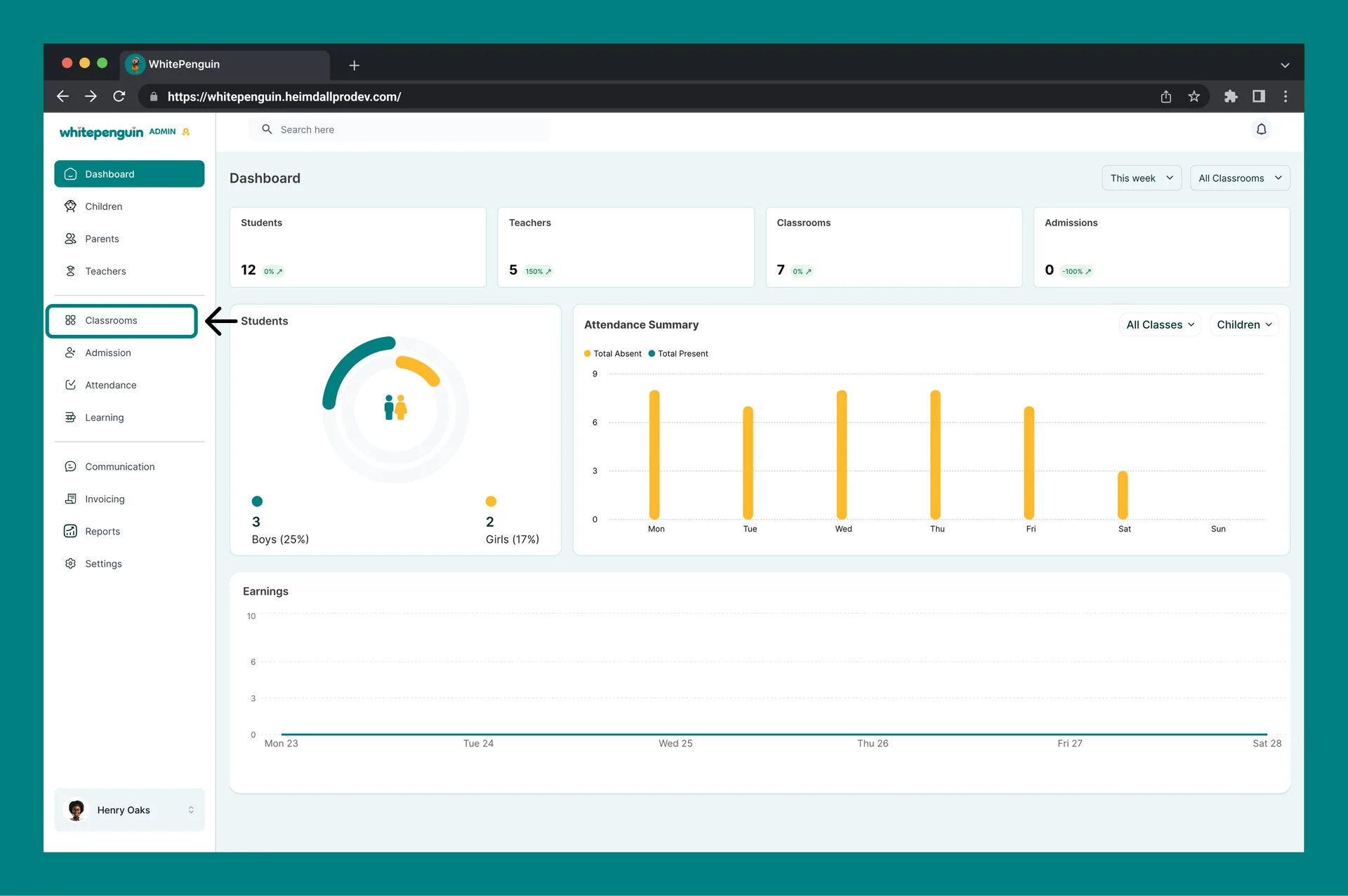
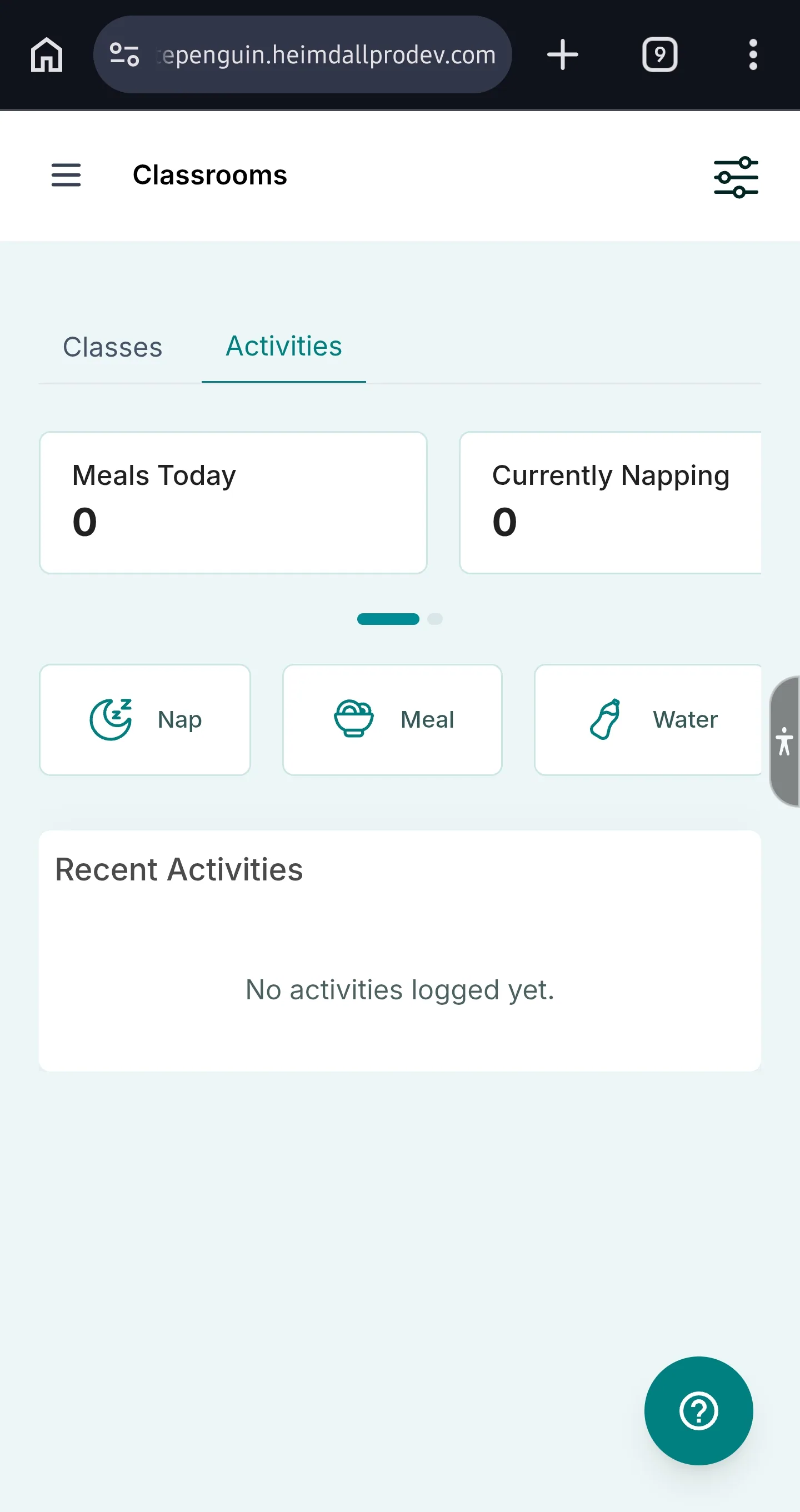
- Click Classrooms in the left sidebar.
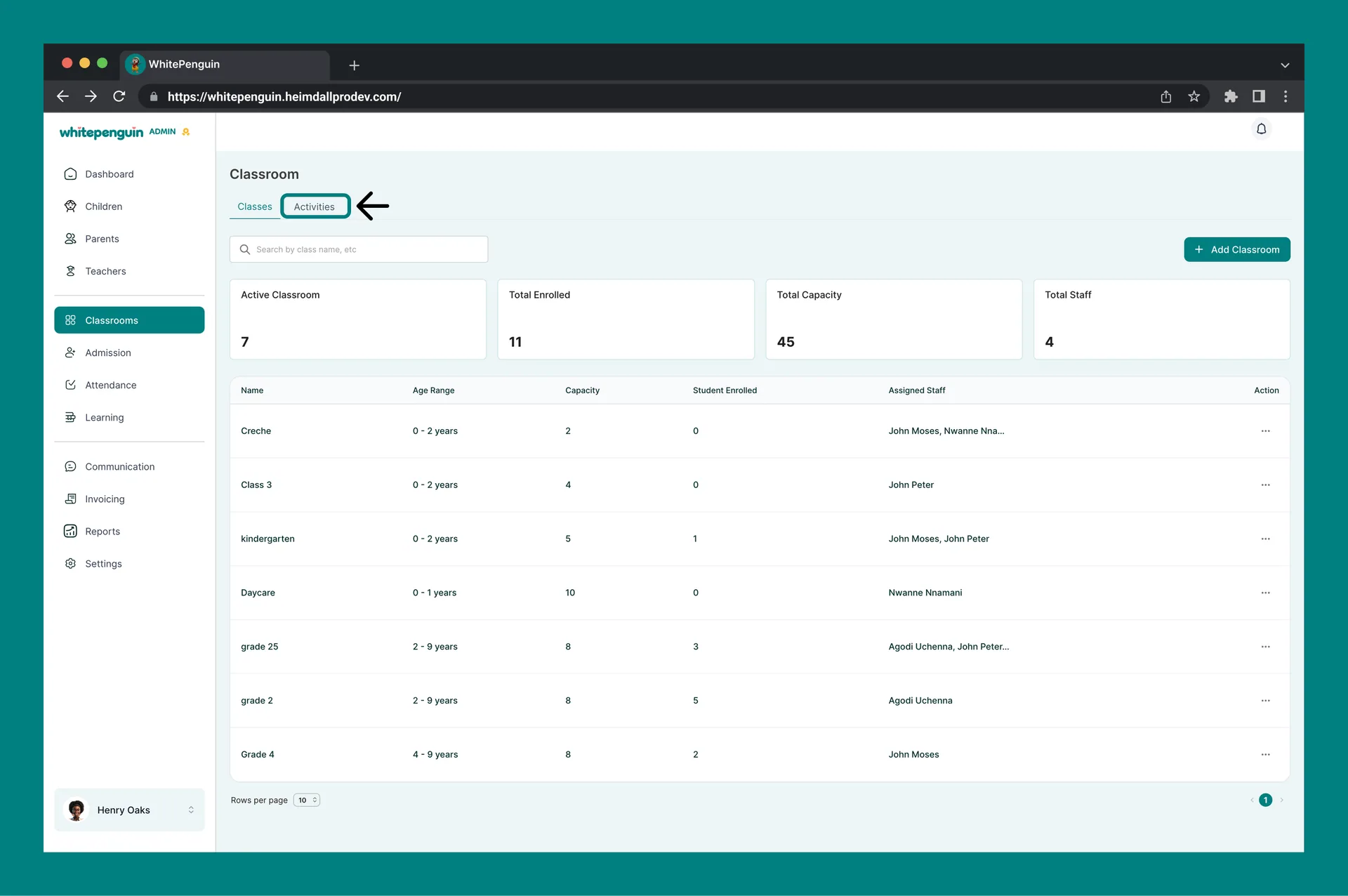
- Open the Activities tab.
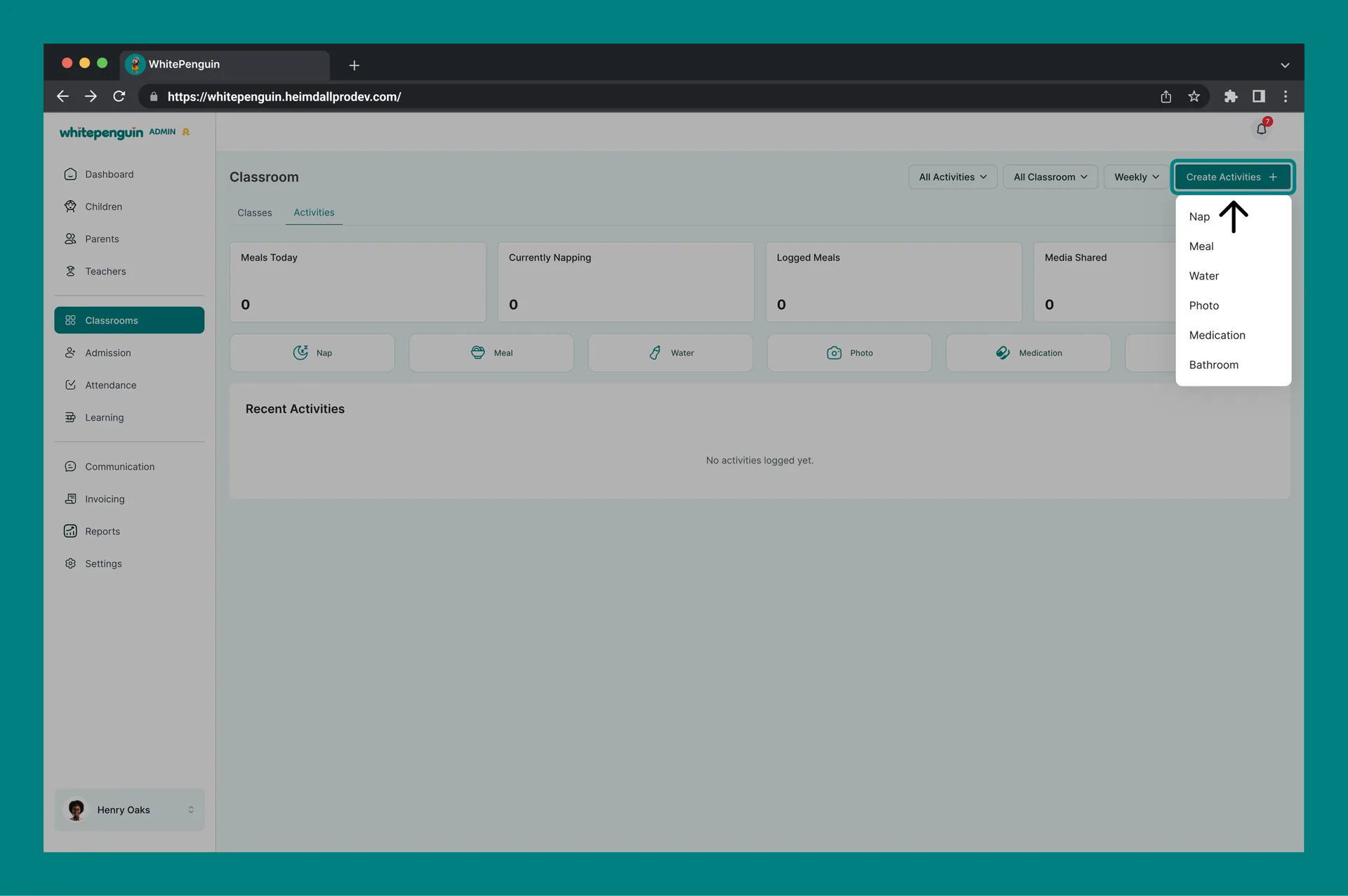
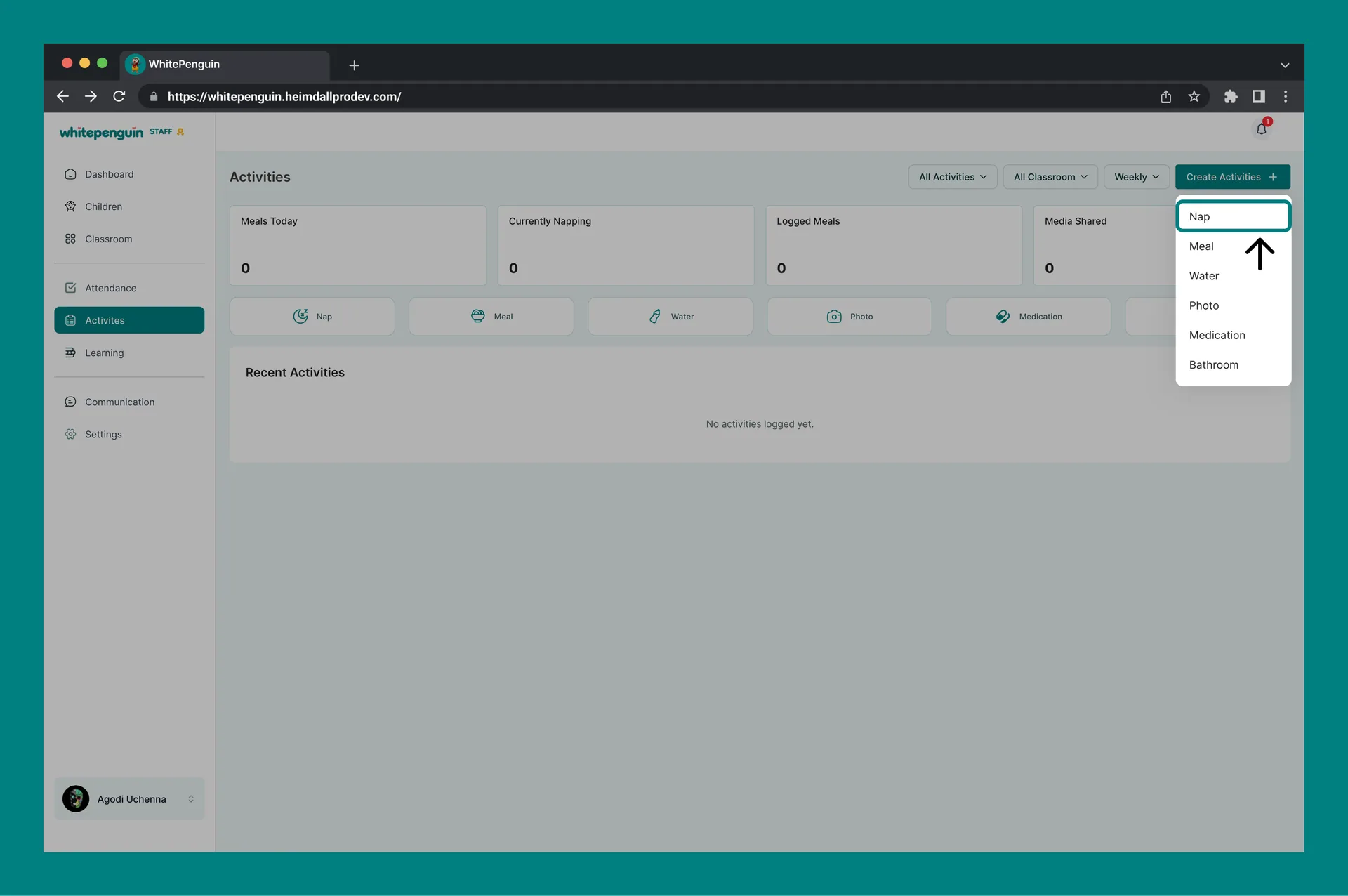
- Click Create Activities (top right), then choose Nap.
-
Staff
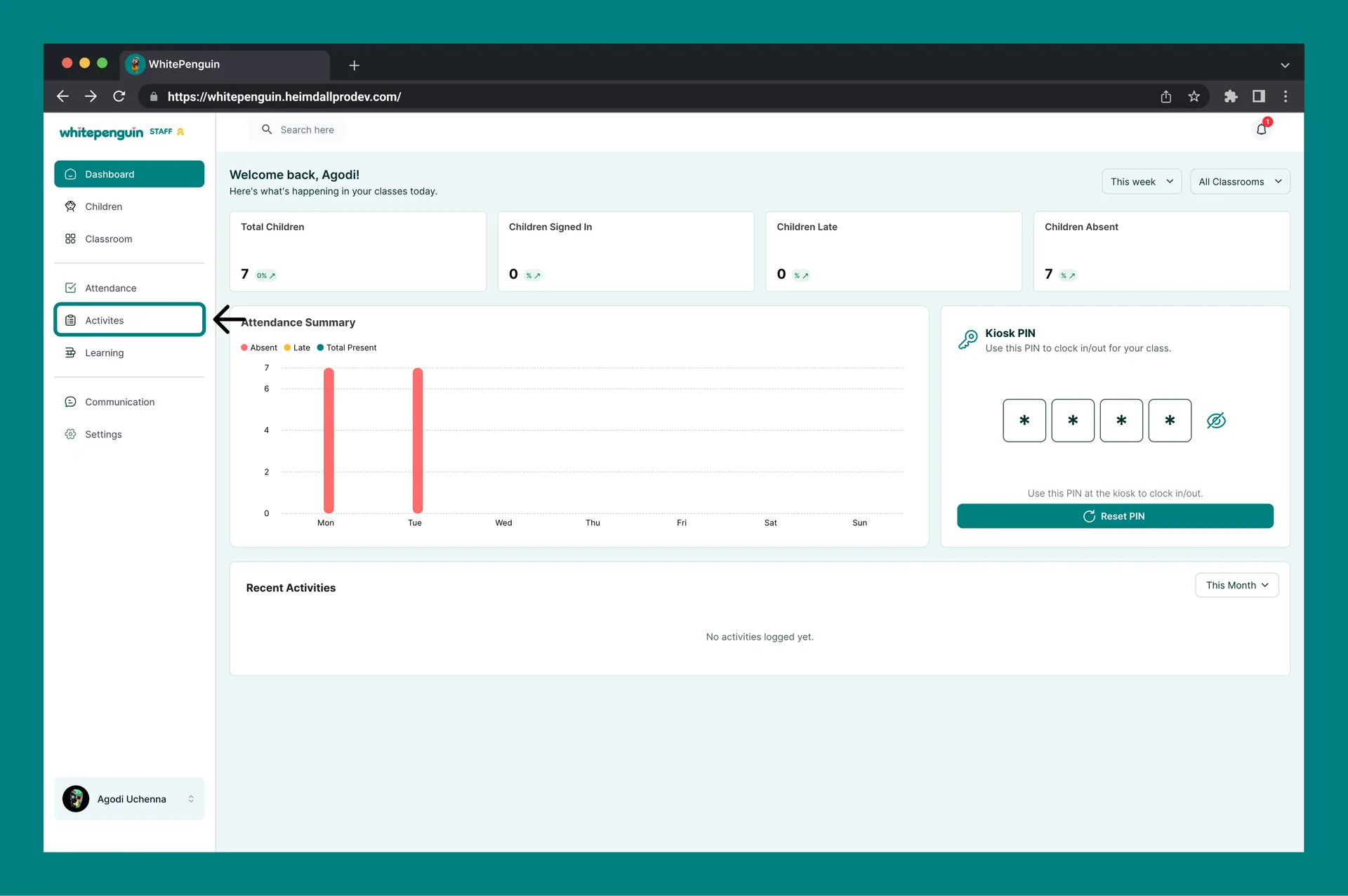
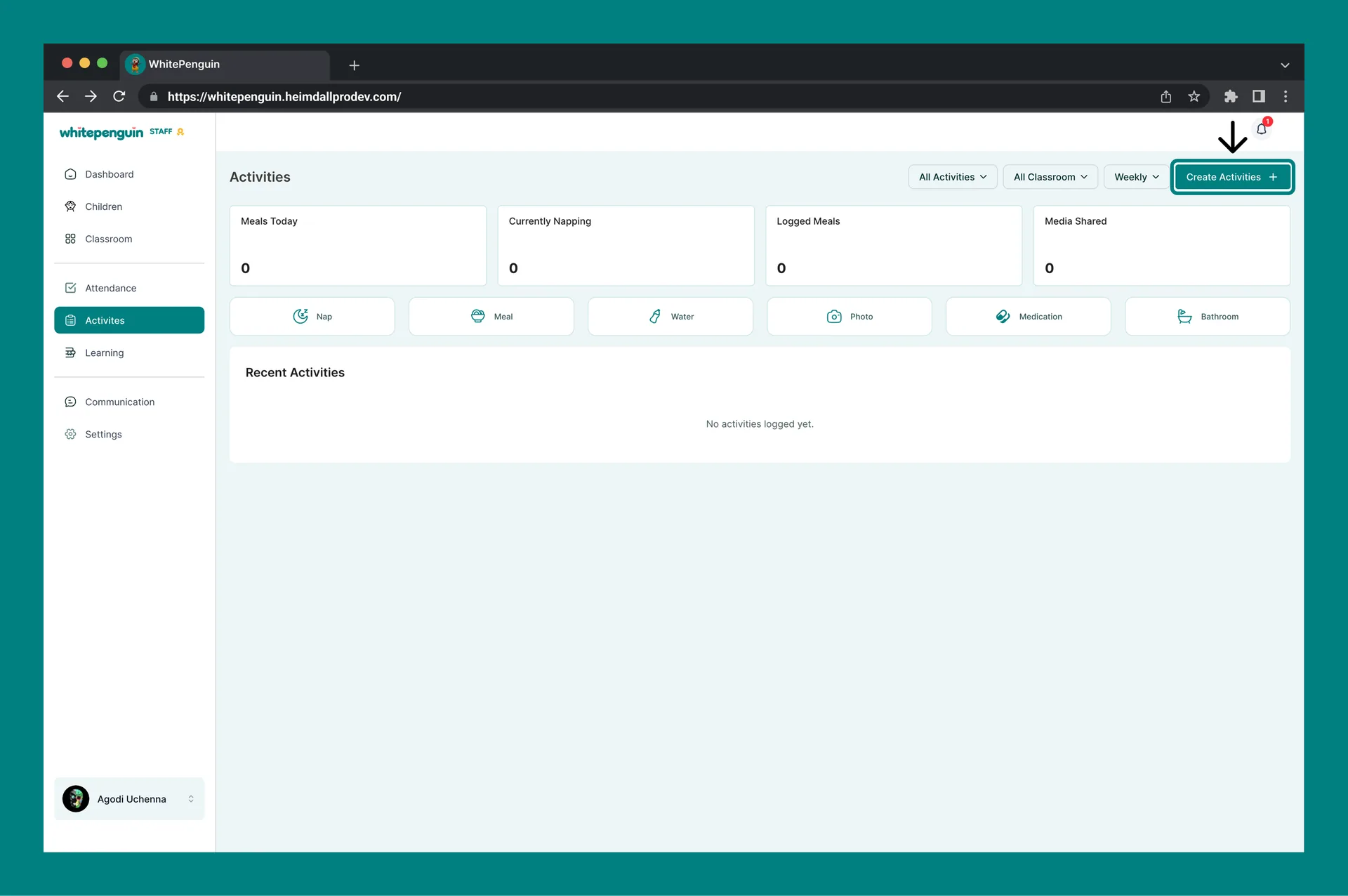
- Click Activities in the left sidebar.
- Click Create Activities, then choose Nap.
Roles & Access
Access is based on custom roles. Your school admin creates custom roles for all users and controls exactly which permissions each role has — View, Edit, Create, and Delete — for every section of the system, including Activities.
Whether you can log nap time depends entirely on the custom role assigned to you:
- Roles with Create permission for Activities can log nap entries.
- Roles with View permission can see the Activities feed and nap history.
- Classroom and child visibility follows the role's permissions and the user's classroom assignments.
Where to manage roles: Go to Settings → Roles & Permissions, then click + Create Role to build a new custom role, or select an existing role to toggle its permissions. Super Admin permissions are fixed and cannot be edited.
How to log nap time
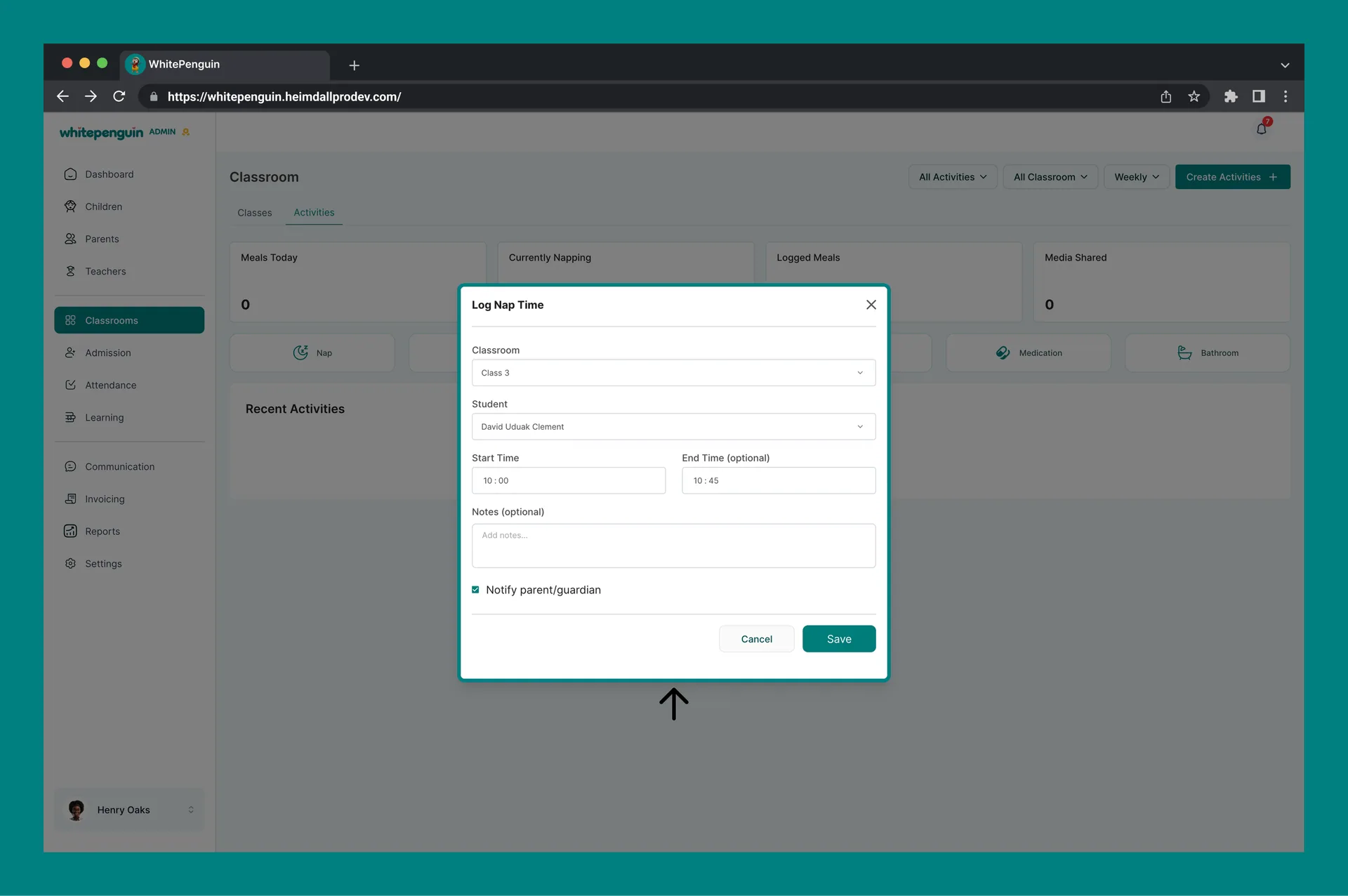
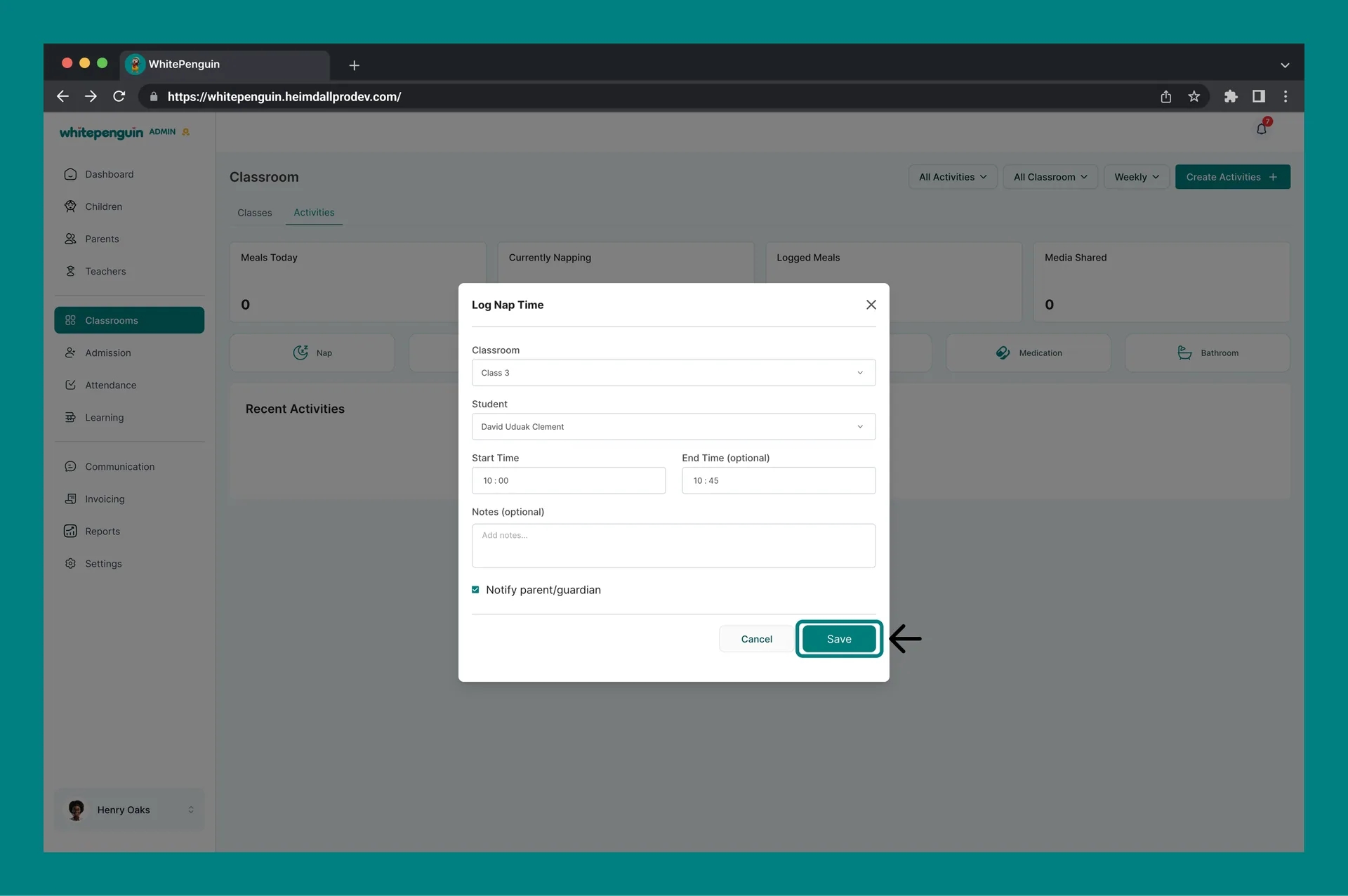
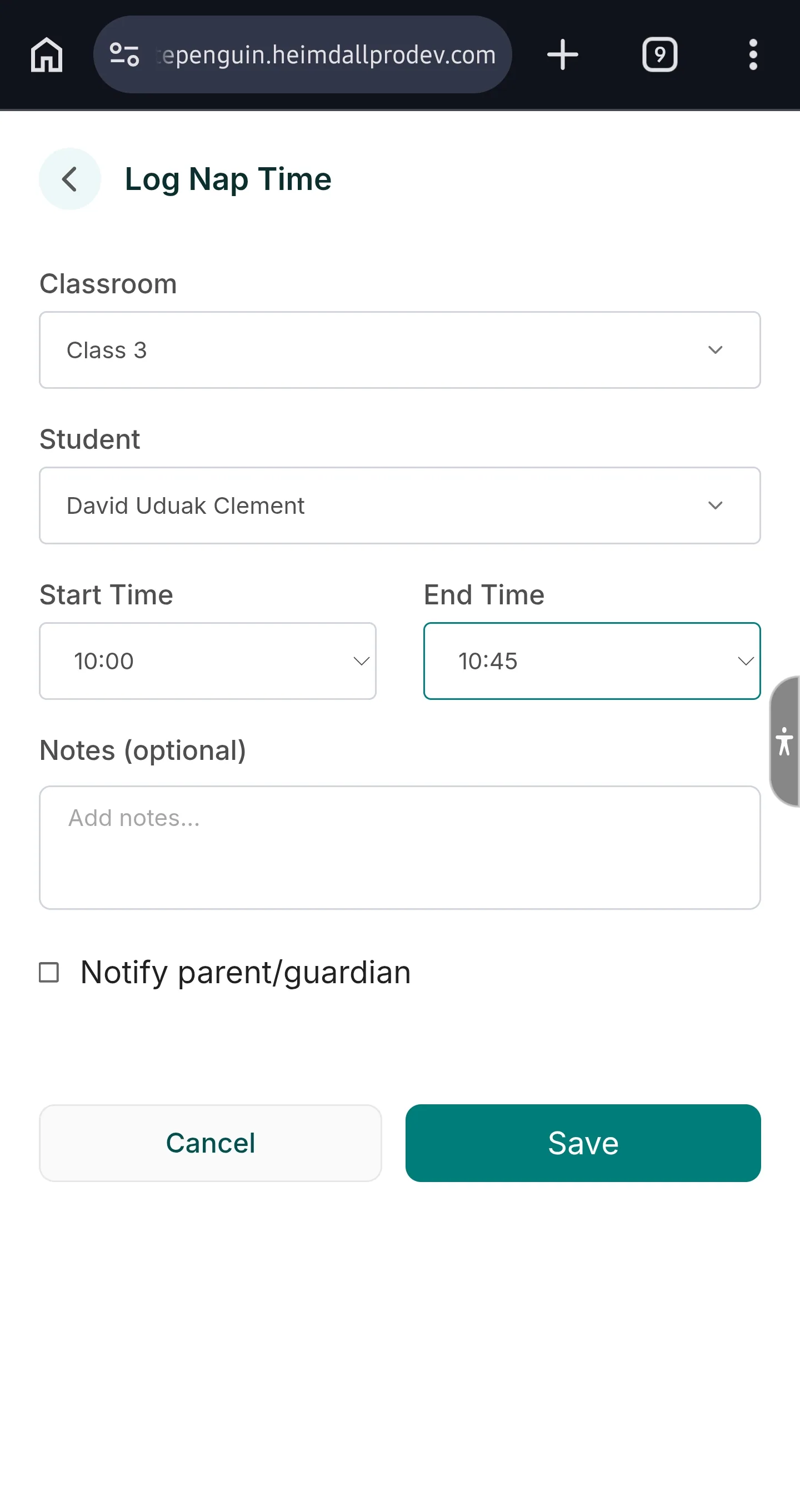
When the Log Nap Time window opens, complete the fields:
-
Classroom
- Select the classroom.
- Admins: can choose from all available classrooms.
- Other users see only the classrooms their custom role permits.
- Access may also be limited to specific assigned children.
-
Student
- Select the child.
- If you don’t see any students, select a classroom first.
-
Start Time
- Enter when the nap started.
-
End Time (optional)
- Add an end time if the nap already ended.
- Leave it blank if the child is still napping.
-
Notes (optional)
- Add any details you want to keep on record.
-
Notify parent/guardian (optional)
- Turn this on if you want to notify the parent/guardian.
-
Click Save.
Tips
- If you can’t find a classroom, ask an admin to confirm your classroom assignment.
- If you’re logging an in-progress nap, leave End Time empty and update it later.
FAQs
Classroom visibility depends on your custom role and classroom assignments. Roles with full Classroom access see every classroom; others only see the classrooms (and children) they're assigned to.
Your custom role may not include Create permission for Activities. Ask your school admin to update your role in Settings → Roles & Permissions.
Select the correct Classroom first. If the child still doesn’t appear, your role may not have access to that classroom/child or the child may not be assigned correctly.
No. End Time is optional. Leave it blank if the nap is still in progress.
Last updated on
Activities Dashboard
Learn how to use the Activities Dashboard in WhitePenguin — monitor real-time stats, log new activities, and understand what admins and staff can see based on their role.
Log Meals
Log meals in WhitePenguin to keep daily records up to date and (optionally) notify parents/guardians.